


Whether it’s a smart TV, laptop, or coffee machine, more and more devices are using our Wi-Fi. An unpleasant side effect of this digital diversity: stowaways on the domestic data highway are sometimes barely noticeable.
That is, until something goes wrong. If the internet suddenly becomes agonizingly slow or if you feel something isn’t quite right in your home network, it’s time to get to the bottom of it.
In this guide, we show you a simple trick to find out whether strangers have gained access to your Wi-Fi and how to block them out for good.
An open door to your home network? Why you should check your Wi-Fi regularly
A poorly secured Wi-Fi network is like an open door to your private digital life. Not only can unauthorized users piggyback on your bandwidth (and slow it down), but in the worst case, they may also access shared files or connected devices. As the account holder, you could even be held liable for legal issues, such as illegal downloads or uploads. That’s why you should always secure your Wi-Fi and router.
Here are some signs of unwanted users in your home network:
- The Internet is permanently slow, even though nobody (known) is currently streaming or downloading anything.
- You see new or unknown devices on the network.
- You’re noticing strange behavior from devices (smart light or smart speakers suddenly come on).
- The router shows unusually high utilization.
Note: For optimum performance, maximum security, and access to modern features (including protections against intruders), we recommend using the latest router models.
How to detect unknown devices on your Wi-Fi
Foundry
The easiest way to see all the devices currently in your Wi-Fi is via your router’s user interface.
This is how you can find this overview on common routers:
- Open a browser on a device connected to the Wi-Fi.
- Enter the router address. This is 192.168.0.1 / 192.168.1.1 for many router models.
- Log in with your router password (often found on the bottom of the device).
- Navigate to the menu item Home Network -> Connected Devices or Overview.
- Here you will see a list of all currently connected devices, including name, IP address, and MAC address. (The MAC address is a unique device identifier and is similar to a digital fingerprint).
Tip: Make a note of known devices. Unknown names or foreign manufacturers can be indications of uninvited devices.
Check for unknown devices and remove them from your home network
If you’ve found a device in the list that you don’t recognize, here’s what to do next:
- Identify the suspicious device: Check whether it really is an unknown device. Sometimes the names of legitimate devices can be cryptic but harmless (e.g., printers or smart sockets). If in doubt, briefly disconnect all your own devices from the Wi-Fi, then check again which devices are still connected.
- Block a device: Many routers allow you to block individual devices or permanently deny them access. Here’s how to do it:
- For other routers: Search for MAC Filter or Parental Control.
- Change Wi-Fi password: This step is now mandatory. If you suspect that someone has gained unauthorized access to your Wi-Fi, be sure to change the Wi-Fi password. Only share the new password with people and devices you trust.
- Choose a secure network key: Use WPA2 or WPA3 encryption and a strong password with at least 12-16 characters. The password should consist of upper and lower case letters, numbers, and special characters. You should always replace factory default passwords after purchasing a router.
Tip: A password manager helps you to create complex access data and store it securely.
Monitor your network and stay in control
fing
To improve your Wi-Fi security and stay up to date on what’s happening, you can use additional tools or apps:
Practical tools for Wi-Fi monitoring:
- WiFiman (Android | iOS): A clear network monitoring app that (among other things) recognizes devices and can measure signal quality.
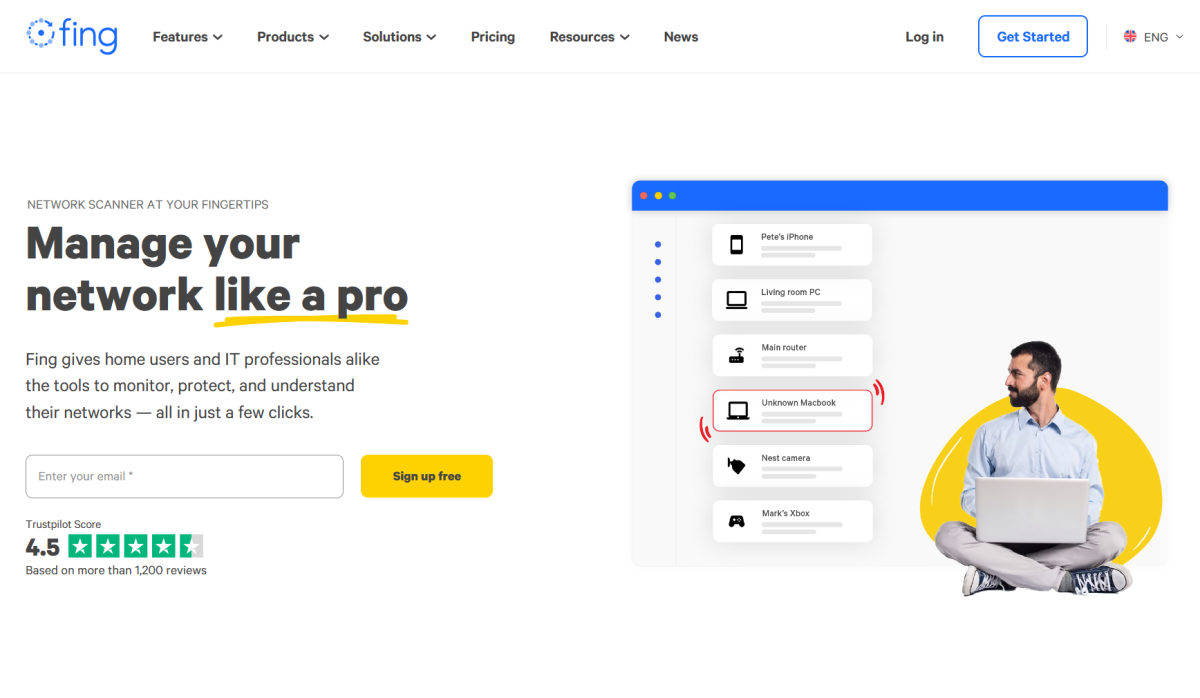
- Fing (Android | iOS): Shows all connected devices including manufacturer, name, IP, and MAC address.
- Wireshark (PC | Mac): For professionals to analyze network traffic.
- Router manufacturer app: Many routers offer their own apps with which you can view your Wi-Fi or control access.
Conclusion: Strangers using your Wi-Fi? It doesn’t have to happen
With a glance at your router menu, you can easily find out who’s on your network. And with just a few clicks, you can ensure only the devices that truly belong are allowed access. Our recommendation: Take Wi-Fi security seriously–it’s the first line of defense in your digital home.
This article originally appeared on our sister publication PC-WELT and was translated and localized from German.
