
Close Menu
TechUpdateAlert

    Subscribe to Updates

    Get the latest creative news from FooBar about art, design and business.

    What's Hot

    My Health Anxiety Means I Won’t Use Apple’s or Samsung’s Smartwatches. Here’s Why

    December 22, 2025

    You can now buy the OnePlus 15 in the US and score free earbuds if you hurry

    December 22, 2025

    Today’s NYT Connections: Sports Edition Hints, Answers for Dec. 22 #455

    December 22, 2025
    Facebook X (Twitter) Instagram
    Trending
    • My Health Anxiety Means I Won’t Use Apple’s or Samsung’s Smartwatches. Here’s Why
    • You can now buy the OnePlus 15 in the US and score free earbuds if you hurry
    • Today’s NYT Connections: Sports Edition Hints, Answers for Dec. 22 #455
    • Android might finally stop making you tap twice for Wi-Fi
    • Today’s NYT Mini Crossword Answers for Dec. 22
    • Waymo’s robotaxis didn’t know what to do when a city’s traffic lights failed
    • Today’s NYT Wordle Hints, Answer and Help for Dec. 22 #1647
    • You Asked: OLED Sunlight, VHS on 4K TVs, and HDMI Control Issues
    Facebook X (Twitter) Instagram Pinterest Vimeo
    TechUpdateAlertTechUpdateAlert
    • Home
    • Gaming
    • Laptops
    • Mobile
    • Software
    • Reviews
    • AI & Tech
    • Gadgets
    • How-To
    TechUpdateAlert
    Home»Software»iOS 26: If You Don’t Like Your iPhone’s Liquid Glass Look, Change These Settings
    Software

    iOS 26: If You Don’t Like Your iPhone’s Liquid Glass Look, Change These Settings

    techupdateadminBy techupdateadminOctober 3, 2025No Comments3 Mins Read
    Share Facebook Twitter Pinterest LinkedIn Tumblr Reddit Telegram Email
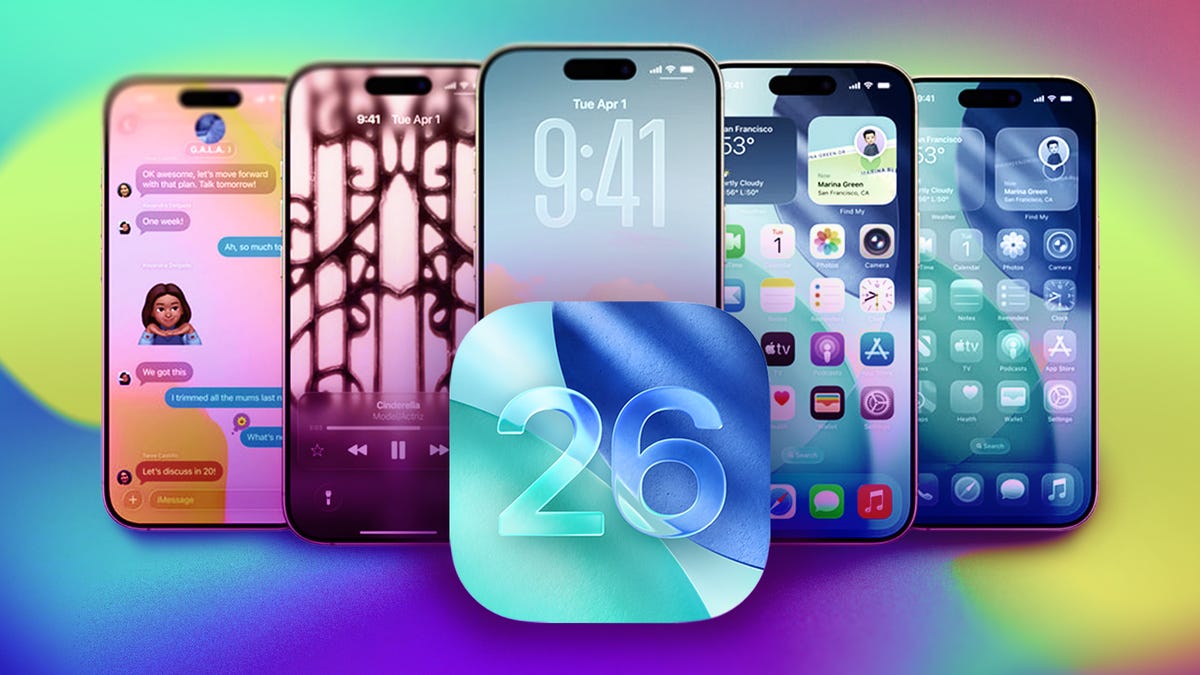
    Several iPhones in a row with the image 26 in front.
    Share
    Facebook Twitter LinkedIn Pinterest Email

    Apple released iOS 26 on Sept. 15 and the update introduced a handful of features to your iPhone, including call screening, new ringtones and more. But the biggest change iOS 26 brought to your device is a new visual design that Apple calls Liquid Glass.

    Tech Tips

    This is the biggest visual update Apple has brought to your iPhone since the company released iOS 7 in 2013. The redesign makes menus and other visual elements appear translucent, and some elements squish and wiggle when you interact with them. 

    Some people were torn about the design when Apple released the developer beta of iOS 26. Apple tweaked the design during the iOS 26 beta process to improve legibility by adding more of a frosted look but you still might not be happy with it. Thankfully, you can adjust the Liquid Glass design in just a few steps, significantly reducing its transparency.

    Here’s how to make the Liquid Glass design in iOS 26 more legible. 


    Don’t miss any of our unbiased tech content and lab-based reviews. Add CNET as a preferred Google source.


    How to adjust Liquid Glass

    1. Open Settings.
    2. Tap Accessibility.
    3. Tap Display & Text Size.
    4. Tap the toggle for Reduce Transparency. 

    This will darken any menus or elements affected by the Liquid Glass design, including in apps like Messages and your Control Center.

    Two iPhone control center menus. On the left, the Liquid Glass design isn't dimmed, but on the right Reduce Transparency is on, reducing the affects of Liquid Glass.

    On the left, we see the Liquid Glass design in its full affect, and on the right the Reduce Transparency setting has been enabled. 

    Apple/CNET

    In the Display & Text Size menu, you can also tap the toggle next to Increase Contrast to help set Liquid Glass elements apart. When I enabled this toggle, it gave a lot of those elements a white outline.

    An iPhone's Control Center. Widgets and controls have a white outline around them.

    Increase Contrast adds outlines to elements throughout your iPhone.

    Apple/Screenshot by CNET

    If you want to use the Clear app icon option, I would not recommend enabling Reduce Transparency or Increase Contrast. I really like the Clear icons because it ensures your background is the main focus but the icons are still visible enough to distinguish between each one. When these other options are enabled it’s like the icons are taking center stage. 

    Different Liquid Glass design options enabled alongside the Clear app icons.

    Liquid Glass with no alterations (left), Liquid Glass with Reduce Transparency enabled (center-left), Liquid Glass with Increase Contrast enabled (center-right) and Liquid Glass with Reduce Transparency and Increase Contrast enabled (right).

    Apple/CNET

    If you want to bring the Liquid Glass design elements back to your device, follow the above steps again to disable Reduce Transparency.

    For more iOS news, here’s my review of iOS 26, how to enable call and text screening in the OS and all the new ringtones on your iPhone. You can also check out our iOS 26 cheat sheet.

    Watch this: Changing My iPhone Settings Helped Me Stop Doomscrolling

    09:16

    Change Dont Glass iOS iPhones Liquid Settings
    Share. Facebook Twitter Pinterest LinkedIn Tumblr Email
    Previous ArticleHP wants to solve some of your biggest printing woes – and make scanning less painful too
    Next Article Why Are Car Software Updates Still So Bad?
    techupdateadmin
    • Website

    Related Posts

    Mobile

    What You Need to Play Red Dead Redemption on iOS and Android

    December 19, 2025
    Gadgets

    Don’t Miss This Kindle Sale: Paperwhite, Colorsoft, and Accessories

    December 18, 2025
    Mobile

    Apple opens iOS to third-party app stores in Japan

    December 18, 2025
    Add A Comment
    Leave A Reply Cancel Reply

    Top Posts

    NYT Strands hints and answers for Monday, August 11 (game #526)

    August 11, 202547 Views

    These 2 Cities Are Pushing Back on Data Centers. Here’s What They’re Worried About

    September 13, 202542 Views

    Today’s NYT Connections: Sports Edition Hints, Answers for Sept. 4 #346

    September 4, 202540 Views
    Stay In Touch
    • Facebook
    • YouTube
    • TikTok
    • WhatsApp
    • Twitter
    • Instagram
    Latest Reviews

    Subscribe to Updates

    Get the latest tech news from FooBar about tech, design and biz.

    Most Popular

    Best Fitbit fitness trackers and watches in 2025

    July 9, 20250 Views

    There are still 200+ Prime Day 2025 deals you can get

    July 9, 20250 Views

    The best earbuds we’ve tested for 2025

    July 9, 20250 Views
    Our Picks

    My Health Anxiety Means I Won’t Use Apple’s or Samsung’s Smartwatches. Here’s Why

    December 22, 2025

    You can now buy the OnePlus 15 in the US and score free earbuds if you hurry

    December 22, 2025

    Today’s NYT Connections: Sports Edition Hints, Answers for Dec. 22 #455

    December 22, 2025

    Subscribe to Updates

    Get the latest creative news from FooBar about art, design and business.

    Facebook X (Twitter) Instagram Pinterest
    • About Us
    • Contact us
    • Privacy Policy
    • Disclaimer
    • Terms and Conditions
    © 2026 techupdatealert. Designed by Pro.

    Type above and press Enter to search. Press Esc to cancel.