


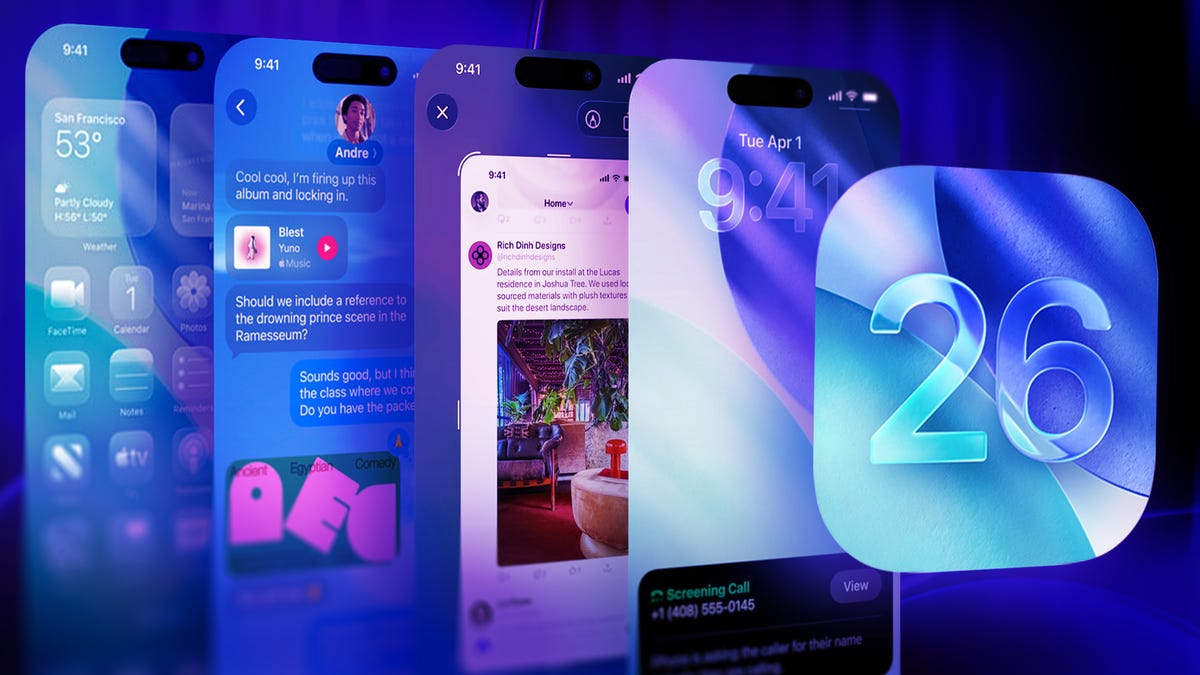
Apple released iOS 26 on Sept. 15, and update brought a new Liquid Glass redesign, call screening and lots of hidden features to your iPhone. The update also lets you add backgrounds to your chats in Messages, giving you a visual identifier for each thread so you can easily tell if you’re messaging the right person or group.
With this new feature, you can make your own picture a background, use one of Apple’s premade backgrounds and, if you have an Apple Intelligence-enabled iPhone, you can generate your own unique background.
Here’s how to change a chat background in Messages with iOS 26 and what tot know about the feature.
Don’t miss any of our unbiased tech content and lab-based reviews. Add CNET as a preferred Google source on Chrome.
How to add and change a chat background in Messages
1. Open Messages.
2. Tap into a chat with a saved contact.
3. Tap either the person’s or group’s name near the top of the chat.
4. Tap Backgrounds.
You could see seven Background options depending on what iPhone you have.
You’ll see up to seven options near the top of the Backgrounds menu: None (default), Photo, Color, Sky, Water, Aurora and Playground on Apple Intelligence-enabled iPhones.
Color, Sky, Water and Aurora are all abstract, live backgrounds. Tapping any of these also gives you multiple filters you can choose from. For instance, tapping Sky gives you the options of Dusk, Haze, Sunset and three other filters.
The Dusk filter is my favorite Sky background.
If you tap Photo, you can choose any of the photos in your Library to be your background. After selecting a photo, you can crop the image to better fit the screen or apply a filter to the image. When you’re happy with the background, tap the checkmark in the top right corner of your screen and the photo will become your background for that chat.
Pets can make nice backgrounds.
The Playground option opens Image Playground, Apple’s AI image generation tool, and is therefore available only on Apple Intelligence iPhones. You can describe an image by typing a description into the textbox at the bottom of the screen, or you can pick different suggestions and themes Image Playground offers. Once Playground generates a background you like, tap the checkmark in the top right corner of your screen. You will then be taken to a new page where you can apply a filter to the background if you want. Then, tap the checkmark in the top right corner of your screen again and that image will be your chat background.
Beneath all these options, there’s also a Suggestions section. These suggestions are mostly filled with photos and an option for Image Playground on specific iPhones. Tapping any of the photo suggestions takes you to the same menu where you can resize or add a filter to the photo before accepting it. Tapping the Image Playground option just opens that menu — it’s kind of odd that this is a suggestion as well as an option, and they don’t seem to do anything different.
That seems like a nice, cozy library.
If you don’t like any of these options, or you get tired of them, you can always remove the background by choosing the default option, None.
Be aware that if you add, change or remove a chat background, the other people in the chat will see that alteration. So it might not be a good idea to make the family chat background a picture of you doing a kegstand.
And don’t forget, you can add or alter chat backgrounds only with people you have saved in your contacts. Otherwise, you won’t see the Backgrounds option mentioned above.
Do I have to choose a background for every chat?
Everyone will see a chat background when you choose one.
No, and if you choose a background for one chat, it won’t carry over to any other chats. So the chat with your parents might have a picture of your graduation as the background, and the chat with your siblings might have a picture of you giving them a noogie as the background.
This can also be a nice visual cue for you to help you keep track of who you’re talking with. For example, you and your spouse might have a chat background of hearts. If you aren’t paying attention and tap into a chat and don’t see your hearts background, you know you shouldn’t text this person and ask them to pick up toilet paper from the store on their way home.
Similarly, if you have backgrounds for most of your group chats and you get a message from a chat without a background, you know you should double-check who is in the chat so you don’t boldly announce to strangers that you survived a bathroom trip without toilet paper.
For more on iOS 26, here’s my review of the OS, how to reduce the Liquid Glass effects and how to block spam calls in the update. You can also check out our iOS 26 cheat sheet.
Watch this: Apple Watch SE 3 Review: The Best Deal in Apple’s Lineup
