


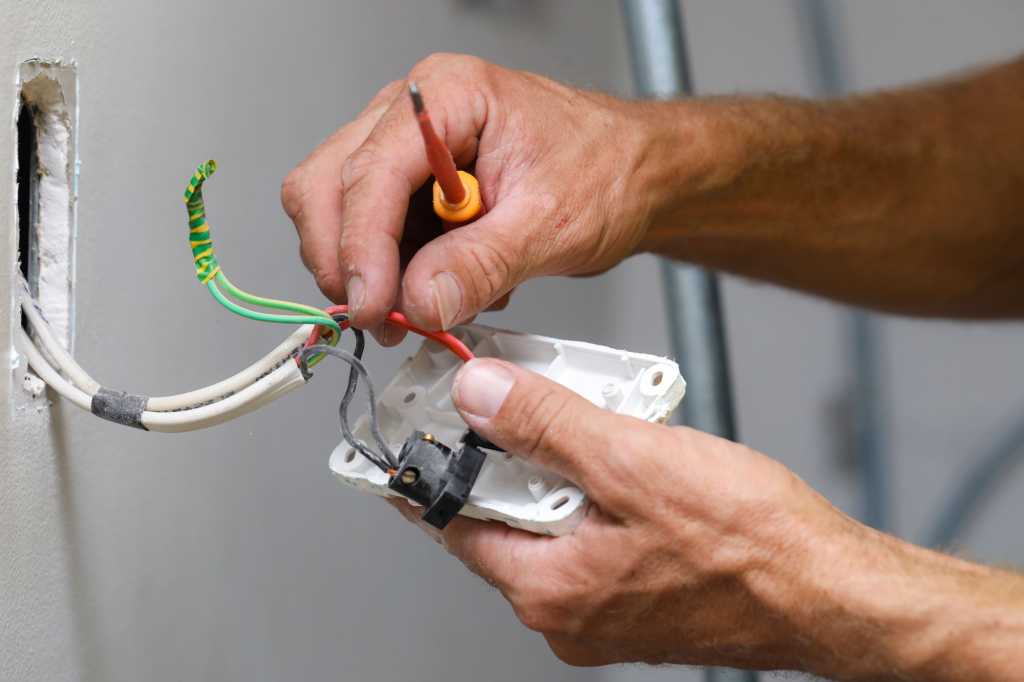
There are as many varieties of smart light switches (and dimmers) as there are light bulbs, and while the prospect of upgrading your old dumb switch might seem daunting, they’re usually pretty simple to install.
The job requires no special tools, apart from a screwdriver (an electric one is helpful) and perhaps a pair of pliers. If you want to be extra safe, pick up a non-contact voltage tester to ensure the wires you’ll be dealing with aren’t electrified. You can find a name-brand voltage tester on Amazon for less than $20. Also, if your switch is located in a dark space, a head-mounted flashlight can also be invaluable.
Got your gear ready? Here’s how to get the job done safely and successfully.
Before you start
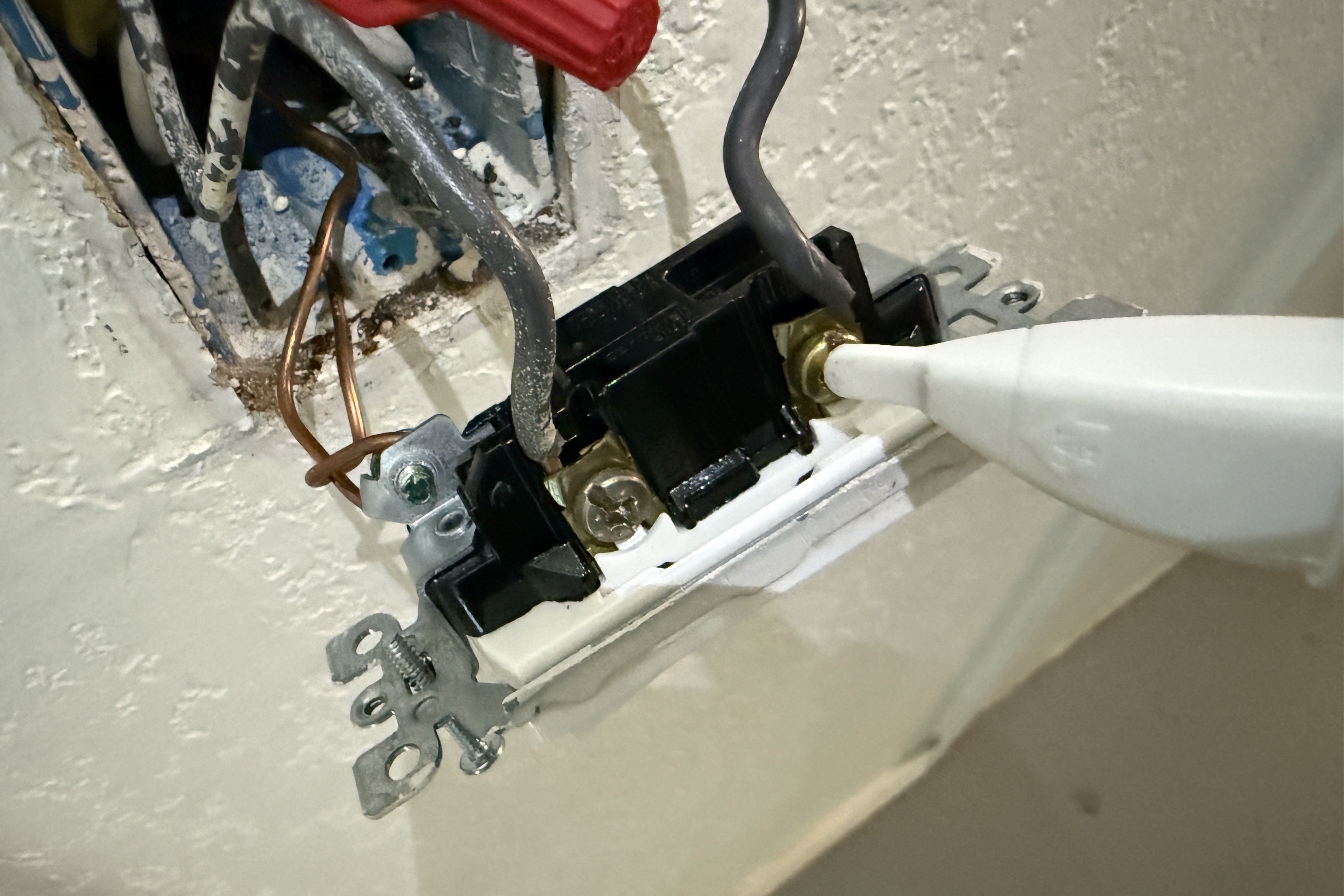
An inexpensive non-contact voltage sensor will let you know if the wires you’ll be dealing with are electrified.
Christopher Null/Foundry
Before you start this project—and before you even buy a smart switch—you need to determine what type of switch you’ll be replacing. If the switch is the only one controlling the light (or outlet) it’s connected to, you have a simple 1-way or single-pole circuit. If the light can be controlled by other switches—at opposite ends of a room, for example—you have a 3-way or even a 4-way circuit.
Many smart switches do not work with multi-way implementations, so check carefully before you buy. And if they do, depending on the brand of smart switch you buy, you might need to install a compatible companion switch in those secondary locations.
Examine your existing switch and wiring
Your first step is to turn off the power to the switch at the circuit breaker. Even if the switch appears to be off, it’s smart to use a voltage sensor to double check. (A good voltage sensor will not even need to touch the wiring to light up when the line is live, so this is an easy—and important—step to take.)
With the power to the switch disabled, remove the cover plate and unscrew the two bolts attaching the switch to the receptacle. Make sure you don’t lose the bolts; I like to keep my old switches with their cover plates and other hardware in a plastic bag, labeled with information about where the switch used to be. It’s a good idea to check once again that no power is flowing by touching the voltage sensor to the wires leading to the switch.
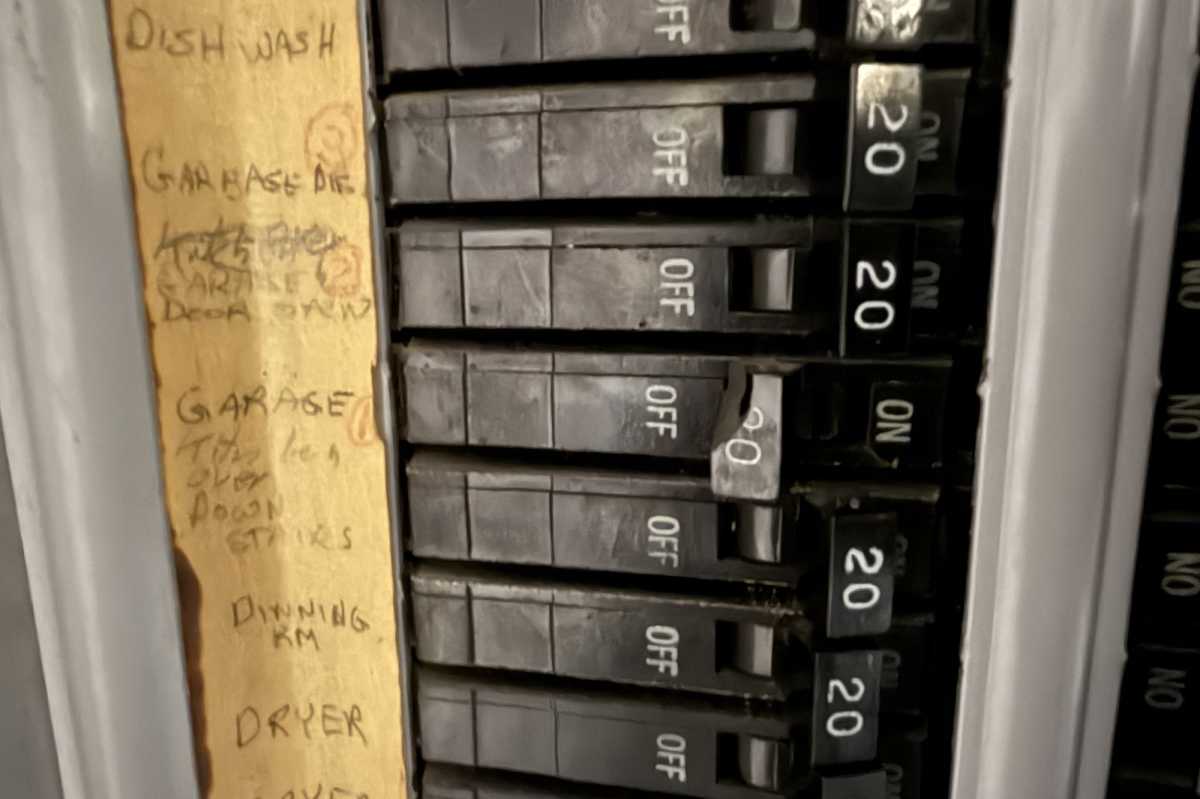
The first step in your installation process is to turn off the circuit breaker connected to the switch you’ll be replacing.
Christopher Null/Foundry
Now, pull the switch out of the box inside the wall. Household wiring is stiff and hard to work with, so don’t be shy. Once you have the switch out from the wall a bit, you should be able to take stock of the wiring inside. At a minimum you’ll most likely see two black wires connected to the switch and a ground wire, which will be probably bare copper, connected to a green screw. It’s common for wires to be splattered with paint and drywall mud, so much that they might actually look white or patterned; this is all par for the course.
In the back of the receptacle, look for a twisted pair (or more) of white wires that appear to be unused and are capped off with a wire nut. These are neutral wires that serve as a return path to complete the circuit back to the power source (your circuit-breaker box). Conventional switches don’t need neutral wires, but most smart switches do.
If you don’t see neutral wiring in the box, you’ll need a smart switch that can be installed without it. This will be clearly marked as “no neutral required” on the product listing, so shop carefully. Our guide to the best smart dimmers and switches will help you on that front, and all our reviews will also discuss any neutral wire and companion switch requirements.
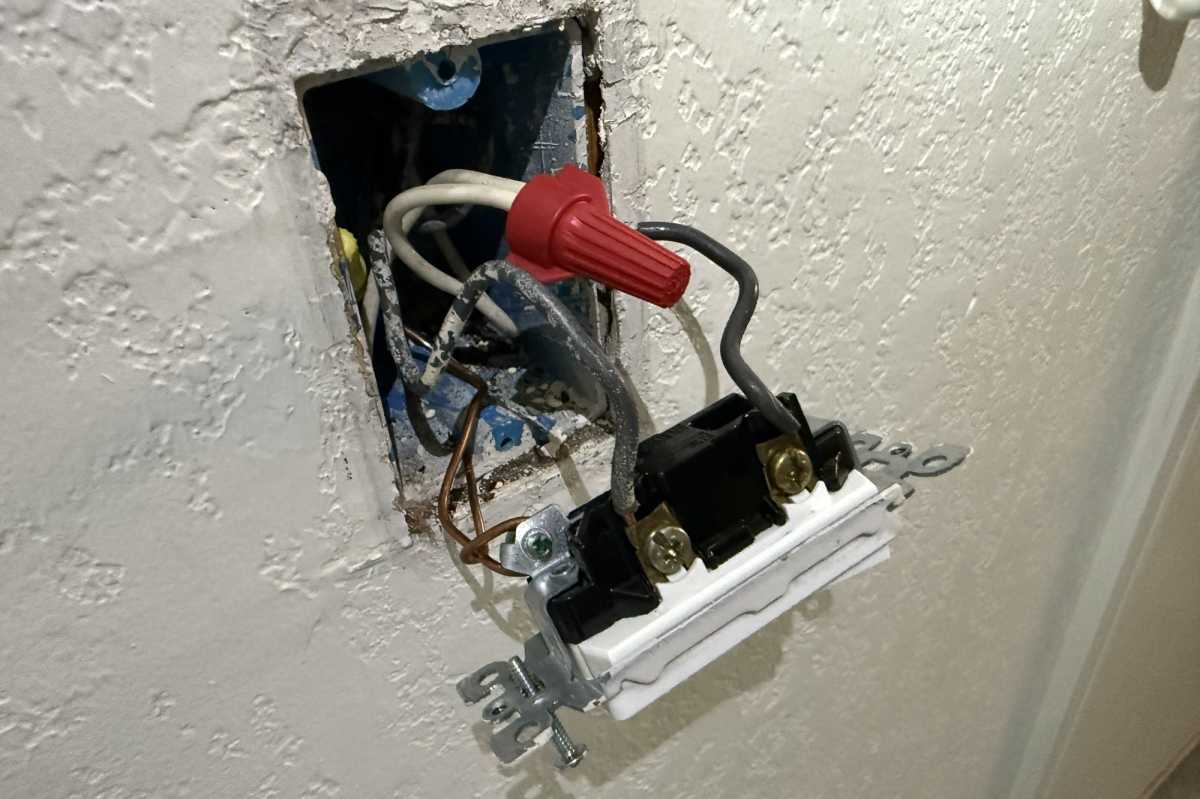
Don’t be surprised if the wires inside the electrical box are painted over or spattered with drywall mud.
Christopher Null/Foundry
Your next step is to determine which of those two black wires is the line (the “hot” wire that connects to the panel and your power source) and which is the load (connecting to the light bulb or outlet). While you can guess at this—line wires might go down toward the floor, while load wires might go up into the ceiling, where the light is—there’s no reliable way to tell just by looking at the wiring in the box to know what’s what.
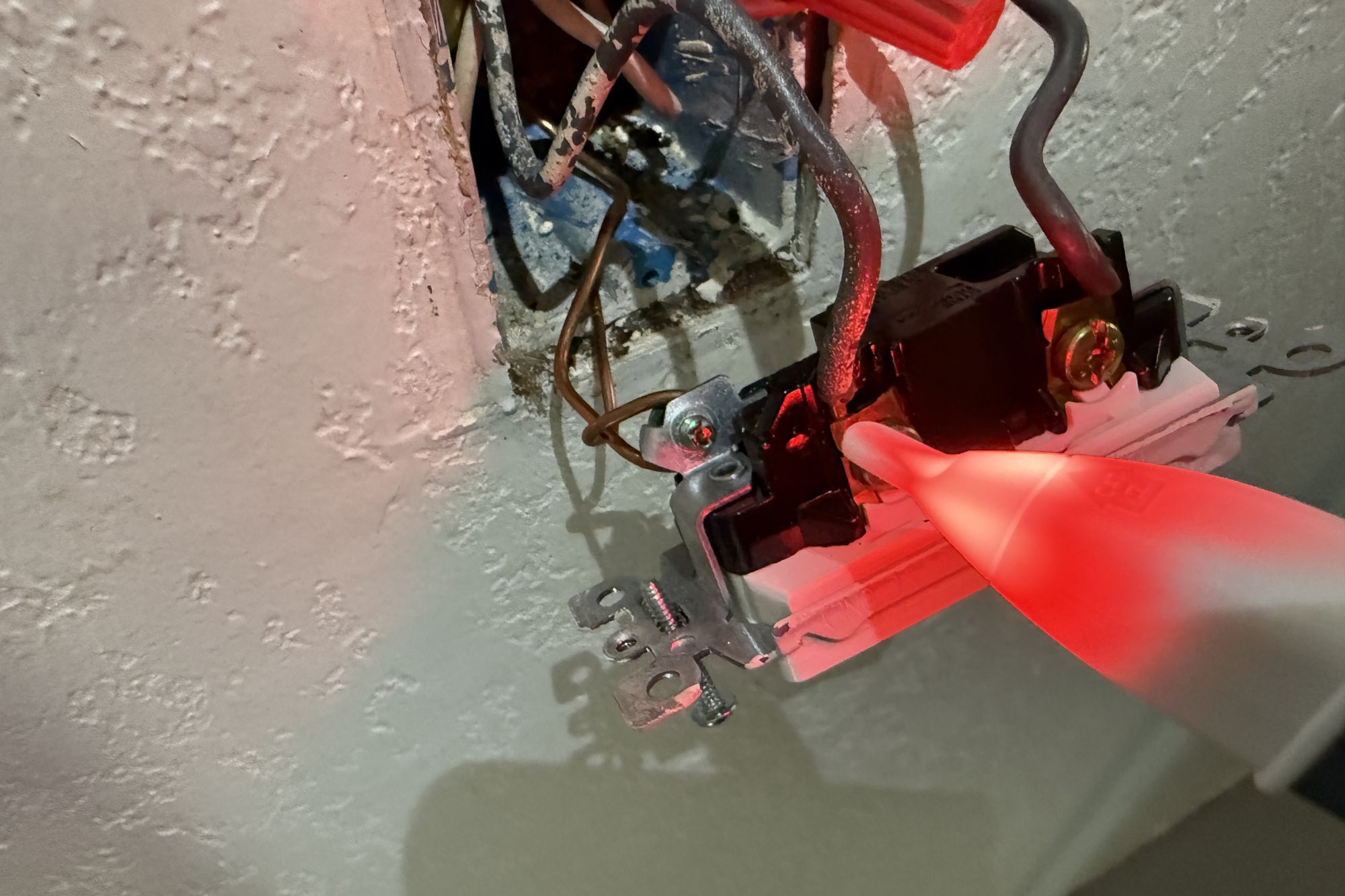
The foolproof way is to turn the circuit breaker back on, set the switch to its off position, and then touch your voltage sensor to each of the black wires. When the voltage sensor lights up, that’s the line wire. If it remains dark, that’s the load. You might want to mark the wires for future reference; in the photos, I put some red electrical tape around the load wire to match the red color of the load wire on the smart switch I’m working with.
Are there more than two black wires in the box? Or a red wire? In this case, you are likely to have a multi-way switch. Red wires are commonly used for the “traveler” wires that run from switch to switch, but this is far from universal because the National Electrical Code (NEC) only mandates the colors of neutral wires (white or gray) and grounding wires (green or green with a yellow stripe, although grounding wires can also be bare copper).
In fact, most switches I’ve worked with use black wires for traveler wires, too. This may well complicate your installation—and can ultimately require a little trial and error in complex multi-way installations to get everything working properly.
Now that all your wiring is identified, turn the power back off at the breaker. Double check that it’s off and get ready for the next step.
Remove the existing switch
Pro tip: Take a photo of the setup before you start disassembling things, just in case your smart switch doesn’t work and you need put everything back to the way it was before you started your project.
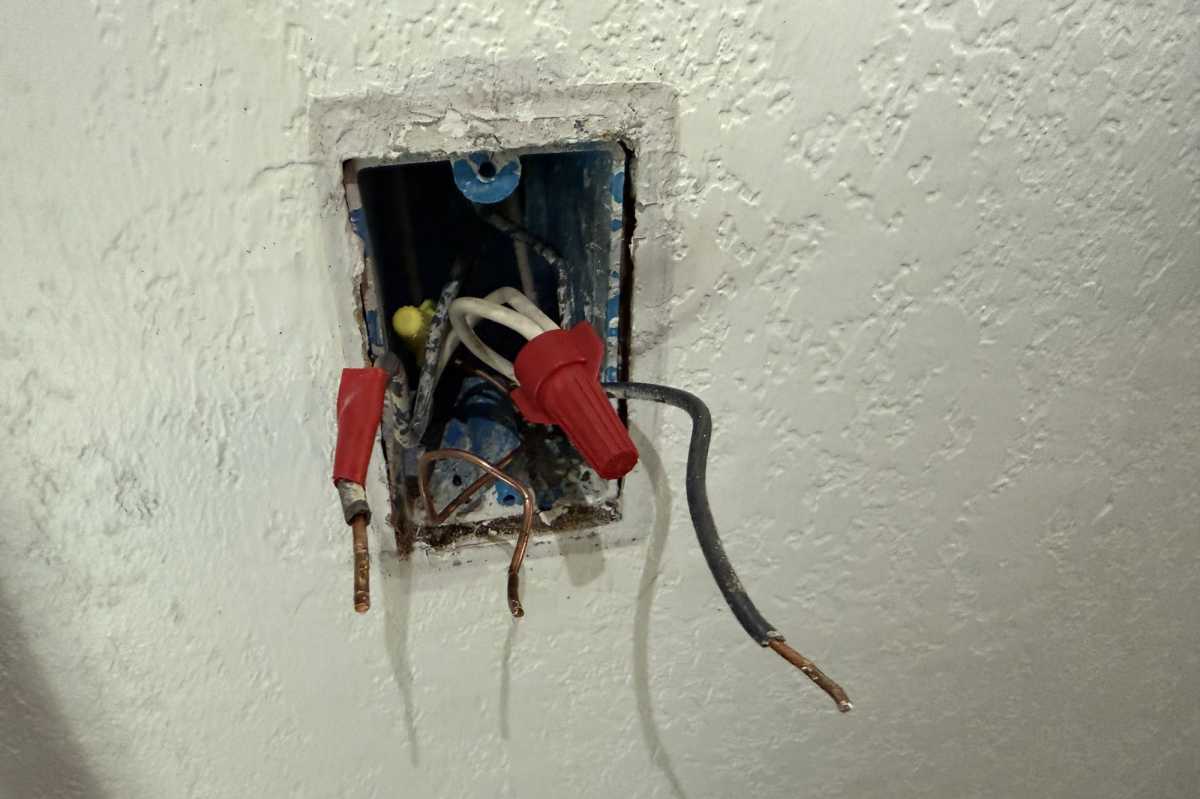
If you discover that both the line and load wires are black, it’s a good idea to label one or the other so you don’t need to guess. I stuck a piece of red tape on the load wire here to match the load wire on the smart dimmer I was installing.
Christopher Null/Foundry
But this should be the easy part. Just loosen any screws connecting the wires to the switch, and then remove the switch entirely from the boxx. Again, keep track of which are the line and load wires. Neutral and ground should be self-explanatory.
Install the new switch
A standard single-pole smart switch will require you to make four connections: line, load, neutral, and ground. Different smart switches, however, use different connection systems. Some use screwpost terminals similar to what you’ll see on a dumb switch, some use push-in connectors where the wire slides into a small hole (also known as backstabs), and some use pigtails that attach to your household wiring with wire nuts. Still others use various combinations of these three methods on the same device, with both screws and pigtails, for example.
Most smart switch hardware is well labeled as to which wire or screwpost goes to which wire in your receptacle, but you can also refer to the wiring diagram that typically comes with the switch to double-check that you have it all right.
Chances are you’ll need to make at least a few pigtail connections, and wire nuts will be included in the package if this is the case.
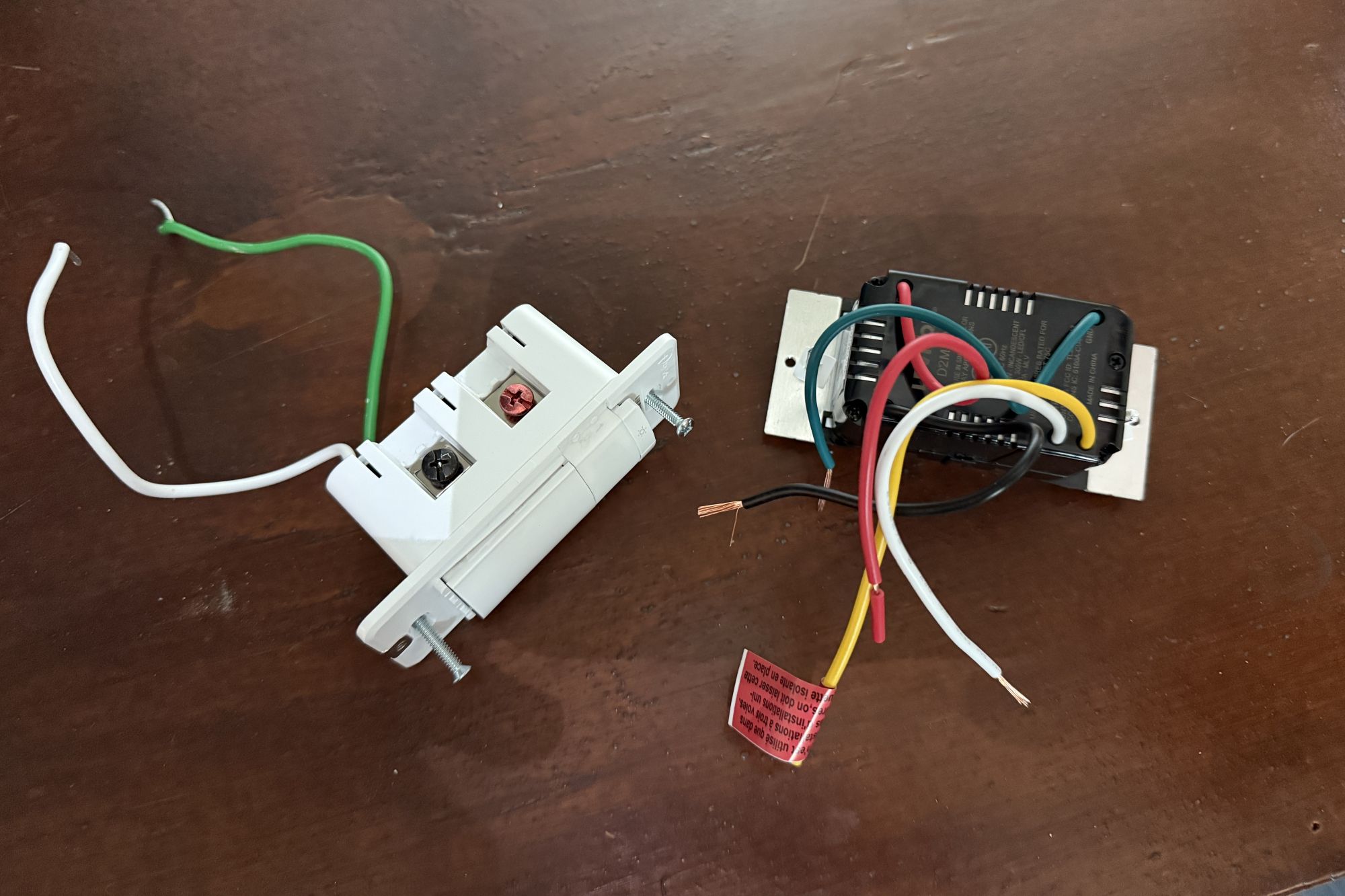
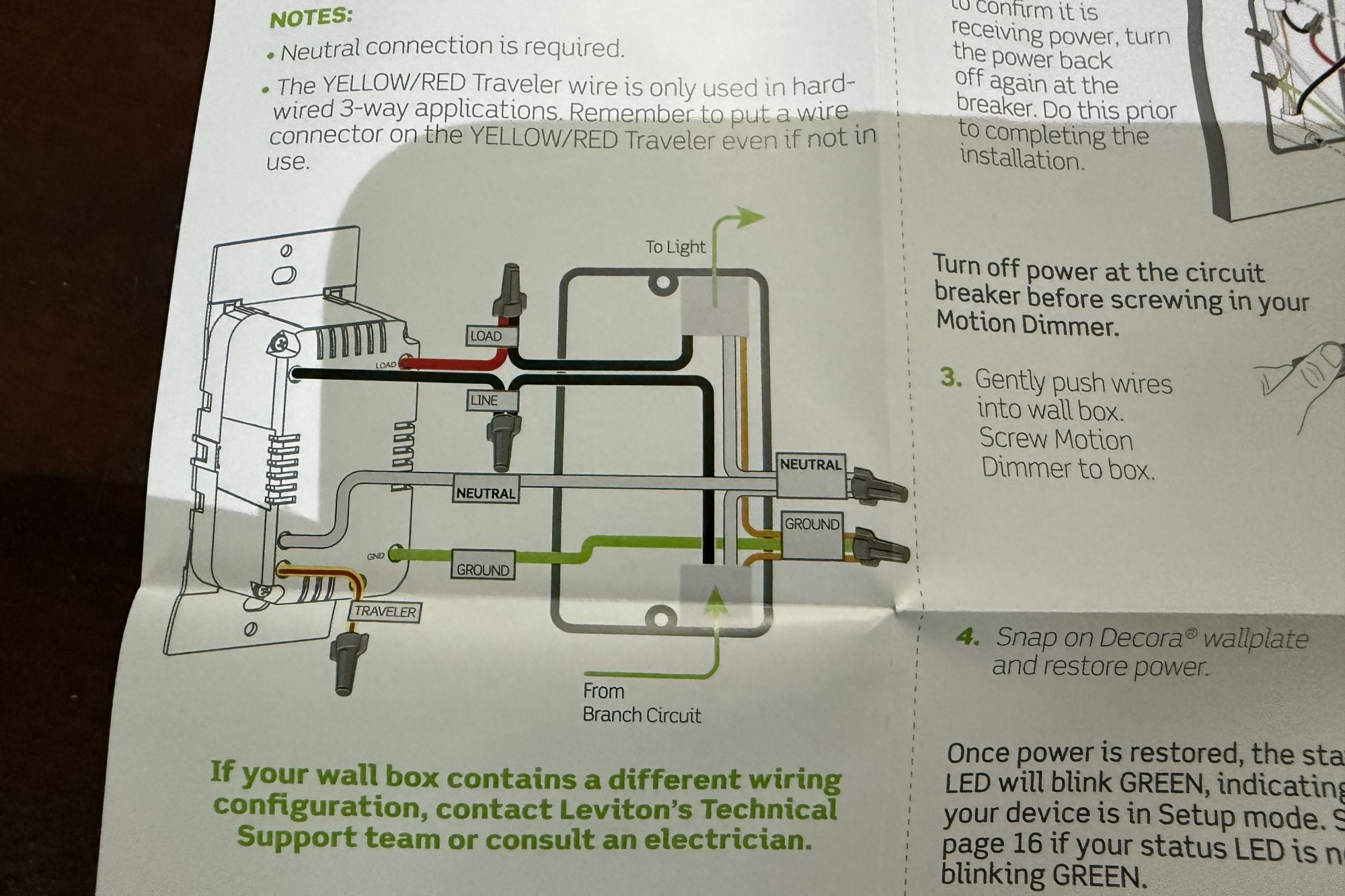
Pro tip: Included wire nuts don’t always fit, especially when dealing with a fat bundle of neutral wires, so I keep a container of wire nuts of various sizes on hand so I can experiment to find the right size wire nut for each connection, ensuring it is snug.
Connecting wire nuts is easy but requires a little patience. First, make sure the bare ends of the wires inside the box are all straight; use needle-nose pliers to straighten them out if needed. If the smart switch you’re installing has stranded wires, twist the strands together tightly so none are sticking out.
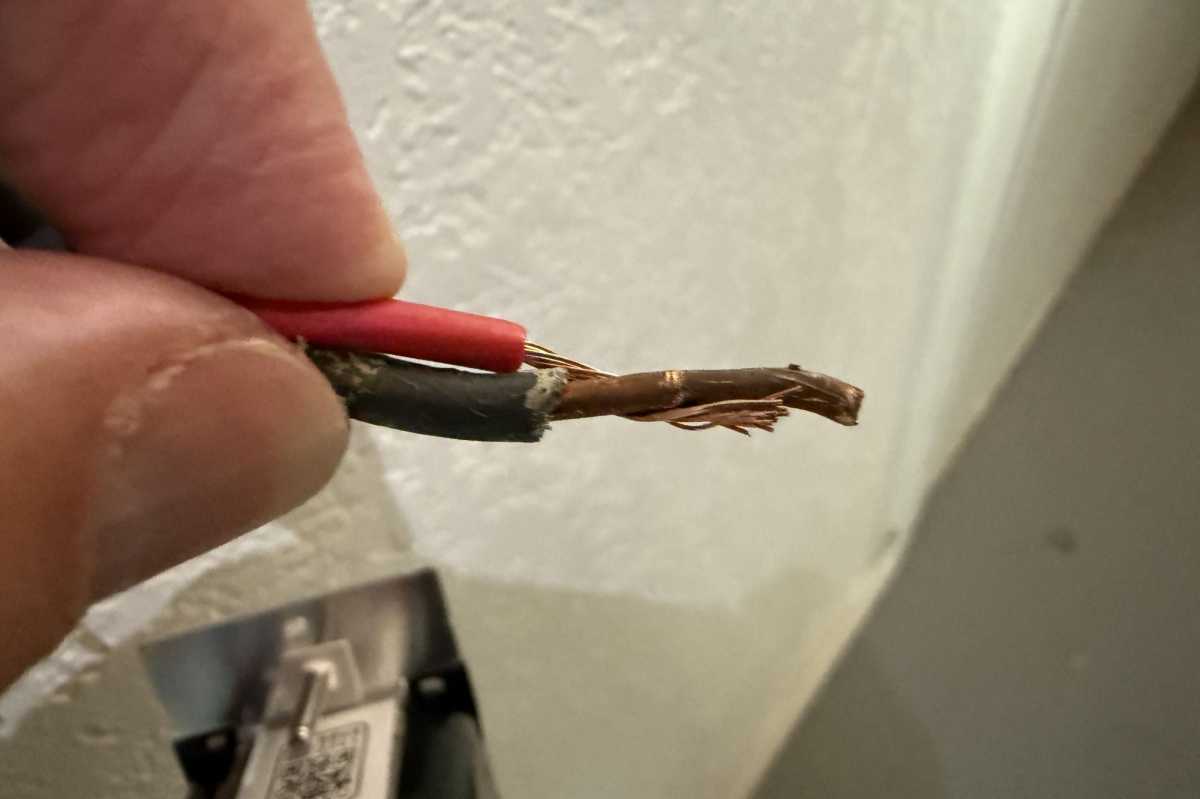
The wire coming from the box will probably be solid copper, but the switch you’re installing might use stranded wire. Twist the strands together and then twist them around th solid wire before securing them with a wire nut.
Christopher Null/Foundry
Next, bundle up all the wires you’re connecting to a single nut, slip the wire nut over the ends of the wires, then tighten the wire nut by turning clockwise until you can’t turn it any further.
You should not see any exposed wire (except for the ground wire) sticking out from the back of the wire nut. Test the connection by pulling firmly on each of the wires to ensure they don’t come loose. A single loose nut will cause the whole switch to fail, and it’s the most common reason why your smart switch won’t work when you finish the installation.
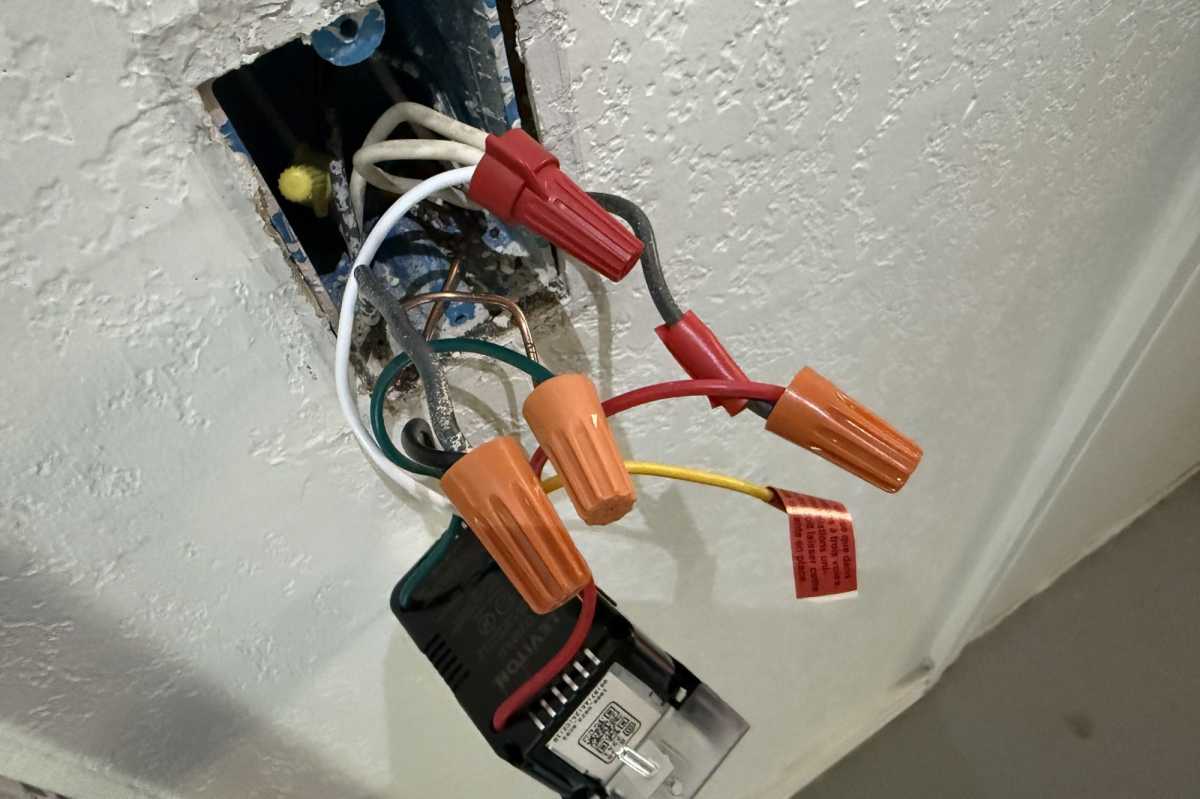
Make sure all your wiring connections are tightly secured with wire nuts. You might need to use a larger wire nut than what came with your switch if there are more than a couple of neutral wires inside the box.
Christopher Null/Foundry
Pay special attention to neutral wiring, as this is often the most difficult connection to make successfully, since you will usually have three or four wires going into a single wire nut. That said, the process is the same: Bundle up all the wires, twist on the nut (try a larger one if necessary), and yank on them to ensure they’re all secure.
Push everything into place
The hardest part of installing a smart switch comes next: Getting the switch into the box. Smart switches are notoriously large in comparison to dumb ones, because they have so many electronic components inside that dumb switches don’t. When combined with all the extra wire nuts, they can be very difficult to wedge back into the box and get them flush with the wall.
The best tactic I’ve found is to bend the wires in half, which turns the wire nuts around so that they’re facing the wall, then push each of them into the receptacle, as far back as they will go. Start with the neutral wire, then the ground, then the line and load wires. Don’t be afraid to bend the wires in multiple places and push hard to get them snug against the back of the receptacle—a screwdriver handle can help with this. You can also use needle-nose pliers to help bend the wires further if the space is hard to work in.
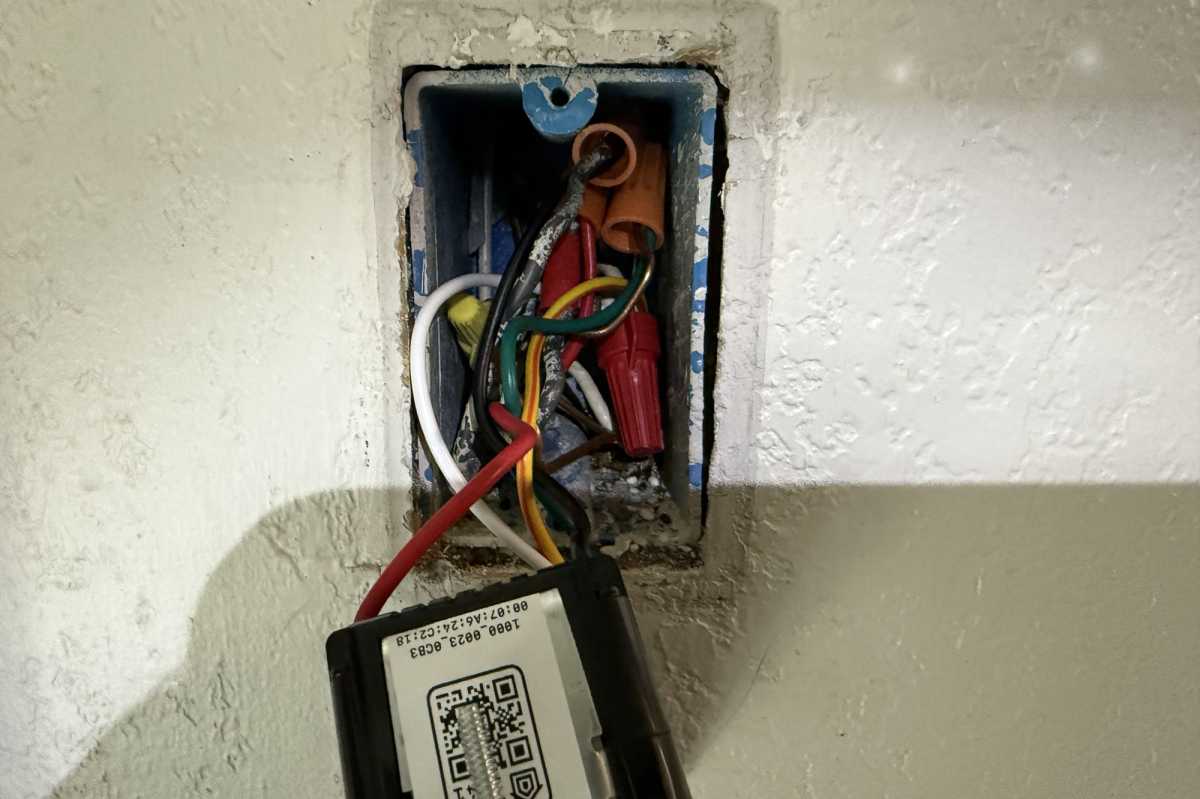
Stuffing all the wires back into the box can be a challenge when installing a smart switch, because it will invariably be larger than the one you’re replacing.
Christopher Null/Foundry
With the wires in place, attach the switch to the receptacle using the two bolts, which should be pre-attached. Don’t be alarmed if space is tight; the backside of the switch will push the wires in the last few millimeters as it retreats into the receptacle. Make sure the switch is vertically plumb (i.e., straight up and down), and that all sides of the switch are flush with the wall.
Many switches tend to list to one side when they are attached to the receptacle due to the wiring behind them, which can leave you with an unattractive finished product. If this happens to you, back the two bolts out and rearrange the wiring behind the switch. This can be a bit tedious but it’s worth it to make the finished installation more attractive.
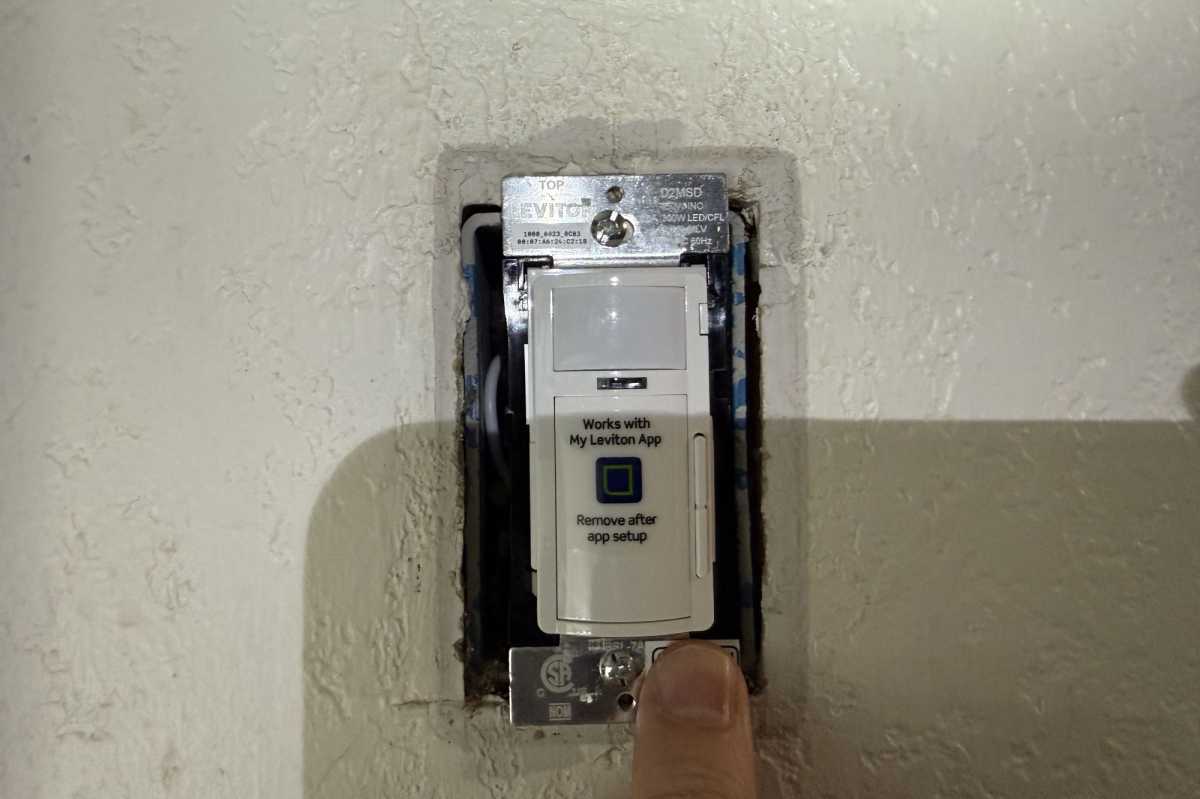
Make sure the newly installed switch is plumb and flush with the wall before you install its cover plate.
Christopher Null/Foundry
At this point, I like to turn the power back on and make sure the switch is working. If it is, the attached light will illuminate normally, even before you configure the switch with its mobile app. If it doesn’t work, one of your wire nuts has probably come loose—or you connected the wires wrong. Turn the power back off and start over.
Finish up
Many smart switches come with a cover plate, but if yours didn’t you might need to purchase one if your old plate no longer fits (such as if you are replacing a toggle switch, as most smart switches use a paddle design). Don’t use a metal cover plate with a smart switch; it can block the radio signals it uses to communicate with your router (Wi-Fi models) or smart home hub (Thread, Zigbee, Z-Wave, or proprietary models).
The last step is to enroll the switch with the manufacturer’s app or with your favorite smart home ecosystem if, say, you have a Matter-compatible switch. Note that many switches have a QR code printed on the switch hardware for use during this process, so you might need to complete this step before you put the cover plate on. Check the installation guide to be sure.
Troubleshooting
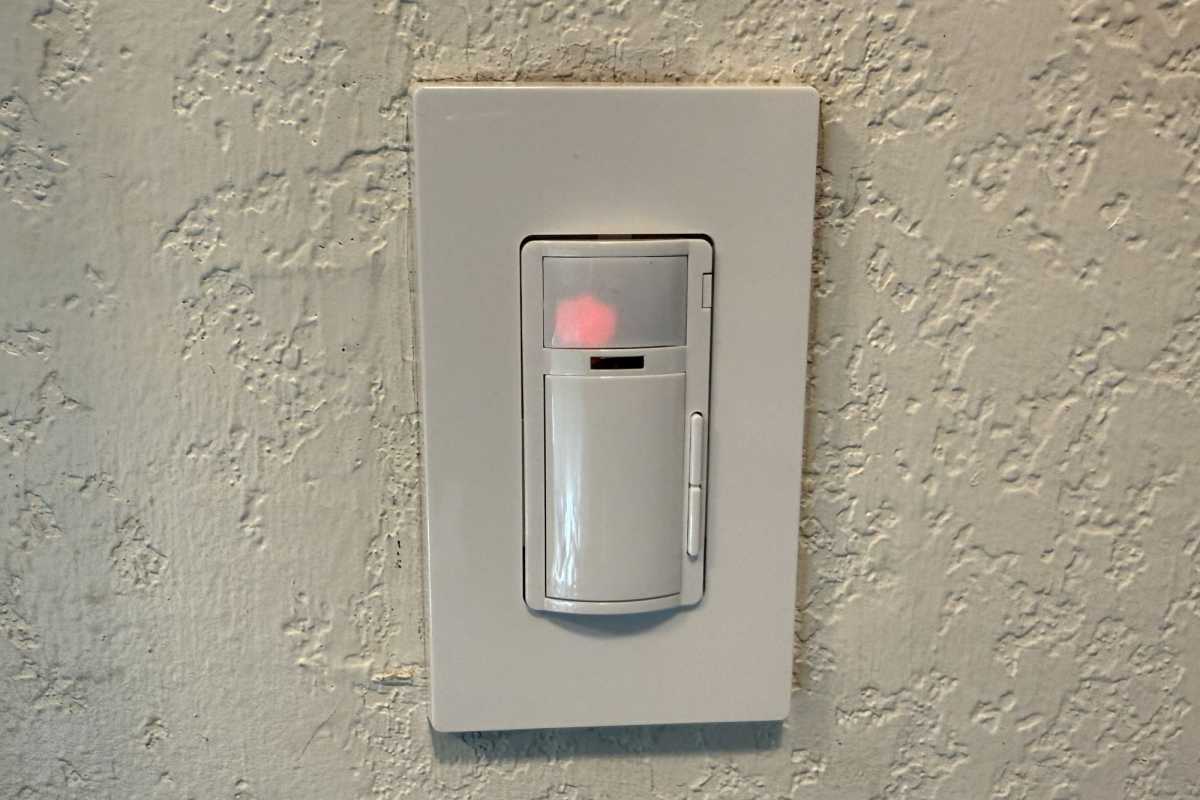
A newly installed Leviton Decora Wi-Fi Motion Sensing Smart Dimmer (model D2MSD).
Christopher Null/Foundry
Is the switch not working right? The culprit is usually a wire nut that came loose while you were trying to jam everything back into the box. If all the connections look intact, check that you didn’t mix up the load and line wires—or connect one of them to a traveler wire by mistake.
If you suspect this is the case, use a voltage meter to make sure you have the line wire correctly identified, then swap the load and traveler wires to see if that fixes the issue. Either way, check all your wire nuts obsessively to ensure they are as tight as possible.
Above all: Keep checking that the power is off any time you’re working with wiring. Electrical shocks are no picnic.
