


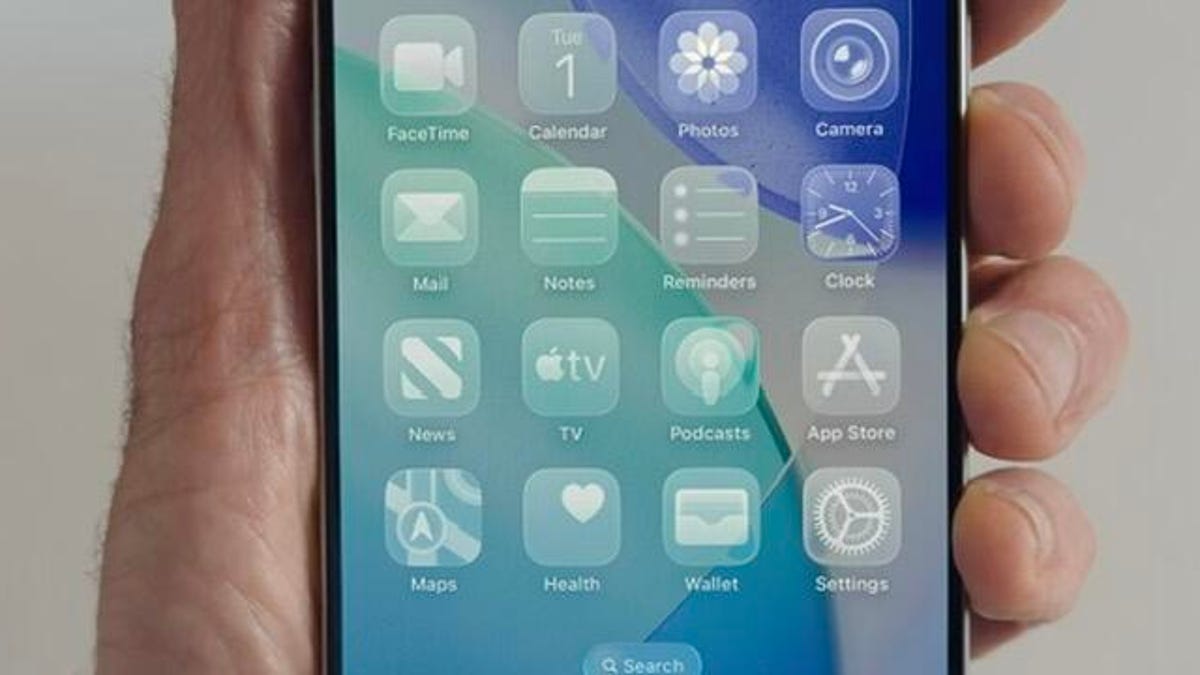
Apple released the first public beta of iOS 26 on July 24 and the beta brings a Liquid Glass design to the iPhones of developers and beta testers, alongside other updates like a new Games app. As part of the Liquid Glass design, the beta update lets people turn their icons semi-transparent. And this builds on the home screen customization options Apple introduced to the iPhone with iOS 18.
Apple released iOS 18 in 2024 and it introduced a major (and long overdue) change to your iPhone, the ability to customize your home screen. With iOS 18, you can remove app labels, change the color of app icons, arrange apps around the screen in new ways and much more. You can frame your background with your apps or give your iPhone a more personal touch with different colored apps.
Here are all the ways you can customize your home screen to make it as fun and unique as you are.
While many of these customization options are available to everyone now, some options are only available to developers and beta testers in the iOS 26 beta. As that update is still in beta, the update might be buggy for you, and your device’s battery life may be affected, so it’s best to keep those troubles off your primary device. If you want to try the beta out, I recommend downloading it on a secondary device.
It’s also possible that Apple could adjust these, and other, update features before the company releases the final version of iOS 26 this fall.
How to remove app labels in iOS 18
1. Long-press on your background to enter jiggle mode — where your apps are all shaking.
2. Tap Edit in the top left corner of your screen.
3. Tap Customize.
4. Tap Large in the new menu that appears at the bottom of your screen.
Your app icons will grow and the labels beneath them will disappear. This looks much cleaner to me and I don’t plan on displaying app labels ever again.
The Customize menu in the iOS 26 beta replaces the Small or Large options with the two squares in the corner.
If you don’t like this, follow the above steps again but tap Small. The apps will revert to their normal size and the labels will reappear.
If you are using the iOS 26 beta, you won’t see the options for Small and Large. Instead, you will see two squares — one is small and the other is large — in the top right corner of the Customize menu. Tap these squares to make your app icons smaller or larger.
How to change the color of your app icons
1. Long-press on your background to enter jiggle mode — where your apps are shaking.
2. Tap Edit in the top left corner of your screen.
3. Tap Customize.
4. Tap the icon in the far right of the menu across the bottom of your screen labeled Tinted.
This will pull up a gradient scale at the bottom of this menu and you can slide them until you get just the right hue.
Clear icons might be difficult for some people to see in the iOS 26 beta.
You can also tap the eyedropper icon in the top right corner of the menu to select a color from your background that matches your icons more closely. That way you’re not moving the sliders and getting frustrated because the colors aren’t matching — not that this happened to me, definitely not. This change will affect all your app icons.
You can also give some of your apps a darker background.
1. Long-press on your background to enter jiggle mode — where your apps are shaking.
2. Tap Edit in the top left corner of your screen.
3. Tap Customize.
4. Tap the icon left of center in the menu across the bottom of your screen labeled Dark.
Apple’s first-party apps, like Messages, Safari and more, will now have an almost-black background. This change applies to first-party Apple apps and some third-party apps, like the YouTube and Bluesky apps. Other third-party apps, like Instagram and Snapchat, are unchanged.
Choosing Dark will darken your background, which could reduce the amount of power your iPhone uses and extend your battery life.
If you’re a developer or beta tester with the iOS 26 beta on your device, you will also see an option for Clear in the home screen Customize menu. Tap Clear and all the app icons on your home screen will turn semi-translucent. This will also affect icons across your device, like in Settings and other menus.
How to only darken your background
If you’ve tinted your app icons, or like the icons with a lighter appearance, you can darken your background to make the icons stand out. Here’s how.
1. Long-press on part of your background to enter jiggle mode — where your apps are shaking.
2. Tap Edit in the top left corner of your screen.
3. Tap Customize.
4. Tap the sun icon in the top left corner of the new menu.
This will only darken your wallpaper and won’t affect your app icons.
How to arrange apps around your home screen
Arranging apps on your home screen is the same process as before. You can either enter jiggle mode by long-pressing on a blank portion of your background and then dragging apps where you want them to go, or press and drag an app to a new location.
You can arrange apps in a pattern or any formation you want.
You can place all your apps near the bottom of your screen, have them frame your screen or arrange them in any other number of patterns. Because I’m right-handed, I placed most of my apps on the right side of my screen so I can easily tap them without fear of dropping my phone. This also makes it easy to ensure you see your background if it’s a picture of a loved one or a pet.
The grid is still present, so you can’t place apps on top of each other or too close together. If you enlarge your apps, there will be a sizable gap between your dock across the bottom of your screen and the lowest row of the grid. It looks like it’s big enough to fit another app icon, but you can’t — I tried to no avail.
Don’t forget, any iOS 26 features mentioned here are still in beta. So Apple could adjust or remove these features by the time the company releases iOS 26 this fall.
For more on iOS 18, here’s all the features iOS 18.6 brings to your iPhone and our iOS 18 cheat sheet. You can also check out my first impressions of the iOS 26 and all the new features Apple said it will bring to your device later this year.
Watch this: Apple’s Little-Known Subscription Perks Coming in iOS 26
