
Close Menu
TechUpdateAlert

    Subscribe to Updates

    Get the latest creative news from FooBar about art, design and business.

    What's Hot

    Today’s NYT Strands Hints, Answer and Help for Nov. 18 #625

    November 18, 2025

    Marvel’s Deadpool VR: the Quintessential Deadpool game, for better and for worse

    November 18, 2025

    I’m Not Ashamed to Admit I Loved the New Jonas Brothers Christmas Movie

    November 18, 2025
    Facebook X (Twitter) Instagram
    Trending
    • Today’s NYT Strands Hints, Answer and Help for Nov. 18 #625
    • Marvel’s Deadpool VR: the Quintessential Deadpool game, for better and for worse
    • I’m Not Ashamed to Admit I Loved the New Jonas Brothers Christmas Movie
    • Google is fighting the defamation battle Meta caved on
    • Legendary game designer, programmer, Space Invaders champion, and LGBTQ trailblazer Rebecca Heineman has died
    • Monday Night Football: How to Watch Cowboys vs. Raiders, ManningCast Tonight
    • Excited for Stranger Things season 5? I’ve found an easy way to get a free Netflix subscription just in time for the premiere
    • Bose’s noise-canceling QC Headphones are more than 50 percent off
    Facebook X (Twitter) Instagram Pinterest Vimeo
    TechUpdateAlertTechUpdateAlert
    • Home
    • Gaming
    • Laptops
    • Mobile
    • Software
    • Reviews
    • AI & Tech
    • Gadgets
    • How-To
    TechUpdateAlert
    Home»Laptops»How to Block Spam Calls and Turn On Call Screening in the iOS 26 Beta
    Laptops

    How to Block Spam Calls and Turn On Call Screening in the iOS 26 Beta

    techupdateadminBy techupdateadminAugust 18, 2025No Comments3 Mins Read
    Share Facebook Twitter Pinterest LinkedIn Tumblr Reddit Telegram Email
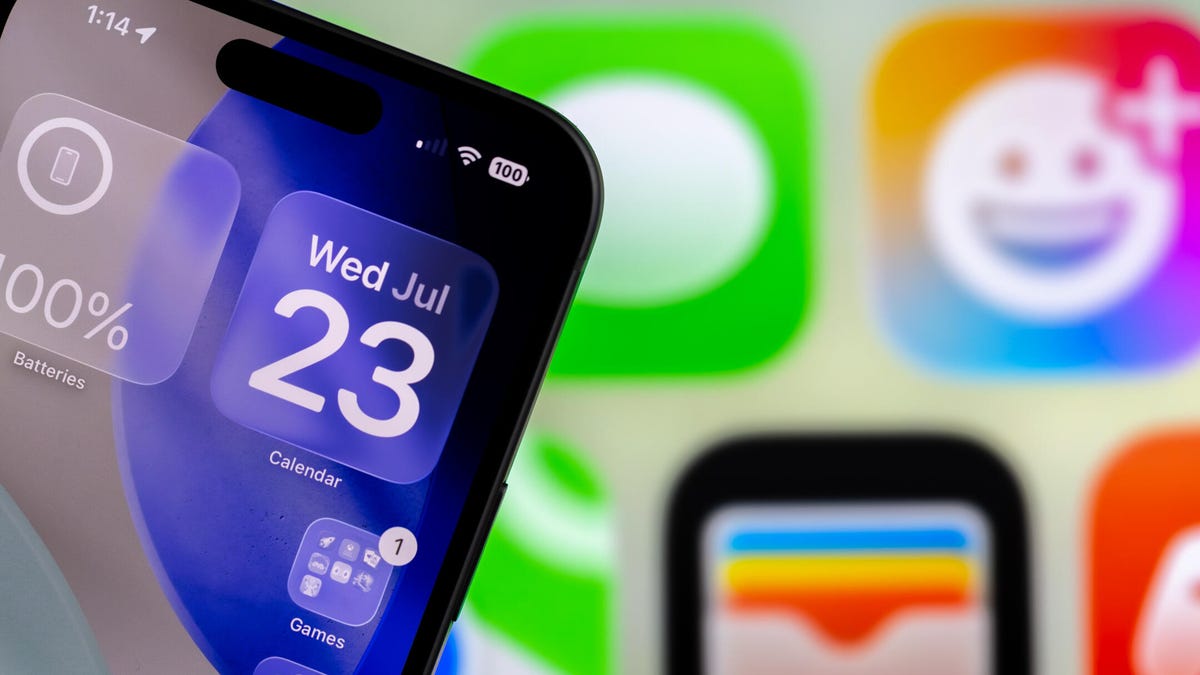
    An iPhone with clear widgets showing the Date of July 23.
    Share
    Facebook Twitter LinkedIn Pinterest Email

    Apple released the third public beta of iOS 26 on Aug. 14. The update brought a handful of new features, like a new Liquid Glass design and the ability to change your alarm’s snooze length, to the iPhones of developers and beta testers. It also let developers and beta testers stop spam calls from bothering them with a new call screening feature.

    Tech Tips

    Call screening isn’t an Apple Intelligence feature, so any iOS 26 compatible iPhone, like the iPhone 14 Pro, will get this feature when Apple releases the iPhone update this fall. But you have to enable this feature first. I enabled the feature early in the beta process, and my iPhone has diligently held back spam calls, like the Hoover Dam.

    Just remember, Apple is still beta testing iOS 26. That means the update might be buggy for you, and your device’s battery life could be affected, so it’s best to keep those troubles off your primary device. If you want to try out the beta, I recommend downloading it on a secondary device.

    It’s also possible that Apple could adjust call screening, and other update features, before the final version of iOS 26 is released this fall. If you want to try it out today, here’s how to turn call screening on in iOS 26 in a few easy steps.

    How to turn call screening on your iPhone

    1. Tap Settings.
    2. Tap Apps near the bottom of the menu.
    3. Tap Phone.

    Under the section Screen Unknown Callers, you’ll see three options: Never, Ask Reason for Calling and Silence. Here’s what you should know about each of these options and which one is right for most people.

    Which call screening option should you choose?

    Choosing Never lets calls from unsaved numbers come through and ring on your phone. It also lets missed calls be documented in your Recents list in your Phone app, just like before call screening was available. This is your Phone app’s default option.

    Callers menu

    Apple/CNET

    If you tap Ask Reason for Calling, your iPhone will ask anyone who calls you from an unsaved number the reason for their call without ringing your iPhone. After the caller answers a few questions, your iPhone will notify you with a transcript of the caller’s answers. Then you can decide whether you want to answer the call or not.

    You can also pick Silence, which is the nuclear option for phone calls. Any unsaved number that calls you will be silenced and sent to voicemail, no questions asked.

    Ask Reason for Calling is the best option for most people who want to screen calls. I chose it, and while it notified me when scam callers answered some questions, which they rarely did, it also notified me when my doctor’s office called to go over some test results. If I had chosen Silence, I would have missed my doctor’s office, and choosing Never” would mean checking every call if I was expecting something important.

    If you choose Ask Reason for Calling and dislike it, you can always follow the steps above again and choose one of the other options. And remember, you can always silence your iPhone and not be bothered by any phone calls . My wife has not taken her phone off silent in months and she remains blissfully unbothered by spam calls.

    For more on iOS 26, these are my first impressions of the iOS beta version, how to reduce the Liquid Glass effects in the beta and all the new ringtones Apple said it will bring to your device later this year.

    Watch this: Apple Watch Could Become the Perfect AI Gadget

    05:38

    beta block Call calls iOS Screening spam Turn
    Share. Facebook Twitter Pinterest LinkedIn Tumblr Email
    Previous ArticleToday’s NYT Strands Hints, Answer and Help for Aug. 18 #533
    Next Article Get Rid of Fruit Flies Fast, With the Trick Experts Swear By
    techupdateadmin
    • Website

    Related Posts

    Laptops

    Monday Night Football: How to Watch Cowboys vs. Raiders, ManningCast Tonight

    November 18, 2025
    Laptops

    Germany vs. Slovakia: Livestream World Cup 2026 Qualifier Soccer From Anywhere

    November 17, 2025
    Laptops

    Sakara and Factor Meals Team Up to Deliver Healthy High-Protein Salads

    November 17, 2025
    Add A Comment
    Leave A Reply Cancel Reply

    Top Posts

    NYT Strands hints and answers for Monday, August 11 (game #526)

    August 11, 202531 Views

    These 2 Cities Are Pushing Back on Data Centers. Here’s What They’re Worried About

    September 13, 202530 Views

    I’m obsessed with Windows 11’s secret God mode

    September 11, 202530 Views
    Stay In Touch
    • Facebook
    • YouTube
    • TikTok
    • WhatsApp
    • Twitter
    • Instagram
    Latest Reviews

    Subscribe to Updates

    Get the latest tech news from FooBar about tech, design and biz.

    Most Popular

    Best Fitbit fitness trackers and watches in 2025

    July 9, 20250 Views

    There are still 200+ Prime Day 2025 deals you can get

    July 9, 20250 Views

    The best earbuds we’ve tested for 2025

    July 9, 20250 Views
    Our Picks

    Today’s NYT Strands Hints, Answer and Help for Nov. 18 #625

    November 18, 2025

    Marvel’s Deadpool VR: the Quintessential Deadpool game, for better and for worse

    November 18, 2025

    I’m Not Ashamed to Admit I Loved the New Jonas Brothers Christmas Movie

    November 18, 2025

    Subscribe to Updates

    Get the latest creative news from FooBar about art, design and business.

    Facebook X (Twitter) Instagram Pinterest
    • About Us
    • Contact us
    • Privacy Policy
    • Disclaimer
    • Terms and Conditions
    © 2025 techupdatealert. Designed by Pro.

    Type above and press Enter to search. Press Esc to cancel.