


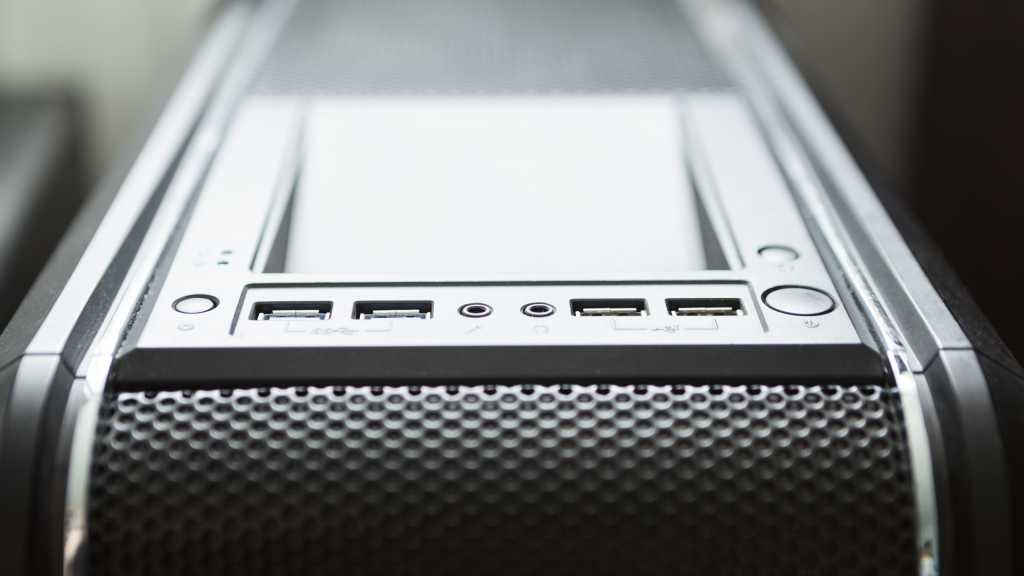
I’m a big proponent of DIY PC building and I tend to describe it as “relatively straightforward.” For the most part, everything just plugs in where it should. But there is one aspect of putting together a new computer that even I don’t enjoy: the front panel I/O connectors.
The front panel is a bizarre array of USB headers, audio connectors, and push-button pins that are so fiddly and complicated, and often the cables only seem to just reach the motherboard spots where they need to go, so plugging them in can be a challenge. Plus, the connectors you need to plug in can vary depending on your PC case.
Unlike RAM and graphics cards, front panel I/O connections aren’t so straightforward. Here’s a quick breakdown of the different I/O connectors you’re likely to see and what they all mean.
Power switch
The most important connector you need to plug in correctly is the power switch. This is the one that connects the physical power button on your PC to the motherboard and allows it to tell your system to start. Without it, you can’t physically boot your PC (unless you’re willing to short the connectors, but that’s outside the scope of this article).
Jon Martindale / Foundry
The power switch is usually a small black plastic header, with two female ports for the motherboard’s pins to slot into. It’s often accompanied by other front I/O connectors that may be clumped together, since they all plug into the same area on your motherboard.
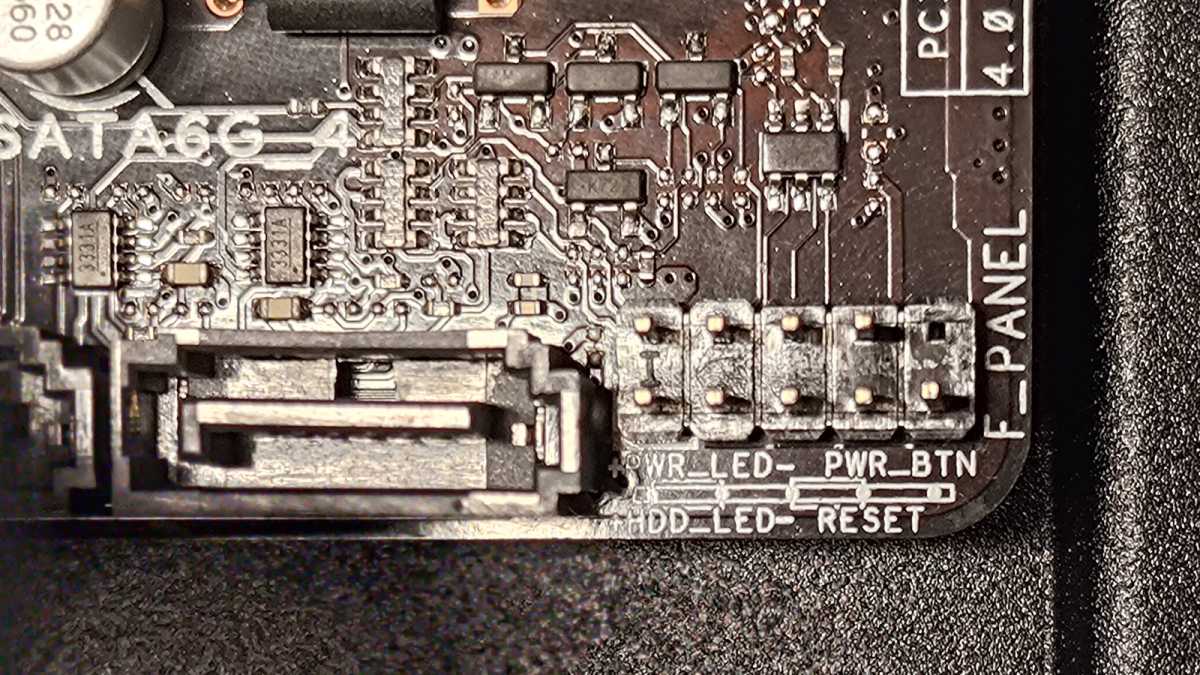
But regardless of your particular case’s orientation, the power switch always plugs in the same way. The I/O pins are usually—but not always—located at the bottom-right of the motherboard. Refer to your manual or manufacturer’s website if you’re unsure. (There should also be labeling next to the pins to show you which ones to connect where.)
Jon Martindale / Foundry
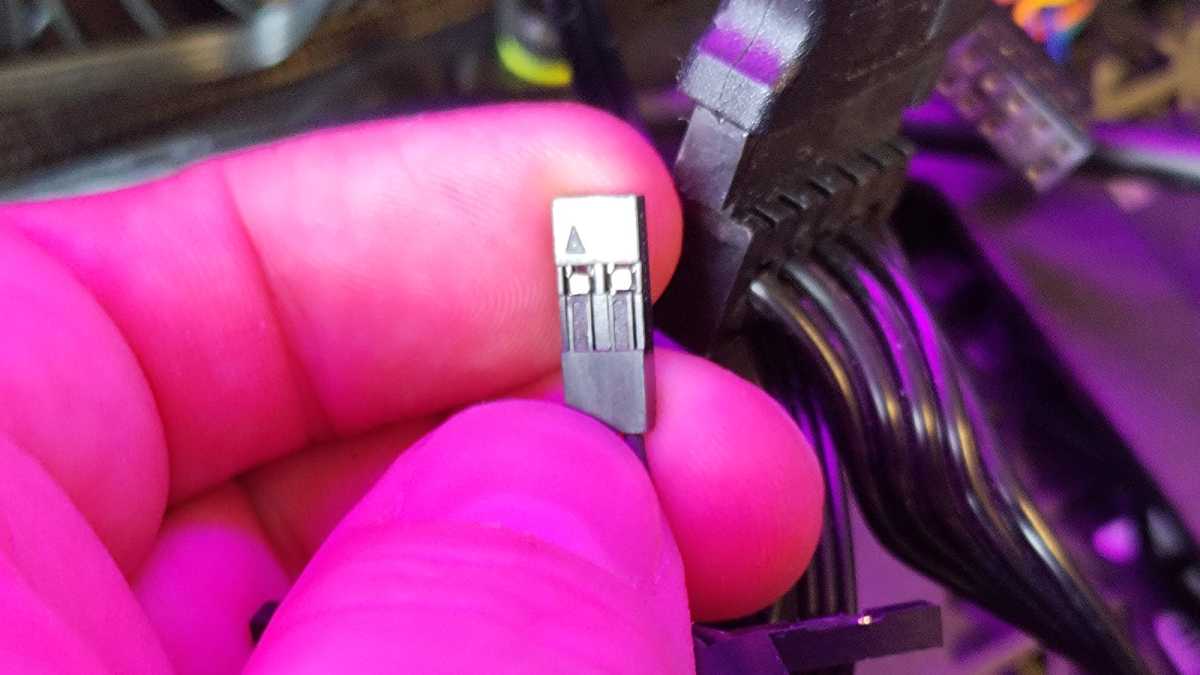
When connecting headers like the power switch to the motherboard’s front panel I/O pins, be sure you’re plugging it in the right way. There’s a positive (+) and negative (-) side to it. If you plug it in the wrong way, nothing bad will happen—it just won’t work.
Jon Martindale / Foundry
To find the correct orientation, look at the back side of the power switch header and you’ll see a small triangle indicating the positive side.
Reset Switch
Like the power switch, the reset switch is typically a unified positive-and-negative header with both pins together. Use the reverse-side arrow to figure out which is which for correct orientation, and then plug it into the motherboard’s front panel I/O pins per usual.
Power LED
If you like your PC to have a flickering LED when powered on as a visual indicator, you’ll need to make sure it’s connected, too. The power LED can be useful for troubleshooting, or just letting you know your PC’s state at a glance (solid is on, flashing is asleep, and off is off). Alternatively, if you hate LED indicators, you can use LED stickers to block them!
Like the power switch, the power LED headers plug into the same I/O pins on the motherboard—but unlike the power switch, the LED headers will come as separate positive and negative headers. Once plugged in, the LED should light up the next time you power your system on.
Storage LED
Some desktop cases have a secondary pair of LED headers for storage. Although usually labeled as “HDD” for hard drives, it works just the same for modern SSDs. When plugged in, the LED will flash whenever the storage drive is being accessed.
If your case has it and you find it useful, plug it in the same way you would the power LED. Locate the positive and negative pins on the motherboard and attach the correct headers to each. Nothing bad will happen if you get it wrong, other than it not working. Just swap if that happens.
USB 2.0
Jon Martindale / Foundry
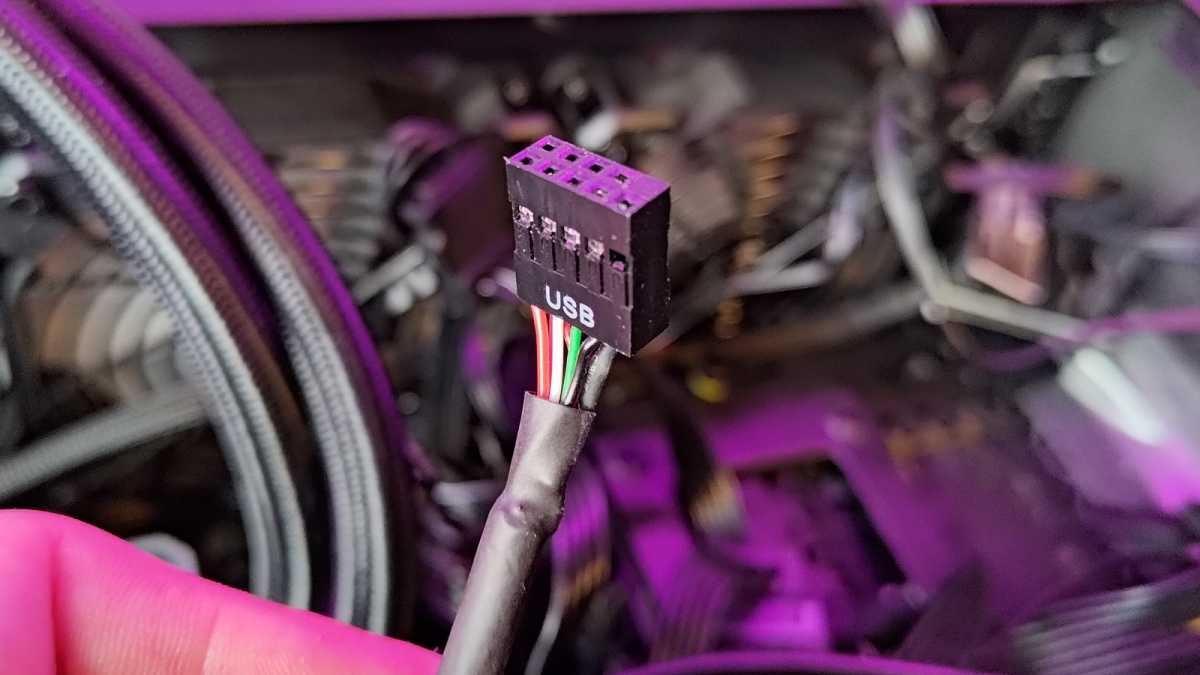
Though less common now in modern PC cases since we’ve mostly moved on to faster standards, you might still see USB 2.0 headers, especially in older cases and some legacy-supporting chassis.
The USB 2.0 header will have a USB label as well as one of two configurations: a unique 9-pin layout with one corner blocked off, or a flatter 5-pin layout. They’re both “the same,” with the 9-pin layout being two USB 2.0 headers in one, effectively powering two USB ports with a single header. (The fifth pin in the USB 2.0 header is special, and it gets shared by both USBs in the 9-pin layout.)
The unique 9-pin layout of USB 2.0 is a clue to where it plugs in on your motherboard, as there aren’t many headers that even fit this pin layout. If you need additional guidance, refer to the labeling on the motherboard or check your motherboard’s manual.
USB 3.0
Jon Martindale / Foundry
USB 3.0 is faster than the older USB 2.0 standard, but even these are starting to fall by the wayside. However, you might still run into these, especially in more budget-oriented setups.
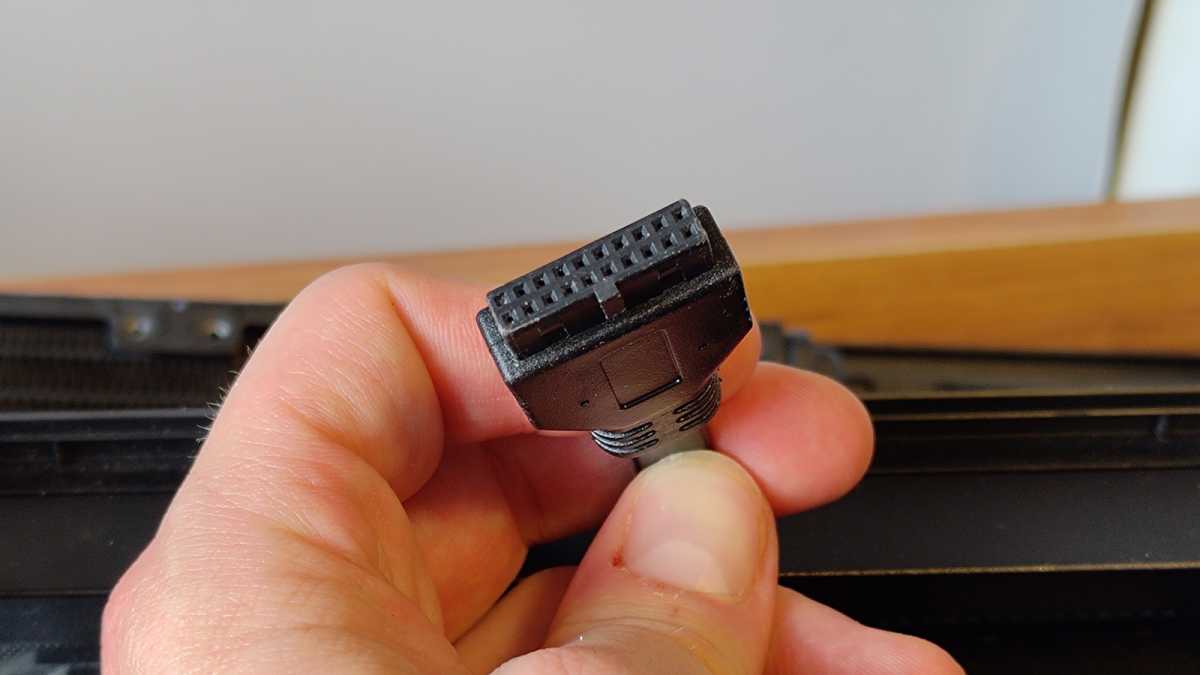
The USB 3.0 cable is larger and thicker, with a 20-pin connector that may or may not have the 20th pin blocked out. In other words, you’ll either see two rows of 10 holes OR a row of 9 and a row of 10. (The missing hole in one row is for alignment/orientation purposes.)
USB 3.1 and USB 3.2
Jon Martindale / Foundry
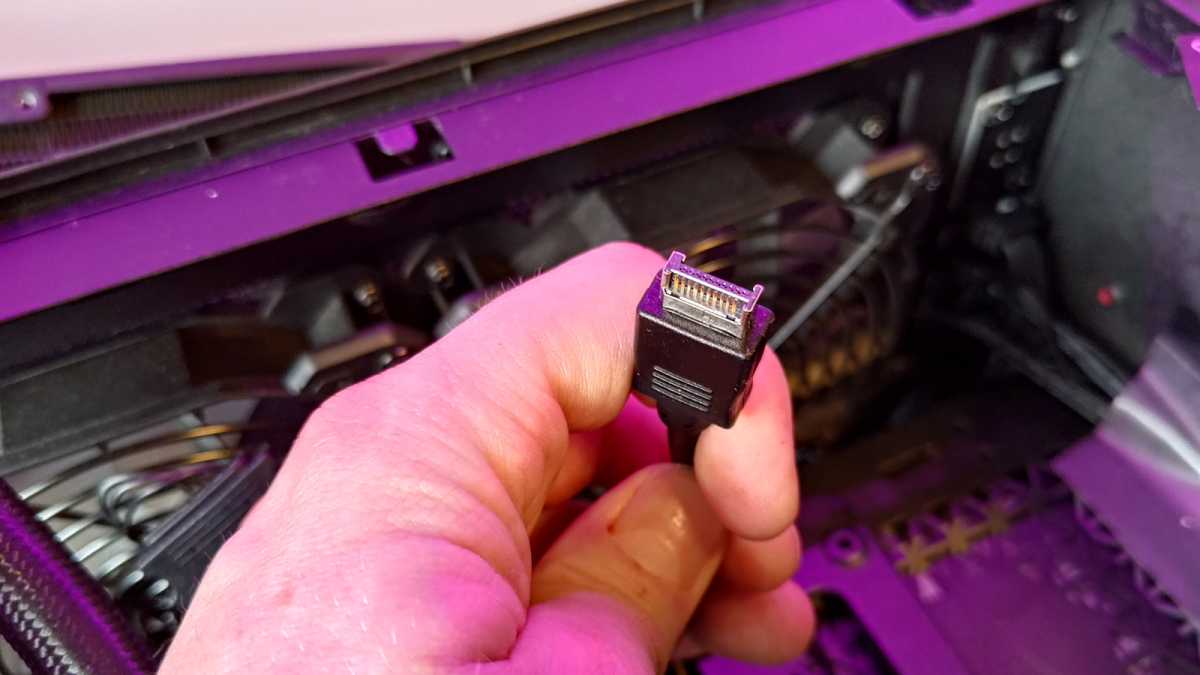
Starting with USB 3.1, the front panel connector was revamped to be smaller and more compact while supporting a boosted 24 pins. It’s often used in conjunction with front panel USB-C ports.
The header has a bit of an “H” shape with naked pins on each side, and it plugs into a socket with an aluminum surround (which can help it stand out a little from the rest of a motherboard’s connectors).
Jon Martindale / Foundry
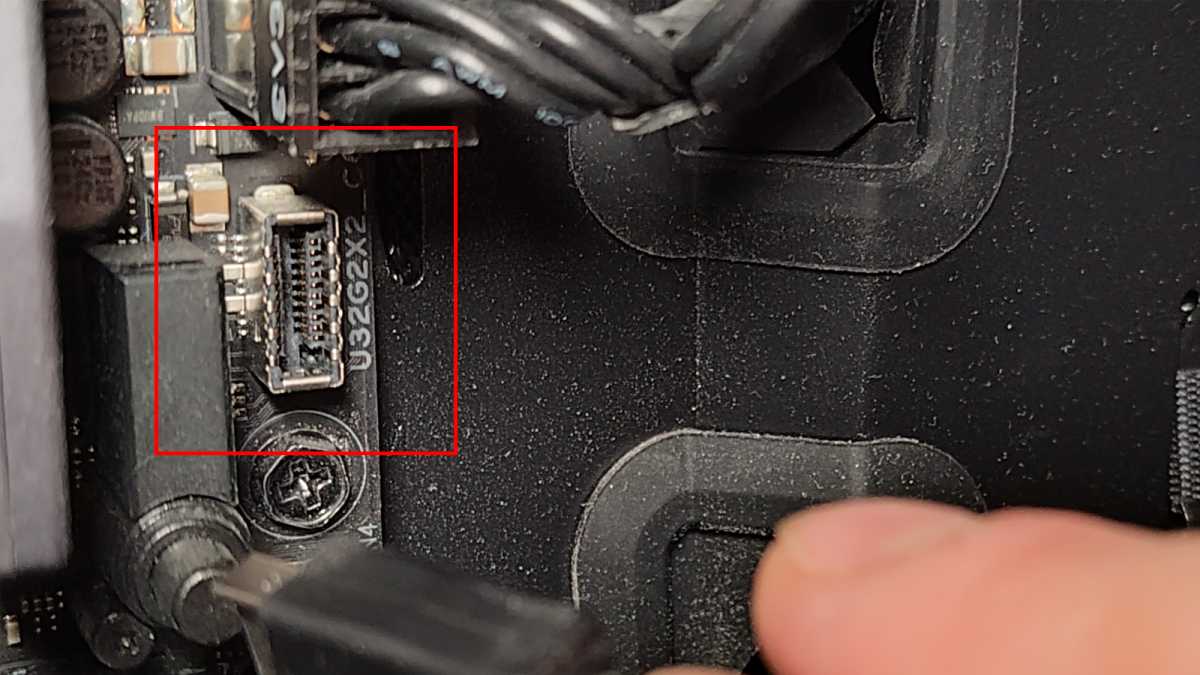
If you have trouble finding where to connect it on your motherboard, look for labeling along the lines of “USB3.1,” “USB31C,” “U32G1,” or even “UB32GX2,” which is what I see on my own motherboard.
Audio
Jon Martindale / Foundry
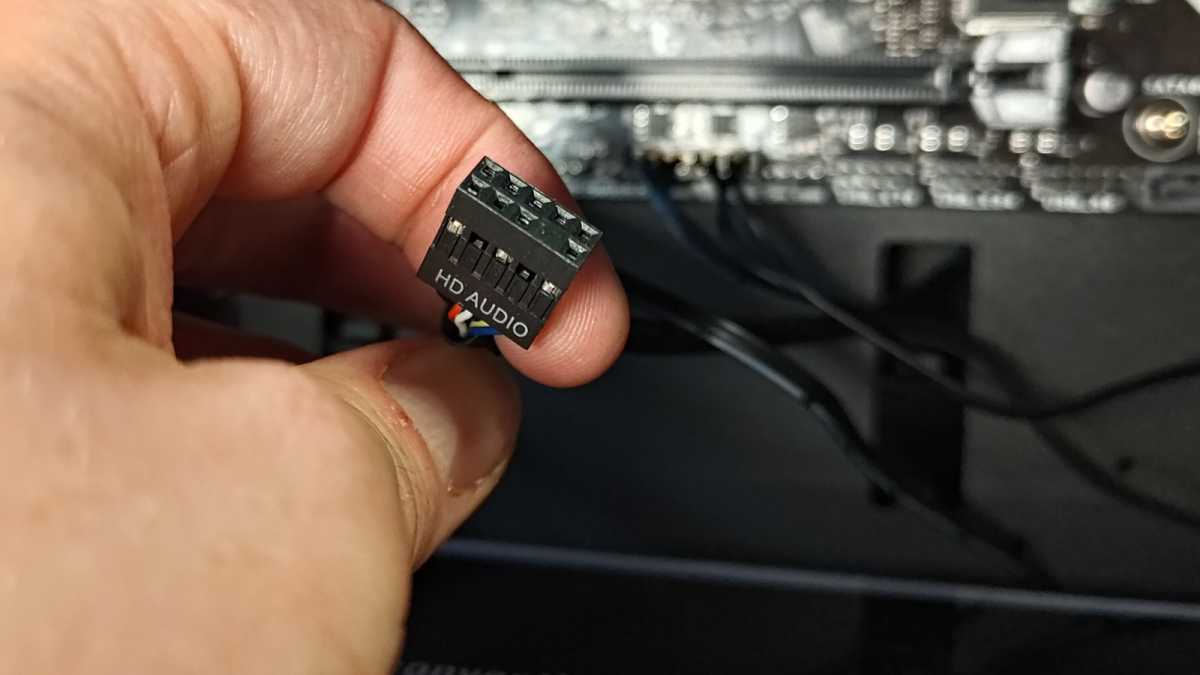
Whether you have a combined 3.5mm jack for both headphone and microphone, or separate ports for each of them, they output to a single header inside your PC case. The audio header looks very similar to the USB 2.0 header, so don’t get them confused! Fortunately, there’s usually an “Audio” label on it—or similar—to help you out.
This one usually plugs into the bottom of the motherboard alongside all the USB 2.0 headers and assorted I/O pins.
Speaker
Hans Haase / Wikimedia
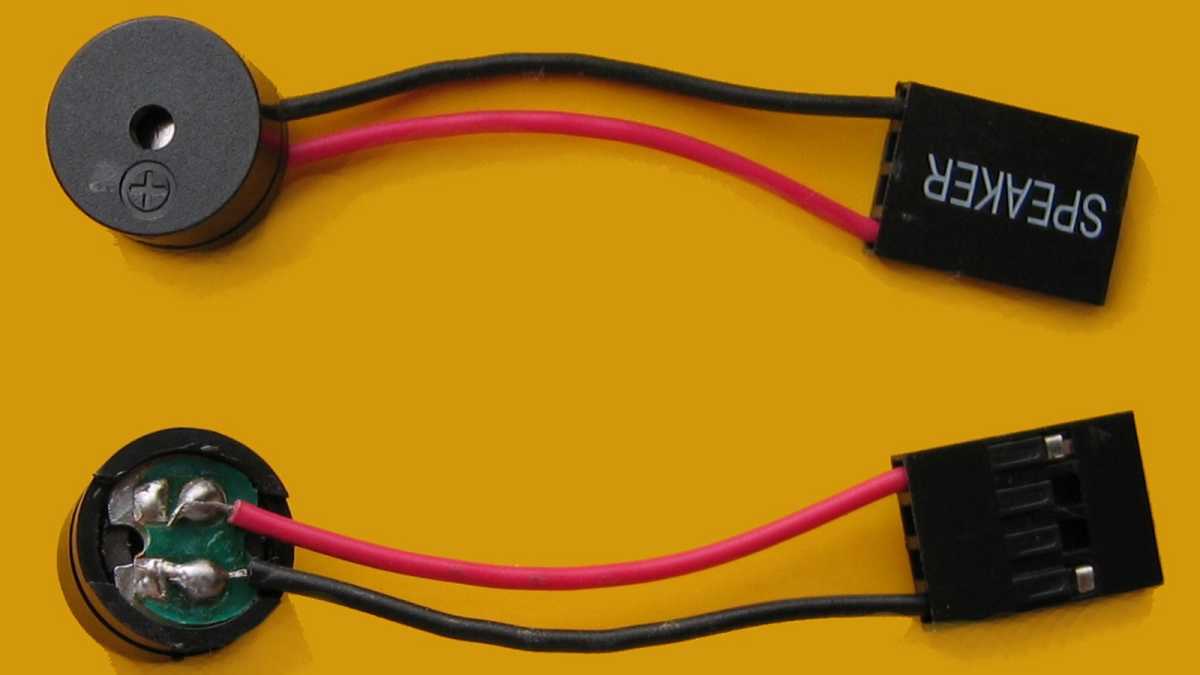
Less common these days but still useful is the motherboard speaker, a small device that attaches to the same I/O headers as the power switch and LEDs. It’s the little beeper that makes a noise whenever your PC first starts to post after you’ve hit the power button. It’s also what can beep at you if there’s a problem with your PC and you need to troubleshoot it. Those beep codes can be invaluable.
If your motherboard has an LED readout, or some other form of visual error codes, then you don’t really need the speaker. But if you want one, it typically plugs into the I/O headers just the same. Use the rear arrow to find the correct orientation and find the pins on the motherboard.
