


On Windows 11, your Microsoft account is more than just a way to sign in to your profile. It’s the key to unlocking a set of features that can help you manage, secure, and recover your devices.
From tracking a lost laptop and restoring settings to managing device access and saving BitLocker recovery keys, the Microsoft account dashboard offers several tools that many users overlook.
In this guide, I’ll highlight seven ways a Microsoft account integrates on Windows 11, and what you need to do to improve your privacy.
7 Microsoft account features tied to your PC on Windows 11
These are the features on your Microsoft account that you may not know are integrated with your computer.
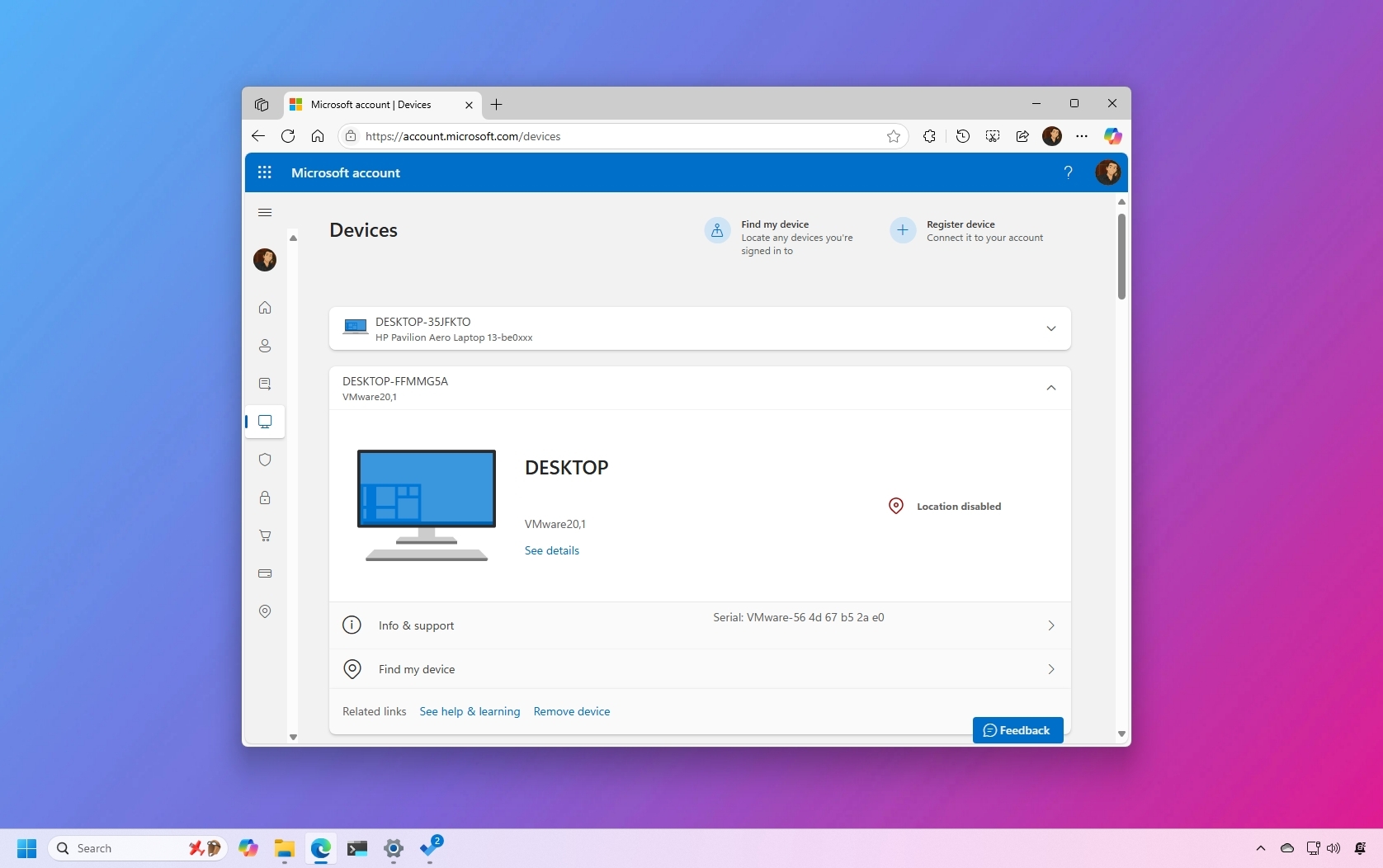
1. You can view and manage your PC inventory
When you set up Windows 11 for the first time and sign in with your Microsoft account, your computer is automatically linked to your account and added to your online inventory, alongside any other device where you’ve used the same credentials.
On the “Devices” page, you can view key details for each system, including the computer name, operating system edition and version, system type, serial number, and more.
If you’re no longer using a specific device, you will also find the option to remove it on this page.
Since the operating system assigns a random name during setup, it’s important to rename your device to make it easier to identify in your online inventory and on your local network.

Alternatively, you can also view this inventory from Settings > Accounts > Linked devices. The information on this page comes from your Microsoft account.
2. You can reset your PC password online
Although during the creation of a new account, Windows 11 prompts you to create a Windows Hello PIN, the account is usually linked to your Microsoft account. This means that in the event you forget your login password or PIN, or something happens to your credentials, you can easily recover your account using your Microsoft account online.
For instance, if the Windows Hello PIN (Face or Fingerprint) fails, you can try to sign in with the same password you use to log in to your Outlook email.
In case you can’t sign in to your Windows account using your password, you can reset your Microsoft account online from another computer to regain access to your device.

As you can see, your online account is more than a way to access Microsoft online services. It’s also a recovery tool.
It’s important to point out that changing the password will update the authentication credentials anywhere you’re using a Microsoft account, including Outlook.
3. Microsoft account stores your BitLocker recovery key automatically
Starting with version 24H2, Windows 11 enables BitLocker Device Encryption by default on new installations, and the encryption key is automatically stored on your Microsoft account.
From a security aspect, enabling encryption during setup adds an extra layer of protection for your device and files. The only problem is that many users are not aware of this feature, and the real issue occurs when the computer fails to start, and they are prompted to enter the description key.
If you’re using an online account to access Windows 11, the system automatically uploads the BitLocker recovery key to this page.

To ensure that your recovery key remains secure, you can print it out and store it in a safe location.
4. Your location is periodically send to your Microsoft account
A Microsoft account also works with the “Find My Device” feature to track your computer’s last known location.
Once enabled (usually by default), you can access your Microsoft account online, select your device, and view where it last connected to the internet.

If the device is still connected to the internet, you can use the “Lock” option to remotely lock the device and prevent other people from accessing your data.

If you prefer not to send the device’s approximate location to Microsoft periodically, open Settings > Privacy & security > Find my device, and turn off the “Find my device” toggle switch.
5. Microsoft Store has can only work on up to ten PCs
Although it’s not usually advertised, you can only use the Microsoft Store with the same account on up to ten computers. If you reach the limit, you may be unable to download apps and games on some of your devices.

In this case, you cannot use the Microsoft Store to resolve the issue. Instead, you have to open the “Microsoft Store device management” page on your Microsoft account, and from this page, you can unlink a device to allow another computer to continue downloading apps and games.
6. You can clear your PC synced data
When you set up your computer with a Microsoft account, Windows 11 automatically syncs your settings and preferences to the cloud. In the event that you need to reinstall the operating system on the same computer or set up a new device, you can quickly restore your apps and settings on the new setup.

Although you can’t review the data stored in the cloud, your online account includes a “Cloud synced settings” option at the bottom of the “Devices” page, which allows you to clear this information. However, if you’re planning to clear your data from your Microsoft account, it’s recommended to turn off the “Remember my apps” and “Remember my preferences” settings from the “Windows Backup” settings from Settings > Accounts.

When using the option to clear your data stored in the cloud (which does not include your files in OneDrive), the deletion doesn’t happen immediately. Microsoft will erase the data during the next backup schedule.
7. Apps have access to your data even after being uninstalled
On Windows 11, when you configure a new application and use a Microsoft account, you will also be granting the service permission to access your personal information (such as email, name, gender, display image, and more) associated with your online account.
Although if you frequently use the app, you may need it to access your information, the problems come when you stop using the app, because the service will continue to have access to your information.

If you want to protect your privacy, once you stop using the app, it’s always recommended to open the “Privacy” page on your Microsoft account to revoke app access to your information.
More resources
Explore more in-depth how-to guides, troubleshooting advice, and essential tips to get the most out of Windows 11 and 10. Start browsing here:
