


For one reason or another, we’ve all become very familiar with Zoom calls in recent years. Although we thankfully don’t need to use them quite as much as we used to, they’re still an important part of many people’s work and socializing. Unfortunately, Zoom isn’t 100% private and there are ways in which nefarious individuals and organizations can use your calls to steal your information, identity, or private data.
Foruntately then, there are ways in which you can protect yourself and make Zoom more of the secure platform it can be. Here are some of our top tips.
Use a meeting password
Jon Martindale
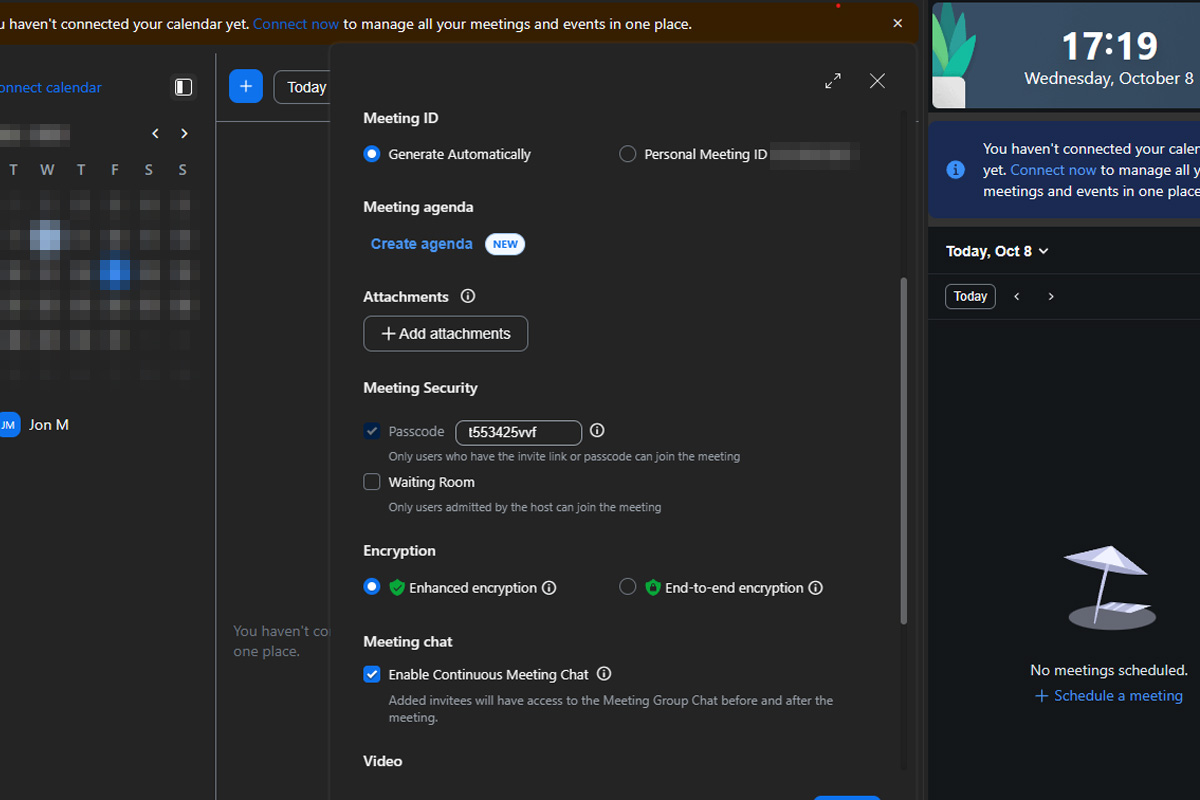
The most important safeguard you can have in place to protect you, your meeting participants, and any information and data shared there, is to put a password on your meeting room. This ensures no one can just wander in unexpected, shutting down Zoom-bombing opportunities. It also means that no one can enter without your knowledge and snoop on what you’re discussing.
Passwords are enabled by default on all meetings for free users, as well as licensed users, so it should be enabled, but it never hurts to check. Similarly, when setting up your meeting, you can set a custom password in the meeting settings if you prefer.
Use a waiting room
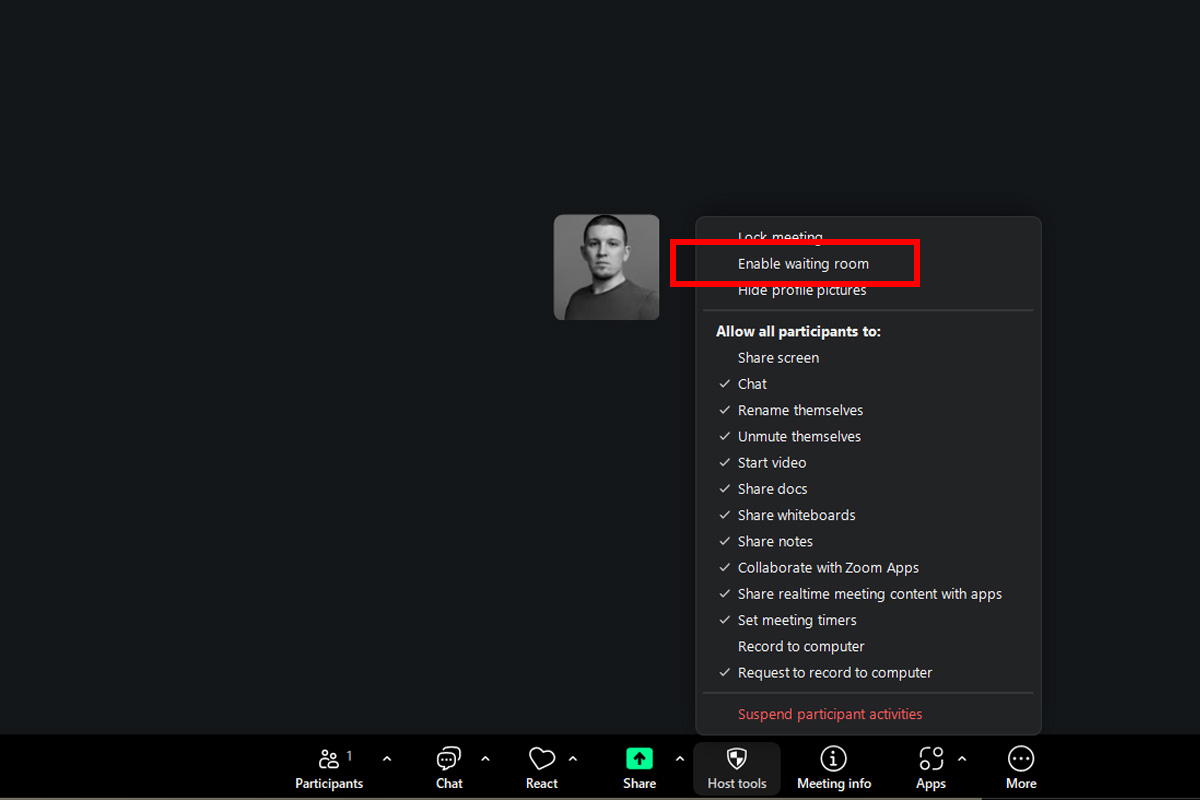
Enable a waiting room in Zoom for enhanced security.
Jon Martindale
A password ensures no one can just enter your room uninvited, but if that password leaks, someone shares it without realizing it, or someone’s system is compromised, it can still be possible for troublemakers to enter your meeting. The best way to ensure that doesn’t happen by surprise and disrupt your proceedings, is with a waiting room. This means anyone wanting to join the meeting has to receive your approval to enter. If they don’t belong, you can boot them easily.
You can add a waiting room to a meeting using the toggle option when you set up the meeting under the “Meeting Security,” heading. Alteratively, if you’ve started a meeting already and want to add a waiting room to it, select Host Tools and then tick the Waiting room setting.
Enable End-to-End encryption
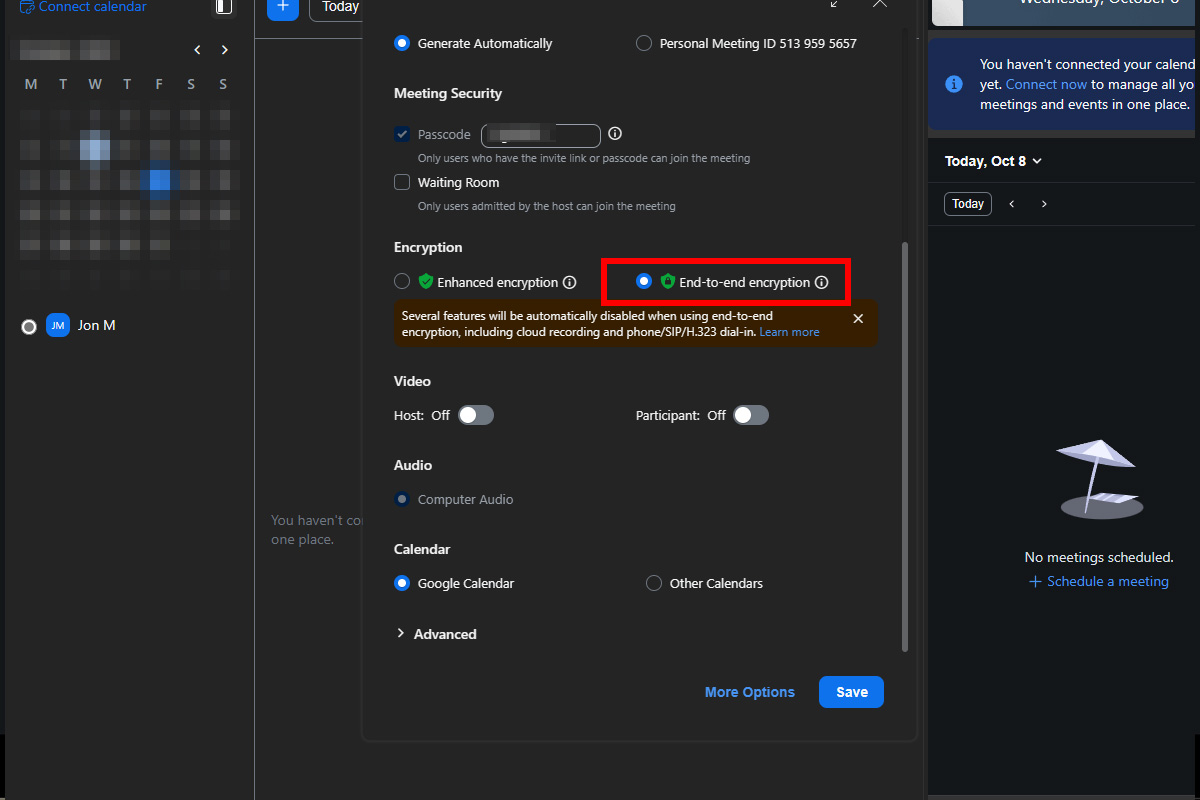
Use end-to-end encryption to hide meeting contents from outsiders, including Zoom itself.
Jon Martindale
Zoom’s standard “Enhanced encryption” is pretty good at securing your data, but if you want to make it so that no one but the meeting participants can see you or what you’ve talked about (even Zoom itself) enabling End to End encryption is a more secure solution. When it’s enabled, your devices store your private encryption keys locally, so any intercepted data will be garbled and illegible.
To enable end-to-end encryption, when you’re setting up the meeting, navigate to the Encryption section and toggle on the End-to-end encryption.
Note: The end-to-end encryption is not supported by the Zoom web client, so all meeting participants will need to use the Zoom app to take advantage of it. Video recording is also not possible when end-to-end encryption is enabled. Other disabled features include AI companion, live streaming, polling, and companion Zoom apps like Whiteboard and Notes.
Use a random Meeting ID
When you set up a meeting you have the option of using your own personal meeting ID or a random one. Although using your own ID can be useful for repeat meetings with friends, family, or select colleagues, it does let people enter your personal meeting space even after the meeting is over. Instead, use a randomly generated meeting ID for each meeting.
If you can, use 2FA
If you have a Pro, Business, Education, or Enterprise account, or your work administrator has enabled Two-Factor-Authentication (2FA) you can use it to better secure your account. It means that when you login you’ll have to input a code from an authentication app as well as your username and password, making it much harder for someone else to break into your account.
Sign in to your chosen authentication app, and tap the option to scan a QR code. Sign in the Zoom web portal and navigate to Profile > Sign In and then toggle Two Factor Authentication to On.
Once it’s enabled, select Set up and scan the QR code using your phone in the Authentication app. Follow the on-screen instructions to complete setup.
Don’t share meeting links in public
When you’re inviting people to a meeting, make sure to only share the links with each participant directly. That way you reduce the chance of someone you don’t want in the meeting from trying to get in – they can’t if they don’t have the meeting ID and/or password.
There are range of ways you can share meeting IDs or links with people you want to join. Private messages, emails, individual messaging apps are all fine ways to distribute the details of the meeting.
Manage participants
As the person who set up the meeting and its host and administrator, you are in charge of the meeting and its participants, and can set the tone for what is acceptable. Make sure everyone conducts themselves in a manner that respects other users and the privacy.
Restrict file sharing and screen sharing in the meeting if you have any concerns over malware or information theft. Equally, watch out for phishing scams. Although they’re unlikely in pre-arranged meetings, any unauthorized participants could use fake login screens or requests for personal information to steal the identities of participants. Each user should exercise strong personal caution in this regard, but as the meeting administrator you can also play a role in keeping everyone safe.
Turn off optional data gathering
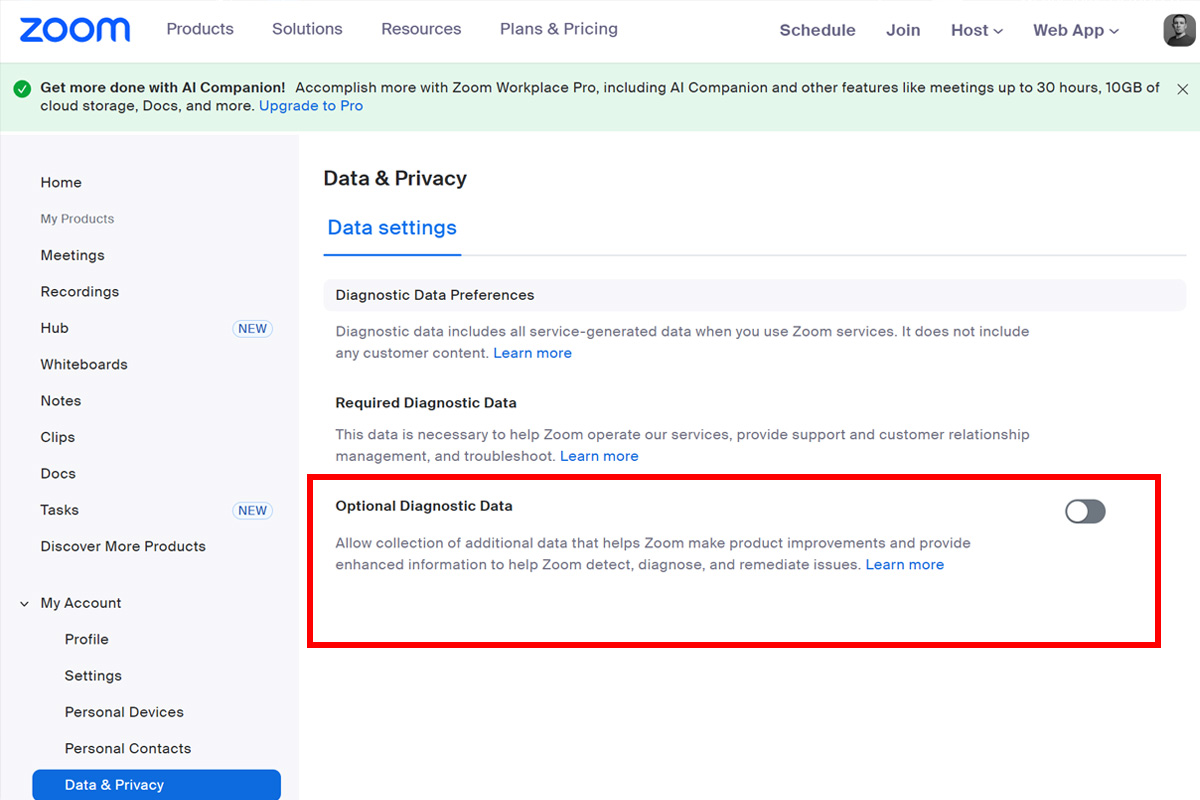
Turn off “Optional Diagnostic Data” to keep any personal data from being shared with Zoom.
Jon Martindale
Zoom does gather some data on its users. It’s anonymized and nothing to do with the actual content of your meeting, but if you want to cut out any extra data Zoom has on you, you can disable the collection.
Navigate to the Zoom web portal and login to your account. Then navigate to My Account > Data & Privacy and toggle off Optional Diagnostic Data.
Keep Zoom up to date
Zoom, like every app and program out there, gets updates from time to time and some of them improve security and privacy, or fix a bug in the system that might allow your data to be leaked. Keeping your Zoom client up to date and using the latest version for all your meetings, rather than the web client, is a good way to make sure your meetings are as secure as they can be.
Real world OPSEC
This doesn’t relate to Zoom itself, but operational security that you and your meeting participants should consider as part of the meeting. They’re the kind of things you can do to enhance your privacy and that of everyone in the meeting by adjusting the way you conduct it.
- Only participate in meetings in a private place where no one else can look at your screen.
- Use headphones and a headset microphone to limit what anyone else can hear.
- Use a mute switch on your microphone, rather than the mute function in Zoom itself (or as well as). This way you can be doubly sure that no one can hear what you’re saying.
- Consider using a camera cover when you don’t want to be seen. This ensures that even if you accidentally enable your camera, no one can see you.
- If you have to conduct a meeting using Wi-Fi that you aren’t sure is 100% secure, such as in a hotel or public space, consider using a VPN to hide your data from anyone else on the network.
