


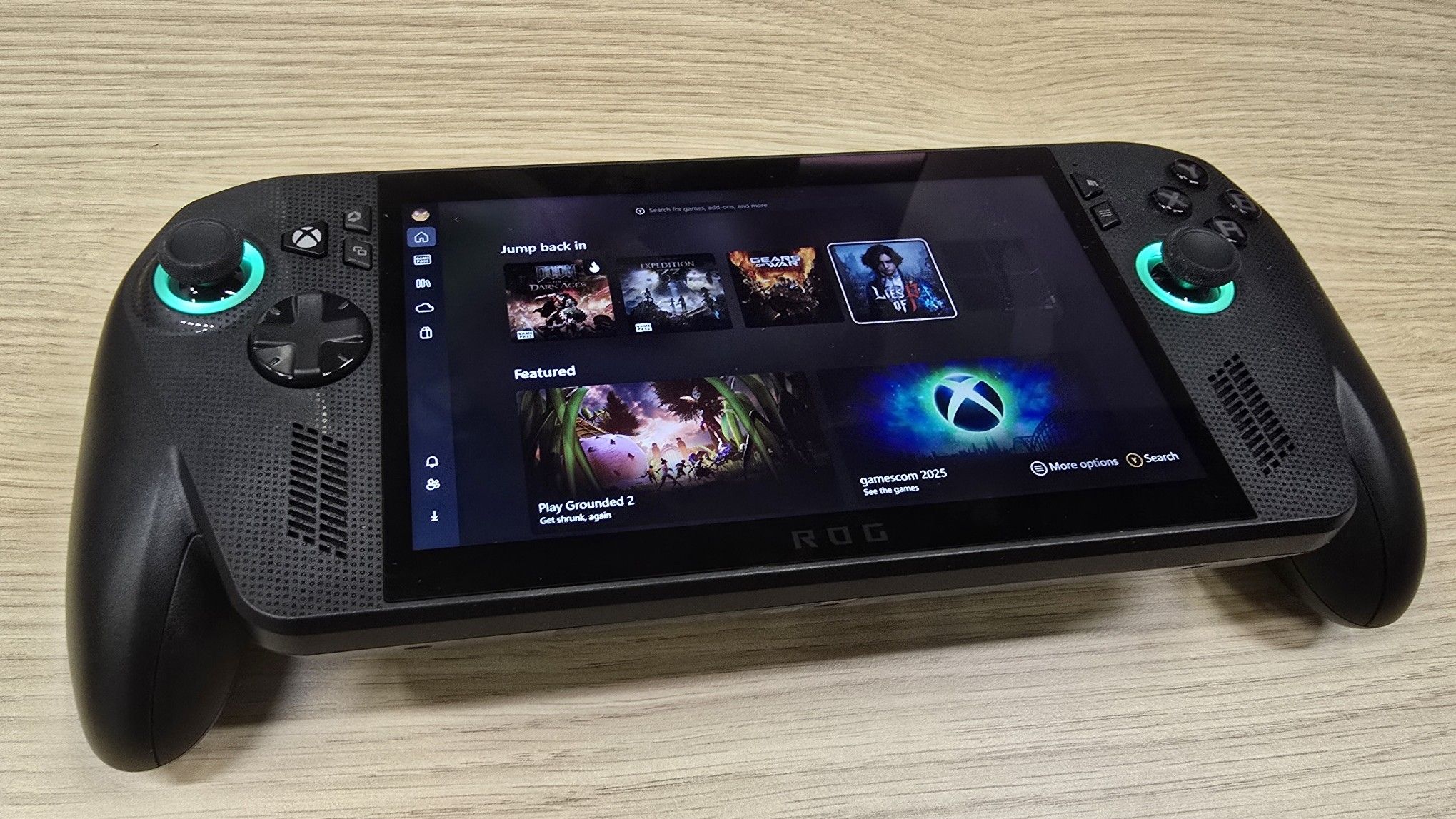
One of the most crucial settings on the Xbox Ally and Xbox Ally X, and other PC gaming handhelds, is all too often overlooked. This is the setting you should change first, especially if you’re planning to play graphically intensive AAA titles.
The Xbox Ally launched on October 16, 2025, and it’s a great gateway into the fine world of PC gaming handhelds. The Xbox Ally X is a handheld gaming beast with its Z2E chip, and the Xbox Ally base model is also no slouch, comparable to the Steam Deck in raw power at a more affordable price point.
Where both converge is the need to adjust this one pesky setting: VRAM allocation. Since the Xbox Ally and its ROG Ally predecessors borrow RAM for graphics processing, you can actually manually set how much RAM is used for VRAM. By default, it’s set to “Auto” or “4GB.” You should absolutely change it up, with caveats.
First, we’ll go over how to change the VRAM allocation on the Xbox Ally, then explore how and why you should use this setting.
How to change VRAM allocation on the Xbox Ally
- First, you need to enter the Armoury Crate. Hit the Armoury Crate button depicted above, and it should open up the Xbox Game Bar at the Armoury Crate Command Center tab.
- Select with A or tap Open Armoury Crate SE.

- Once the Armoury Crate opens, navigate to the settings tab via the cogwheel icon shown below, either using the touch screen or using the right and left bumpers on the top of the controller.
Note: If you’re running Armoury Crate for the first time, you’ll have to skip through some dialogue boxes and tutorial messages as well.

- Once in settings, select the Performance menu, shown above.
- Navigate down to GPU settings in the Performance menu, shown below.

- Now, you should see a menu item that reads “Memory Assigned to GPU.” Here’s where you change the allocation. If you don’t see the setting, you might need to reboot your device.
Note: If you’re looking to play photorealistic games, it’s worth setting it to 6GB. Some games won’t even run at the default 4GB, but some very intensive games might require 8GB — but it’s unlikely you’d be running games like that on a device like this. More on this below.
- After changing the GPU VRAM allocation, the Xbox Ally will reboot.
Xbox Ally VRAM “Memory Assigned to GPU” Explained

The Xbox Ally and especially Xbox Ally X are very capable gaming handhelds that can be heavily tweaked to improve performance per-game. VRAM allocation is a hot topic with regards to these devices, as there’s no true “one size fits all” solution with regards to VRAM allocation.
How much VRAM allocation should I set on the Xbox Ally and Xbox Ally X?
The Xbox Ally and Xbox Ally X have different amounts of total RAM available for use, with the Xbox Ally at 16GB and the Xbox Ally X at 24GB.
Generally, 6GB on both is considered the sweet spot for any 3D modern games, with more RAM allocated to the GPU for higher-quality textures and the like. Some games, such as God of War or The Last of Us, on Steam won’t even run without 6GB VRAM available, and may even need up to 8GB to get the most optimal performance.
If you play a lot of these kinds of games, you may want to select 8GB VRAM on the Xbox Ally X, and 6GB on the regular Xbox Ally.
You still need regular RAM for handling in-game entities, however, and large open-world games with lots of NPCs may benefit from having more RAM than VRAM, particularly if they’re older games with old-school, retro, or 2D graphics.
Multiplayer games and MMORPGs like Fortnite or World of Warcraft, for example, would probably benefit from having 4GB VRAM with more space left over for world state data. If you heavily mod older games too, such as Rimworld, Fallout 3 or 4, they might also benefit from having more RAM freed up than allocated to VRAM, particularly as they sport older, more “simplistic” graphics. Multiplayer games are often designed with low VRAM use in mind, but still require RAM for their in-game systems, networking, and non-graphics data streaming.
Open world simulation kind of games that track lots of entities might benefit from more RAM than VRAM, particularly if they have “old school” graphics. Single-player, cinematic games might benefit from more VRAM.
But there’s not a huge need to min-max on this, since it requires rebooting every time you change it. I just keep my PC gaming handhelds at 6GB and haven’t had any issues. Every game uses VRAM and RAM differently, so it’s not easy to “game” the system.
If in doubt, just use 6GB if you play lots of 3D titles generally, 8GB if you play lots of very graphically intensive single-player cinematic games (although the base Xbox Ally might run into other bottlenecks with these kinds of high-end AAA games). Use 4GB if you play lots of 2D titles or games with more simplistic, retro, or “old school” graphics, or default to Xbox Cloud Gaming.
VRAM vs RAM — What’s the difference?
RAM (Random Access Memory) is like temporary storage allocated automatically for your computer. VRAM (Video Random Access Memory) is similar, but for your graphics card. The Xbox Ally and Xbox Ally X have 16GB and 24GB, respectively, for RAM, sharing it with the GPU (graphics processing unit) as VRAM.
In a gaming context, RAM is for “system” data in your game. Things like handling enemy AI, the game’s actual code, processing physics, and running mods. In multiplayer games, it will handle the “presence” of other players and positional data.
VRAM, conversely, is for anything visually represented on your screen. Textures, shadows, frames, and so on. Visually intensive games with complex photo-realism will need more VRAM, but systemically complex games like an MMORPG or multiplayer title with lots of unique entities might be more RAM / CPU intensive.
What about the Xbox Ally GPU “Auto” setting?
The Xbox Ally and other PC gaming handhelds often have an “Auto” setting, which will allocate VRAM from the RAM pool on the fly to accommodate the game.
Leaving it up to the system to decide how much RAM and VRAM to allocate often results in stuttering and other issues in my experience, so typically I opt out of this. Depending on the types of games you play, it might be fine for you, though. It’s worth experimenting with. 6GB has been fine for me.
The Xbox Ally range is great, but it’s still early days

The Xbox Ally and Xbox Ally X are great devices as long as you keep your expectations in check. The Xbox Ally is definitely closer to a Steam Deck in performance, and ideal for 2D and low-poly kinds of games, retro titles, and cloud gaming and emulation. The Xbox Ally X is more expensive and far more capable for AAA, visually intensive modern games, and it’ll be potentially boosted further in early 2026 with its AI-powered NPU features coming later on.
VRAM allocation really depends on the types of games you play. You may find that 6GB isn’t even necessary a lot of the time. I think if you’re using the base Xbox Ally effectively, targeting 2D and low-poly “retro” games, you can even leave it on 4GB. More modern games like Silent Hill F, Silent Hill 2 Remake, and Ninja Gaiden 4 did seem to benefit from moving it up to 6GB, though.
Even more visually dense games like The Last of Us might benefit from moving all the way up to 8GB. But on the base Xbox Ally, you’re not going to have a fantastic experience with these types of games unless you’re willing to compromise heavily on resolution and overall visual quality.
The Xbox Ally X is a different beast, though. It’s far more powerful and capable of running AAA modern games with photorealistic visuals. Allocating 6GB and 8GB leaves plenty of standard RAM left over from its 24GB pool for system and gameplay features.
Whichever device you choose, picking the right games for the job will maximize your experience, and tuning the settings accordingly, too.
