
Close Menu
TechUpdateAlert

    Subscribe to Updates

    Get the latest creative news from FooBar about art, design and business.

    What's Hot

    My Health Anxiety Means I Won’t Use Apple’s or Samsung’s Smartwatches. Here’s Why

    December 22, 2025

    You can now buy the OnePlus 15 in the US and score free earbuds if you hurry

    December 22, 2025

    Today’s NYT Connections: Sports Edition Hints, Answers for Dec. 22 #455

    December 22, 2025
    Facebook X (Twitter) Instagram
    Trending
    • My Health Anxiety Means I Won’t Use Apple’s or Samsung’s Smartwatches. Here’s Why
    • You can now buy the OnePlus 15 in the US and score free earbuds if you hurry
    • Today’s NYT Connections: Sports Edition Hints, Answers for Dec. 22 #455
    • Android might finally stop making you tap twice for Wi-Fi
    • Today’s NYT Mini Crossword Answers for Dec. 22
    • Waymo’s robotaxis didn’t know what to do when a city’s traffic lights failed
    • Today’s NYT Wordle Hints, Answer and Help for Dec. 22 #1647
    • You Asked: OLED Sunlight, VHS on 4K TVs, and HDMI Control Issues
    Facebook X (Twitter) Instagram Pinterest Vimeo
    TechUpdateAlertTechUpdateAlert
    • Home
    • Gaming
    • Laptops
    • Mobile
    • Software
    • Reviews
    • AI & Tech
    • Gadgets
    • How-To
    TechUpdateAlert
    Home»Reviews»Your SSD is hiding extra speed. Unlock it with these 5 tweaks
    Reviews

    Your SSD is hiding extra speed. Unlock it with these 5 tweaks

    techupdateadminBy techupdateadminOctober 4, 2025No Comments3 Mins Read
    Share Facebook Twitter Pinterest LinkedIn Tumblr Reddit Telegram Email
    SSD
    Share
    Facebook Twitter LinkedIn Pinterest Email

    Feature

    Tweaks that make a difference!

    Australian Editor, PCWorld Oct 4, 2025 7:00 am PDT

    Image: Pexels: Andrey Matveev

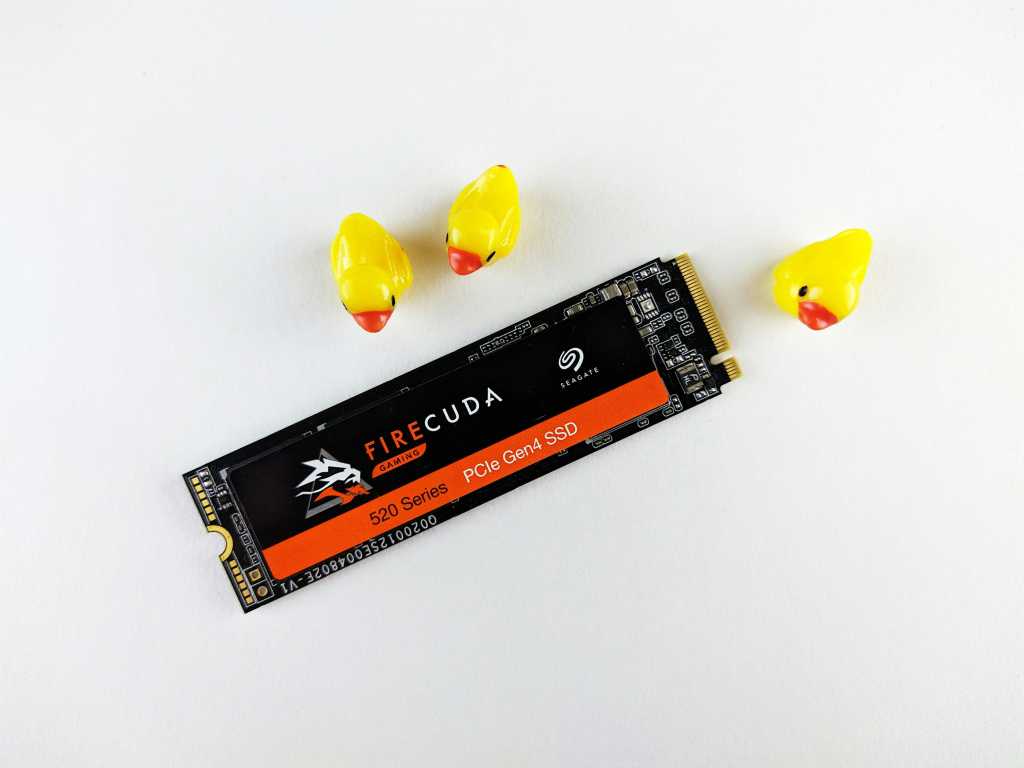
    When it comes to performance tweaks, we tend to think of slight changes we can make to our CPU or GPU settings that will make a difference. But it’s also possible to squeeze more performance from your SSD. Here are some awesome ways to get more throughput from your SSDs.

    Keep the capacity to less than 80 percent full

    SSDs tend to slow down considerably when more than 80 percent capacity is used up. For that reason, you’re going to want to keep capacity below that limit. For example, if you have a 1TB SSD don’t have more than 800GB of files loaded on it.

    Adjust the power plan in Windows

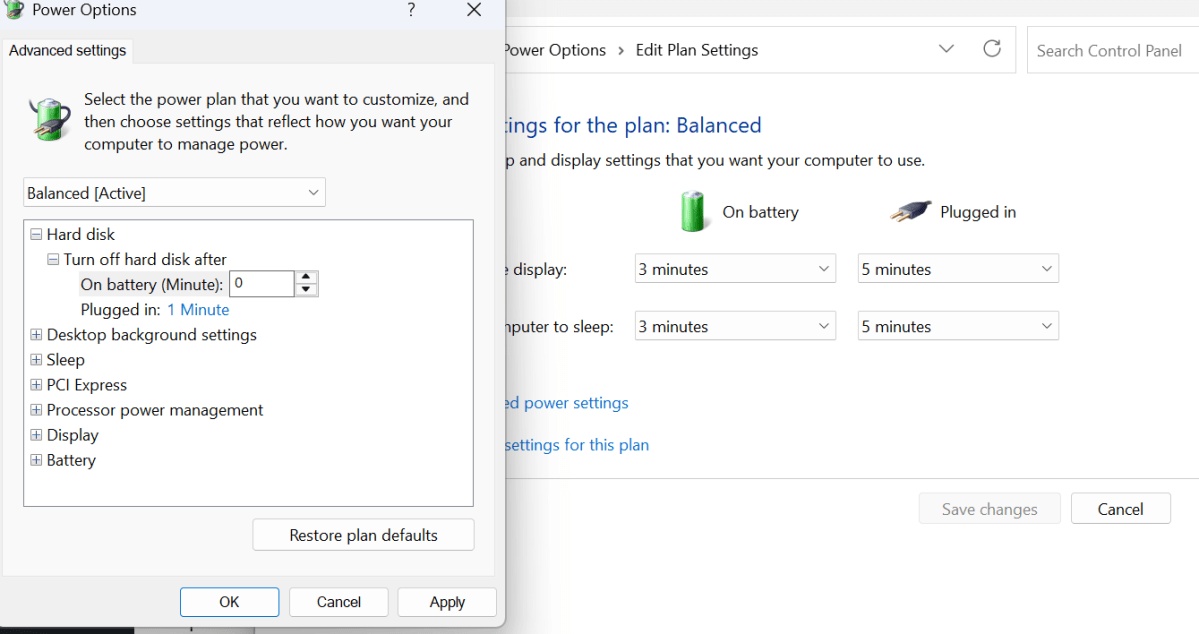
    Adjusting your PC’s power plan prevents the SSD from going to sleep, removing the wait time for it to wake up.

    Part 1:

    • Type choose a power plan into the search box and click Enter. Select the top result.
    • Now choose Change plan settings on the right. In the next window select Change advanced power settings.
    • Now change Turn off hard disk after to 0.
    power plan

    Dominic Bayley / Foundry

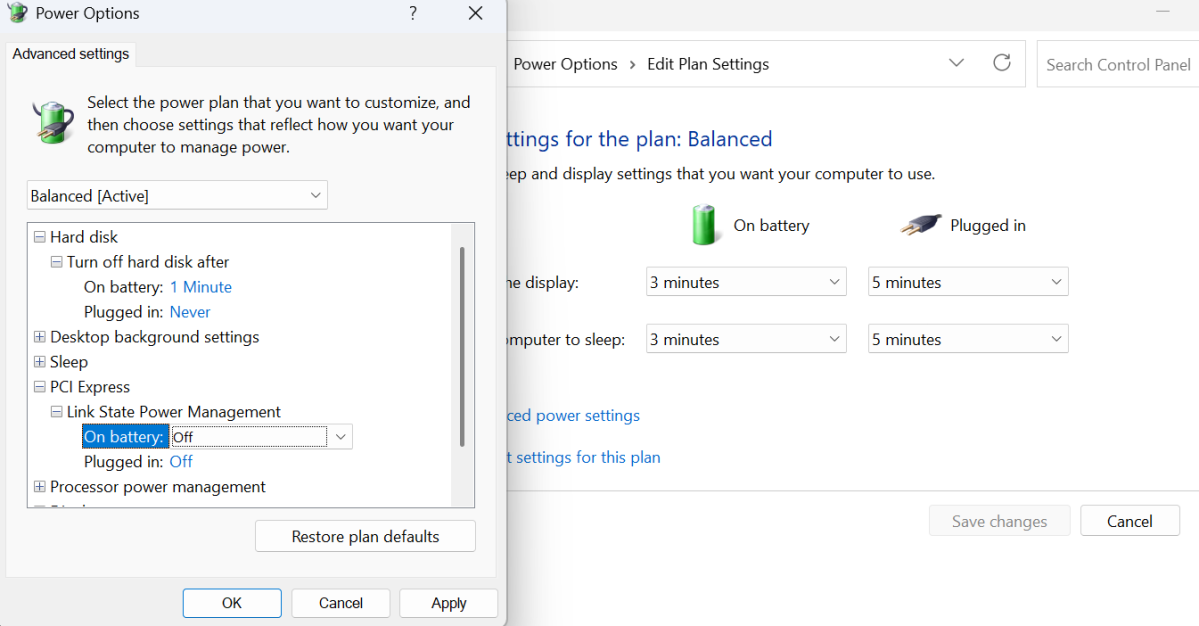
    Part 2:

    This prevents the PCIe bus from downclocking, which slightly affects the SSD performance.

    • Under PCI Express > Link State Power Management change the setting from Maximum Power Management to Off.
    Power plan

    Dominic Bayley / Foundry

    Install the latest firmware update

    Firmware updates for SSD frequently deal with bugs and can also provide performance updates. The classic example of this is the 5B2QGXA7 firmware for Samsung 980 Pro SSDs. This update stopped a problem where the 980’s health status deteriorated to the point where the SSD was unusable.

    Make sure you know what utilities to use to download the latest firmware updates. For Samsung SSDs you can use the Samsung Magician app.

    Enable TRIM in the command prompt

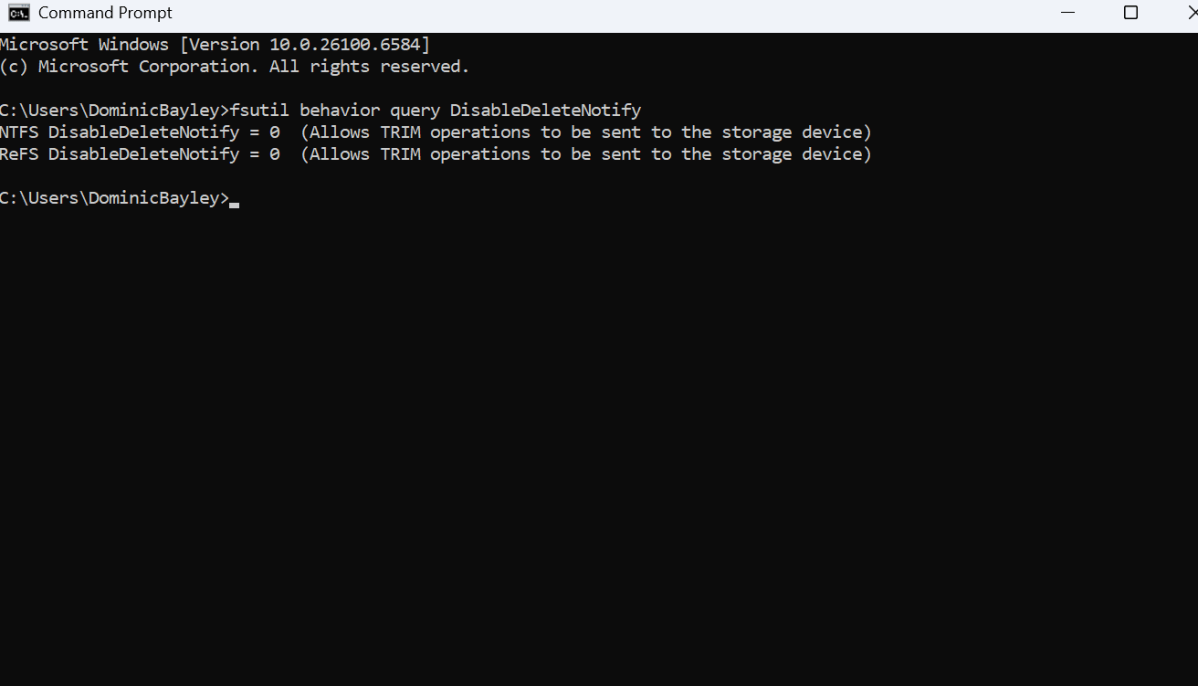
    TRIM helps the SSD clean junk files regularly. A clean SSD naturally runs faster. To check if the TRIM is on type cmd in the Search Bar and press Enter to open it. Now type: fsutil behavior query DisableDeleteNotify and click Enter. If the result is 0, TRIM is enabled. If the result is 1, TRIM is disabled, and you’ll want to turn it on.

    You can manually turn on TRIM by running the following command in the Command Prompt window: fsutil behavior set DisableDeleteNotify 0.

    Conversely, to disable TRIM on SSD, enter the command: fsutil behavior set DisableDeleteNotify 1.
    TRIM

    Dominic Bayley / Foundry

    Add a heatsink

    If your SSD doesn’t have a heatsink, you should get one, especially if you’re running a PCIe Gen 4 or PCIe Gen 5 SSD. A heatsink can siphon heat off the SSD and keep it cooler. If your SSD is running hot, that will allow it to once again operate in its standard temperature range for optimal performance.

    It’s possible to find a name brand heatsink for just $20; or opt for a lesser-known brand and get a simpler option for $10.

    Author: Dominic Bayley, Australian Editor, PCWorld

    Based in Australia, Dominic Bayley is a hardcore tech enthusiast. His PCWorld focus is on PC gaming hardware: laptops, mice, headsets and keyboards.

    Recent stories by Dominic Bayley:

    Extra hiding Speed SSD tweaks Unlock
    Share. Facebook Twitter Pinterest LinkedIn Tumblr Email
    Previous ArticleBreaking up (Google) is hard to do
    Next Article Google Photos is set to add more AI to help you turn your pictures into videos
    techupdateadmin
    • Website

    Related Posts

    Mobile

    Samsung Galaxy S26 Ultra receives 3C certification, charging speed revealed

    December 12, 2025
    Mobile

    Speed Across the Galaxy Next Year in Star Wars: Galactic Racer

    December 12, 2025
    Gadgets

    Samsung Wallet’s Digital Key feature can now unlock your Porsche

    December 10, 2025
    Add A Comment
    Leave A Reply Cancel Reply

    Top Posts

    NYT Strands hints and answers for Monday, August 11 (game #526)

    August 11, 202545 Views

    These 2 Cities Are Pushing Back on Data Centers. Here’s What They’re Worried About

    September 13, 202542 Views

    Today’s NYT Connections: Sports Edition Hints, Answers for Sept. 4 #346

    September 4, 202540 Views
    Stay In Touch
    • Facebook
    • YouTube
    • TikTok
    • WhatsApp
    • Twitter
    • Instagram
    Latest Reviews

    Subscribe to Updates

    Get the latest tech news from FooBar about tech, design and biz.

    Most Popular

    Best Fitbit fitness trackers and watches in 2025

    July 9, 20250 Views

    There are still 200+ Prime Day 2025 deals you can get

    July 9, 20250 Views

    The best earbuds we’ve tested for 2025

    July 9, 20250 Views
    Our Picks

    My Health Anxiety Means I Won’t Use Apple’s or Samsung’s Smartwatches. Here’s Why

    December 22, 2025

    You can now buy the OnePlus 15 in the US and score free earbuds if you hurry

    December 22, 2025

    Today’s NYT Connections: Sports Edition Hints, Answers for Dec. 22 #455

    December 22, 2025

    Subscribe to Updates

    Get the latest creative news from FooBar about art, design and business.

    Facebook X (Twitter) Instagram Pinterest
    • About Us
    • Contact us
    • Privacy Policy
    • Disclaimer
    • Terms and Conditions
    © 2026 techupdatealert. Designed by Pro.

    Type above and press Enter to search. Press Esc to cancel.