


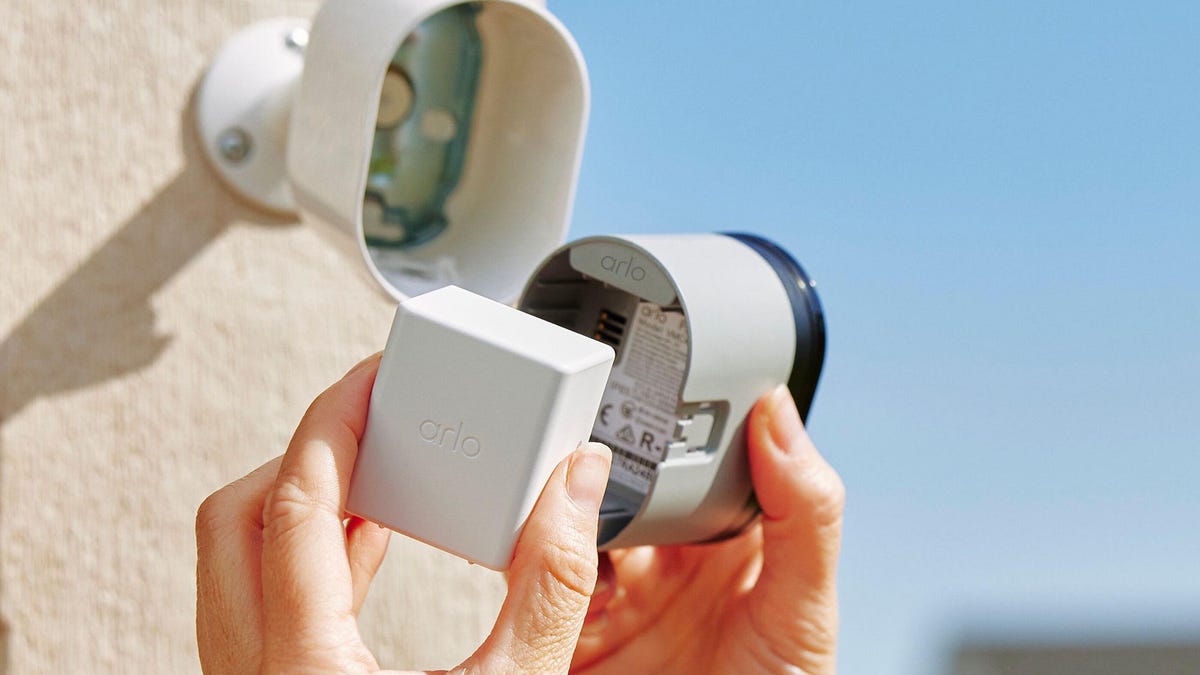
One of the easiest security cameras to use around the home is a battery-powered, wireless camera that’s easy to install anywhere — with one catch. You will eventually (even if it lasts for years) need to recharge or replace that battery. That’s when your security camera is at its most vulnerable.
To help out, I’ve collected the best steps that I’ve learned from recharging wireless cameras of every kind, including ways to make sure they’re free of dirt and that the battery stays in top shape. Get your camera back out into the action fast to spot porch pirates, packages and more.
Read more: Best Wireless Home Security Cameras
Detach your security cam from its mount
Magnetic bases make recharging especially easy.
When you get a low battery warning on your camera app, it’s time to access your cam and pull it from its mount. Many cams, like the Nest Cam or Tapo’s outdoor cams, make this easy with magnetic bases — you can simply reach up and grab the cam to pull it off its base. Some cams are more locked into their mounts, so you’ll need more leverage and a firm grip. Be as gentle as possible to avoid damaging the camera.
Certain video devices, like many of Ring’s video doorbells plus some Arlo and Ring cams, have detachable battery packs that you slide out while leaving the device in place. In theory that sounds easy enough, but in practice, I’ve found I like removing the entire camera to charge. It’s typically easier and faster than removing a battery pack. The advantage of battery packs is that you can buy a few and have a previously charged pack ready to go for your cam.
Finally, this is an excellent opportunity to clean your security cam with a clean, soft cloth to get the outdoor dust and grime off.
Bring the cam inside and connect to its USB cable
The Nest Cam (Battery) comes with a charging cable and wall plate for mounting.
Your wireless cam package should have included a USB cable for charging. Find the USB port on your cam and open it up to connect the cable. These ports are usually protected from the elements by covers and plugs, so you’ll need to uncover it first. Connect the USB cable so that it’s firmly in place.
There is one exception to this process: Some security cams, notably models like the Blink Outdoor 4, use long-lasting AA lithium batteries that are rarely rechargeable and should be replaced. For these cams, you’ll need to manually remove the AA lithium batteries and install new ones. Do not use standard AA batteries for these cams.
Plug the USB cable into a power source to start charging
Use the cable and adapter that cam with your camera.
You can now connect the USB cable to a matching charging-capable port on your computer, or to the included power adapter you can plug into a wall outlet. If your cam came with an adapter then always use it if possible, as its voltage was designed to match your cam battery.
Two important notes about starting to charge. First, don’t use off-brand chargers with your security camera batteries. They may get the job done, but they can be bad for the batteries and less reliable than the brand option. Second, don’t charge your camera near hot spots, such as heaters, fireplaces or on top of PC towers. The heat can damage both the battery and the camera.
Watch your app and LED indicators to monitor charging
Your app or a set of indicator lights should tell you when the battery is done charging.
Most apps will let you check on charging batteries or give you a notification when the battery is charged and ready to go. In some cases, the battery pack or cam will have an LED indicator that changes color (usually to a happier green or blue) when the battery is charged. It can take several hours — you can usually leave the cam battery charging overnight if you prefer.
Unplug the cam and reposition it on the mount
The Blink Outdoor 4 has an adjustable mount that’s sturdy enough to stay at the right angle.
At full charge, remove the cam and place it back on the mount. With magnetic bases, you may need to make some small adjustment to get the camera at the right angle again, an unavoidable price to pay for this kind of swift dismounting.
Tap back into your app and check the camera’s live view to make sure everything is working as it should.\
Read more: The Best Home Security When You’re Off the Grid
Add a solar panel to make charging easier
Solar panels are a minor installation that can save a lot of camera hassle.
If recharging your wireless cameras seems exhausting just reading about it, you should take a look at an increasingly popular option: camera solar panels. Most security camera companies also produce solar panels that connect to their cams and are mounted right beside them or in a nearby spot where they can catch lots of sun.
These solar panels automatically recharge the camera battery. With enough sun, they can continue recharging and keep the battery topped off. You rarely, if ever, need to manually recharge yourself if you have a well-placed solar panel.
Round off your home security knowledge with a look at our best video doorbells (with many wireless models), the best home security cameras without a subscription and the best 4K cams for high definition video.
