



Aside from its various processor, memory, and device capacity improvements, the new Philips Hue Bridge Pro comes with a killer feature: the ability to turn your existing Hue lights into motion sensors. I’ve been testing this functionality for the past few weeks, and yes, it works. Getting it to work the way I want it to, however, has been a challenge.
First, a little background. Unveiled in September and on sale now, the Philips Hue Bridge Pro packs a faster, quad-core 1.7 GHz Cortex A-35 CPU and a gigabyte of DDR4 SDRAM, which allow the hub to handle more than 150 Hue devices, or roughly three times as many as the standard Hue Bridge.
The new Hue Bridge Pro can also connect to your home network via Wi-Fi, meaning it doesn’t need to be tethered to your router by an ethernet cable. (I’ve been testing the Bridge Pro on Wi-Fi mode and haven’t had any connectivity issues).
Those processing and networking improvements make for an impressive upgrade on their own, but the Hue Bridge Pro ($98.99) also boasts another cool feature: MotionAware, which monitors motion-induced disruptions to the Zigbee signals Hue lights use for communication, effectively turning your smart lights into motion sensors. Given that an indoor Hue motion sensor costs $50, the Hue Bridge Pro’s ability to make your Hue lights motion-aware practically pays for itself.
MotionAware does have limitations. For starters, there must be at least three MotionAware-capable Hue lights in a given motion zone for the feature to work (you can also add a fourth light if you like). Also, not all Hue lights support MotionAware functionality; Hue says 95 percent of its lights will do the MotionAware trick, but my portable Hue Go table lamps didn’t make the cut, nor did my third-party Zigbee bulbs.
Given that a standard Hue motion sensor costs $50, the Hue Bridge Pro’s ability to make your Hue lights motion-aware practically pays for itself.
Aside from the technical limitations, there are some MotionAware features that aren’t free. Namely, if you want your MotionAware motion zones to trigger security alerts, you’ll need to sign up for a Secure MotionAware plan for $1 a month, or $10 a year. (A 30-day free trial is available.) If you simply want MotionAware to turn your lights on and off, that functionality is free, and that’s what I’ve been testing.
Setting up a MotionAware motion zone is a simple process. Starting from the Hue app’s Settings menu, you tap on Motion areas, then tap the “+” button; you’ll then see which of your rooms and zones in the Hue app have enough Motion Aware-ready lights for a motion zone.
In my case, I could add motion zones in my kitchen, main bedroom, and office; the dining room wouldn’t work because of the four Hue lights in there, two of them are the non-MotionAware compatible Hue Go portable table lamps, while other areas didn’t have enough Hue lights to create a zone. I elected to create a single motion zone in the kitchen, the most highly trafficked area in our apartment.
Next, you choose which lights to add to the zone; Hue recommends picking lights that are between three and 23 feet apart, and at varying heights. You’ll also want to choose lights that border the general area where you want motion to be detected. Once you pick the Hue lights to include in the motion zone, the Hue app will ask you to leave the area so it can calibrate the lights in the zone; the process takes roughly 20 seconds.
You’ll need at least three MotionAware-capable Hue lights in a room to create a motion zone.
Ben Patterson/Foundry
Finally, you pick which lights your MotionAware-enabled motion zone will control (you can pick lights in the same room as the motion zone, or in a different room), and then you decide what happens when your new motion zone detects motion—or, on the flip side, when it doesn’t detect motion. (Again, I only tested MotionAware’s ability to control lights, not its security features.)
The Hue app gives you various time slots that allow you to customize the behavior of a motion zone. You start with three time slots, set roughly to morning, evening, and nighttime; you can add more slots as needed, as well as adjust when the slots begin and end, but you can’t designate a different set of time slots for individual days of the week or for the weekend.
For each time slot, you then choose what happens when motion is detected, and what happens after a set period (anywhere between a minute to 60 minutes) of no motion being detected.
Picking what happens when motion is detected is fairly straightforward; you can choose any light scene (either a preset Hue scene or one you’ve customized), or choose “Last on state” or “Do nothing.” For what happens after no motion is detected, the choices are far more limited: just “Off,” “Do nothing,” or “Return to previous state.”
Aside from those settings, each time slot offers a “Do not disturb” option that will prevent your motion zone from altering the behavior of lights that are already on. There’s also an overall “Daylight settings” option that will keep your motion zones from triggering your lights during daylight hours.
As for the actual performance of Hue’s MotionAware technology, I found it to work more or less as advertised. My kitchen lights reliably detected motion whenever I or my family members walked into the area, and sensed that activity had ceased once we left the room.
There were several occasions when the lights would turn off after we’d been sitting at the kitchen table for too long (a common foible for motion sensors in general), but upping the MotionAware sensitivity setting cut down on those instances. Boosting the sensitivity up too high will put your motion zone on a hair trigger, of course.
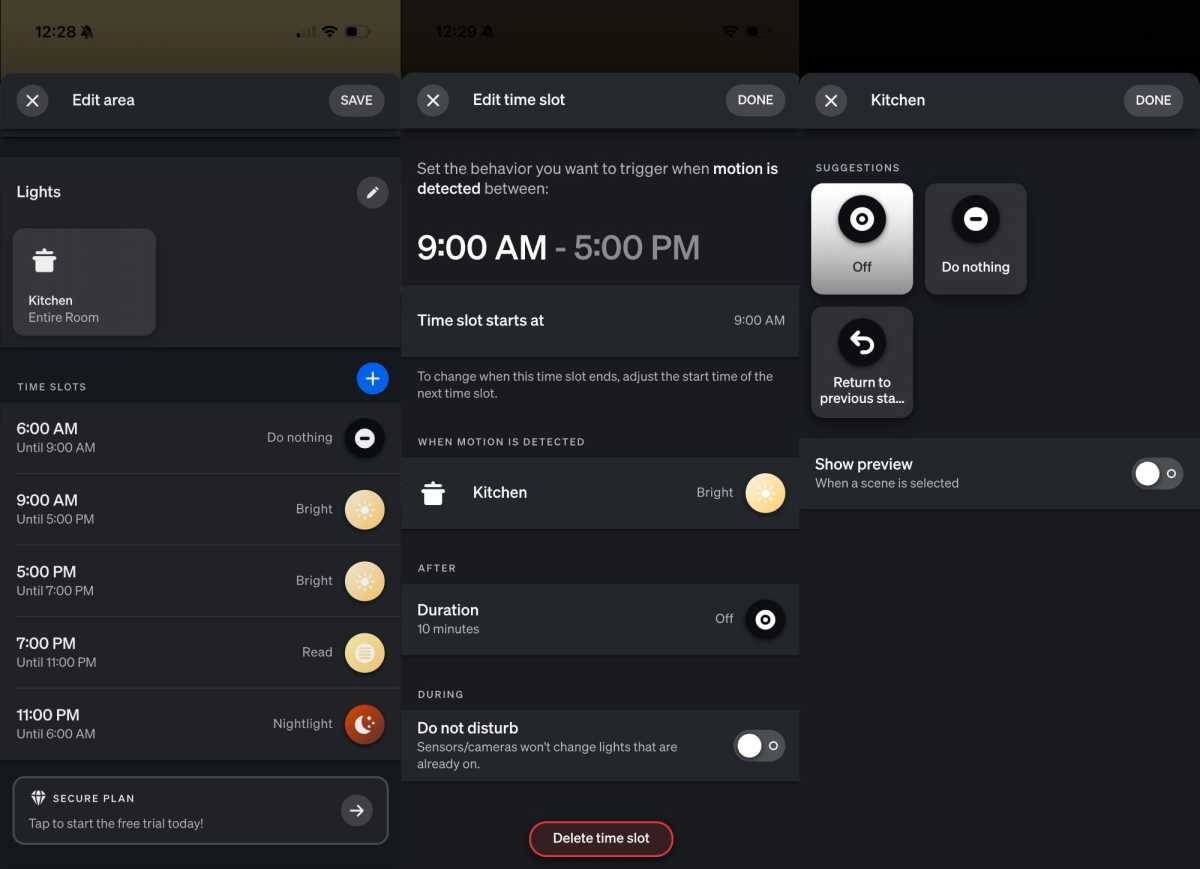
The Hue app lets you create different time slots for your motion zones (left) as well as what happens when motion is detected (center) or not detected (right).
Ben Patterson/Foundry
But while I was satisfied with the basic MotionAware performance, I was less happy with the design of Hue’s motion zone settings, which I found needlessly complicated and nitpicky.
My main complaint is the inability to have a motion zone trigger a light scene when your MotionAware lights stop detecting motion—namely, I like my under-cabinet Hue light strip to stay on during the day even when my overhead Hue lights are off.
Theoretically, this could be achieved with the “Return to previous state” option, but picking that setting led to unpredictable results, depending on what the “previous state” actually was. Maybe it was just my failure to comprehend the “previous state” concept, but I eventually gave up and settled for the “Off” option.
Then there’s the matter of disabling motion detection for certain time slots—for example, I don’t want my kitchen lights automatically turning off while we’re eating breakfast in the morning.
Hue’s MotionAware-enabled motion zones do work. How they work could use some tweaking.
Again, selecting the “Do nothing” for both the “When motion is detected” and “After” settings should effectively motion control of your lights for a given time slot, but I still ran into instances where the lights would unexpectedly dim or turn off during the breakfast time slot.
I don’t think there’s anything broken on the Hue app or with my MotionAware-enabled motion zone zone; instead, it’s probably a case of user error (mine). But the fact that I’m having trouble getting my motion-controlled Hue lights to do what I want them to do—and I consider myself to be a reasonably savvy Hue user—indicates that Hue’s motion settings interface needs a rethink.
I have two main suggestions: first, allow users to pick lighting scenes to be triggered when motion is no longer detected, and second, let us deactivate a motion zone time slot with a simple tap, rather than having to dip into a time slot and adjust multiple settings. I’d also like separate time slots for the weekend, but let’s start with the first two changes.
To be clear, I think MotionAware is a terrific new feature for the Hue Bridge Pro, and as I’ve said, it could be a big money saver for those who want multiple Hue motion zones in their homes. And yes, the motion sensing does work. But if you ask me, how it works could use some tweaking.
This story is part of TechHive’s in-depth coverage of the best smart lights.
