


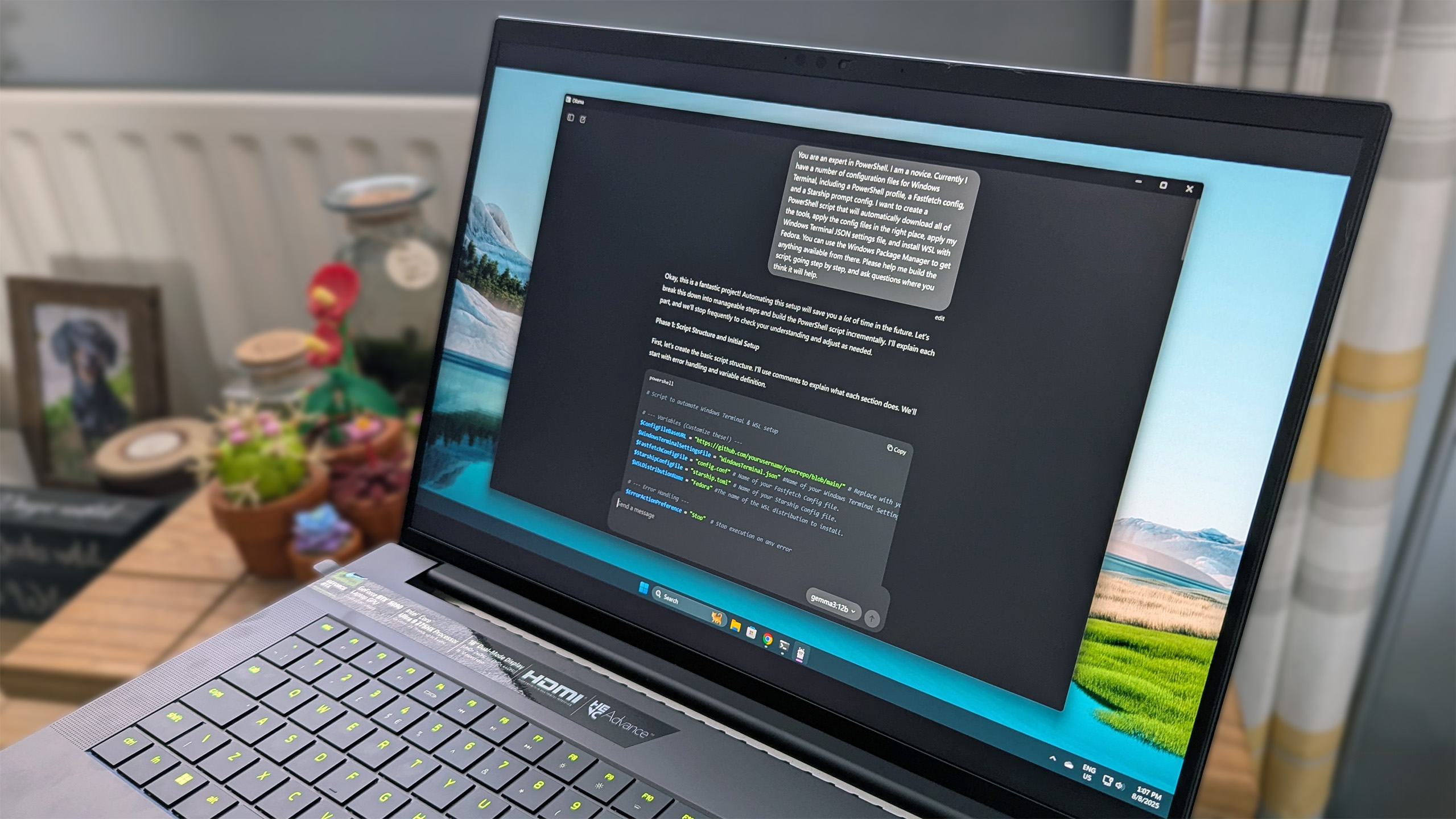
If you’re looking at using Ollama on your PC to run local LLMs (Large Language Models), with Windows PCs at least, you have two options. The first is to just use the Windows app and run it natively. The second is to run the Linux version through WSL.
The first is definitely easier. For one, you don’t need to have WSL installed, and the actual process of getting up and running is simpler. You just downloaded the Windows installer, run it, and you’re up and running.
Installing Ollama on WSL requires jumping through a few more hoops. But, using Ubuntu, it’s good, and performance is excellent. At least in my experience using an NVIDIA GPU. But unless you’re, say, a developer, using WSL for your workflows, there isn’t much reason to go this way over the regular Windows version.
Getting Ollama set up on WSL
I’ll start by saying this isn’t an exhaustive setup guide, more a case of pointing in the right direction. To use Ollama on WSL — and specifically, I’m referring to Ubuntu, because that seems to be both the easiest and best documented — there are a couple of prerequisites. This post is also specific to NVIDIA GPUs.
The first is an up-to-date NVIDIA driver for Windows. The second is a WSL-specific CUDA toolkit. Assuming you have both, the magic will just happen. Microsoft and NVIDIA’s documentation is the best place to start to guide you through the whole process.
It doesn’t take too long, though, but that’s also dependent on your internet connection to get all the bits you need downloaded.
Once you have this handled, you can simply run the installation script to get Ollama up and running. Note, I haven’t explored running Ollama in a container on WSL; my experience is strictly linked to just installing it directly to Ubuntu.
During the installation process, it should automatically detect the NVIDIA GPU if you have everything set up correctly. You should see a message saying “NVIDIA GPU installed” as the script is running.
From there on out, it’s the same as using Ollama on Windows, minus the GUI application. Download your first model and you’re away. There is a mild quirk, though, if you switch back to Windows.
If you’re running WSL in a different tab, Ollama in Windows (in the terminal at least) will only recognize the models you have installed on WSL as active. If you check the ollama –list command, you’ll not see any you have installed on Windows. If you try to run one you know you have, it’ll go out and start downloading it again.
In this case, you need to ensure WSL is properly shut down before using Ollama on Windows. You can do this by entering wsl –shutdown into a PowerShell terminal.
Almost identical performance in WSL to using Ollama on Windows

I’ll get to some numbers in a moment, but there is one point to address. It potentially doesn’t matter in the grand scheme of things, but you need to at least be mindful that just running WSL will use up some of your overall system resources.
You can set the amount of RAM and CPU threads you want WSL to use easily in the WSL settings app. If you’re primarily going to be using the GPU, it’s less important. But, if you intend to use any models that don’t fit entirely into your VRAM, you’ll need to ensure you have sufficient resources allocated to WSL to pick up the slack.
Remember that if the model doesn’t fit into the VRAM, Ollama will rope in the regular system memory, and with it, the CPU. Just be sure to allocate accordingly.
I’ll admit these tests are very simple, and I’m not verifying any accuracy of the output. It’s only to illustrate the comparable performance. I looked at four models that all run comfortably on an RTX 5090: deepseek-r1:14b, gpt-oss:20b, magistral:24b, and gemma3:27b.
In each case, I asked the models two questions.
- Write a story over 5 chapters with a theme and characters of your choice. (Story)
- I want you to create a clone of Pong entirely within Python. Use no external assets, and any graphical elements must be created within the code. Ensure any dependencies are imported that are required. (Code)
And the results:
| Row 0 – Cell 0 |
WSL |
Windows 11 |
|
gpt-oss:20b |
Story: 176 tokens/sec Code: 177 tokens/sec |
Story: 176 tokens/sec Code: 181 tokens/sec |
|
magistral:24b |
Story: 78 tokens/sec Code: 77 tokens/sec |
Story: 79 tokens/sec Code: 73 tokens/sec |
|
deepseek-r1:14b |
Story: 98 tokens/sec Code: 98 tokens/sec |
Story: 101 tokens/sec Code: 102 tokens/sec |
|
gemma3:27b |
Story: 58 tokens/sec Code: 57 tokens/sec |
Story: 58 tokens/sec Code: 58 tokens/sec |
There are some minor fluctuations, but performance is as near as makes no difference, identical.
The only difference between the impact each made on the system resources, also, is the additional RAM being used when WSL is active. But since none of these models exceeded the dedicated VRAM, it had no impact on the model’s performance.
For developers working in WSL, Ollama is just as powerful

An Average Joe such as myself (even one who loves WSL) doesn’t really need to bother with using Ollama this way. My main use of Ollama at the moment is education, both as a learning tool and teaching myself about how it works.
For that, using it on Windows 11 is absolutely fine, either in the terminal or hooked into the Page Assist browser extension, which is something else I’ve been playing with recently.
But WSL is a bridge between Windows and Linux for developers. Those with necessary WSL workflows can use Ollama this way without any loss in performance.
Even today, it still feels a little bit like magic that you can run Linux on Windows like this and have full use of your NVIDIA GPU. It certainly all works that way, anyway.
