



You’re in the middle of a video conference, everyone is waiting, but your microphone isn’t working? Or you can be heard, but all the other participants remain mute? Welcome to the club of Windows audio sufferers. Whether it’s Teams, Zoom, or Google Meet: audio problems are one of the most common glitches in video calls.
The good news: in most cases, the problem is not caused by a technical defect, but by an incorrectly set tick box, a forgotten driver, or a stubborn Bluetooth profile. Here you can find out step by step how to get your connected audio devices working again under Windows—from the correct plug to microphone amplification.
1. Check the plug: trivial, but always the first step
Sounds simple, but it’s the most common cause of audio problems: a loose cable or the wrong connection. Check the following:
- Jack or USB: First check whether your headset is plugged in correctly. Some connections differentiate between microphone and headphone jacks. TRRS jack plugs (four poles) must be fully seated, otherwise you will not hear anything or the microphone will not work.
- USB headsets: Look out for a brief illumination of the LEDs or a ping sound when connecting. If nothing happens, try a different USB port. Give Windows some time to set up the new device the first time you plug it in.
- Bluetooth: Make sure that the headset is shown as connected in the Windows setup. To do this, look under Bluetooth and other devices to see whether your audio device has been recognized. If problems occur, it sometimes helps to remove the headset and pair it again.
Tip: A quick restart of Windows or switching the headset off and on can sometimes work wonders before you embark on a long troubleshooting session.
2. Select the correct audio input and output
Sam Singleton
Windows often recognizes devices automatically, but not always. Therefore, check these settings in case of problems:
- Windows 10 & 11: Right-click on the speaker icon in the taskbar → Sound settings.
- Under Input you can see which microphone is currently active. Select your connected device here. Under Test microphone, you should see a reaction when you speak into the microphone and this is set as the default device.
- Under Output, check that the speakers or headphones are selected correctly. In the drop-down menus, you will see all the audio devices currently managed by Windows.
Note: Many video conferencing tools (such as Teams, Zoom, or Discord) have their own audio settings, which you should also check. You can often test your current setup directly with these applications by making a test call before important conferences or calls. Please note that Windows and individual applications may specify different standard devices.
3. Windows does not recognize the audio device
Sam Singleton
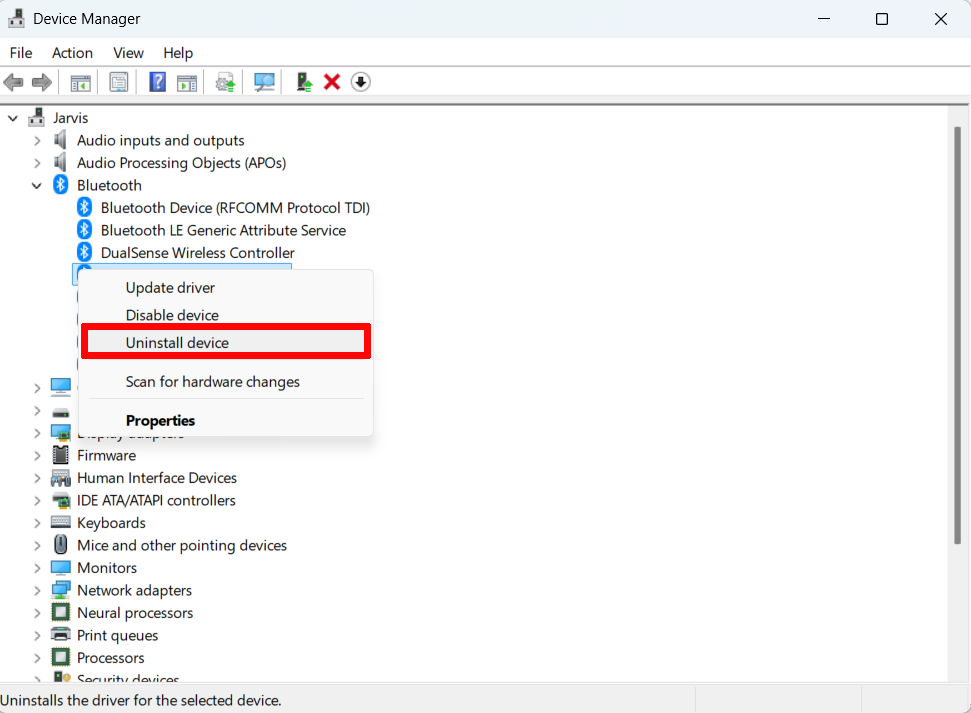
Sometimes Windows simply won’t recognize an audio device, even despite a correctly plugged-in cable or Bluetooth connection. The first step is to take a look at the Device Manager: Right-click on Start → Device Manager and search for your device under Audio inputs and outputs. If it doesn’t appear here, it may help to uninstall and reinstall the device: Right-click on the headset → Uninstall → Install again after a few seconds. Windows then often realizes that a microphone is connected after all.
With USB or Bluetooth headsets, it can also help to remove the device completely and set it up again. For USB devices, simply unplug the device, wait a few seconds and plug the headset back in. For Bluetooth, open Settings → Devices → Bluetooth & other devices, select your headset and click Remove device. Then pair it again by activating the pairing mode on the headset and clicking on Add Bluetooth or other device. Restarting Windows does no harm and often ensures that drivers and profiles are loaded correctly.
4. Bluetooth headset connected, but no sound
Bluetooth headsets are practical, but can be temperamental. Windows distinguishes between headset mode for speech and stereo mode for music or other sounds. Sometimes, however, the system makes a mistake and thinks that only the microphone is relevant—the audio output is then assigned elsewhere. The result: you hear nothing. So check in the sound settings (as in step 2: right-click on speaker icon → Sound settings) whether your headset is selected both as an output device and for input (microphone).
If the sound is still missing, remove the headset via Settings → Devices → Bluetooth & other devices → Remove device and then pair it again. Windows will then reset the profiles and, with a bit of luck, communication will be successful. Also pay attention to the distance between the PC and the headset and to sources of interference such as other Bluetooth devices: this can also cause the audio quality to suffer or, in the worst-case scenario, nothing to come through. Technical problems or problems with outdated devices are best solved with new hardware. We offer a detailed comparison of the best headsets if you need new cans for your computer setup.
5. Check volume, mute and app settings
Sometimes the problem is not with the headset itself, but with a setting that is easily overlooked. First check the physical mute switch (“Mute”) on the headset or directly on the cable. Many models have a small slider or button that can mute the microphone or speakers. You should then check the Windows volume: Click on the speaker icon in the taskbar and check whether the slider is set high enough.
Still no sound? Then check the app settings: Teams, Zoom, or Discord have their own audio menus. There you will find test functions, small “Check microphone” buttons or volume controls.
Note: A headset may physically work perfectly, but if Windows or an app has not selected the device as the default, it will not be used and the audio channel will remain muted—see steps 2-4 above if this is the case.
6. Update or reinstall drivers
If none of this helps, there is often a driver problem. Modern Windows versions install drivers automatically, but sometimes old versions are left behind or updates bring new problems.
Firstly, check via Device Manager → Audio inputs and outputs → Right-click on your audio device → Update driver to see if Windows can find a current driver. Alternatively, it’s worth taking a look at the manufacturer’s website: there you will usually find the latest version specifically for your model and your Windows (10 or 11).
If problems persist, it can help to completely uninstall the driver: Device Manager → Audio inputs and outputs → Right-click on your audio device → Uninstall device → then reconnect the headset. Windows will then automatically reinstall the appropriate driver. The same often applies to USB headsets: unplug, wait, plug back in. Sometimes this alone ensures a clean reinstallation.
Tips & tricks for optimum audio quality in video conferences
1. Set the microphone gain correctly
Sometimes the microphone is active but sounds too quiet. Under Sound settings → Input you can increase the microphone gain. Tip for Windows 10: Here you need to click on Device properties under Input. Small adjustments are often enough to sound clear and intelligible. Make sure that the value is not too high, otherwise annoying background noise will occur.
2. Make short test calls
Many video conferencing tools offer test calls or preview functions. Use these before the meeting starts. This allows you to see immediately whether the microphone and speakers are working correctly and you don’t have to keep other participants waiting while you deal with Windows problems.
3. Pay attention to room acoustics
Background noise and reverberation can severely impair the acoustics in calls. Headsets with foam protection on the microphone can effectively minimize disturbing noises.
4. Check drivers regularly
Even if everything is working properly: A regular check for driver updates from the manufacturer or via Windows Update prevents sudden failures. With tools such as Drivermax, you can also conveniently leave such updates to a tool.
5. Restarting can work wonders
If all else fails, briefly unplug the headset, restart Windows and then pair the headset again—some errors just disappear by themselves if you can appease the ghost in the machine.
Conclusion
With the right steps and a few control checks, you’ll be ready for any video conference—whether you’re using Windows 10 or 11. A quick look at the plugs, settings, and drivers can prevent awkward silences and ensure that you can always be heard clearly and hear everything yourself. This way, you can start the meeting relaxed instead of struggling with technical problems. However, if all attempts to solve the problem come to nothing, it may be time for a new headset—even the best software tweaks are powerless if the hardware is damaged.
