
Close Menu
TechUpdateAlert

    Subscribe to Updates

    Get the latest creative news from FooBar about art, design and business.

    What's Hot

    My Health Anxiety Means I Won’t Use Apple’s or Samsung’s Smartwatches. Here’s Why

    December 22, 2025

    You can now buy the OnePlus 15 in the US and score free earbuds if you hurry

    December 22, 2025

    Today’s NYT Connections: Sports Edition Hints, Answers for Dec. 22 #455

    December 22, 2025
    Facebook X (Twitter) Instagram
    Trending
    • My Health Anxiety Means I Won’t Use Apple’s or Samsung’s Smartwatches. Here’s Why
    • You can now buy the OnePlus 15 in the US and score free earbuds if you hurry
    • Today’s NYT Connections: Sports Edition Hints, Answers for Dec. 22 #455
    • Android might finally stop making you tap twice for Wi-Fi
    • Today’s NYT Mini Crossword Answers for Dec. 22
    • Waymo’s robotaxis didn’t know what to do when a city’s traffic lights failed
    • Today’s NYT Wordle Hints, Answer and Help for Dec. 22 #1647
    • You Asked: OLED Sunlight, VHS on 4K TVs, and HDMI Control Issues
    Facebook X (Twitter) Instagram Pinterest Vimeo
    TechUpdateAlertTechUpdateAlert
    • Home
    • Gaming
    • Laptops
    • Mobile
    • Software
    • Reviews
    • AI & Tech
    • Gadgets
    • How-To
    TechUpdateAlert
    Home»How-To»iPadOS 26 public beta added a new Pencil tool, and now I’m obsessed with learning calligraphy
    How-To

    iPadOS 26 public beta added a new Pencil tool, and now I’m obsessed with learning calligraphy

    techupdateadminBy techupdateadminAugust 3, 2025No Comments4 Mins Read
    Share Facebook Twitter Pinterest LinkedIn Tumblr Reddit Telegram Email
    iPadOS 26 Calligraphy
    Share
    Facebook Twitter LinkedIn Pinterest Email

    With roots in hieroglyphics and cuneiform, the art of calligraphy traces back thousands of years. While I’ve long appreciated it, I’ve had little interest in learning how to do it, that is, until recently, when Apple rolled out iPadOS 26 public beta, which includes a new reed pen, a virtual tool perfectly built for digital calligraphy.

    A reed pen is what it sounds like: a reed with one end carved or cut into a nib with a small split at the end that can deliver ink to paper (or papyrus!). In real life, calligraphers use it because it lets them apply black lines of varying thicknesses – from thick to needle-point thinness – by adjusting pressure and angle, and by how they draw the nib across the page.

    Those who use them well are masters of the calligraphic arts, creating clean, beautiful calligraphy for everything from signs to wedding invitations.


    You may like

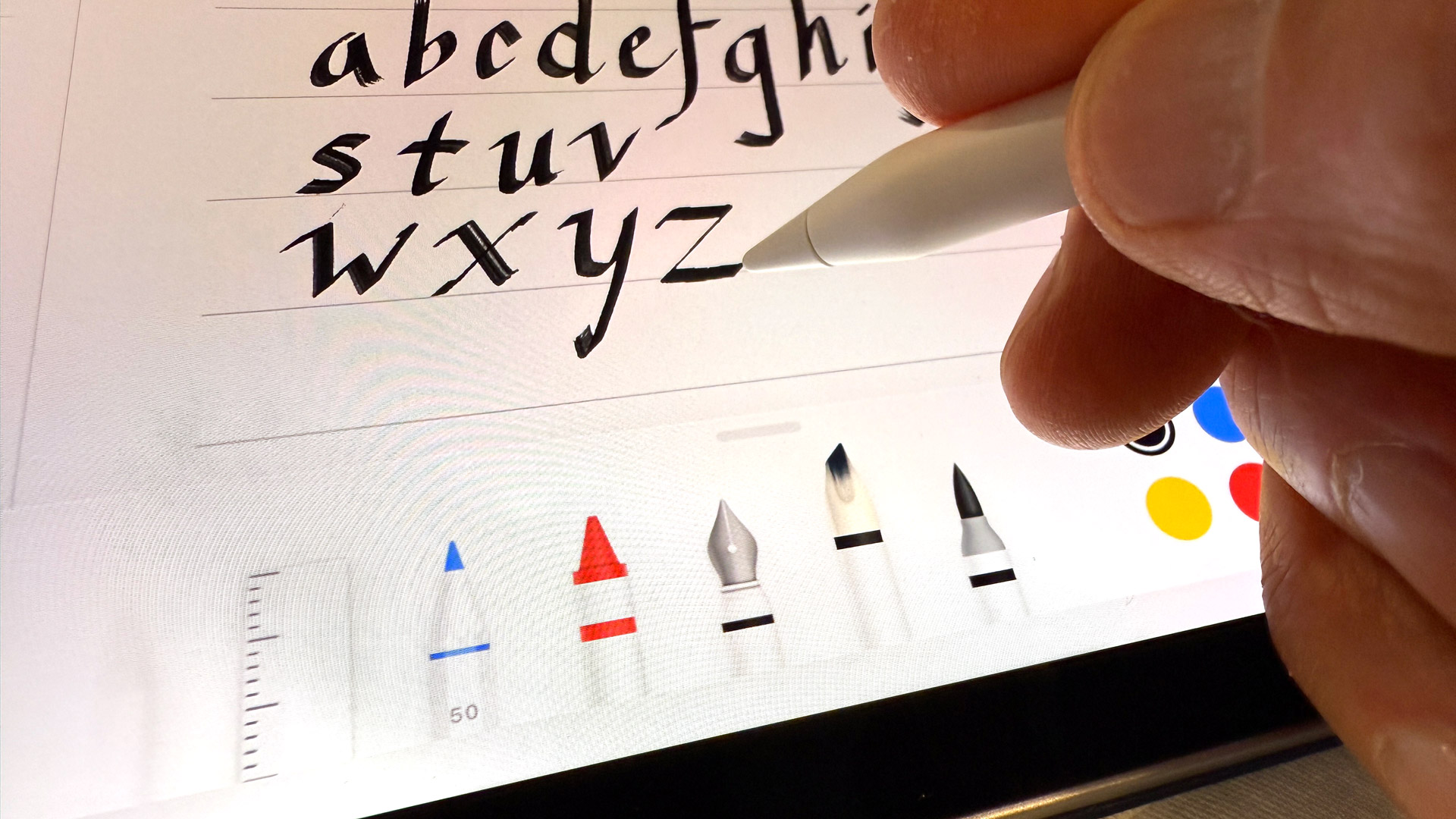
    In digital form, the reed pen in iPadOS 26 seeks to replicate that control through the use of a hard-tipped Apple Pencil.

    It’s not a perfect replication. The digital double doesn’t look like bamboo; instead, its image is a white, ink-stained nub in a plastic holder. Even so, using this new digital pen, I do believe that with considerable practice, I might become a semi-decent calligrapher.

    (Image credit: Lance Ulanoff / Future)

    Using the Reed Pen

    If you install iPadOS 26, the reed pen is added automatically, but you might not immediately see it if you open the drawing icon and Apple Pencil control center in apps like Notes, Freeform, and Journal. To find it, scroll to the left; it’s next to the fountain pen.

    Image 1 of 2

    iPadOS 26 Calligraphy
    (Image credit: Lance Ulanoff / Future)

    iPadOS 26 Calligraphy
    (Image credit: Lance Ulanoff / Future)

    The calligraphic writing style won’t work by default. In my experience, you need to select the thinnest brush and the sharpest angle. I suggest the one on the far left.

    Sign up for breaking news, reviews, opinion, top tech deals, and more.

    Apple noted in its iPadOS 26 announcement that the reed pen would work with touch – meaning your finger – but I don’t see how you can get that true calligraphy experience with a digit. If you have an Apple Pencil handy, I suggest you use that.

    After that, you’ll want to Google some training materials. I searched online and found numerous calligraphy examples I could copy, but I also had some success asking ChatGPT for training advice and even a practice sheet.

    Image 1 of 2

    iPadOS 26 Calligraphy
    (Image credit: Lance Ulanoff / Future)

    iPadOS 26 Calligraphy
    (Image credit: Lance Ulanoff / Future)

    Over time, I learned that, at least when using the reed pen in iPadOS 26, I could control the thickness and density of my stroke with pressure, and to make truly thin lines or ones that ended in a point, my reed pen needed to be traveling at a 45-degree angle.

    A quick motion in which I lift the Apple Pencil up from the screen creates the signature tapering for the end strokes, just as a lighter touch at the beginning of an angled stroke reliably creates the start taper.

    iPadOS 26 Calligraphy

    (Image credit: Lance Ulanoff / Future)

    I did most of my writing in Notes, where I could open a new note, select the reed pen, and then click on the ellipses menu to select “Lines & Grids” and then the double-spaced lined paper style. Sometimes I worked with Notes in full screen mode, and others I used iPadOS 26’s new multiwindow capabilities to put sample calligraphy images alongside my writing window.

    I spent two days practicing strokes and font styles. I won’t say I ever got good, but I’ve been occasionally pleased with my results. There is something incredibly meditative about calligraphy, and I think I may stick with it.

    Also, if you need someone to letter your wedding invitations… well, give me a few months.

    You might also like

    added beta calligraphy iPadOS Learning Obsessed Pencil public Tool
    Share. Facebook Twitter Pinterest LinkedIn Tumblr Email
    Previous ArticleWhat Happens to Your Data If You Stop Paying for Cloud Storage?
    Next Article Rhythm games use a lot of classical music, huh?
    techupdateadmin
    • Website

    Related Posts

    Gadgets

    7 Useful Tips for Anyone Connecting to Public Wi-Fi

    December 20, 2025
    Mobile

    Meta’s new open-source AI tool helps you clean up noisy recordings just by typing

    December 17, 2025
    Gadgets

    iOS 26.2 adds an AirDrop security tool that you shouldn’t ignore on your iPhone

    December 14, 2025
    Add A Comment
    Leave A Reply Cancel Reply

    Top Posts

    NYT Strands hints and answers for Monday, August 11 (game #526)

    August 11, 202545 Views

    These 2 Cities Are Pushing Back on Data Centers. Here’s What They’re Worried About

    September 13, 202542 Views

    Today’s NYT Connections: Sports Edition Hints, Answers for Sept. 4 #346

    September 4, 202540 Views
    Stay In Touch
    • Facebook
    • YouTube
    • TikTok
    • WhatsApp
    • Twitter
    • Instagram
    Latest Reviews

    Subscribe to Updates

    Get the latest tech news from FooBar about tech, design and biz.

    Most Popular

    Best Fitbit fitness trackers and watches in 2025

    July 9, 20250 Views

    There are still 200+ Prime Day 2025 deals you can get

    July 9, 20250 Views

    The best earbuds we’ve tested for 2025

    July 9, 20250 Views
    Our Picks

    My Health Anxiety Means I Won’t Use Apple’s or Samsung’s Smartwatches. Here’s Why

    December 22, 2025

    You can now buy the OnePlus 15 in the US and score free earbuds if you hurry

    December 22, 2025

    Today’s NYT Connections: Sports Edition Hints, Answers for Dec. 22 #455

    December 22, 2025

    Subscribe to Updates

    Get the latest creative news from FooBar about art, design and business.

    Facebook X (Twitter) Instagram Pinterest
    • About Us
    • Contact us
    • Privacy Policy
    • Disclaimer
    • Terms and Conditions
    © 2026 techupdatealert. Designed by Pro.

    Type above and press Enter to search. Press Esc to cancel.