


Long ago, I had an Android phone with an early facial recognition sign-in feature… and someone could unlock my phone just by holding up a photo of me. Yeah, it was bad.
Fast forward to 2025 and we have Windows Hello facial recognition sign-ins for PCs. Microsoft talks a big game about how secure it is, that Windows Hello can’t be easily tricked, that it’s better than a traditional PIN or password, and that it’s as secure as Apple’s Face ID.
But is it really? I ran an experiment and tried to fool it. Here’s what happened when I put facial recognition to the test on my PC.
How I tried to fool Windows Hello
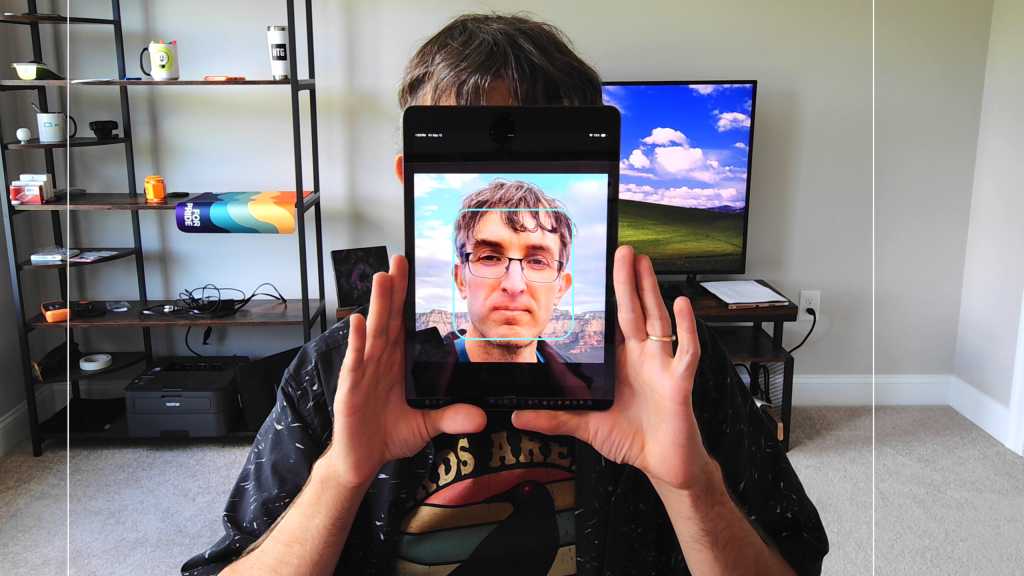
If someone wanted to fool facial recognition biometrics, they’d probably do it using a photo of your face. So that’s just what I did—I took a photo of myself (available online), put it on an iPad, and held it up in front of my face. My Windows Hello webcam wasn’t fooled for a second.
In fact, Windows Hello doesn’t even see flat pictures as faces! While the Camera app on Windows does register it as a face, Windows Hello knows better. Despite holding up a high-resolution image of my face, Windows Hello kept insisting it couldn’t see me.
Chris Hoffman / Foundry
There are other ways to potentially fool Windows Hello, like printing out a photo of someone on paper and even cutting out eye holes so you can visibly blink while holding it up in front of your face. But none of these methods work. A flat image just won’t cut it.
Why Windows Hello can’t be easily tricked
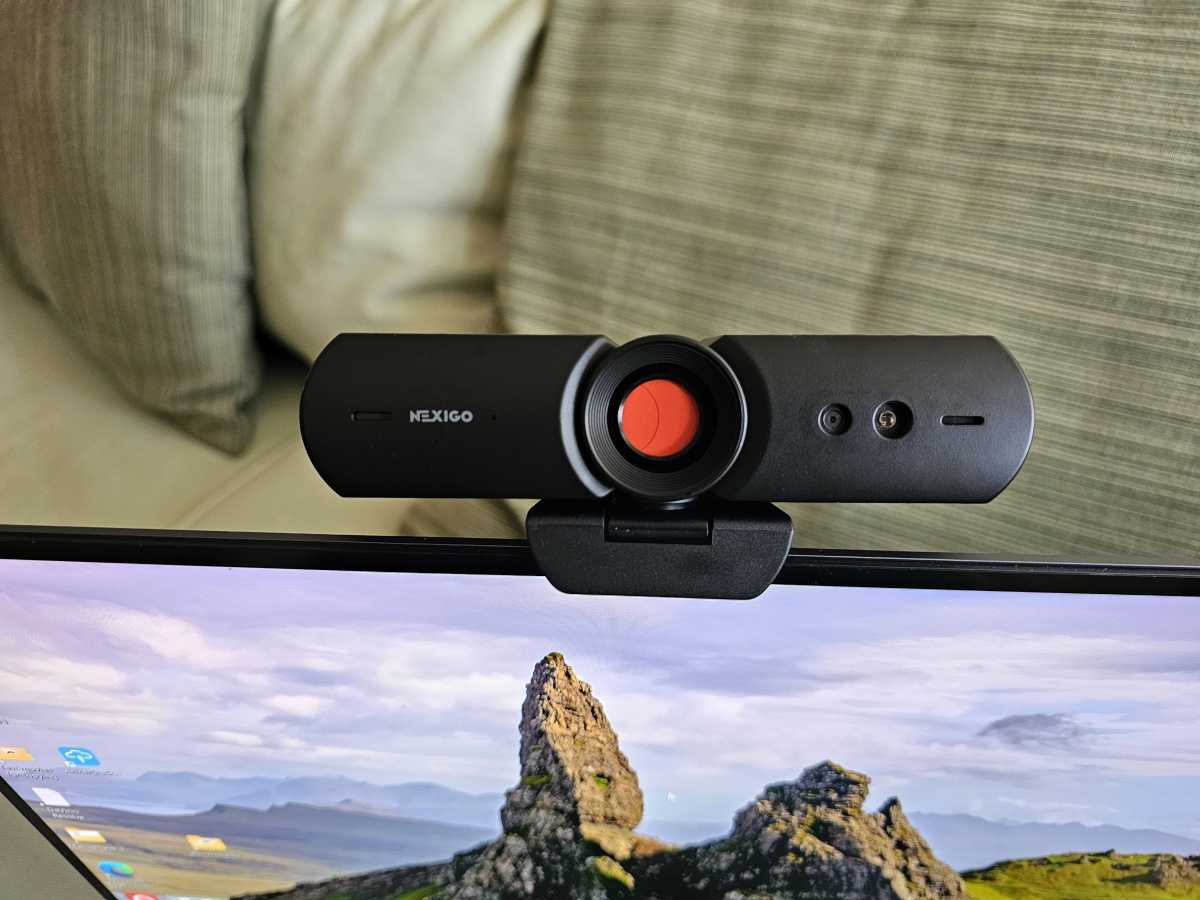
No technology is perfect, but Windows Hello’s facial recognition support is a lot more secure than you may think. To use facial recognition with Windows Hello, a laptop needs more than just a webcam—it also needs a near-infrared (IR) camera and an IR emitter. This combo is what allows the laptop to create a depth map of your face (and that’s why I’ll never buy a laptop that doesn’t have this hardware).
In other words: it isn’t just looking at your face, but also checking that the physical 3D shape of your face matches what it expects to see. This prevents a flat photo from unlocking your laptop, and it’s similar to what Apple does with Face ID on iPhones.
Mark Hachman / Foundry
Under the hood, Windows isn’t storing an image of your face, but rather data on the shape of your face. Microsoft has some technical documentation on Windows Hello that explains it, but the gist is that Windows Hello’s facial recognition focuses on “facial landmark points” like your eyes, nose, and mouth, then takes samples around them.
Windows Hello captures all this data when you set up facial recognition, and that biometric data is stored entirely on your computer. That’s why you have to set up Windows Hello and re-scan your face every time you set up a new PC. None of it is stored online.
Older facial recognition systems often looked for “proof of liveness,” such as blinking. These were necessary on early systems that only captured images and watched to see if the eyelids blinked. But it didn’t work very well. People printed out photos, then cut eyeholes and blinked through them. Windows Hello’s depth mapping is worlds better.
But watch out if you’re James Bond
Windows Hello is complex enough that your average Joe won’t be able to fool it. But if you were in a James Bond movie—or you’re being targeted by international intelligence agencies with lots of resources—then Windows Hello could potentially be fooled for real.
To do this, the attacker would need to measure your face and build a near-perfect representation of it. I’m not just talking about a papier-mâché head that sort of looks like you, but a life-like replica that perfectly replicates the precise contours of your face. With that, someone could indeed be able to sign in as you.
Fooling modern facial recognition’s biometric security is way more difficult than just cloning your fingerprint for a fingerprint reader, and also much more difficult than “shoulder surfing” in public to steal your PIN or password as you type it in plain view.
Realistically speaking, Windows Hello’s facial recognition is the most secure way to protect your Windows laptop.
Facial recognition is the most secure
If your PC supports it, you should be using facial recognition to sign in. It’s one of the best ways to secure your laptop and the drawbacks are minimal. If your PC doesn’t support it, that’s okay—you can always grab a Windows Hello webcam and plug it into your PC or laptop. It’s one of the best PC accessories that are actually worth it.
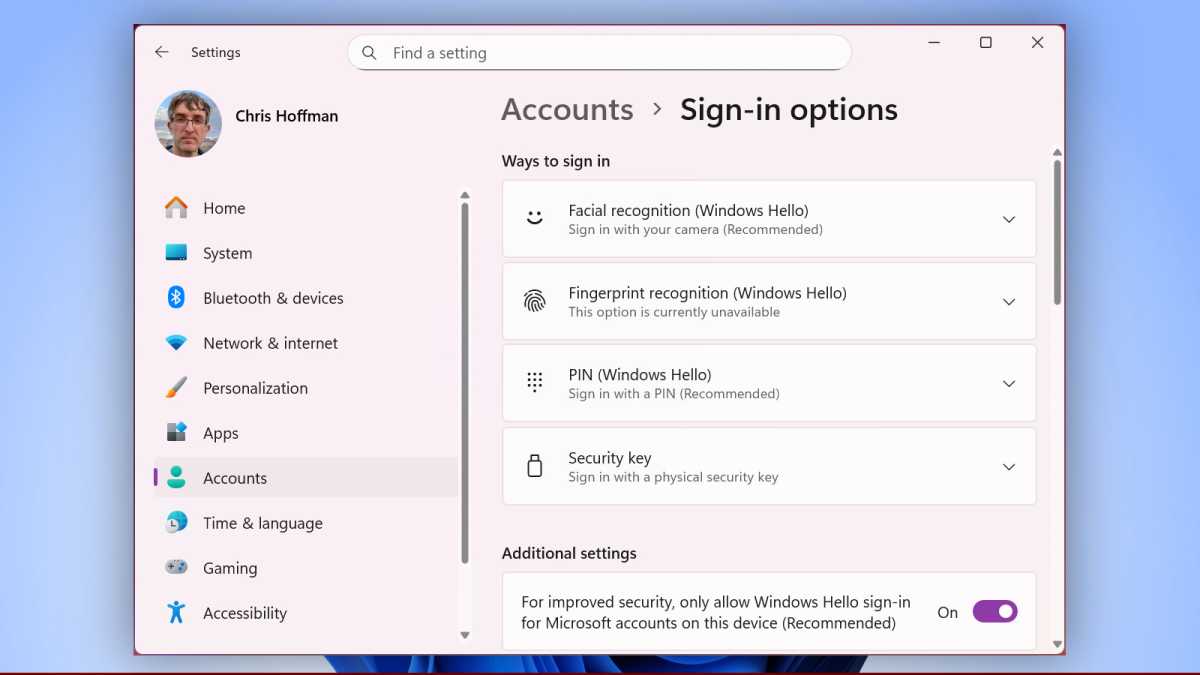
When using Windows Hello, you should also activate the “only allow Windows Hello sign-in for Microsoft accounts on this device” option, which you can find under Settings > Accounts > Sign-in options. With this enabled, no one can sneak onto your PC without your face.
Chris Hoffman / Foundry
Oh, there’s one more risk: if you happen to have an identical twin with an identical face shape, they may be able to sign in as you. But if your twin’s face is even a little different—which is likely—you may be surprised to find that Windows Hello can tell the difference.
Subscribe to Chris Hoffman’s newsletter, The Windows Readme, for more PC advice from a real human.
