


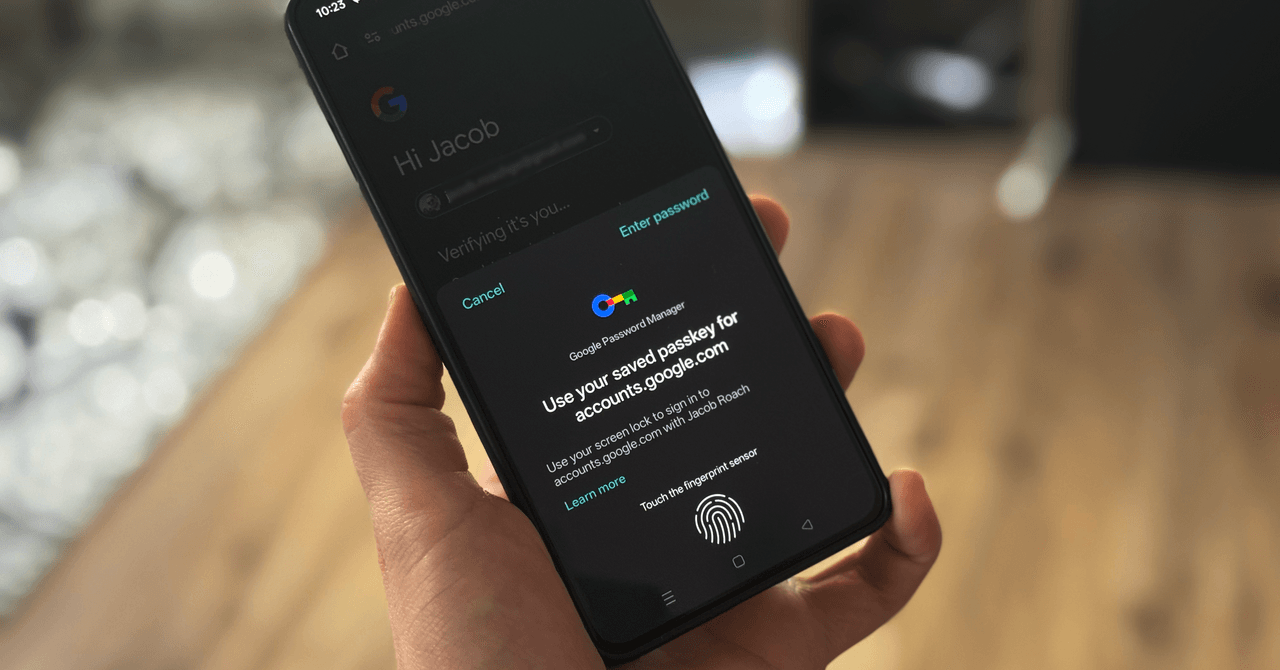
Google wants you to start using passkeys. Its vision is to “progress toward a passwordless future,” allowing you to store passkeys in the Google Password Manager service. For websites that support the login method, Google now allows you to generate, store, and sync passkeys. The problem is actually finding a consistent way to do it.
It’s easy to change your password, but it’s not so easy to add passkeys to an account you’ve already created, much less manage them solely in your browser. Still, you can use passkeys with the Google Password Manager on supported websites; you’ll just need to jump through a few hoops first.
Table of Contents
How to Set Up a Passkey for Your Google Account
You can learn more about passkeys here, but in short, they’re a method to confirm you are who you say you are so that you don’t have to remember a long password for every app and website you log in to. You can use a passkey for your Google account, but you can also store passkeys for other websites with the Google Password Manager, which is available on Chrome or directly through Android.
To use a passkey with your Google account, go to g.co/passkeys and follow the prompts. You’ll log in to your Google account and create a passkey, either bound to your device or stored in a third-party password manager. If you aren’t using a third-party password manager, your Google passkey will be bound to the device you’re using. Apple devices sync your passkeys across other Apple devices with iCloud Keychain, but otherwise you’ll need the device you created the passkey on to log in.
Creating a passkey for your Google account is simple. What’s important is that you’re doing it on a device that supports passkeys. Here’s what you need:
- A computer with Windows 10, macOS Ventura, ChromeOS 109, or newer; or a phone with iOS 16 or Android 9, or newer;
- A supported browser (Chrome 109, Safari 16, Edge 109, Firefox 122, or newer).
Once you’ve made a passkey, you can manage it at myaccount.google.com. There, select Security, and then choose Passkeys and Security Keys to see the passkeys you have. You can—and likely will, if you aren’t using a third-party password manager—have multiple passkeys for different devices, even if they’re used to log in to the same account.
How Safe Are Google Passkeys?
A passkey for your Google account is generally safer than using a password. Passkeys rely on asymmetric encryption with a public-private key pair, and only you have access to your private key. Even in the event of a breach or phishing scheme, an attacker can’t access your account without your private key, which never leaves your device.
A password uses symmetric encryption, and it’s what you’d call a “shared secret” in the world of cybersecurity. With a password, Google needs to store an encrypted copy on its servers, opening up the potential of a breach. Further, you need to remember your password, which opens the door for phishing and social engineering attacks.
Is It Safe to Store Passkeys in Google Password Manager?
The Google Password Manager available through Chrome stores your logins locally on your device. It can sync your logins across devices, but an encrypted copy is kept locally. A file containing your encryption key is also available locally, and combining the two files with a Python script and a little know-how can expose your passwords on Windows.
Someone would need access to your device for this kind of attack, which isn’t likely on a desktop, but it’s worth keeping the risk in mind. If you travel often or could have your device easily lost or stolen, it’s a good idea to store passkeys elsewhere, such as in a password manager.
Should I Use a Password Manager for Passkeys?
You can create and manage passkeys on Windows through Windows Hello, on macOS and iOS through iCloud Keychain, and on Android or in your browser through Google Password Manager. However, using a third-party password manager like Proton Pass or 1Password makes things a lot easier.
An external password manager allows you to sync your passkeys across devices, and they’re bound to the password manager itself, rather than your device. If you have a device that’s authenticated with your password manager, you can access your passkeys, too.
How to Use Passkeys With Google Password Manager
Google would like you to believe that saving passkeys in the Google Password Manager happens almost magically. You sign in to or sign up for an account, Google steps in and asks if you want to save a passkey, and you’re done. Google even says it can upgrade accounts stored in Google Password Manager automatically with passkeys.
The process, unfortunately, is more involved. First, you need to enable passkeys for the Google Password Manager. Open Chrome, and follow these steps:
