


CCleaner has long been a classic among Windows system optimizers, and next year the much-loved tool will celebrate its 20th anniversary.
It has such an enduring legacy and has been so popular that according to the provider, the freeware has now been downloaded almost three billion times worldwide. So, it’s time to take a detailed look at how to get the most out of the program to optimize your system.
Just to explain: the large double C at the beginning of the word is not a spelling mistake, the spelling comes from the former tool name Crap Cleaner.
The CCleaner program interface is well structured via the task bar on the left, making it easy to use. The main window shows information on the currently selected function.
Sam Singleton
The software deletes files very carefully and quite intelligently . The program takes care not to delete files that would impair system stability nor log-in data, such as for e-mail and similar, that you would then have to enter again.
Installing CCleaner is quick and easy and the installer guides you through the process. There is a portable version as well, which is ready to go without installation and which you can also take with you on a USB stick for use on other Windows computers.
Before we get started, a first tip: Please deactivate all pre-activated checkboxes in CCleaner under “Options -> Privacy“. This will prevent any data from being sent to the manufacturer.
Clean up your system and hard drive with just a few mouse clicks
When CCleaner starts, it suggests that you perform an initial system scan. To do this simply click on the central Scan button to begin. Later, you can check the system again at any time by clicking on Scan PC.
If you have certain programs open when you start the scan, such as a browser, you will be asked to close them.
As a result of the tool’s analysis, the tool usually suggests hundreds or even thousands of items for deletion.
At the same time, you can see how much additional space is freed up on the hard drive. Click on Clean to follow the suggestions and tidy up your computer’s hard drive.
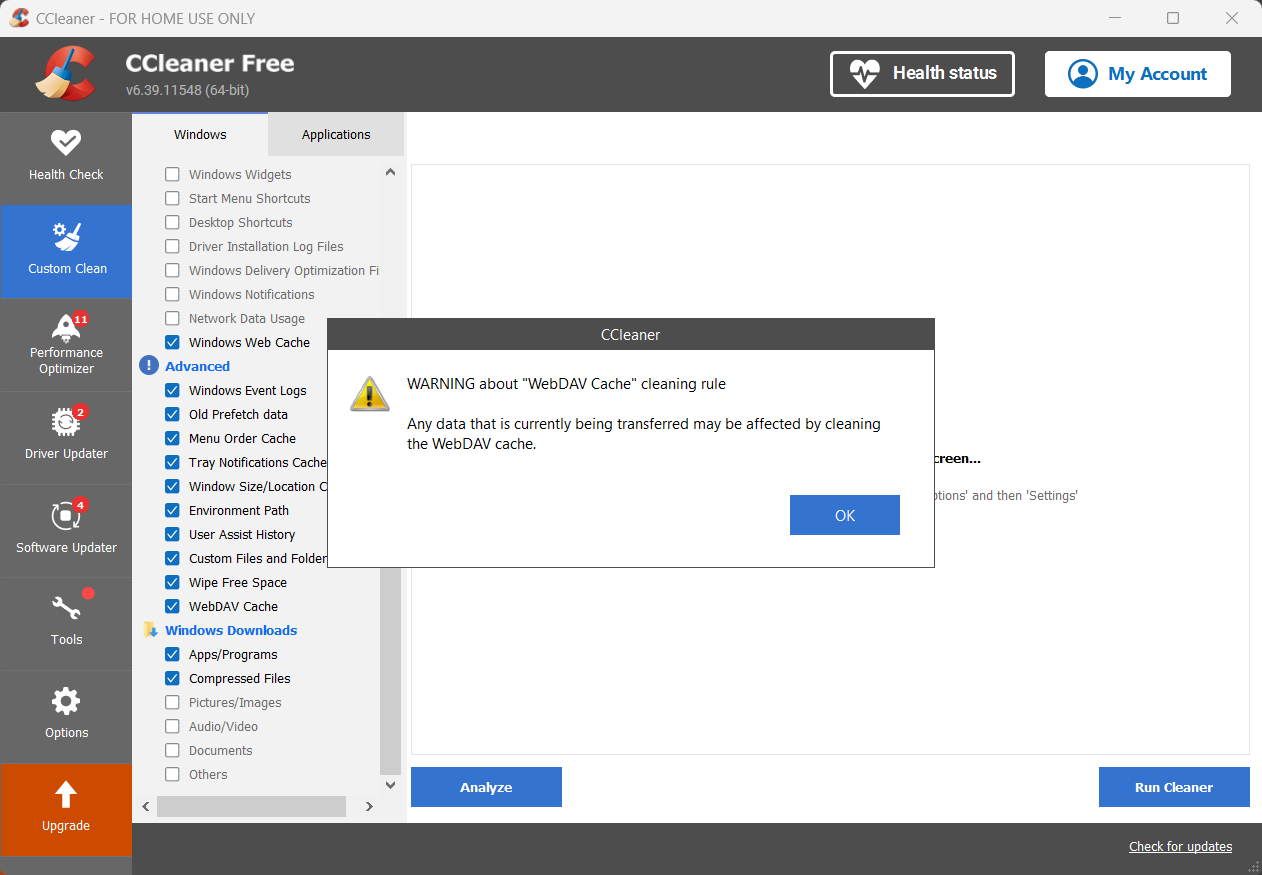
In “Advanced cleanup” you can specify in detail and in some cases with an explanation what CCleaner should delete.
Sam Singleton
In addition to this quick run-through called “Health Check”, “Advanced Cleanup” on the left in the task bar offers further detailed options for cleaning up. These options are divided into the two sections “Windows” and “Applications”.
In the first section, you can select in detail what CCleaner should and should not delete in the operating system. For example, it makes sense to delete downloaded programs and compressed files from the download folder.
This is because you generally no longer need this data after installing or extracting it, whereas you may want to keep images or documents from the Internet.
Most of the options are self-explanatory and have no direct influence on the functioning of the computer.
The situation is different with the settings marked as “Advanced”. CCleaner therefore displays a brief explanation of the selected function as soon as you select an entry.
In the “Applications” section, the program shines in that the user really only sees what is relevant for their individual computer after the scan.
Anything that is not installed and therefore irrelevant is hidden and remains hidden. This makes it much easier to select the objects to be deleted. Under the individual programs, select what you want to delete and then click on Analyze at the bottom and then on Start Cleaner -> Continue to actually clean up.
Ccleaner setup
The installation of CCleaner is uncomplicated and can be completed quickly with two mouse clicks. After starting the setup, click on the Install button. You can save yourself time by the time of clicking “Custom” as the manufacturer has already customized the default settings.
After a few seconds, CCleaner begins the installation, and that’s it. Reject any additional tools offered, such as AVG Anti-Virus or another browser.
Close the reference to the paid Pro version first; we will come back to the extended functions of the subscription version at the end of this guide.
In addition to the version for permanent PC optimization, CCleaner is also available in a portable version to take with you on a USB stick.
After unpacking, copy the entire directory to the external data carrier, from which you can start CCleaner Portable on any Windows computer using the “Ccleaner64.exe” file.
In addition to optimizing and freeing up space, the free version offers a range of other tools and functions. These can be found on the left under “Extras”.
“Uninstall” lists the programs installed on your computer. In principle, you can also access it in the Windows Control Panel under “Uninstall programs” and in the Settings app under Apps -> Installed apps.
Firstly, you should check the list from time to time for entries or software duplicates that are no longer required and delete unnecessary apps.
Secondly, CCleaner also shows some Microsoft services that cannot be removed via the operating system: “Request help” is one such example.
“Registry” is the only repair function that we do not recommend using.
CCleaner sometimes shows over thousands of “recognized problems” here. However, the risk of damaging the operating system is significantly higher than the potential benefit.
If you absolutely want to try out “Registry”, be sure to confirm the note in the next step and back up the complete registry database beforehand.
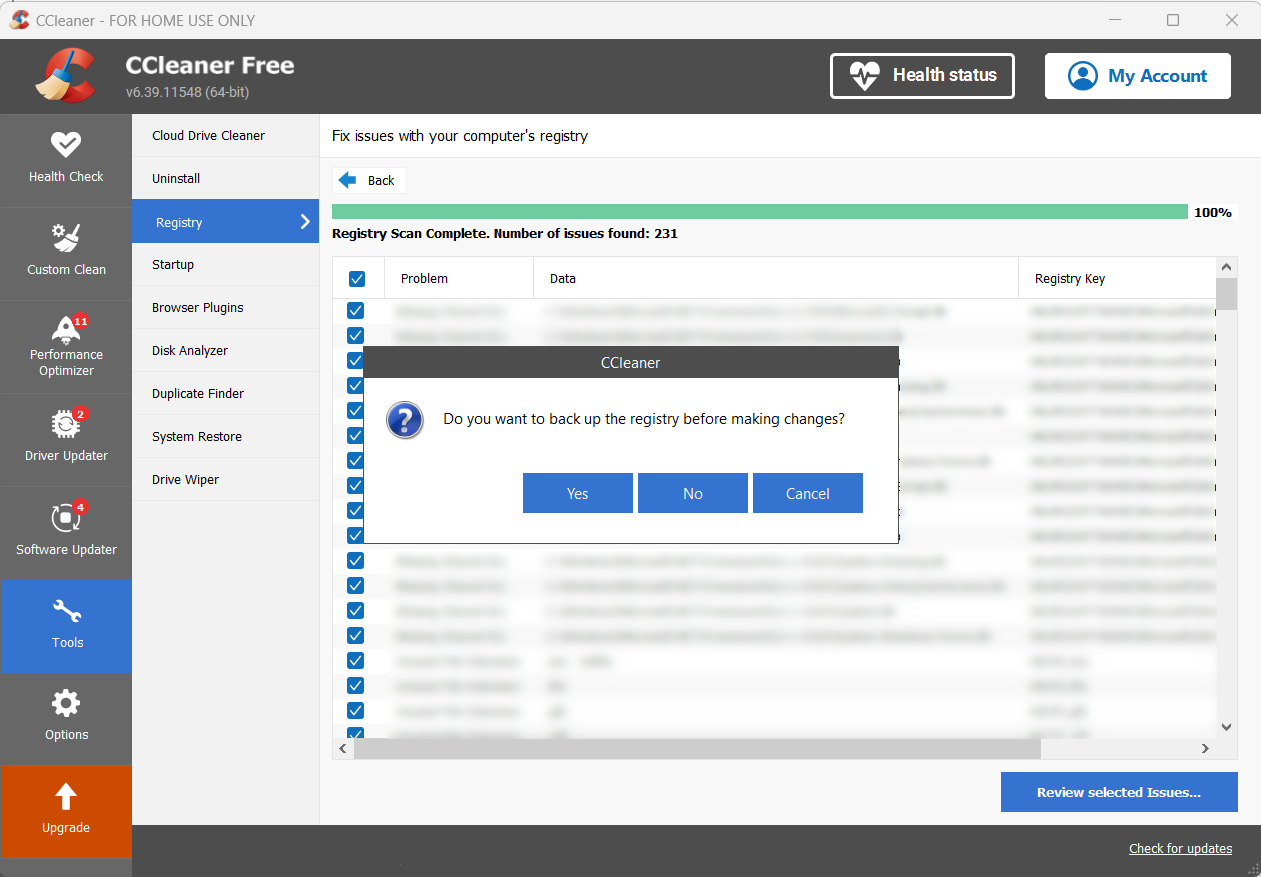
CCleaner recognizes over hundreds of “problems” in the Windows registry on this computer. However, you should only fix them after you’ve backed up the registry file.
Sam Singleton
“Autostart” shows, among other things, what you also see in the Windows task manager under Autostart of apps. Further entries are added in the two tabs Scheduled tasks and Context menu.
A positive note here: Over-ambitious users can only deactivate the entries in CCleaner under “Services”, but not completely remove them from the system.
The “Browser plug-ins” show the installed extensions, separated by browser. The plug-ins can be deactivated, reactivated, or completely removed.
“Disk Analyzer” provides an overview of the types of data that occupy the individual drives or partitions the most. CCleaner initially differentiates between images, music, documents, videos, e-mail, and compressed files.
After the analysis, you can also filter according to individual file formats, i.e. JPG, PNG and so on for images. Specific files can be deleted via the context menu.
“Duplicate Finder” detects files that have been saved more than once, take up unnecessary space on the data carrier and should therefore be deleted. The file size settings under Ignore can be used to restrict the search to particularly large duplicates.
However, the freeware Alldup offers many more options for searching for duplicates and is therefore preferable to CCleaner for this purpose.
“System Restore” makes it easy and clear to delete old restore points that are no longer required. This can open up several gigabytes of additional free space on your hard drive.
“Hard Drive Wiper” deletes data from the hard drive. There are two different scenarios here: the “deletion” of free space and the complete deletion of the entire data carrier or a partition. “Free” here only means that Windows can use the storage space to save new data.
However, it’s usually not free in the narrower sense because there are still remnants of previously deleted files there. If you want to ensure that none of these files can be recovered, CCleaner deletes these areas by overwriting them with other data in the meantime—several times if required.
In principle, deleting entire drives works in the same way, but due to the Windows system it does not work with the system partition, only with other hard drive areas and other (external) data carriers. You can ignore the warning about premature SSD wear during deletion if you only use the program occasionally.
Is the a subscription to the paid CCleaner Pro version worthwhile?
In addition to the functions described above, you’ll see three other sections on the user interface: the “Performance Optimizer”, the “Driver Updater” and the “Software Updater”.
These functions are usually marked with a red dot and display the number of problems recognized. However, these functions can only be used in the paid Pro version; they are disabled in the free version.
This raises the question of whether it’s worth paying for the required Pro subscription. If you decide to upgrade to Pro, you’ll pay $44.95 per year for one device, $64.95 per year for up to three devices, or $79.95 for two years and three devices.
If you want to save yourself the expense, you can use the free alternatives Snappy Driver Installer (SDI Lite) and UnigetUI to update hardware drivers and installed programs. The aforementioned Alldup and Revo Uninstaller are also free of charge.
Both tools offer more and more sophisticated functions than the duplicate search and the uninstall option in the CCleaner freeware.
CCleaner on the smartphone
CCleaner is also available for Android smartphones and iPhones; you install the apps as usual via the Google and Apple app stores. Similar to the Windows version, the mobile app makes it easy for the user to delete superfluous data and thus create more free space on the internal device memory or on the inserted SD card.
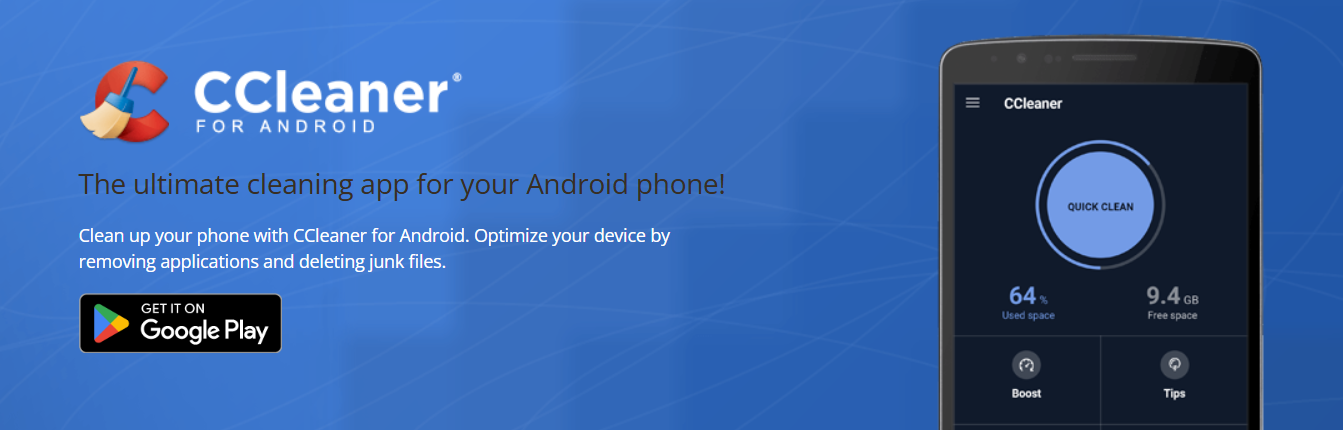
The CCleaner app for smartphones deletes superfluous data on the mobile device and thus creates new storage space for photos, apps and more.
Sam Singleton
The quick access to “memory hogs” is also practical, even if the app only redirects you to the overview and deletion option already available in Android and iOS.
Some more advanced functions are also limited to the paid Pro version in the mobile app—the manufacturer is quite insistent in pointing this out in the free version.
This article originally appeared on our sister publication PC-WELT and was translated and localized from German.
