


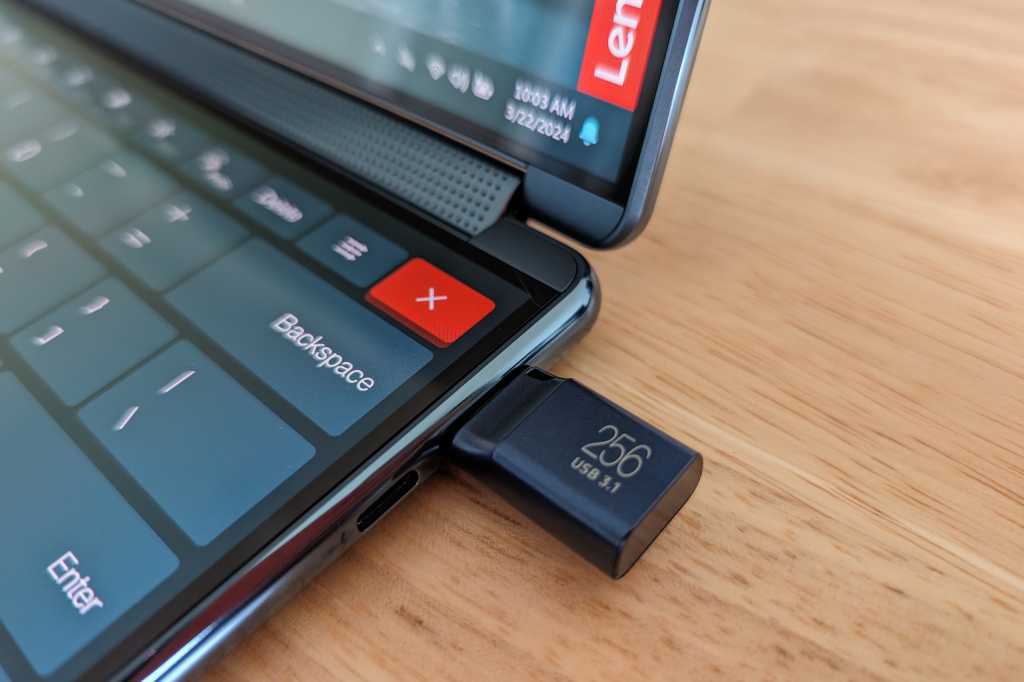
A lot of gamers go to great lengths to find a portable retro gaming device with the lightest and most compact kit. The Linux powered Raspberry Pi 5 does a decent job on that front.
But what many players don’t know is that an even smaller and lighter solution is available by turning the humble USB flash drive into a portable gaming console. You still need a PC to play, but it means you can get around with more compact gear. Here’s how to do it for under $100…
What you’ll need…
- A USB flash drive: I’m using the SanDisk 512GB drive, but you can also use one with a smaller or larger capacity.
- A small wireless keyboard: Here’s one on Amazon I found for just $10 that will do the job just fine. It also has a compartment in the back to store your USB flash drive.
- A gamepad: A lot of USB gamers rate the 8BitDo Pro 2. It supports USB-C, so you can just plug it into your PC without any fuss.
Adam Patrick Murray
What to do…
Install the OS on your flash drive
Your flash drive needs to be set up with the open-source OS Batocera to play. Here are the steps:
- Plug your USB flash drive into your PC.
- Go to the Batocera website. Then select the x64 Windows version of the OS and wait until it downloads.
- Now download and install the BalenaEtcher tool which you will need to flash the Batocera OS to your flash drive.
- Open BalenaEtcher, click Flash from File and choose the downloaded Batocera file.
- Choose your USB flash drive and select Flash to flash the OS to the device.
- When the flashing is done, hit Cancel or Ignore on all the windows that pop up.
Boot into your flash drive
Now that the OS is installed, you need to boot into your flash drive. There are two ways to do this, so if the right options don’t appear the first way, try the second way.
Method 1
- Type recovery options into the Windows start menu and under Advanced Startup hit Restart now.
- Now select Use a device and then UEFI: Removable Device. Batocera should boot now. If you didn’t see the option to select the UEFI: Removable Device, use the next method.
Method 2
- Power down your PC and power it up again.
- While your PC is powering up hit the F12 key to enter your PC’s BIOS menu.
- When given the choice to pick a boot device select UEFI: USB, Partition (your USB flash device). This should boot you into Batocera.
Further reading: Best external drives
Load games into Batocera
Now that you have Batocera installed you’re going to want to populate the OS with some games. Batocera is an emulation frontend that supports a large number of game emulators for retro game consoles.
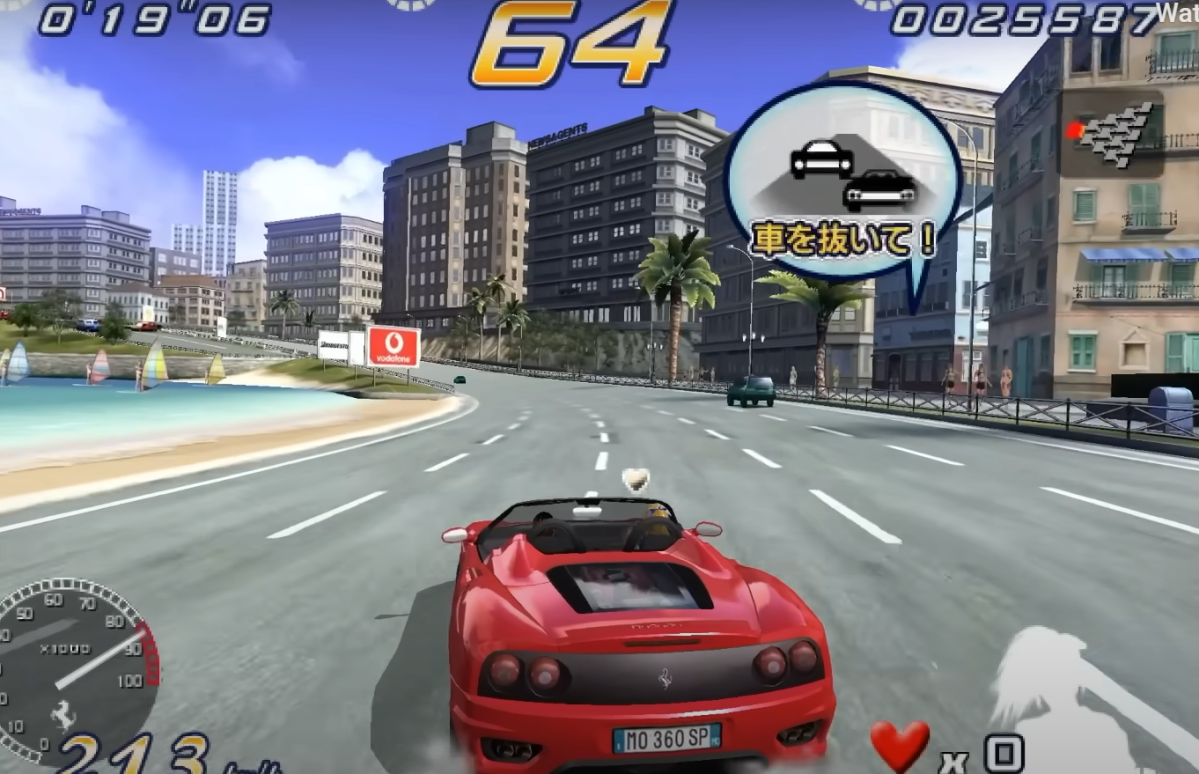
PlayStation 2, PlayStation 3, and Nintendo 3DS games are just a small fraction of the game types you can play using Batocera. The OS does come with a limited number of game ROMs preloaded, which are free and legal to use, but if you want more than that you’ll need to install your own ROMs.
Dominic Bayley / IDG
I can’t tell you where to get these from. It’s illegal to use ROMs without a license, so you’ll want to own each and every one. Here’s how to load them up.
- In Batocera press F1 to launch the file manager.
- Find the location of the ROM files on your computer, or else plug in the storage device that has the ROMs (USB stick or hard drive) and select it from the list on the left-hand side.
- Highlight and right click on the files you want to copy.
- Click on ROMs down the left-hand side. Find the folder for the appropriate game emulator and paste the game files into it.
- Now your games will be visible, but some may not have artwork.
- To apply artwork to each game, find the game in Batocera and long press the X button (number 3 button) on your controller. Now select Scrape. You will have to be connected to the internet for this to work.
You should be up and running now and can use your flash drive on any PC to play retro games. As a general rule any PC with mid-range specs will work a treat; you should hit about 60fps in most games.
Some things to take note of
This whole process can be done with an SD card or a portable hard drive instead of a USB flash drive. Personally, I find a USB flash drive is the ideal size to carry, being neither too small, nor too large.
To get the best out of Batocera and your games, it’s also worth watching a few “How to” videos to familiarize yourself with the OS. You’ll want to learn how to adjust the video settings and resolution for specific emulators, for example, so that your games will look great. For these and more tutorials, a great source of information is the YouTube channel Batocera Nation.
That’s all for now. Happy retro gaming!
Further reading: Is your USB flash drive trustworthy? These tips will tell you
