
Close Menu
TechUpdateAlert

    Subscribe to Updates

    Get the latest creative news from FooBar about art, design and business.

    What's Hot

    My Health Anxiety Means I Won’t Use Apple’s or Samsung’s Smartwatches. Here’s Why

    December 22, 2025

    You can now buy the OnePlus 15 in the US and score free earbuds if you hurry

    December 22, 2025

    Today’s NYT Connections: Sports Edition Hints, Answers for Dec. 22 #455

    December 22, 2025
    Facebook X (Twitter) Instagram
    Trending
    • My Health Anxiety Means I Won’t Use Apple’s or Samsung’s Smartwatches. Here’s Why
    • You can now buy the OnePlus 15 in the US and score free earbuds if you hurry
    • Today’s NYT Connections: Sports Edition Hints, Answers for Dec. 22 #455
    • Android might finally stop making you tap twice for Wi-Fi
    • Today’s NYT Mini Crossword Answers for Dec. 22
    • Waymo’s robotaxis didn’t know what to do when a city’s traffic lights failed
    • Today’s NYT Wordle Hints, Answer and Help for Dec. 22 #1647
    • You Asked: OLED Sunlight, VHS on 4K TVs, and HDMI Control Issues
    Facebook X (Twitter) Instagram Pinterest Vimeo
    TechUpdateAlertTechUpdateAlert
    • Home
    • Gaming
    • Laptops
    • Mobile
    • Software
    • Reviews
    • AI & Tech
    • Gadgets
    • How-To
    TechUpdateAlert
    Home»AI & Tech»How to set up a passkey for your Microsoft account
    AI & Tech

    How to set up a passkey for your Microsoft account

    techupdateadminBy techupdateadminSeptember 29, 2025No Comments2 Mins Read
    Share Facebook Twitter Pinterest LinkedIn Tumblr Reddit Telegram Email
    Microsoft account login experience passwordless passkeys
    Share
    Facebook Twitter LinkedIn Pinterest Email

    As I’ve said before, passwords suck. Microsoft agrees—last year, it announced a goal of getting one billion users to embrace passkeys instead.

    As part of that effort, setting up a passkey for a Microsoft account is very easy. You might not have noticed, though, since most people don’t often go into account settings. You’ve likely only seen Windows asking to create and store passkeys for other services and sites you visit on your PC.

    Here’s how to do it:

    1. Go to account.microsoft.com/security
    2. Under Account, click on Manage how I sign in
    3. Under Ways to prove who you are, choose Add a new way to sign in or verify
    4. Select Face, fingerprint, PIN, or security key
    5. A new screen will appear in your browser tab, along with a Windows pop-up asking to save your passkey. Click OK.
    6. In the next Windows pop-up, change where the passkey will be stored. By default, Windows will save the passkey to your PC—you don’t want that. For most people, it’ll save your MS account passkey in your Microsoft account.
    7. To set up a passkey on your phone, use your camera app to scan a QR code. For a security key (e.g., YubiKey or Google Titan Security Key), insert it into your PC.

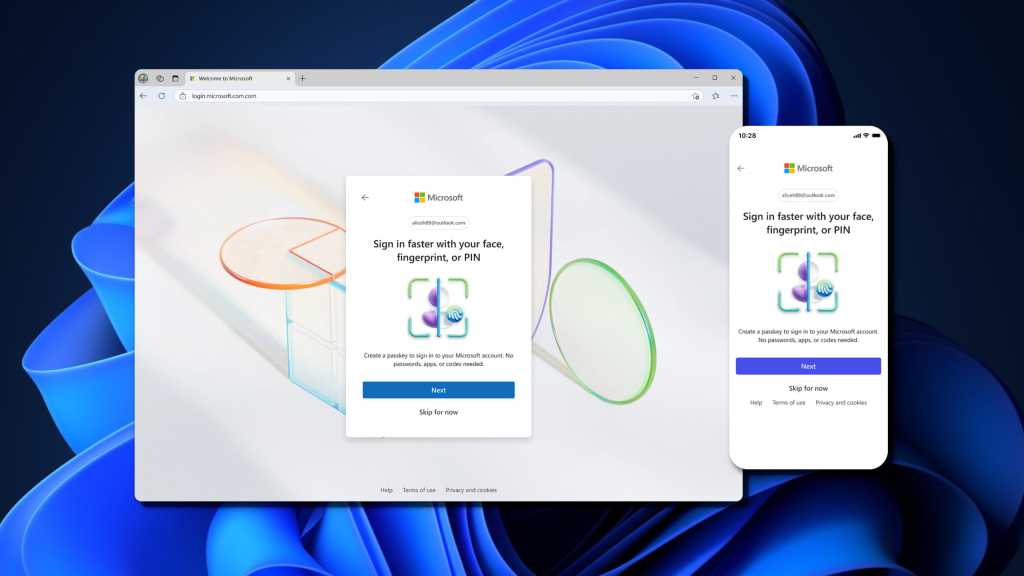
    These screenshots show what the setup process looks like for creating a passkey on your phone.

    For any passkeys saved to an iOS or Android device, they’ll be cloud synced through iCloud Keychain or Google Password Manager—so be sure to keep those accounts safe with strong login credentials, too.

    You’re all set! You can use this passkey for login anytime, including for Windows itself.

    Account Microsoft Passkey Set
    Share. Facebook Twitter Pinterest LinkedIn Tumblr Email
    Previous ArticleThis is the Oppo Hasselblad Professional Teleconverter Kit for the Find X9 Pro
    Next Article My iPhone Air Keeps Dropping Calls, but a Fix Has Finally Arrived
    techupdateadmin
    • Website

    Related Posts

    Gadgets

    Microsoft makes theming your Windows 11 PC as easy as phones, but not as much fun

    December 15, 2025
    Mobile

    Watch SpaceX set a new record with its trusty Falcon 9 rocket

    December 9, 2025
    Mobile

    Meta promises it’ll soon be easier to recover your hacked Instagram account

    December 5, 2025
    Add A Comment
    Leave A Reply Cancel Reply

    Top Posts

    NYT Strands hints and answers for Monday, August 11 (game #526)

    August 11, 202545 Views

    These 2 Cities Are Pushing Back on Data Centers. Here’s What They’re Worried About

    September 13, 202542 Views

    Today’s NYT Connections: Sports Edition Hints, Answers for Sept. 4 #346

    September 4, 202540 Views
    Stay In Touch
    • Facebook
    • YouTube
    • TikTok
    • WhatsApp
    • Twitter
    • Instagram
    Latest Reviews

    Subscribe to Updates

    Get the latest tech news from FooBar about tech, design and biz.

    Most Popular

    Best Fitbit fitness trackers and watches in 2025

    July 9, 20250 Views

    There are still 200+ Prime Day 2025 deals you can get

    July 9, 20250 Views

    The best earbuds we’ve tested for 2025

    July 9, 20250 Views
    Our Picks

    My Health Anxiety Means I Won’t Use Apple’s or Samsung’s Smartwatches. Here’s Why

    December 22, 2025

    You can now buy the OnePlus 15 in the US and score free earbuds if you hurry

    December 22, 2025

    Today’s NYT Connections: Sports Edition Hints, Answers for Dec. 22 #455

    December 22, 2025

    Subscribe to Updates

    Get the latest creative news from FooBar about art, design and business.

    Facebook X (Twitter) Instagram Pinterest
    • About Us
    • Contact us
    • Privacy Policy
    • Disclaimer
    • Terms and Conditions
    © 2026 techupdatealert. Designed by Pro.

    Type above and press Enter to search. Press Esc to cancel.