


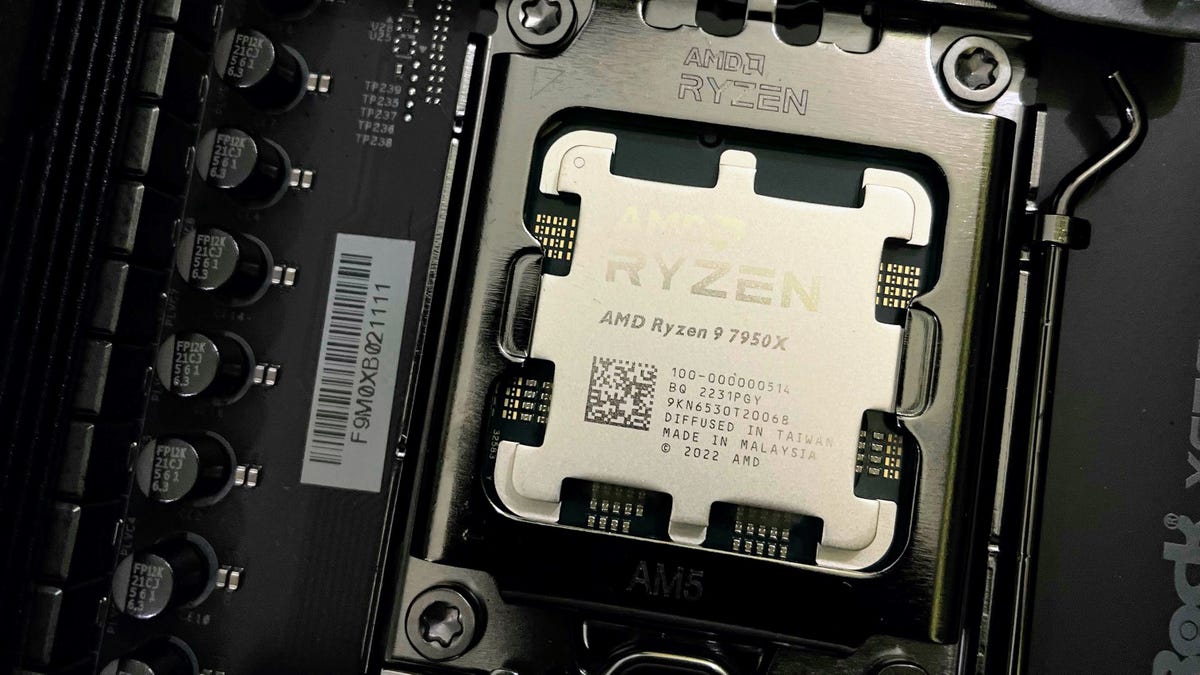
To get more performance from your aging computer or push a new computer to its limit, give overclocking a shot. Overclocking a CPU can help you get more performance from your system without spending money on new hardware.
The process has always been shrouded in mystery, but there are ways to do it safely, especially with manufacturers building overclocking options and tools into their systems. However, you’ll need to be mindful of a few factors and best practices before you begin. But where do you start? Read on to learn everything you need to know about overclocking a CPU.
What is overclocking?
CPUs have a default clock speed. Some processors even have a separate boost clock speed that can be utilized when needed. Increasing these speeds can change how your CPU behaves. The process of increasing CPU speeds beyond the defaults is called overclocking. Three main factors determine your CPU’s speed:
- Base clock (BCLK): This is a CPU’s base frequency, usually set to 100MHz.
- Multiplier: It’s as simple as it sounds — a value that you multiply by the base clock to get your CPU’s typical frequency.
- Core voltage (Vcore): The voltage that the CPU cores get.
So, if the CPU’s base clock is set to the typical 100MHz with the CPU multiplier set to 33, your CPU will run at 3,300MHz, which is 3.3GHz. When you overclock your CPU, you’re asking it to perform more operations per second than it was originally configured to handle, resulting in improved gaming performance, multitasking and other CPU-intensive applications.
Depending on your PC’s hardware and cooling, you might see performance improvements ranging from 5% to 20% or more.
Determining if your CPU is ready for overclocking
Before you begin CPU overclocking, you’ll want to answer the golden question: Can my CPU be overclocked? Not all processors support overclocking to the same degree, and some CPUs don’t support overclocking at all.
Intel CPUs: Intel CPUs with the suffix “K” and “X” are called unlocked processors, which means they support overclocking (e.g. Core i9-13900K, Core i9-10980XE). Non-K/X Intel processors have locked multipliers, limiting overclocking potential.
AMD CPUs: All Ryzen desktop processors support overclocking. The “X” and “XT” models have better overclocking headroom, so there’s more room to push them.
Motherboard support: Intel Z-series chipsets (e.g., Z790) and AMD B-series (e.g., B550) and X-series (e.g., X670) motherboards support CPU overclocking. But if you have a motherboard from a different series, you’ll likely be unable to overclock your CPU.
So, you should verify your CPU and motherboard models using CPU-Z or HWiNFO and then confirm if the models support overclocking. If your CPU and motherboard support overclocking, you can proceed with determining if your overall system is capable of handling it.
Cooling is key, so you’ll want to use a CPU temperature monitor to confirm how hot the system is when it’s idle and then perform a stress test with something like Prime95 while keeping an eye on the CPU temperature. You’ll also want to ensure your power supply unit has headroom, so the increased power consumption doesn’t trip the PSU and shut down your PC.
If your system is stable after a long stress test, you can overclock it. However, if it seems to hit the limit quickly or gets too hot and throttles performance, you may have to reapply thermal paste to your CPU or consider getting a better CPU cooler. Default or cheap CPU coolers can’t quite handle overclocking-level loads, so something like a new AIO cooler can help you get better results from CPU overclocking.
How to overclock your CPU using BIOS/UEFI
Note that this process will vary slightly depending on the motherboard. It will differ by brand and also according to the model. Before you start these steps, make sure you have your motherboard’s user manual handy and have checked the BIOS/UEFI key and settings.
- Boot your computer with the power button and press the BIOS/UEFI key during startup (usually Delete, F2, F10 or F12).
- Navigate to the overclocking or performance section (it may be called OC) and find the CPU multiplier or CPU Frequency setting.
- Increase the multiplier by 1 (e.g., from 36 to 37) or the CPU Frequency setting by 100MHz (e.g., 4,500MHz to 4,600MHz) and save changes. Note: Don’t make a big jump in one go.
- Save the settings and restart to boot into your operating system.
- Run a stress test for 5-15 minutes while monitoring the temperatures and system stability.
- If the system is stable, return to BIOS, increase the multiplier by 1 and repeat the process.
- When you face any instability, you can revert to the last stable multiplier. You can also increase the CPU voltage slightly, starting with +0.01 volt increments.
- Once you’ve found the maximum stable settings for your computer, run longer stability tests and ensure the temperatures stay under the CPU’s safe operating limits.
Note: The settings’ names described above can vary. Essentially, you want to increase the CPU frequency, so with the help of your motherboard manual, you can determine the names of the settings you have to tweak. It will be similar to the process described above.
How to overclock Intel CPUs with Intel XTU
If you’re using an Intel CPU that can be overclocked, use Intel’s Extreme Tuning Utility (Intel XTU). It’s an official tool that lets you overclock without entering the BIOS/UEFI. Follow these steps:
- Download and install Intel XTU from the official Intel website and launch it with administrator privileges.
- Via the Benchmarking tab in the left sidebar, use the built-in benchmark to establish baseline performance.
- Find and click the Advanced Tuning tab from the left sidebar.
- Use the arrow located on the right of the last listed core slider to increase the multiplier of all CPU cores simultaneously (start with a 1x increase) and apply the changes.
- Run a stress test for 5-15 minutes, ensuring temperatures stay under the limits of your CPU.
- If it maintains stability, increase the core ratio by 1x, apply changes and test again. Continue until there’s instability.
- When instability occurs, reduce the multiplier to the last stable value. You can also try to increase core voltage slightly using the Core Voltage Offset setting, starting with +0.01 volts.
- Monitor the temperature and stability, especially if you fiddle with the voltage settings. If you encounter issues, revert to the last setting.
Note: If you have newer Intel processors (14th-gen Core i9-14900K/KF/KS), the AI Assist feature can automatically find optimized overclock settings based on your hardware.
How to overclock AMD Ryzen CPUs with Ryzen Master
AMD’s Ryzen Master is a solution for AMD Ryzen CPUs that lets you overclock your CPU without entering the BIOS/UEFI screen. Follow the steps below:
- Download and install AMD Ryzen Master from AMD’s official website and launch the application.
- Click Advanced View on the bottom bar.
- Select Profile 1 in the left sidebar and choose Manual at the top.
- Expand the CCX sections to view individual core frequencies.
- To overclock all cores, click the small red button at the end of the CCX row to turn it green.
- Move any slider to apply the same frequency to all cores, starting with a modest increase (100-200MHz above base).
- Apply changes, test stability and gradually increase frequency. You can also use the Voltage Control section to adjust core voltage starting with small increases (+0.025 volts).
- Monitor temperatures carefully, keeping them below the thermal junction maximum, or TJMax, value for your particular CPU when it is under load.
If you find manual overclocking intimidating, Ryzen Master also has a few other convenient overclocking options, such as Precision Boost Overdrive, Auto Overclocking and Curve Optimizer.
If you need more ways to overclock without BIOS/UEFI tweaks, check for software tools from your motherboard manufacturer, like MSI Dragon Center, Alienware Command Center, Asus Armoury Crate and others.
Overclocking laptops
Laptop overclocking isn’t all that different from the desktop, except that there are many fewer ways to make hardware improvements with CPU overclocking in mind, and laptop hardware usually doesn’t have overclocking support and headroom.If your specific model supports overclocking, you can follow the same steps as above, while ensuring proper cooling with a cooling pad and using manufacturer software tools where available.
For manual overclocking, use Intel XTU or Ryzen Master with more conservative settings than you would on a desktop. Start with small increments like 50MHz, monitor temperatures aggressively and consider undervolting, rather than overclocking, for better thermal performance. Always overclock with the laptop plugged in, never on battery power.
Troubleshooting common overclocking issues
If your computer fails to start after applying overclocking settings, most motherboards will automatically reset after several failed boot attempts. You can manually reset CMOS by removing the motherboard battery (on desktops) or using the Clear CMOS (often labeled as Reset) button if available.
If your PC crashes during testing, reduce the frequency, increase voltage slightly if temperatures allow or double-check that your cooling solution is working properly. If you have temperature issues, check the cooler mounting, fan operation and case airflow. Your particular CPU may have lower overclocking potential than others of the same model — the “silicon lottery” means every chip is unique.
Overclocking can provide solid system performance gains, as long as you focus on system stability and temperature control. If you’re doing it for the first time, start with small adjustments, test thoroughly after each change and prioritize a stable overclock over maximum speed. Whether you’re trying to add some life to an older PC or want to squeeze more performance from your new system, CPU overclocking can help you achieve it.
If you’re looking at an upgrade, however, check out our top recommendations of the best desktop PCs right now. If you need a portable machine, we’ve also tested and chosen the best laptops and gaming laptops.
CPU overclocking FAQs
Generally speaking, overclocking is safe unless you overdo it. Processors now have built-in mechanisms for damage protection. If your CPU gets too hot or becomes unstable, it will likely reduce the system performance or shut down before any permanent damage can occur.
However, overclocking means you’re overloading your CPU, so it will have increased power consumption and a higher heat output than usual. This can lead to thermal throttling and system instability. It can also potentially reduce the lifespan of more than just the CPU unless you manage it properly.
Is overclocking my PC worth it?
Overclocking can get you up to 20% performance gains, depending on your hardware and use cases. It’s most useful for CPU-intensive tasks like video rendering or CPU-heavy gaming. For everyday web browsing and office work, the gains might be less noticeable.
Does overclocking reduce CPU lifespan?
Moderate overclocking with proper cooling has very little impact on CPUs nowadays. While higher voltage and temperature could theoretically reduce lifespan, it’s unlikely to make a significant enough dent before you replace your computer. Extreme overclocking with high voltages (above 1.4 volts) can cause more significant wear.
What happens if my computer won’t turn on when overclocking?
Most motherboards have failsafes that reset after failed boot attempts. If you don’t get a display signal, you can clear the CMOS and reset the BIOS/UEFI by removing the motherboard battery or using the designated reset button found on most motherboards. Once booted, you can try more conservative settings.
Can I damage my computer by overclocking?
Modern CPUs have numerous protections that make permanent damage unlikely with software-based overclocking. When following proper procedures and keeping temperatures in check, the risk is low. The most common issue is instability requiring a BIOS reset.
Does overclocking void warranty?
Technically, yes. Most warranties exclude damage from running components outside factory specifications. However, it’s not easy to detect overclocking, as the resulting damage can often look like something else — like a power surge or general hardware failure. So, in most cases, you should be fine, unless the damage is clearly related to extreme stress on the hardware. But if you’re worried about the warranty, you might want to stay away from overclocking.
