
Close Menu
TechUpdateAlert

    Subscribe to Updates

    Get the latest creative news from FooBar about art, design and business.

    What's Hot

    My Health Anxiety Means I Won’t Use Apple’s or Samsung’s Smartwatches. Here’s Why

    December 22, 2025

    You can now buy the OnePlus 15 in the US and score free earbuds if you hurry

    December 22, 2025

    Today’s NYT Connections: Sports Edition Hints, Answers for Dec. 22 #455

    December 22, 2025
    Facebook X (Twitter) Instagram
    Trending
    • My Health Anxiety Means I Won’t Use Apple’s or Samsung’s Smartwatches. Here’s Why
    • You can now buy the OnePlus 15 in the US and score free earbuds if you hurry
    • Today’s NYT Connections: Sports Edition Hints, Answers for Dec. 22 #455
    • Android might finally stop making you tap twice for Wi-Fi
    • Today’s NYT Mini Crossword Answers for Dec. 22
    • Waymo’s robotaxis didn’t know what to do when a city’s traffic lights failed
    • Today’s NYT Wordle Hints, Answer and Help for Dec. 22 #1647
    • You Asked: OLED Sunlight, VHS on 4K TVs, and HDMI Control Issues
    Facebook X (Twitter) Instagram Pinterest Vimeo
    TechUpdateAlertTechUpdateAlert
    • Home
    • Gaming
    • Laptops
    • Mobile
    • Software
    • Reviews
    • AI & Tech
    • Gadgets
    • How-To
    TechUpdateAlert
    Home»AI & Tech»How to Find Your Saved Wi-Fi Passwords in Just Seconds
    AI & Tech

    How to Find Your Saved Wi-Fi Passwords in Just Seconds

    techupdateadminBy techupdateadminOctober 1, 2025No Comments4 Mins Read
    Share Facebook Twitter Pinterest LinkedIn Tumblr Reddit Telegram Email
    How to Find Your Saved Wi-Fi Passwords in Just Seconds
    Share
    Facebook Twitter LinkedIn Pinterest Email

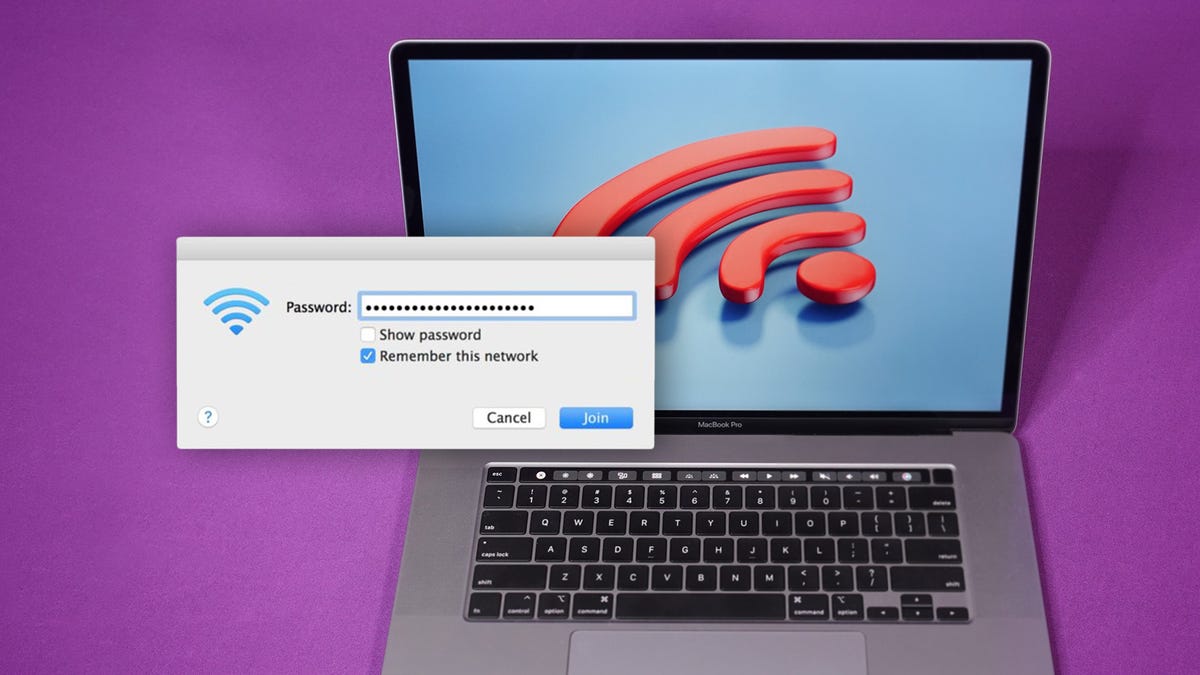
    Nothing is more annoying than when you are kicked off your Wi-Fi and have to reconnect, all to be prompted to re-enter that password you haven’t needed to use in forever. Wi-Fi is the thing that keeps us well connected these days and when it doesn’t work or we can’t get online, it’s no fun. 

    Tech Tips

    The good news is that on any Mac or Windows device you can locate your saved Wi-Fi passwords in a matter of seconds. It’s doesn’t matter if for whatever reason you’ve been booted off your network or need to share the password with someone else, your computer secretly has it saved. Trust me, it truly makes life 10 times easier and you can get back to streaming, work or whatever you were doing online in a matter of a few clicks. 

    Here’s how to find the passwords to all of the Wi-Fi networks you’ve ever connected to on any Mac and Windows.


    Don’t miss any of our unbiased tech content and lab-based reviews. Add CNET as a preferred Google source on Chrome.


    How to find Wi-Fi passwords on Macs

    Every password you’ve entered and saved on a Mac is stored in Keychain Access, the password management system for Macs. And that includes Wi-Fi network passwords. 

    To start, use the search feature 🔍 to open the Keychain Access app and do the following:

    1. Click on Wi-Fi on the left sidebar.

    2. Find and select the Wi-Fi network you want the password for. 

    3. Then, either hover over the hidden password to see it and copy it,

    4. Or click show for a QR code pop-up to scan and connect to another device.

    Screenshot of the Keychain Access app

    Find all your stored Wi-Fi passwords in the Keychain Access app on MacOS.

    Screenshot by Jason Chun/CNET

    How to find Wi-Fi passwords on Windows

    Finding the password to the Wi-Fi network you’re currently connected to is simple on Windows but getting your hands on all stored Wi-Fi passwords takes a bit of work, so we’ll discuss both methods below.

    To find the password to the Wi-Fi network you’re currently connected to on Windows:

    1. Click the Start button and then go to Control Panel > Network and Internet > Network and Sharing Center (Windows 11) or Settings > Network & Internet > Status > Network and Sharing Center (Windows 10).

    2. Next to Connections, click your Wi-Fi network name highlighted in blue.

    3. In the Wi-Fi Status page that opens, click Wireless Properties and then on the Security tab.

    4. Finally, check the box next to Show characters to display your Wi-Fi network password above it.

    Network sharing center on a Windows laptop

    You can easily find the password for the Wi-Fi network you’re currently connected to on Windows.

    Screenshot by Nelson Aguilar/CNET

    However, this isn’t the only way to find your Wi-Fi network passwords. The method above only allows you to view the password to whatever Wi-Fi network you’re currently connected to, but there is a way to find the passwords to all the Wi-Fi networks you’ve ever connected to on your Windows computer.

    To find all your Wi-Fi network passwords on Windows:

    1. Right-click on the Windows icon in the taskbar on your desktop.

    2. Click Windows Terminal (Admin).

    3. Type in netsh wlan show profile and hit Enter on your keyboard to view every Wi-Fi network you’ve connected to.

    4. Once you find the Wi-Fi network you want the password for, type in netsh wlan show profile “(Wi-Fi network name)” key=clear (for example, netsh wlan show profile “Netgear667” key=clear), and then hit the Enter key.

    Windows Terminal on computer

    You can use Windows Terminal to find all your Wi-Fi network passwords.

    Screenshot by Nelson Aguilar/CNET

    Settings for profile, connectivity, security and more will appear. The Wi-Fi network password will appear under Security settings, and next to Key Content. In addition to Windows Terminal, you can also use the Command Prompt application to type in the commands listed above to find your Wi-Fi passwords.

    If you want to read more about passwords, whether on your computer or your smartphone, check out the best password managers to use.

    Find passwords Saved seconds WiFi
    Share. Facebook Twitter Pinterest LinkedIn Tumblr Email
    Previous ArticleCoD: Black Ops 7’s wallhack killstreak is receiving a frenzy of criticism, but isn’t the point of killstreaks that they’re unfair?
    Next Article Unlock the Copper Age: What’s new in Minecraft’s huge update!
    techupdateadmin
    • Website

    Related Posts

    Gadgets

    Android might finally stop making you tap twice for Wi-Fi

    December 22, 2025
    Gadgets

    How to Quickly Find Out What’s Streaming on Multiple Services at Once

    December 21, 2025
    Gadgets

    Gear News of the Week: LG Debuts an RGB LED TV, and Google Brings Find Hub to Wear OS

    December 21, 2025
    Add A Comment
    Leave A Reply Cancel Reply

    Top Posts

    NYT Strands hints and answers for Monday, August 11 (game #526)

    August 11, 202545 Views

    These 2 Cities Are Pushing Back on Data Centers. Here’s What They’re Worried About

    September 13, 202542 Views

    Today’s NYT Connections: Sports Edition Hints, Answers for Sept. 4 #346

    September 4, 202540 Views
    Stay In Touch
    • Facebook
    • YouTube
    • TikTok
    • WhatsApp
    • Twitter
    • Instagram
    Latest Reviews

    Subscribe to Updates

    Get the latest tech news from FooBar about tech, design and biz.

    Most Popular

    Best Fitbit fitness trackers and watches in 2025

    July 9, 20250 Views

    There are still 200+ Prime Day 2025 deals you can get

    July 9, 20250 Views

    The best earbuds we’ve tested for 2025

    July 9, 20250 Views
    Our Picks

    My Health Anxiety Means I Won’t Use Apple’s or Samsung’s Smartwatches. Here’s Why

    December 22, 2025

    You can now buy the OnePlus 15 in the US and score free earbuds if you hurry

    December 22, 2025

    Today’s NYT Connections: Sports Edition Hints, Answers for Dec. 22 #455

    December 22, 2025

    Subscribe to Updates

    Get the latest creative news from FooBar about art, design and business.

    Facebook X (Twitter) Instagram Pinterest
    • About Us
    • Contact us
    • Privacy Policy
    • Disclaimer
    • Terms and Conditions
    © 2026 techupdatealert. Designed by Pro.

    Type above and press Enter to search. Press Esc to cancel.