



Mobile devices sometimes get lost. A laptop bag gets left on the bus or train, a smartphone slips out of your pocket, or a USB flash drive falls to the ground unnoticed. Losing a notebook or phone this way means a serious financial hit. In many cases, however, the loss of data is even more serious.
Important and confidential documents, such as tax documents, are often stored on laptops. In some cases, even sensitive company papers may even be stored there. And a smartphone stores doesn’t just hold emails, but also contact lists and WhatsApp chats.
Although access to a laptop is password-protected, the files are freely accessible. If the device is booted via a live system, they can be easily read and copied.
USB drives usually only need to be connected to a computer to reveal their contents. With smartphones, on the other hand, the file system is always securely encrypted.
However, if the device has just been used, the screen lock may not yet be reactivated and the finder can read the stored data and send it by email or chat program.
The loss of a device gets especially tricky when the device is deliberately stolen. This usually happens because the thief is after confidential company documents or credit card data. This is why important documents should always be encrypted.
Encryption options
When encrypting the SSD of a laptop or an external hard drive, you have the choice between two methods:
- Full Disk Encryption (FDE)
- File Level Encryption (FLE)
With Full Disk Encryption, the software encrypts the entire data carrier, including the operating system. The scope of delivery of Windows Pro and Education also includes FDE encryption with BitLocker.
You can find the function in the category view of the Control Panel under “System and Security > BitLocker Drive Encryption.” Once you activate it, every user must enter the defined BitLocker password when starting up the computer.
After encryption, it’s no longer possible to access the files on the SSD without this password. BitLocker encryption utilizes the functions of the computer’s TPM chip and is considered to be very secure.
However, full disk encryption has a limitation: data is only protected when the laptop is powered off or you’re not logged into Windows.
As soon as you have unlocked the SSD by entering the password, hackers can access the stored files via the network or the internet. The same applies if a criminal gets hold of a switched-on device.
Notebooks: Encrypt with EFS
The alternative to FDE is File Level Encryption (FLE). It only encrypts selected files and folders. The advantage of FLE is that it’s continuously active. In order to access the data, a password usually needs to be entered.
Windows FLE is an exception to this rule. Microsoft calls its file encryption EFS (aka Encrypting File System) and it’s integrated directly into the NTFS file system.
You can enable it by right-clicking on a file or folder, selecting “Properties,” clicking the “Advanced” button under the “Attributes” section, checking “Encrypt contents to secure data,” and confirming with “OK.”
However, Microsoft decrypts this data as soon as you log in with your user account. The problems here are the same as with Full Disk Encryption. In addition, decryption is linked to the password of your user account; if you forget it or if the user account is deleted, access to the data is lost.
Encrypt entire drives with VeraCrypt
Encryption with the EFS is simple and effective, but it has the disadvantage of file names remaining visible, allowing others to infer their contents. To avoid this, you can use the open source software VeraCrypt free of charge.
The program works slightly differently to the functions presented so far. On the one hand, it can encrypt entire drives, but it also offers to create an encrypted container in the form of a mounted drive, into which you copy or move the files and folders you want to be encrypted.
Other users will then only see the name of the container, but not its contents. VeraCrypt container encryption is primarily suitable for notebook SSDs.
VeraCrypt can encrypt entire drives, but can also create an encrypted container in the form of a virtual drive. Files and folders can be securely stored in this container.
IDG
Open VeraCrypt, select “Create volume.” This starts a wizard. In the first window, select “Create encrypted container file.” Click “Next” and select “Standard VeraCrypt volume.” Click “Next > File” and enter the path and file name for the container. Confirm with “Save.”
“Next” takes you to the encryption settings. Click “Next” and enter the size of the container that VeraCrypt should create.
At this point, the program shows you how much space is still available on the selected drive. Decide on a suitable size and click on “Next.” VeraCrypt will now ask you for a password.
Type in a long and complex combination of letters, numbers, and characters and click “Next.” You can skip the “Large files” window by clicking “Next.”
In the “Volume format” window, select “NTFS” as the file system. Move the mouse pointer back and forth for at least 30 seconds until the color of the progress bar has changed from red to yellow to green.
Click on “Format” to create the container file. As soon as the process is complete, the wizard window should close.
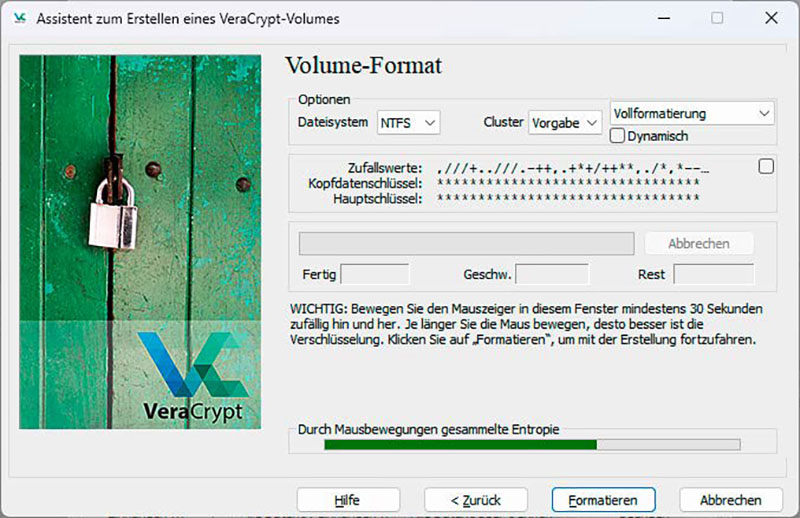
By moving the mouse, you create a random value for the encryption. The longer you move the mouse back and forth, the better.
IDG
The VeraCrypt start window now opens again next to the wizard.
Select a drive letter, under which the container file should be accessible. Next, click “File” and navigate to the file on your desktop. Click “Mount,” enter the password for the container, and confirm with “OK.”
The container now appears under the selected drive letter in the Explorer. Everything you copy into it is automatically encrypted.
Secure folder for smartphones
The data storage on smartphones and tablets is already securely encrypted with a function of the operating system out of the box. However, this offers limited protection if the device is lost or stolen and the screen lock hasn’t yet reactivated.
Since Android 8, the system has included a vault feature for storing confidential data. This vault is called “Secure Folder” and is part of the Google Files file manager, which is already installed on many smartphones and tablets.
If you the app isn’t available on your device, you can install it via the PlayStore.
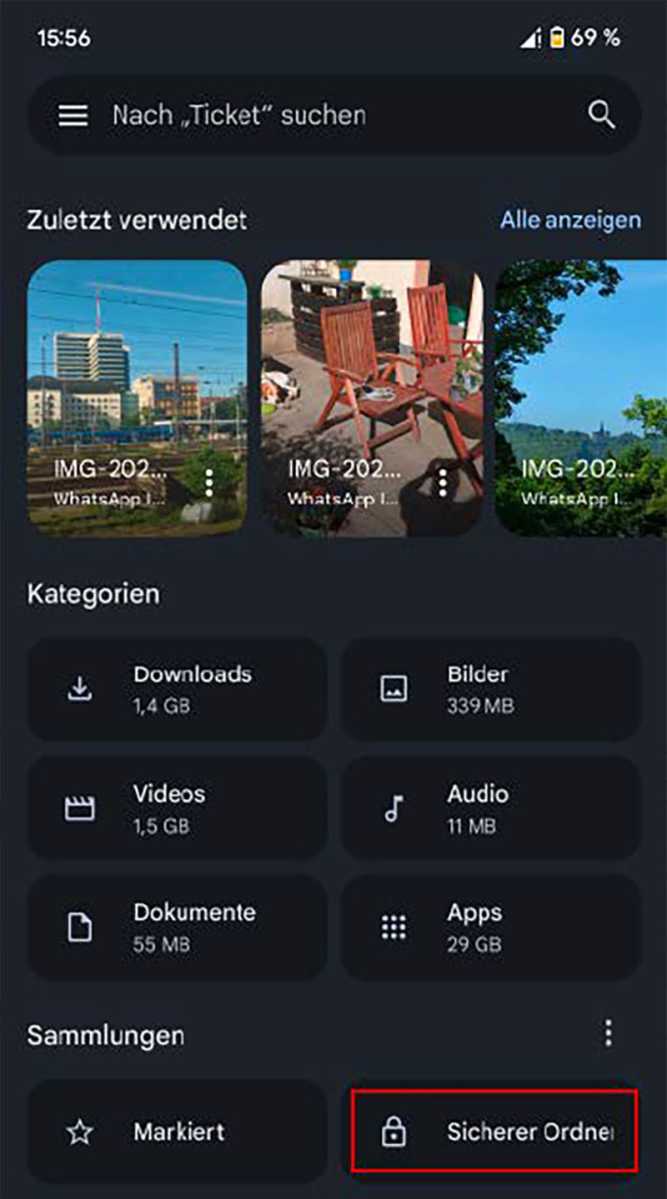
The Google Files file manager app includes a function for creating a secure, encrypted folder for confidential data.
IDG
In Google Files, go to “Collections > Secure folder.” Set a PIN or pattern for access, both of which should be different from the one you use to log in to your device.
To move files into the folder, press and hold your finger on the file, then tap the three dots and select “Move to secure folder.”
To retrieve a file, open “Collections > Secure folder” in Google Files, enter the PIN or pattern, tap the file, and select “More > Remove from secure folder.”
Note: If you forget the PIN or pattern, there is no way to open the vault.
External SSDs: Encrypt with BitLocker To Go
VeraCrypt is particularly suitable for permanent installation on the SSD of a laptop. For external discs, it’s best to use BitLocker To Go, which is included in the Home version of Windows.
Type BitLocker into the search field in the taskbar and click “Manage BitLocker.” This opens a Control Panel window in which the drive letter of the USB stick will appear under “Removable drives > BitLocker to Go” with the status “BitLocker disabled.”
Click the link, go to “Turn on BitLocker” and tick the box “Use password to unlock the drive.” Enter a password and click “Save to file” to save the recovery key in a TXT file on your desktop PC’s SSD.
Depending on whether the stick already contains data or not, select “Encrypt only used storage space” or “Encrypt entire drive.”
To use the stick on other Windows computers, select “Compatible mode” in the following window and click “Start encryption” in the last window. If you connect the stick to a computer, Windows will prompt you to enter the password each time.
USB sticks: Encrypt with 7-Zip
Finally, the freeware packing program 7-Zip (free) is ideal for quickly encrypting files and folders on a USB stick. You can use this tool to encrypt ZIP files with the AES-256 algorithm, protecting them with a password. Then all you need to do is enter the password to open and unzip the file.
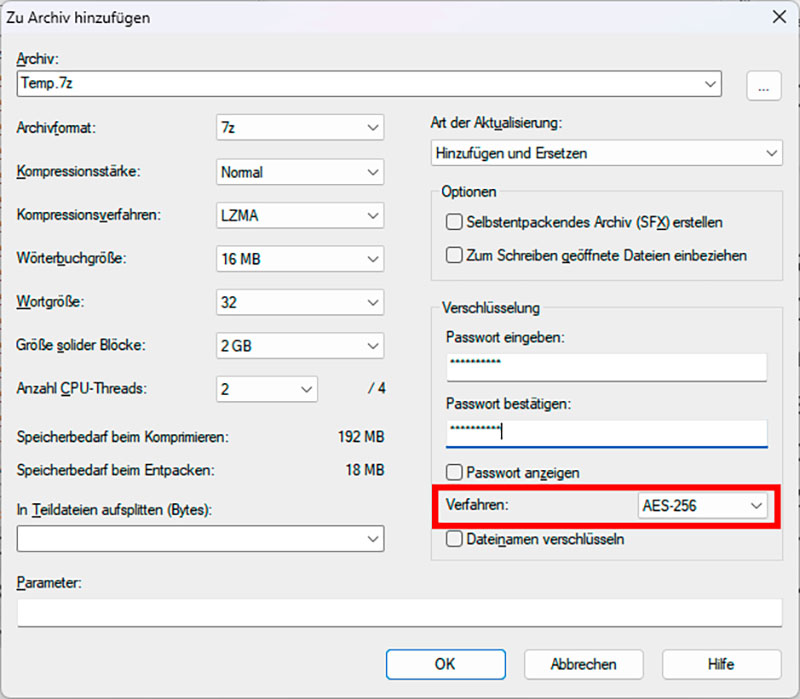
You can also securely encrypt ZIP files with the 7-Zip packing program. Make sure that AES-256 is set as the encryption method.
IDG
This is how you proceed: Select the files in Windows Explorer, right-click, and go to “Show more options > 7-Zip > Add to an archive.” Give the archive file a name, but keep the extension as “zip.”
Select a secure and complex password in the “Encryption” section at the bottom right, repeat it one line below, and–this is important–set the “Method” option to “AES-256.”
Finally, confirm the encryption with “OK.” After double-clicking on the ZIP file, the Explorer will now display the contents, but an error message will pop up when you try to extract the files.
The contents can only be read if you open the ZIP file with 7-Zip and enter the password.
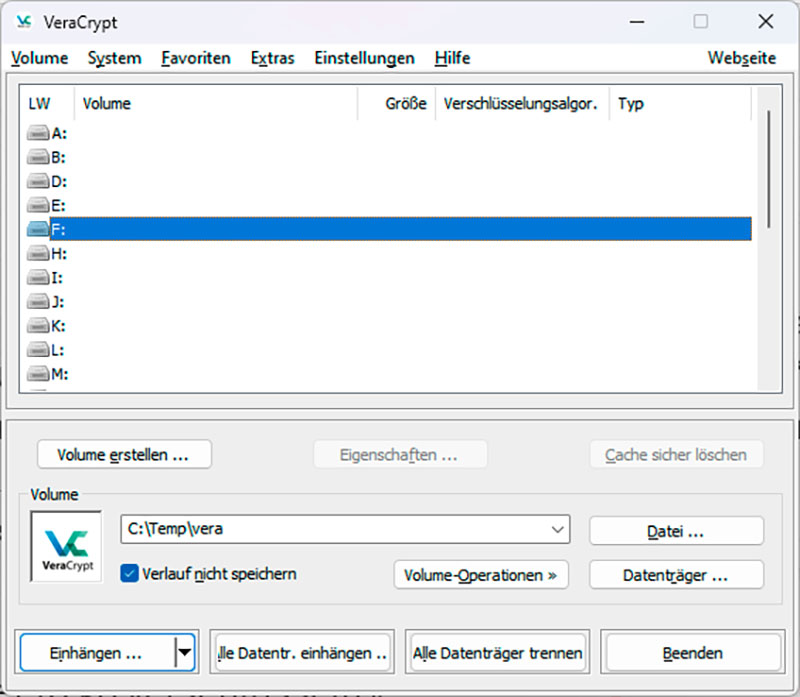
As soon as the container has been created, mount it as a separate drive in the file system via the VeraCrypt start window.
IDG
Hardware-based encryption
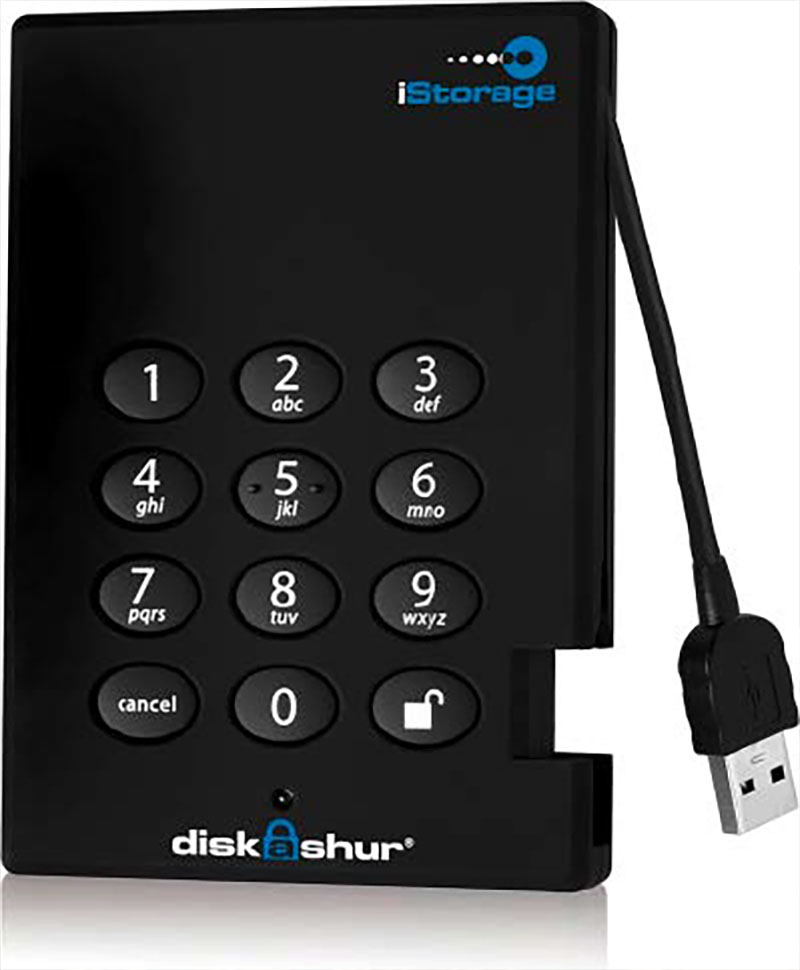
Encryption and decryption are handled by the CPU during read and write operations. There is also hardware-based encryption, which is mainly used today for external USB hard drives
These devices have their own AES encryption chip, which is positioned between the system BIOS and the operating system.
This chip handles all encryption and decryption processes on the drive during data access, meaning the entire storage device remains continuously encrypted.
Access is only possible after entering a password, which is stored on the external hard drive.
IDG
This article originally appeared on our sister publication PC-WELT and was translated and localized from German.
