



Most phones today are marketed with artificial intelligence features. These features appear in camera controls, voice assistants, and predictive text capabilities.
AI is embedded in the software, and you can’t avoid it. Still, some people miss having a simple device and not having to worry about privacy.
You can still take back control and disable many of these AI-powered features on your Android phone. Here’s how.
What you should know before disabling AI on Android
You can turn off the AI features on your Android phone. However, the procedure is not as straightforward as flipping a toggle button.
Most AI features are deeply integrated into different parts of your phone’s software, from the keyboard and camera to system-wide smart suggestions. Some of these AI features are helpful, while others are not.
You can disable some of these features in settings, while others require digging into app permissions or using third-party tools to remove them. For example, AI Overviews is baked into Google Search and may generate intelligent responses after you opt out via Google Labs.
Meanwhile, Circle to Search is embedded into Android. Even though you disable it, it’s not an app you can uninstall, and even after removing it, you will still see some elements running in the background.
Third-party manufacturers design AI to be a core part of the experience.
Plus, you might accidentally re-enable these features after updates or lose certain privileges when you turn them off. For example, if you deactivate smart battery optimization, you may experience shorter battery life.
Your best solution is to disable the features one by one.
4 smartphone AI features that I think are actually useful
Not all AI features are useful
How to turn off AI on most Android devices
Android phone interfaces and settings vary by manufacturer. Still, there are general ways to minimize AI’s influence. You can do this with official Google apps.
These apps maintain a consistent layout and functionality across all Android phones.
Here’s how to turn off machine intelligence on your phone.
Disable AI in Google Messages
- Open Google Messages.
- Tap your account icon in the upper-right corner. Then select Messages settings.
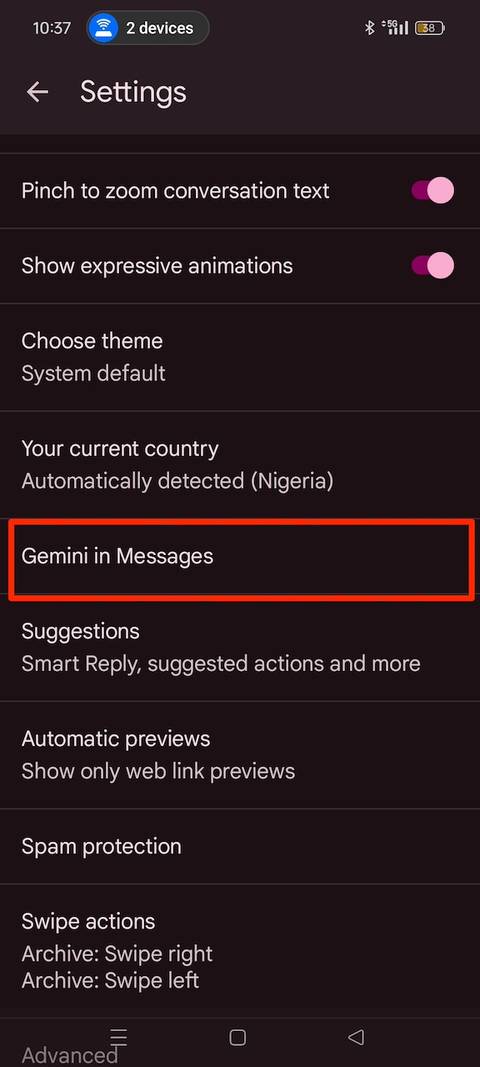
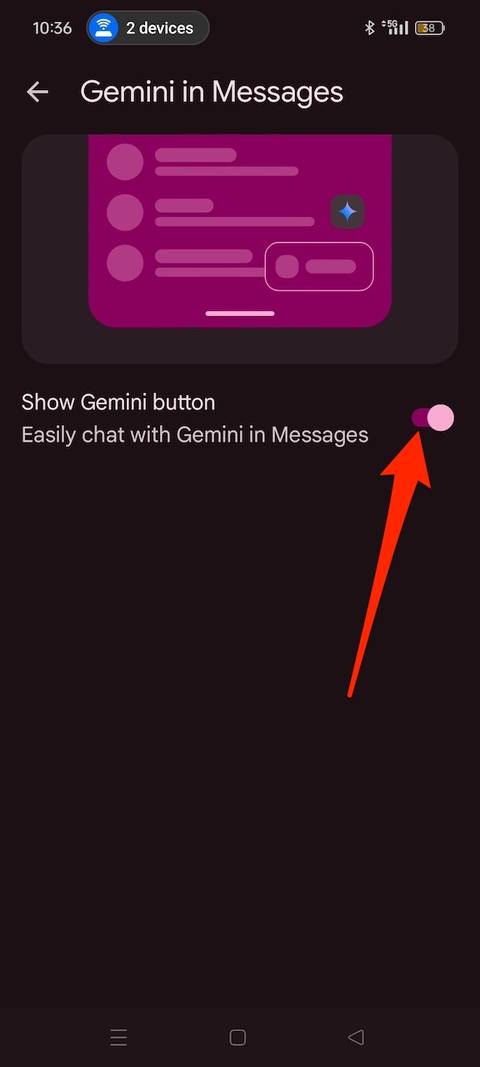
- Select Gemini in Messages.
-
Tap the toggle button to turn it off.


Uninstall the Gemini app
Gemini is a standalone app on your phone. Uninstalling it removes its capabilities.
Long-press the app on your home screen or in the app gallery, then select Uninstall. If you want to keep the app, switch back to Google Assistant (if you still have it).


Disable AI in Gmail
- Open the Gmail app.
- Tap the menu icon in the upper-left corner.
- Scroll down and select Settings.
- If you added multiple accounts, choose one.
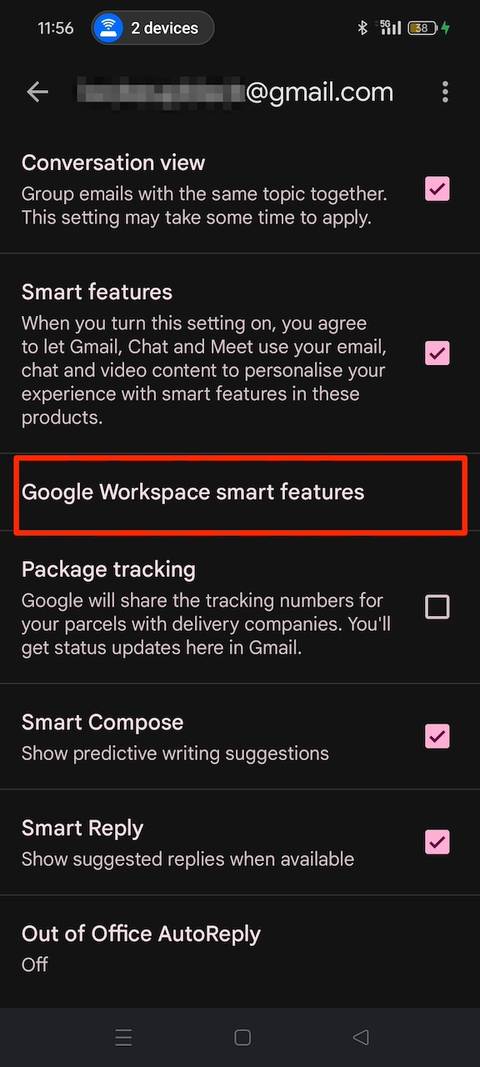
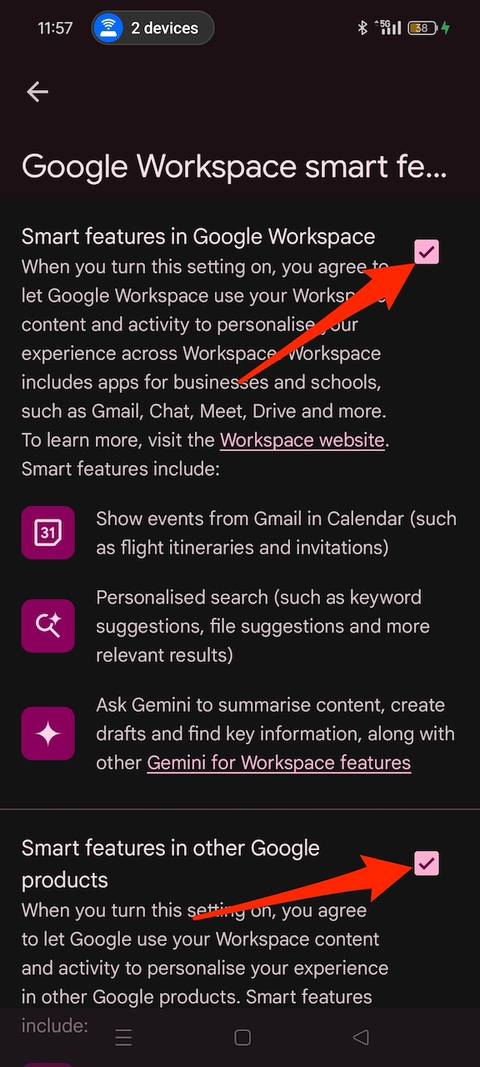
- Select Google Workspace smart features.
-
Uncheck the boxes to turn off the features.


7 basic things Gemini does very poorly
Google’s AI still has many flaws
How to turn off AI on Google Pixels
Pixel devices are Google’s vision of what smart Android phones should be.
Gemini touches almost every aspect since the company controls its hardware and software. Some features are exclusive to Pixel phones. But Google is gradually rolling them out to other devices.
If you don’t see a setting, it’s likely not available on your phone yet.
Use the steps below to turn off AI across different apps.
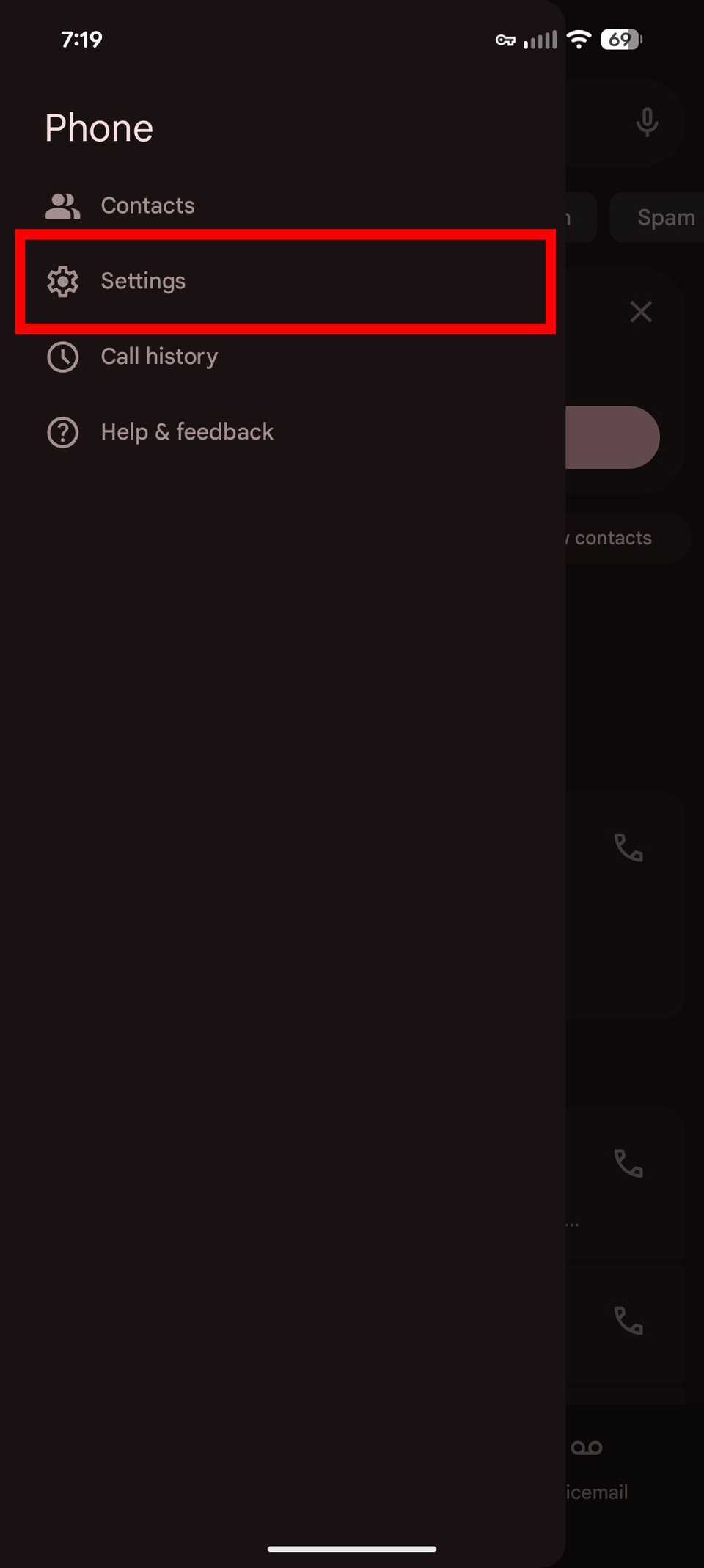
Disable AI features in Google Phone app
- Open the Google Phone app.
- Tap the hamburger icon in the upper-left corner. Then select Settings.
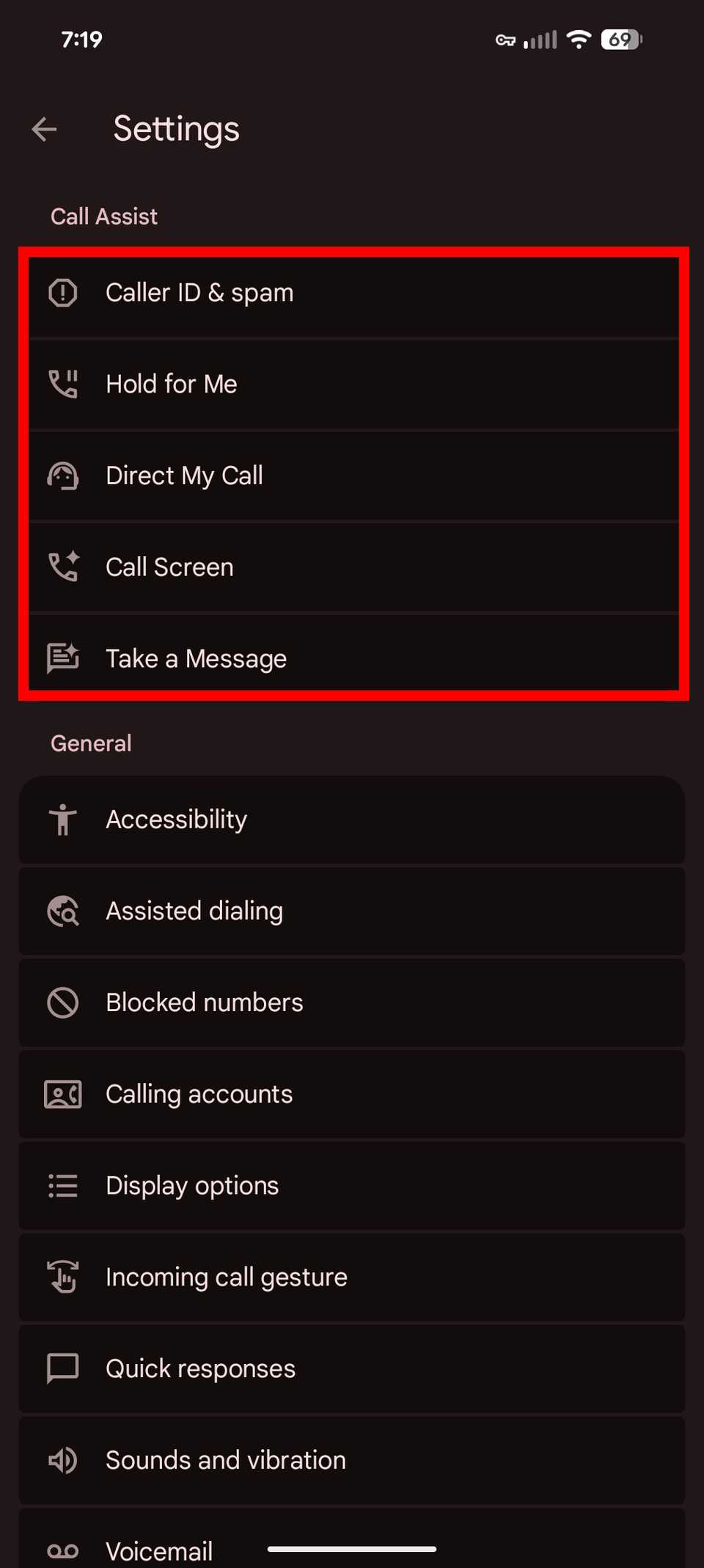
-
Under Call Assist, select any feature and tap the toggle button to disable it.


Disable Circle to Search
- Open Settings.
- Go to System > Navigation mode.
- Scroll down and tap the Circle To Search toggle button.
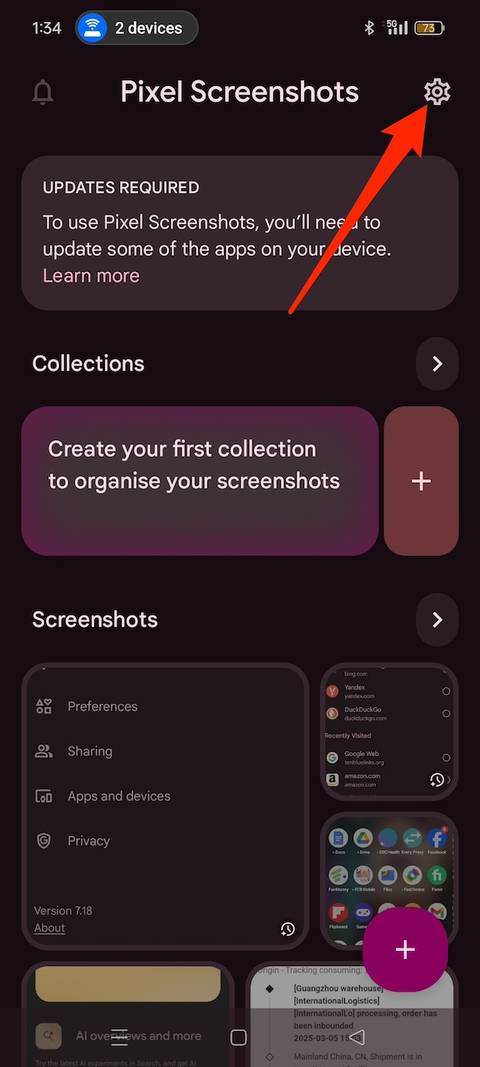
Disable Pixel Screenshot
- Launch the Pixel Screenshots app.
- Tap the cog icon in the upper-right corner.
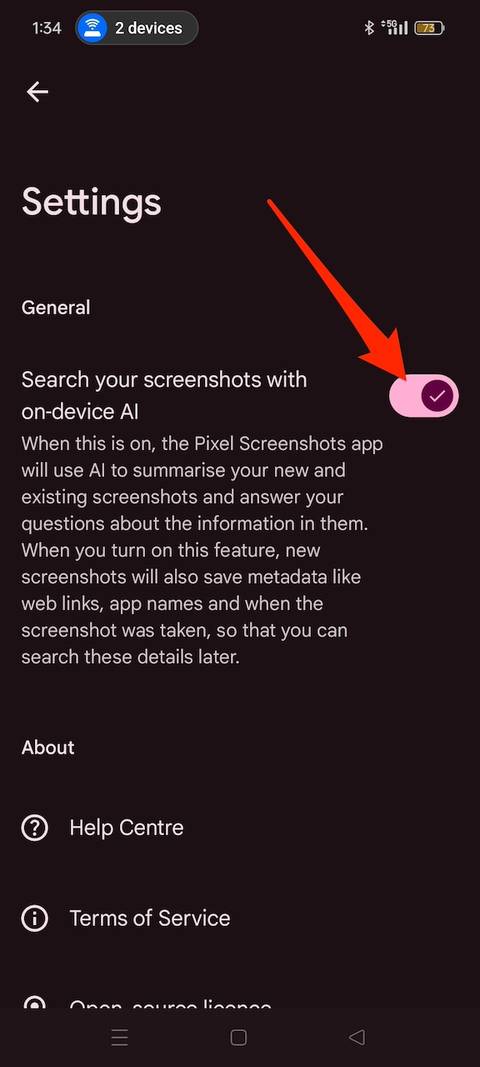
-
Tap the Search your screenshots with on-device AI toggle button.


Disable AI in Google Photos
- Open Google Photos.
-
Tap your account icon in the upper-right corner. Then select Photos settings.
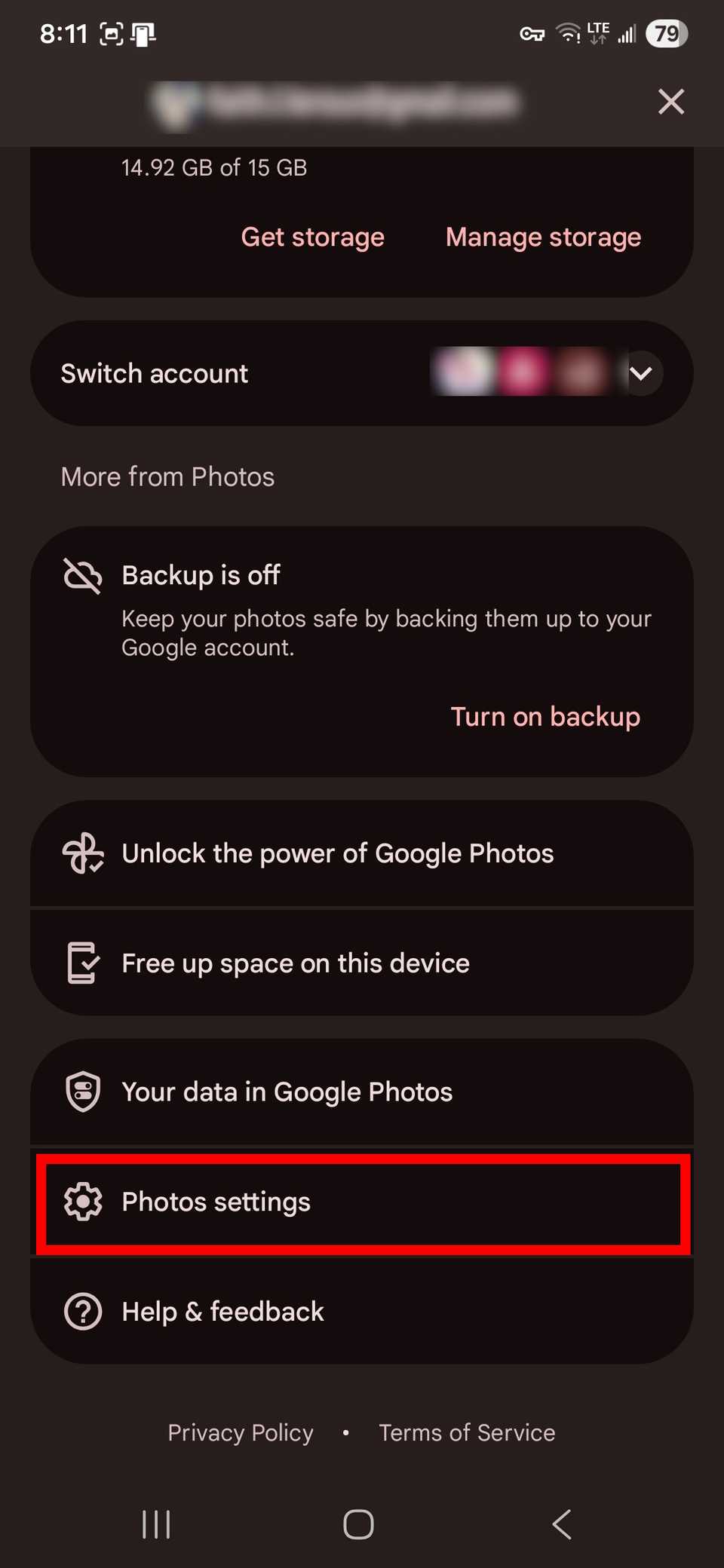
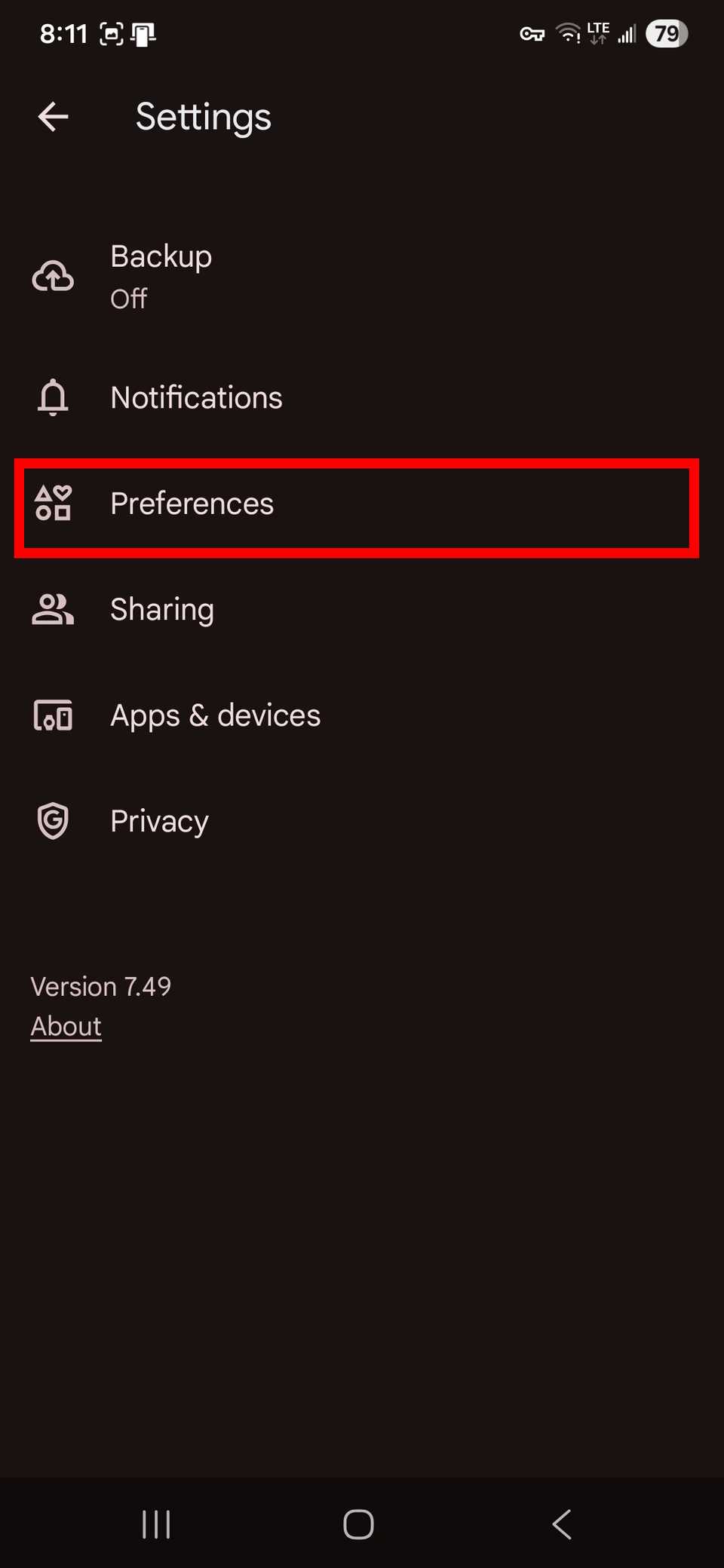
- Go to Preferences > Gemini features in Photos.
- Disable any features you don’t need.


Some AI features require canceling Workspace Labs participation or Google One subscriptions.
You may not be able to rejoin if you leave. Think about what it means for your experience before deciding.
How to disable AI on Galaxy devices
Samsung’s latest One UI 8 software packs many AI-driven tools. Among the most noticeable additions is the Now Bar. It offers real-time suggestions, actions, and shortcuts based on what you’re doing.
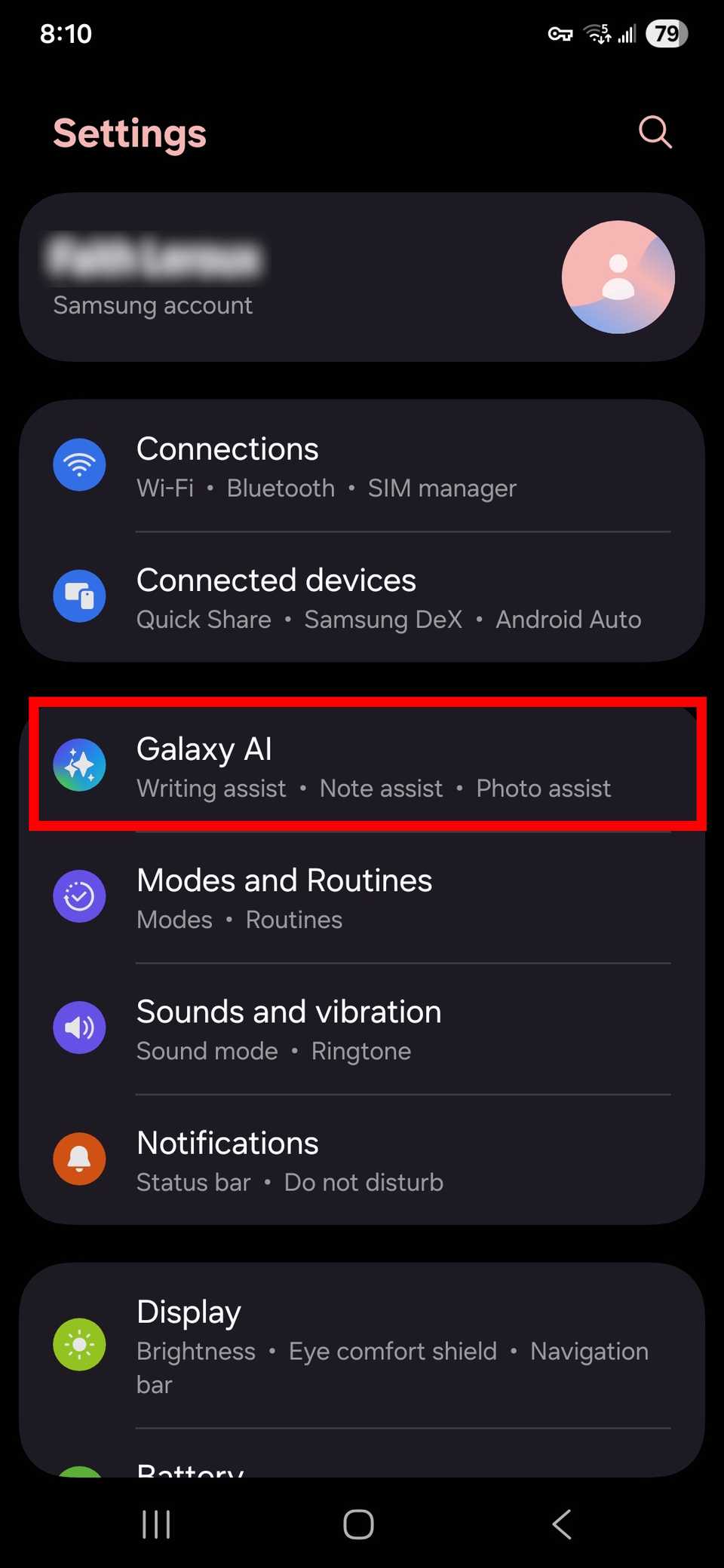
Sometimes, it feels like another layer of interference. Samsung makes it easy to disable most AI-powered features in one place under Galaxy AI settings.
Follow the steps below to do it:
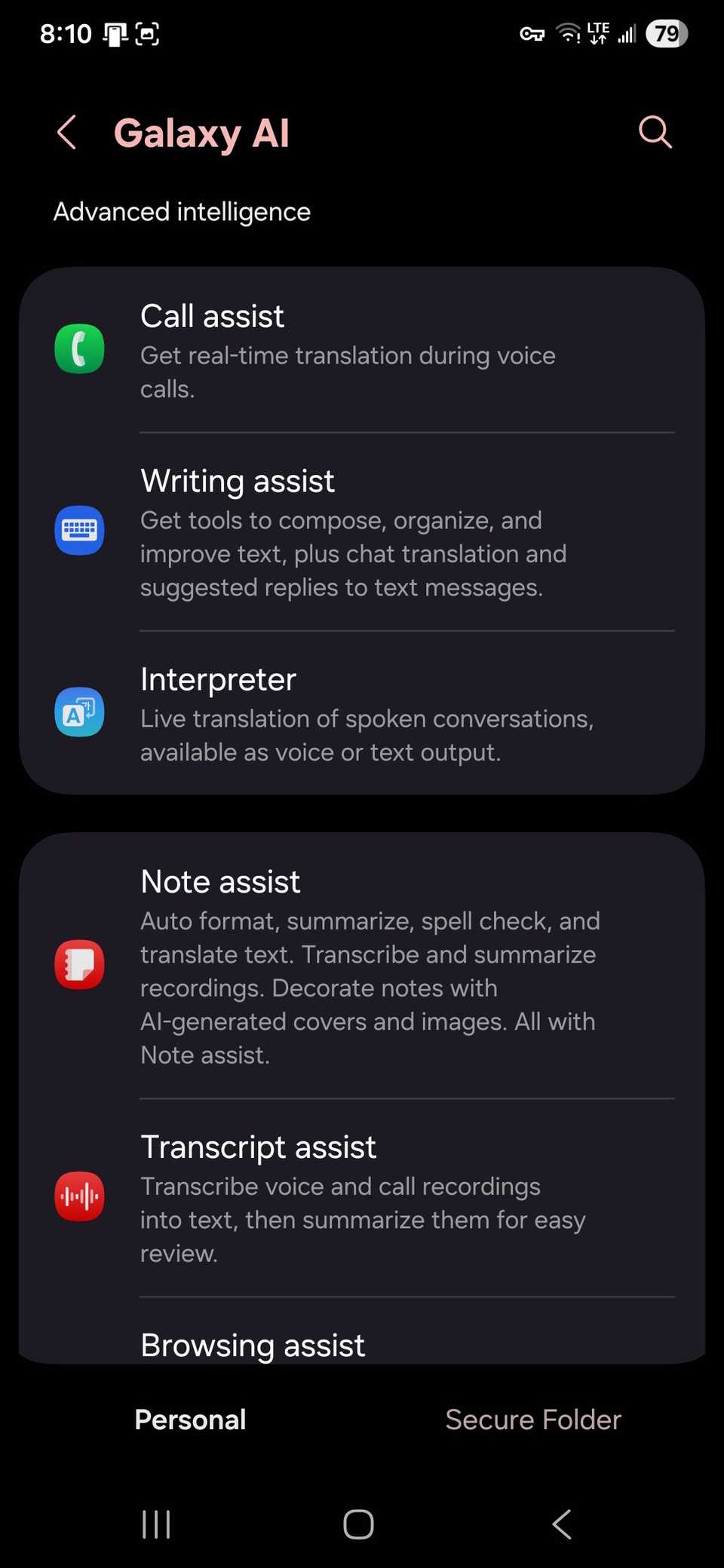
- Go to Settings > Galaxy AI. You’ll see a list of advanced intelligence tools.
- Select any of the features.
-
Tap the toggle button to disable them.


Bixby uses AI, but it is not on the same level as newer features introduced with Galaxy AI. Still, disable the voice assistant for peace of mind.

5 basic features Samsung’s Galaxy AI is missing
Why can’t Samsung give us useful AI features?
How to turn off AI Overviews in Search
AI overviews in Search used to be optional. Now, it’s the first thing you see after every query.
Google introduced a filter that replaces the feature with traditional web links.
Although the company doesn’t let you set it permanently as your default search method, it’s one way to deactivate the feature. Here’s how:
- Visit TenBlueLinks.org on your preferred browser. Here, we use Google Chrome.
- Open a new tab and search for anything. Don’t skip these two steps as the browser needs to detect the site as recently visited before you can select it as your search engine.
- Tap the three-dot icon in the upper-right corner to open the browser menu.
- Go to Settings > Search engine.
-
Select Google Web.
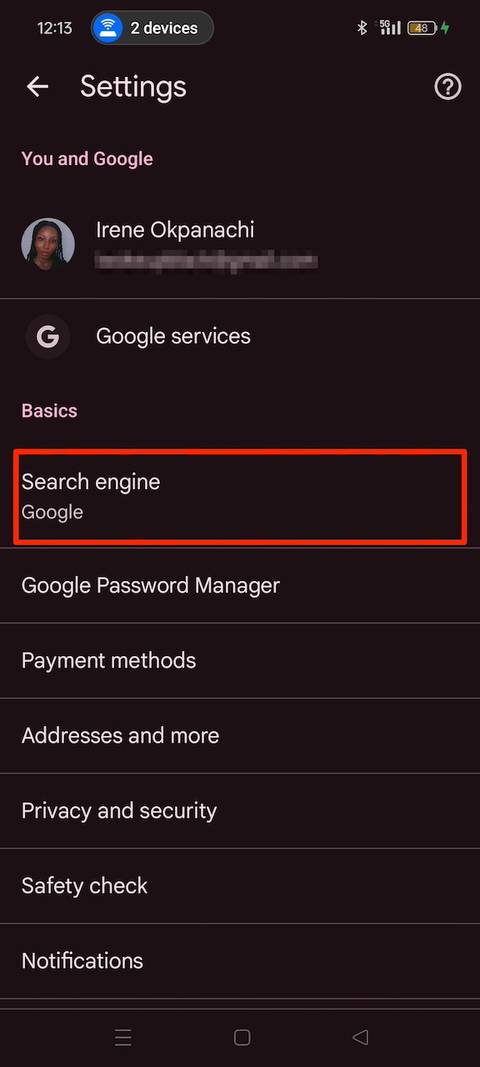
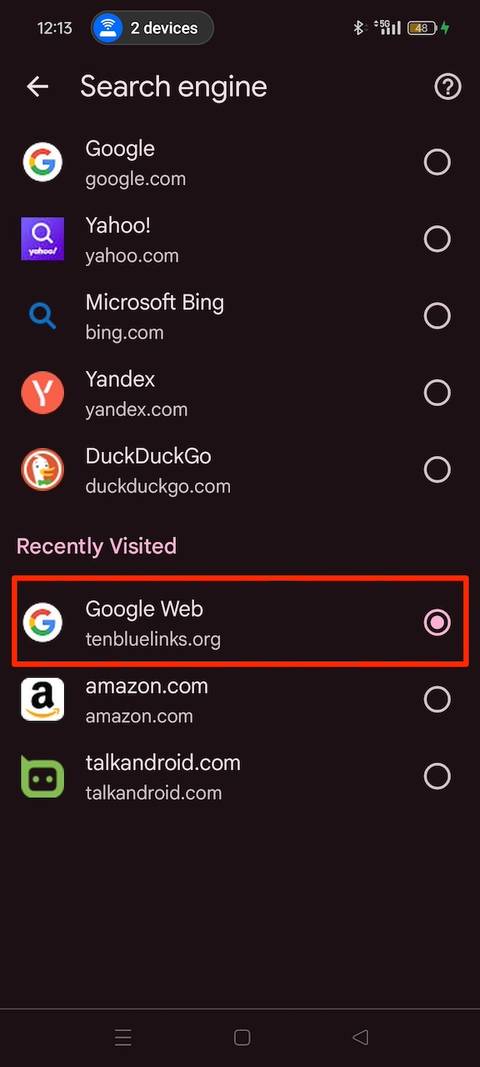


After completing the steps, you can test it out by searching for anything again.
You should notice AI Overviews no longer appear. However, this setting is temporary. It’s not an official setting in your browser.
Chrome doesn’t let you permanently add a new search engine on mobile.
Turning off AI features reduces your smartphone’s benefits
High-end mobile devices have AI features deeply integrated into their OS.
AI can be used to optimize your software usage and power efficiency (newer chips are designed with AI in mind), and to provide you with a seamless experience across your apps.
While some AI features may seem overwhelming or a hassle to deal with, there is a reason why leading manufacturers like Apple, Google, and Samsung are pouring billions into AI technology on smartphones.
AI is why smartphones are becoming more personalized, and it is also a reason why we have extra security and protection features (like theft and scam detection).
Turning off AI features could do more harm than good. As we’ve already mentioned, it could lead to shorter battery life or an unoptimized experience.
So, if you find your device isn’t working as well as it should, you may want to reverse your decision to remove or disable those AI features.
True intelligence is knowing when to disconnect
AI isn’t going anywhere soon. If you’re determined to avoid it, take your time digging through your phone’s settings.
While you’re at it, clear your accumulated personal data to evade excessive advertising. Your Google search history, YouTube watch history, app cache, and location history are good places to start.
If you’ve used Gemini lately, it most likely stores your activity for up to 72 hours, but you can wipe your history on the app.
