


You can have your phone or tablet make a brief noise, chime, or vibration whenever an app, call, or message notification comes through.
Like customizing your ringtone with your favorite song, you can pick unique notes and sounds for all your apps or a specific one.
Our guide teaches you how to change the notification sound for the essential apps on your Android tablet or phone.
Plus, it’s nice to make sure no noisy Google Pixel or Samsung Galaxy phone sounds the same within a room.
Our tutorial series uses a Samsung Galaxy phone with the custom One UI skin and a Google Pixel for the stock Android phone sections.
If you use another Android device, you should be able to follow along without issue. We also take note of the different options you may encounter in our steps.
How to change notification sounds for text messages
When your messages come through, you want the notification to become loud, clear, and distinctive. You can do this for all of your messages or change it on a per-contact basis.
Though our screenshots use a Google Pixel running Android 16 (we verified that this works on Android 14 and 15). We’ve also referenced the differences between Galaxy and OnePlus on older OS versions.
However, if you’re on an older Android version, you can follow our guide. The UI will differ from what we’ve included in our steps below, but the process remains the same.
How to change notification sounds for Google Messages
- Open Google Messages.
- Tap the Menu or Profile icon.
- Choose Message settings (or Settings for older versions).
- Tap Notifications.
-
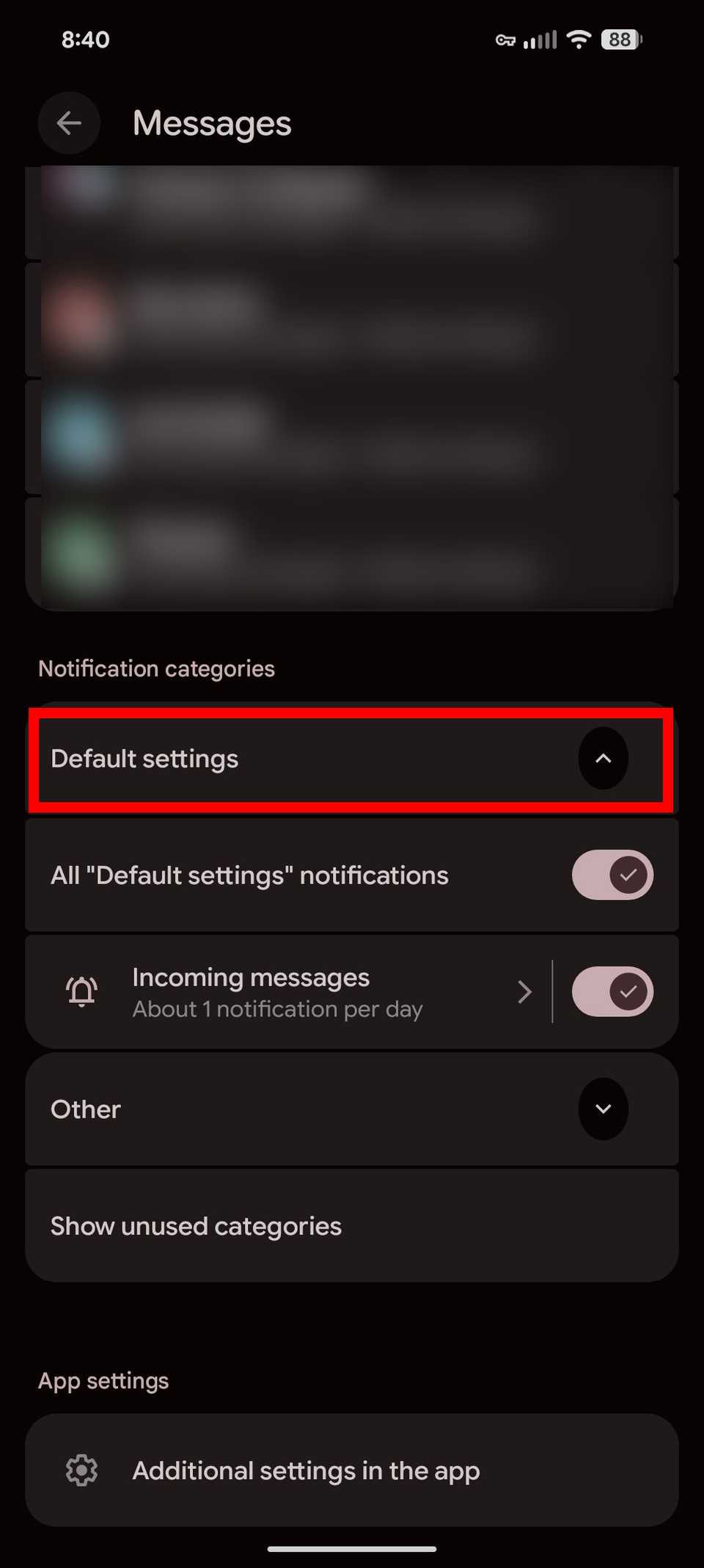
Scroll down to Default settings and tap Incoming Messages. If you don’t see this option, select Behavior, sound & more, or Notification categories.
-
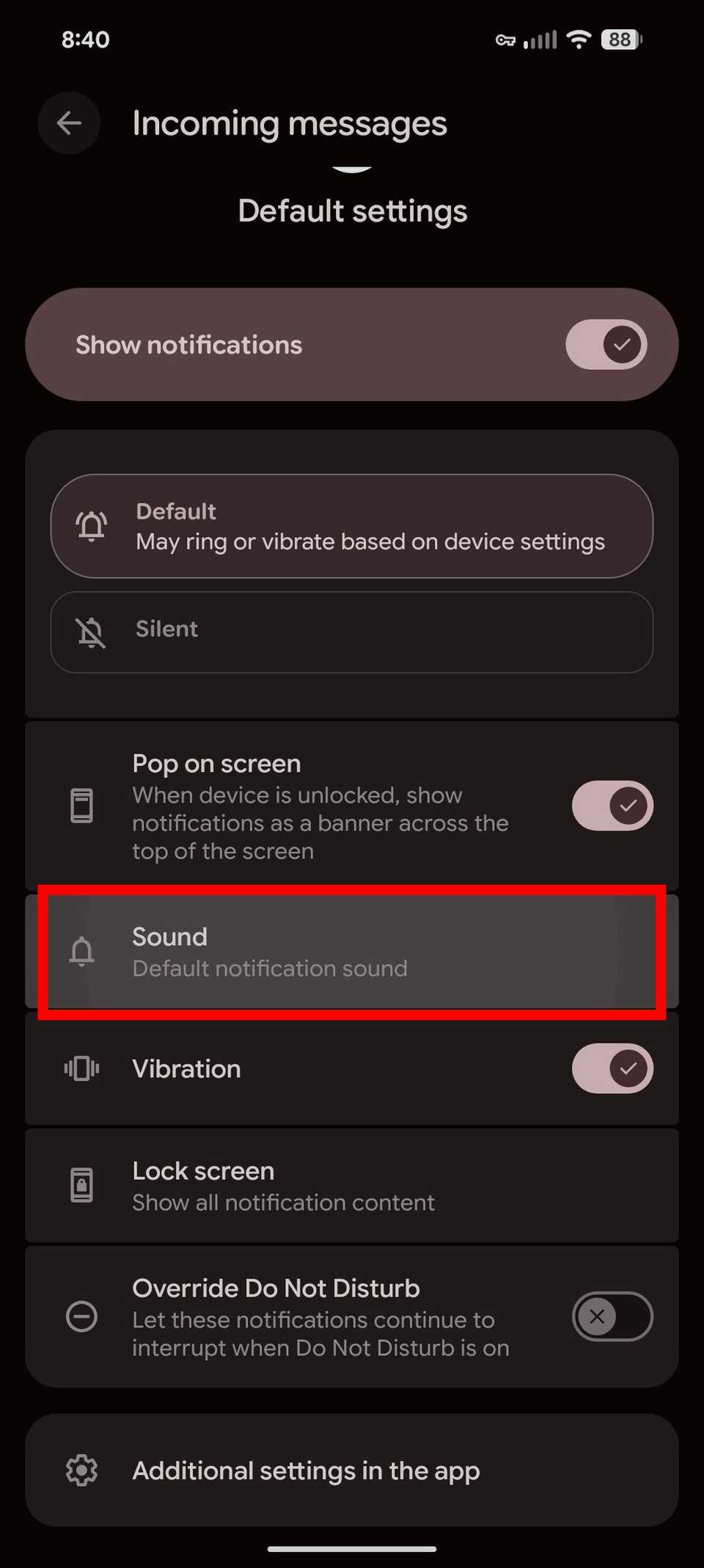
Select Sound. You can choose from a category of notification sounds or pick an app to complete this step. For a OnePlus phone, you may see Ringtone instead.
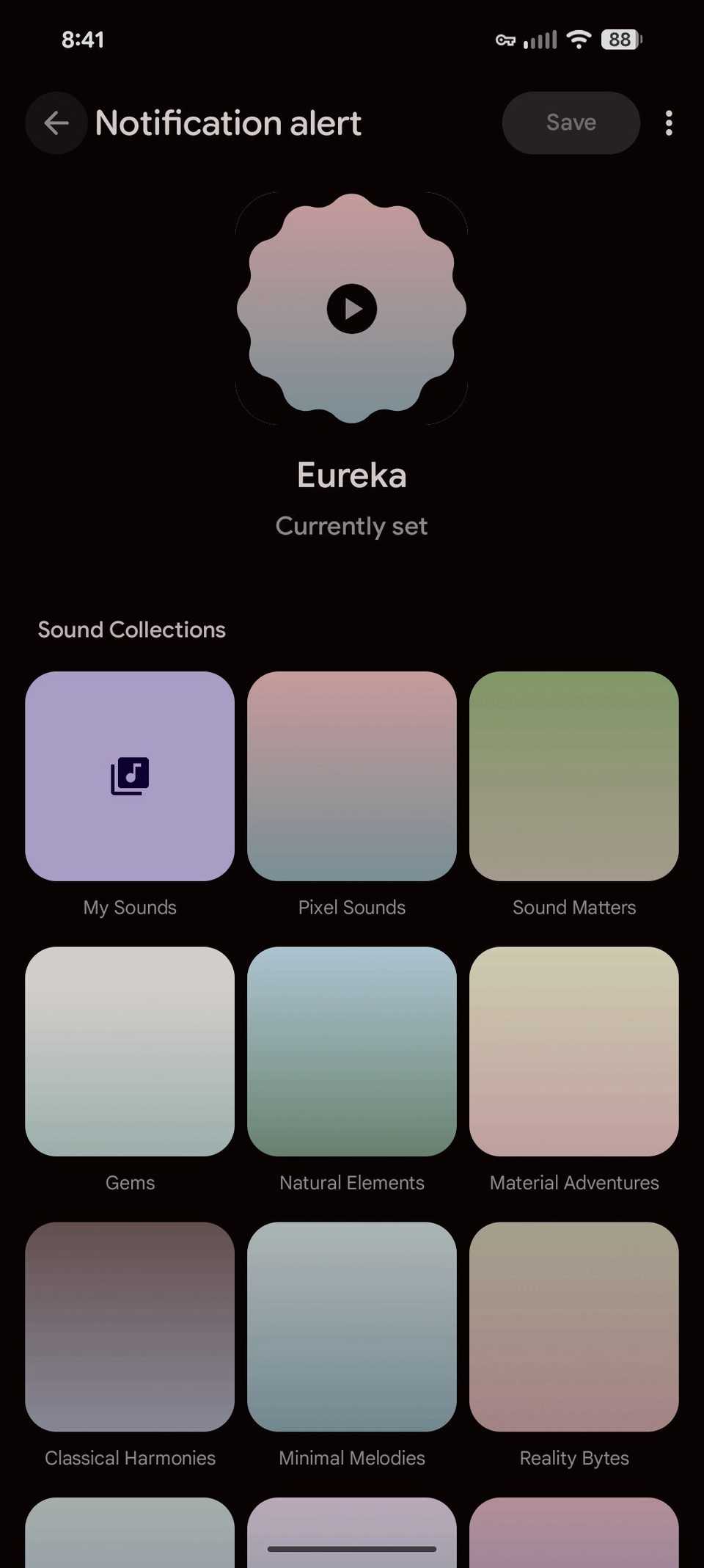
- Tap a sound name to Select a notification sound. For some Samsung devices, you can customize the notification sound volume by tapping the volume slider.


If you do not see these options, you must turn on Manage notification categories for each app by going into Settings > Notification > Advance Settings.
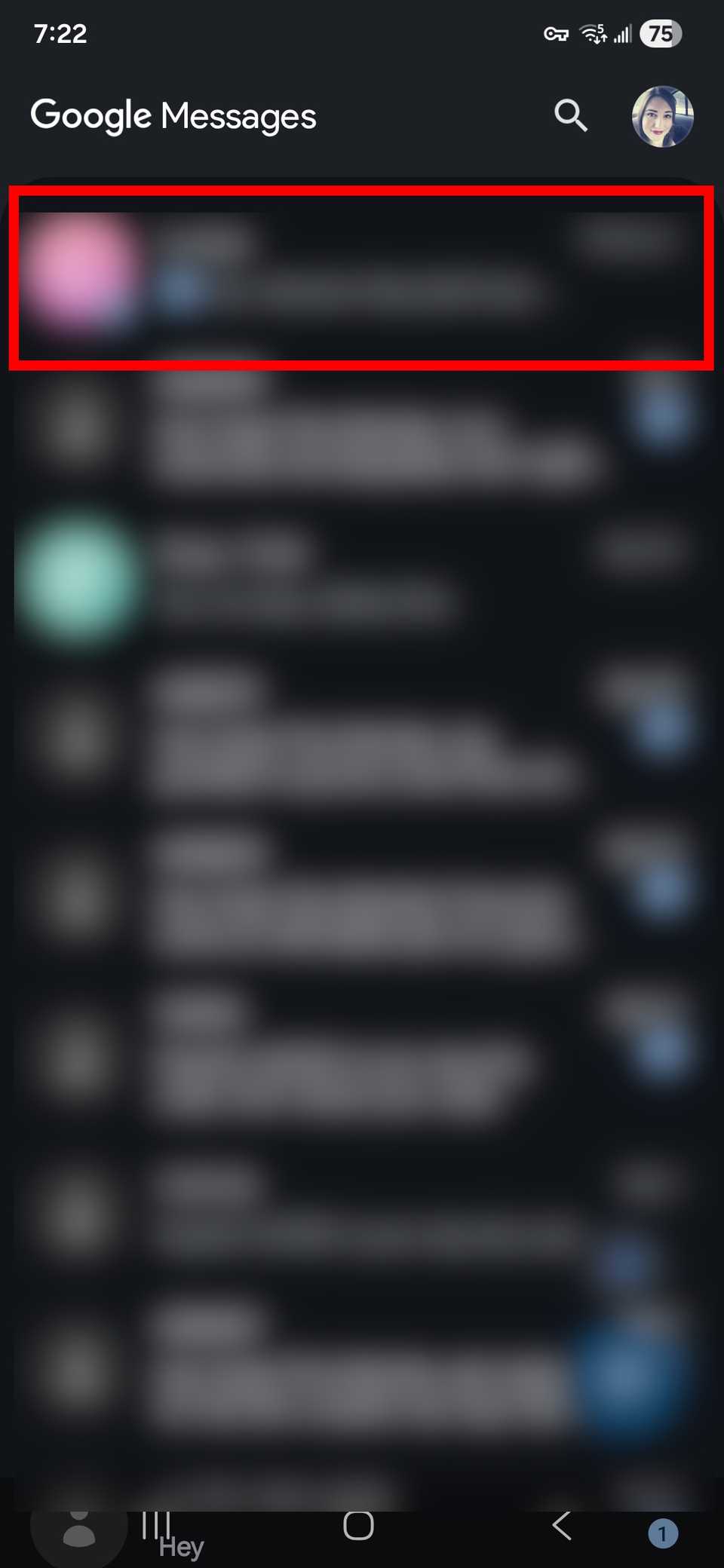
To change the notification sounds for individual contacts in Google Messages, do the following:
- Open Google Messages.
- Tap a conversation.
-
Select the three-dot icon in the upper-right corner next to the Camera icon.
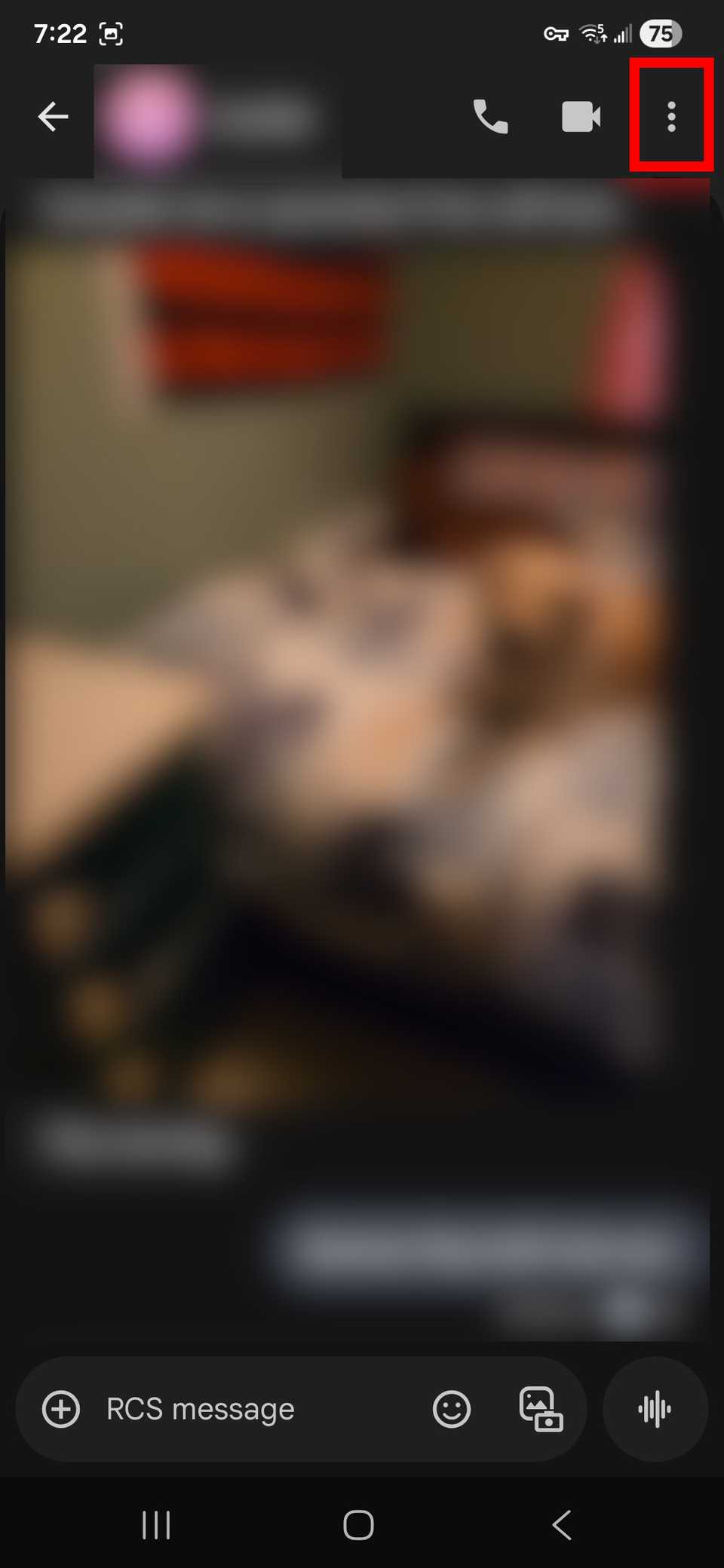
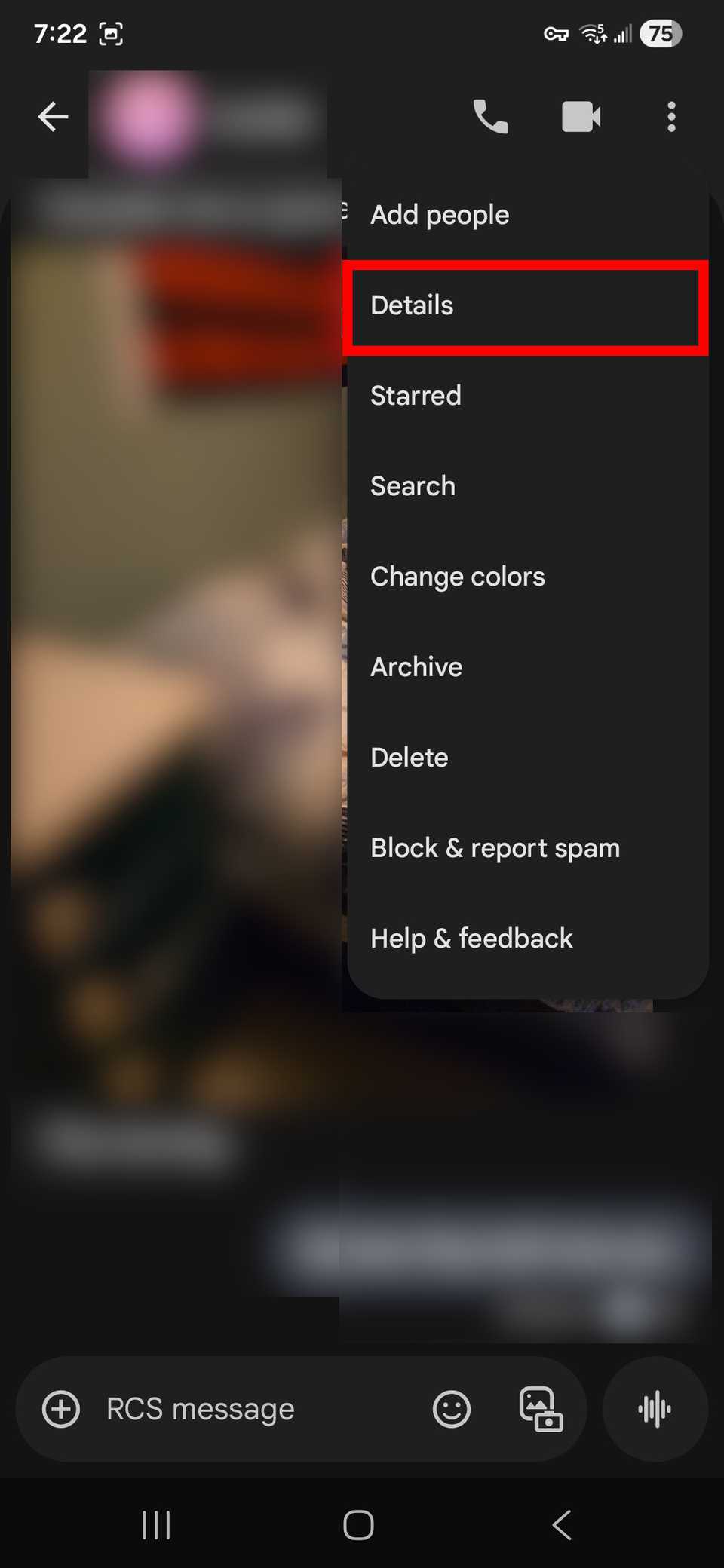
- Tap Details.
-
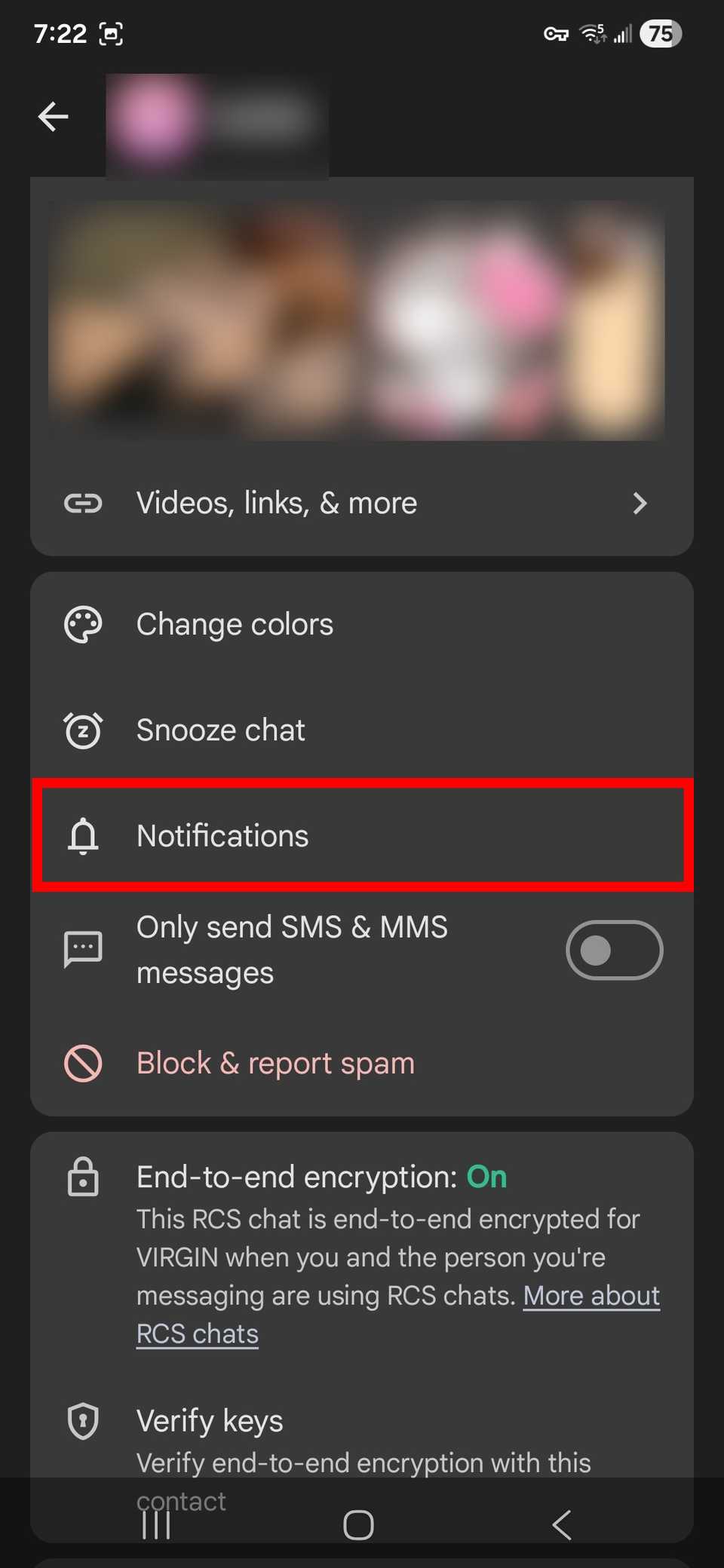
Tap Notifications > Sound.


How to change notification sounds for Samsung Messages
If you own an older Samsung device, Samsung Messages will be your default messaging app.
We will go over the steps for changing notification sounds for Samsung Messages. Our tutorial uses a Samsung Galaxy phone with Android 16 and One UI 8. Steps may vary for older Android/One UI versions.
If Notifications is grayed out, enable notification permissions for Samsung Messages. Also, turn off notification interference modes, such as Do Not Disturb.
- Open Samsung Messages.
- Tap the three-dot icon next to Search.
-
Select Settings.
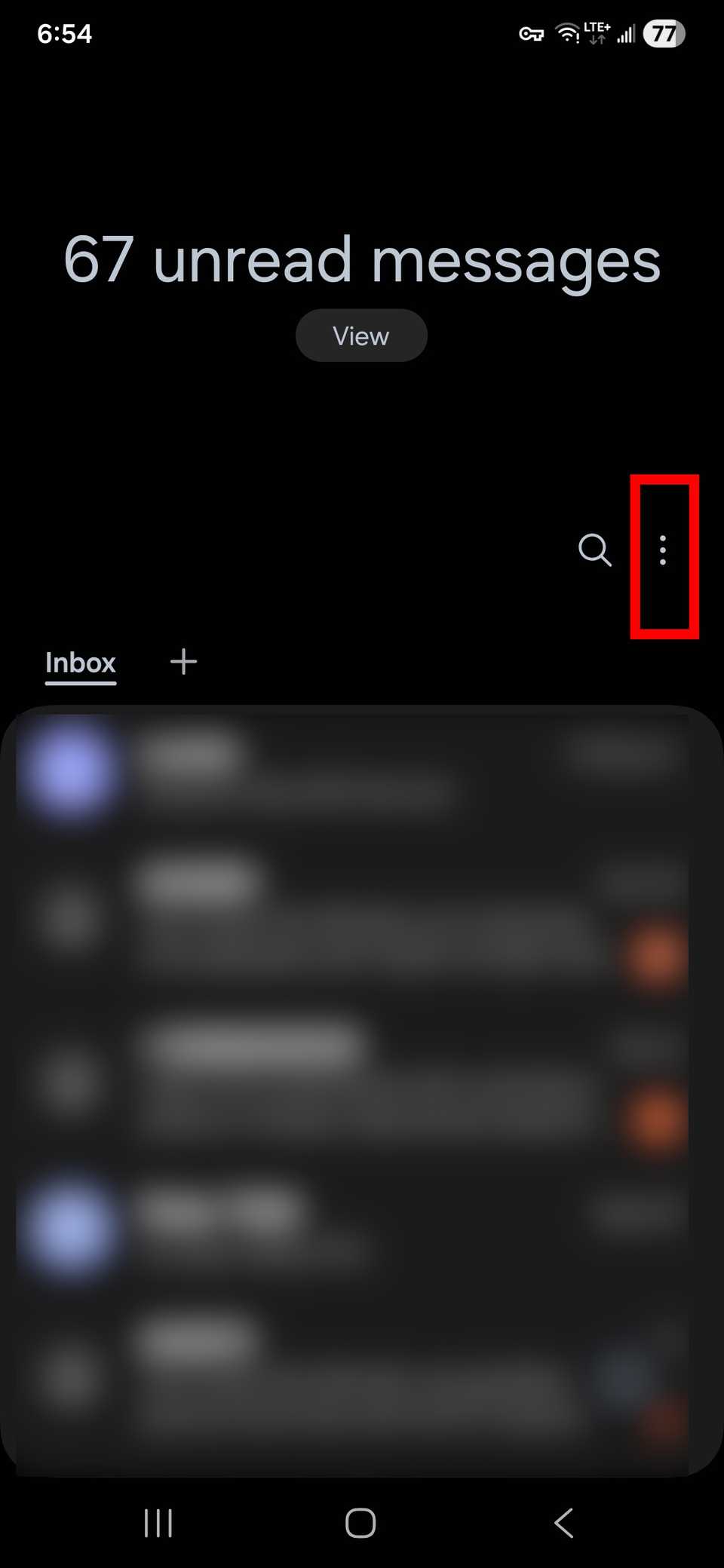
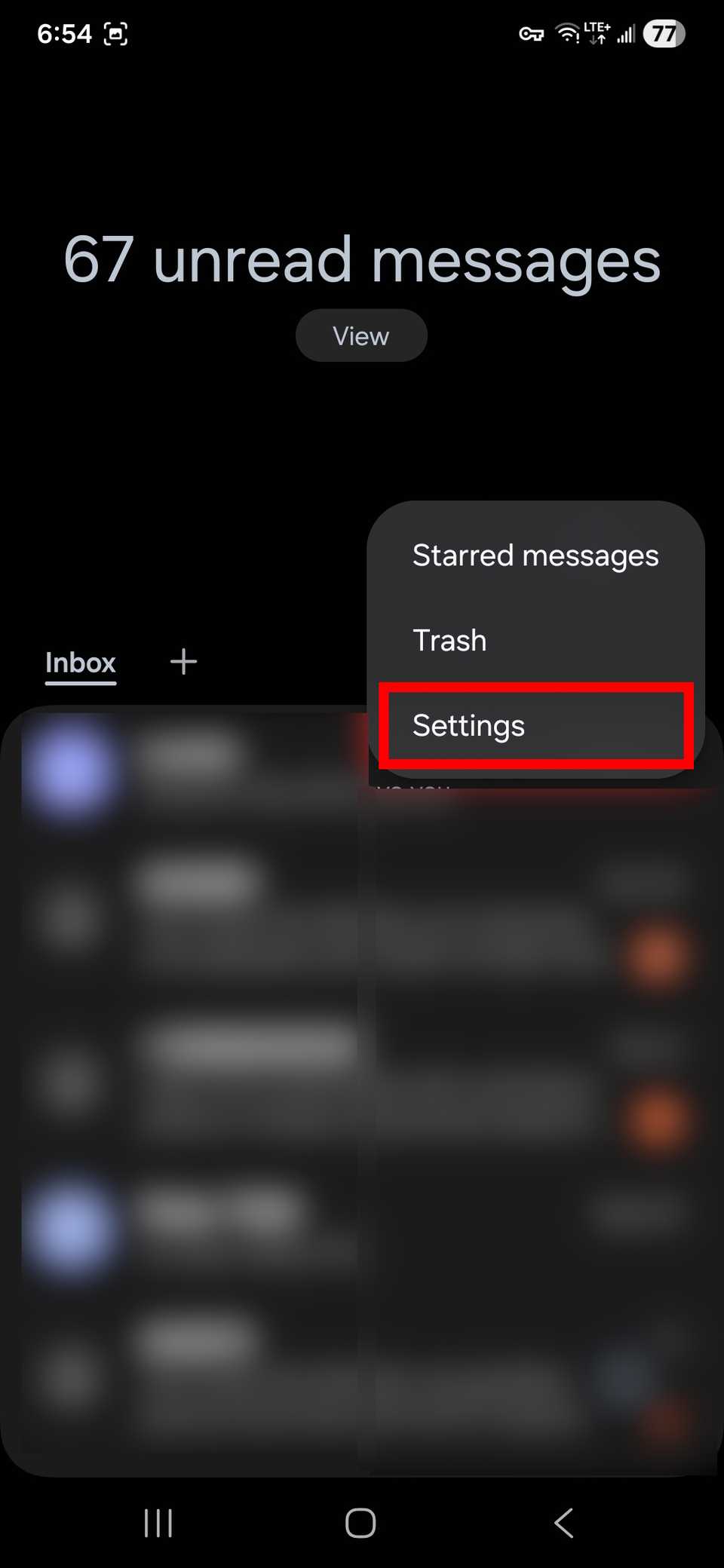
- Tap Notifications > Notification categories.
-
Select Sound.
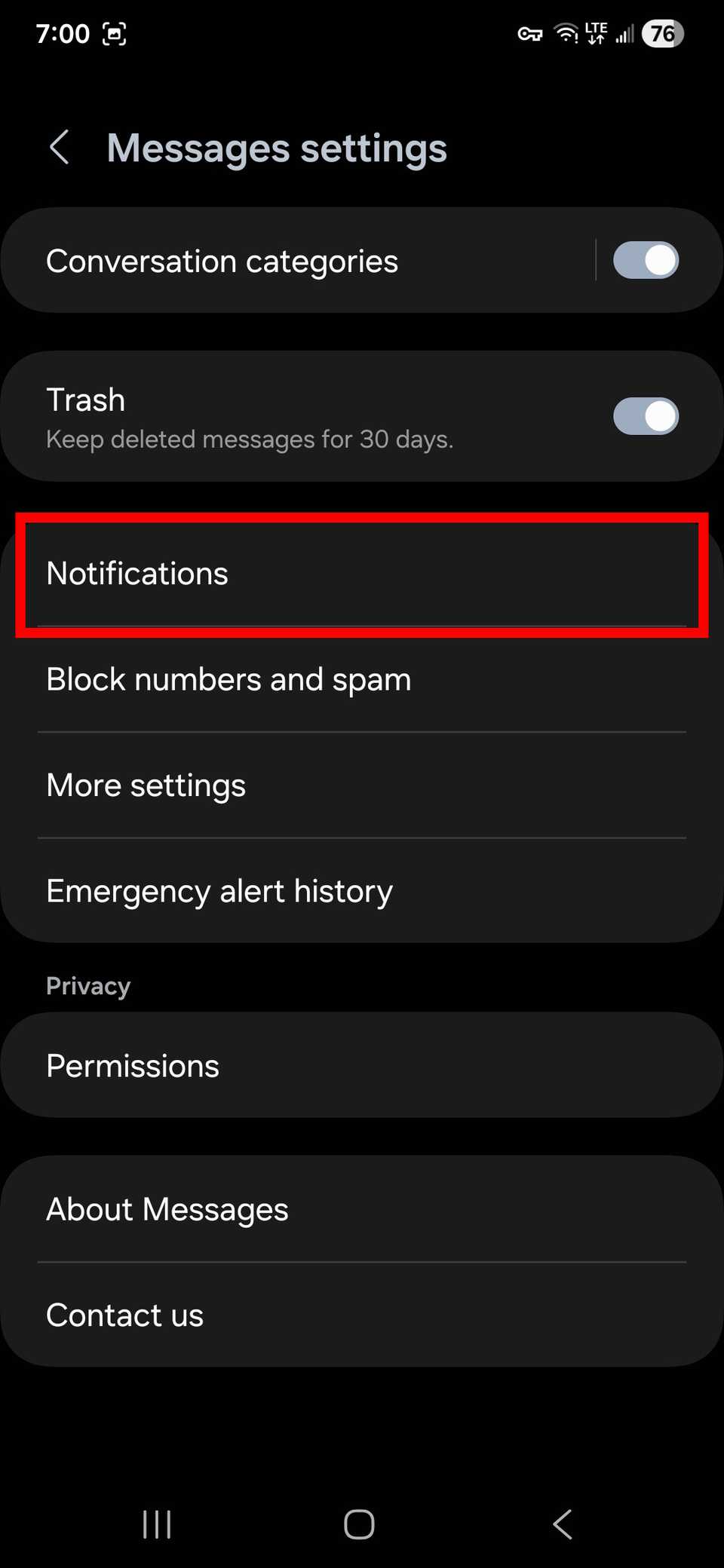
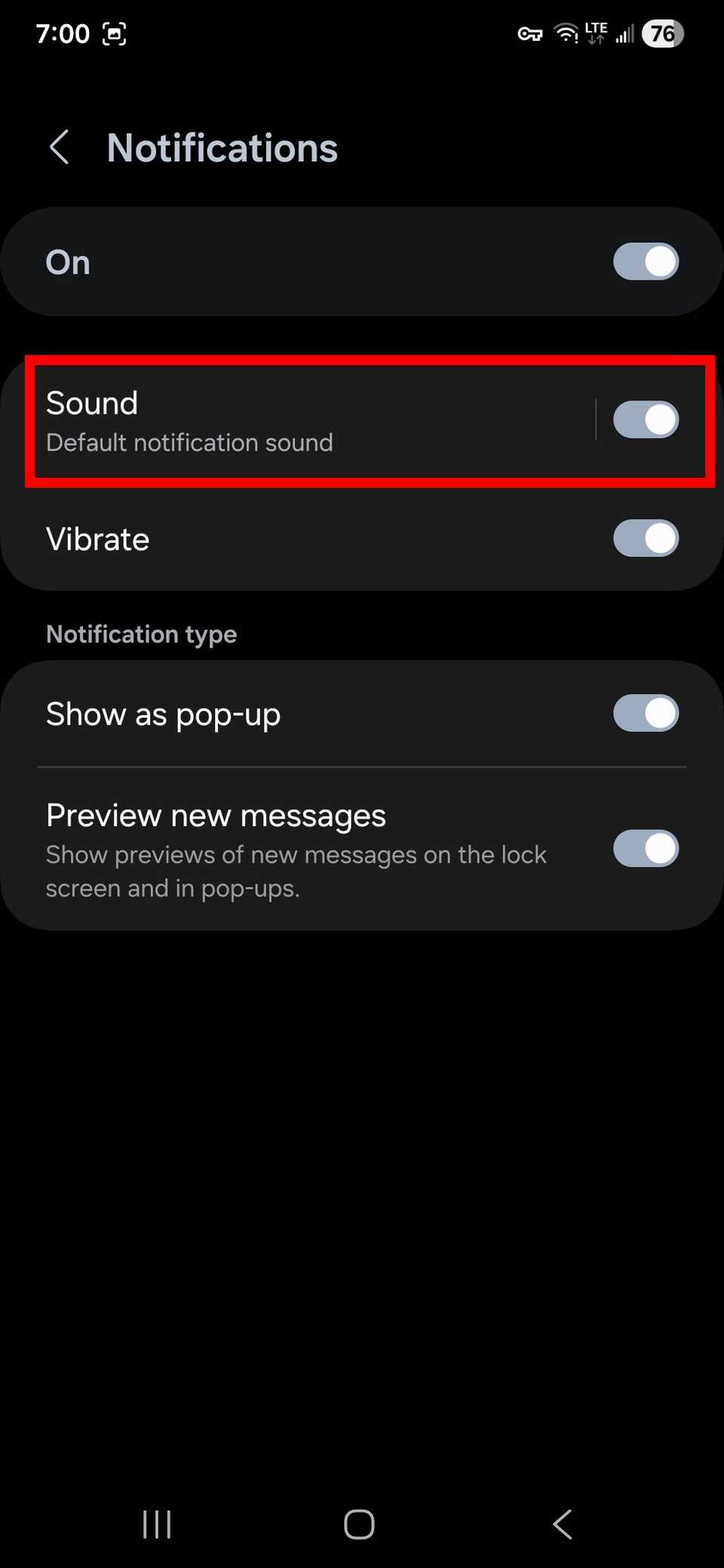
-
Select a new sound. In some One UI versions, you can change the notification sound volume by adjusting the slider at the top of the page.
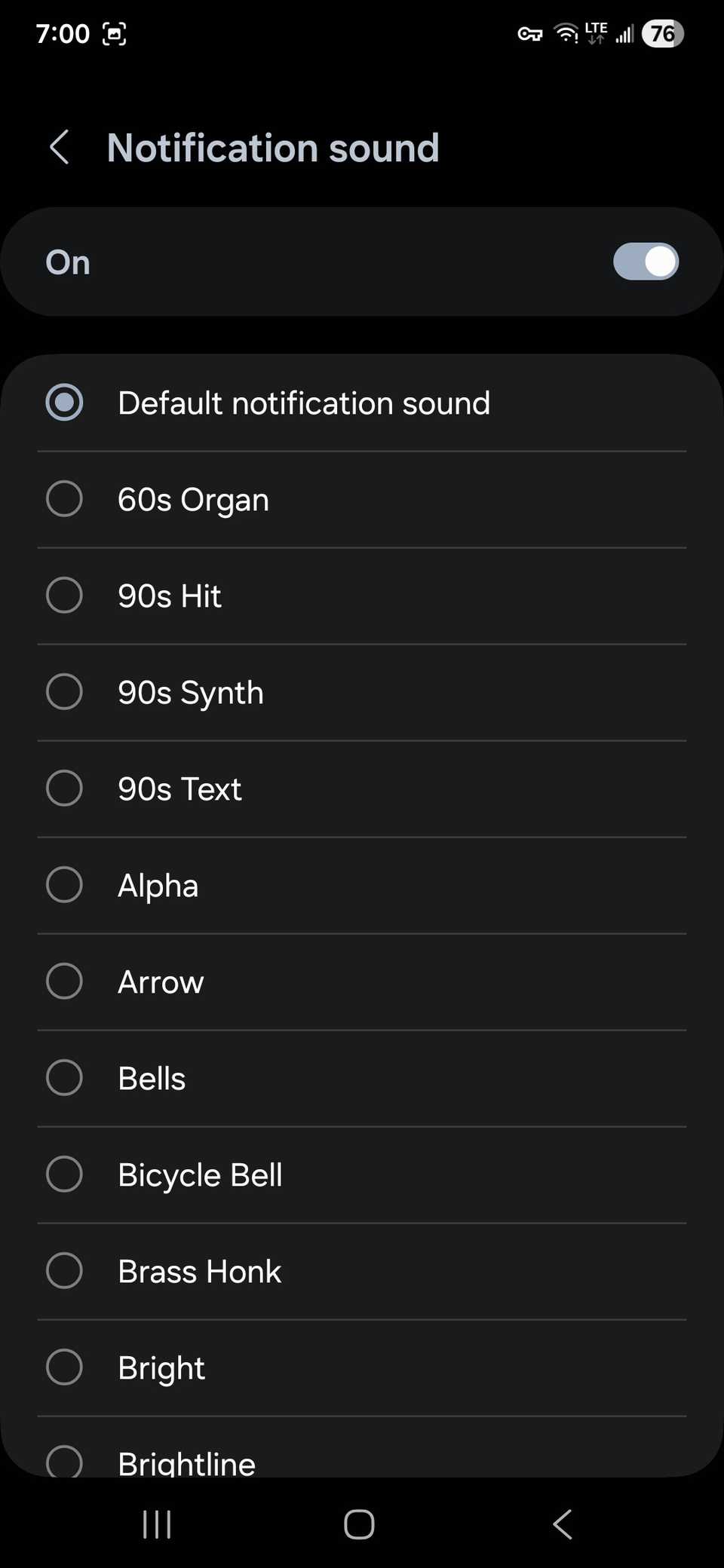


To change the notification sound for each contact, follow these steps:
- Open Samsung Messages.
- Tap a conversation.
-
Select the three-dot icon in the upper-right corner.
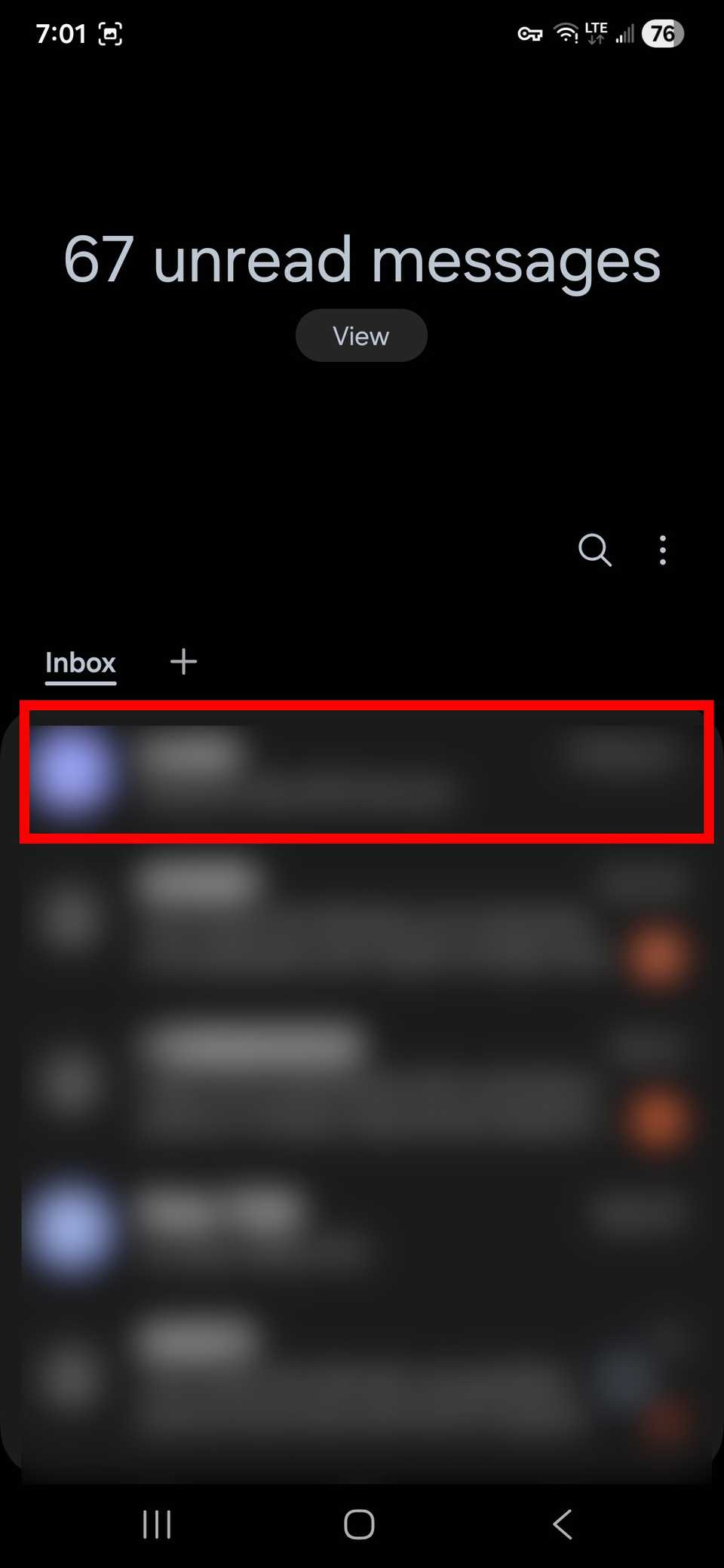

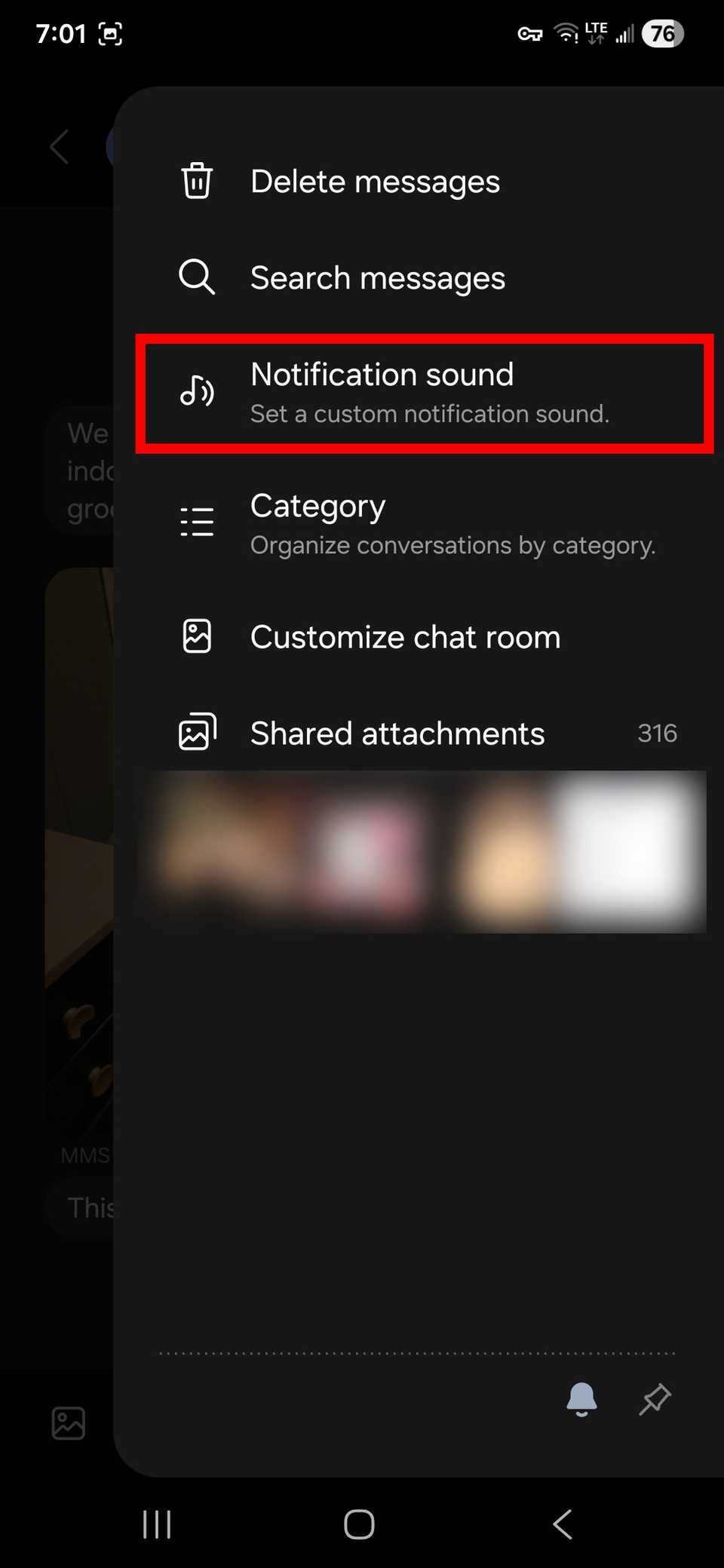
- Choose Notification sound.
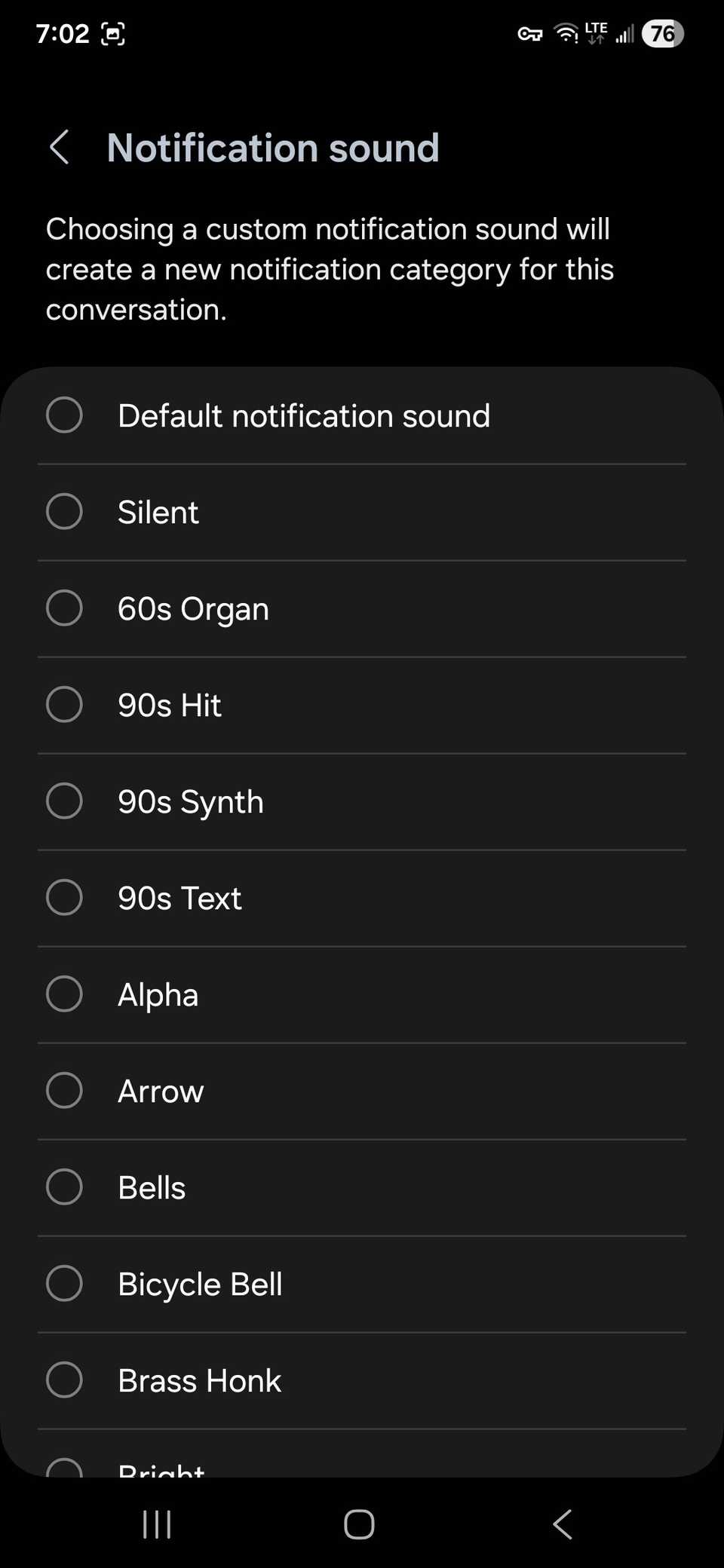
-
Tap a new sound and use the Back arrow to save your settings.


7 Samsung Messages tips and tricks you need to know
A handful of ways to text better on your Galaxy phone
When your calls come through, you can instantly recognize who’s calling based on the new sound or ringtone you set for your contact.
Setting a custom ringtone helps filter out unknown, potentially unwanted spam callers from people you know.
A ringtone slightly differs from a notification sound. Ringtones are designed for incoming calls and can be music or a string of sounds, while notification sounds are used for messages and app alerts.
They serve the same purpose but have separate settings.
Plus, you’re likely to set a notification sound with one of the sounds found on your phone, whereas you might download a new ringtone from a popular music app.

How to change your Android phone’s ringtone
You don’t need to check your phone when someone else’s rings
How to change notification sounds for all apps
You can set one notification sound for all apps, especially if you’re tired of hearing the default sound.
Below, we use a Google Pixel phone for the stock Android section, but we also show the steps for Galaxy phones below it.
We use Android 16 and One UI 8. But we’ve also verified that this works on Android 15, and One UI 6.1. Older versions may vary slightly, but the steps mostly stay the same.
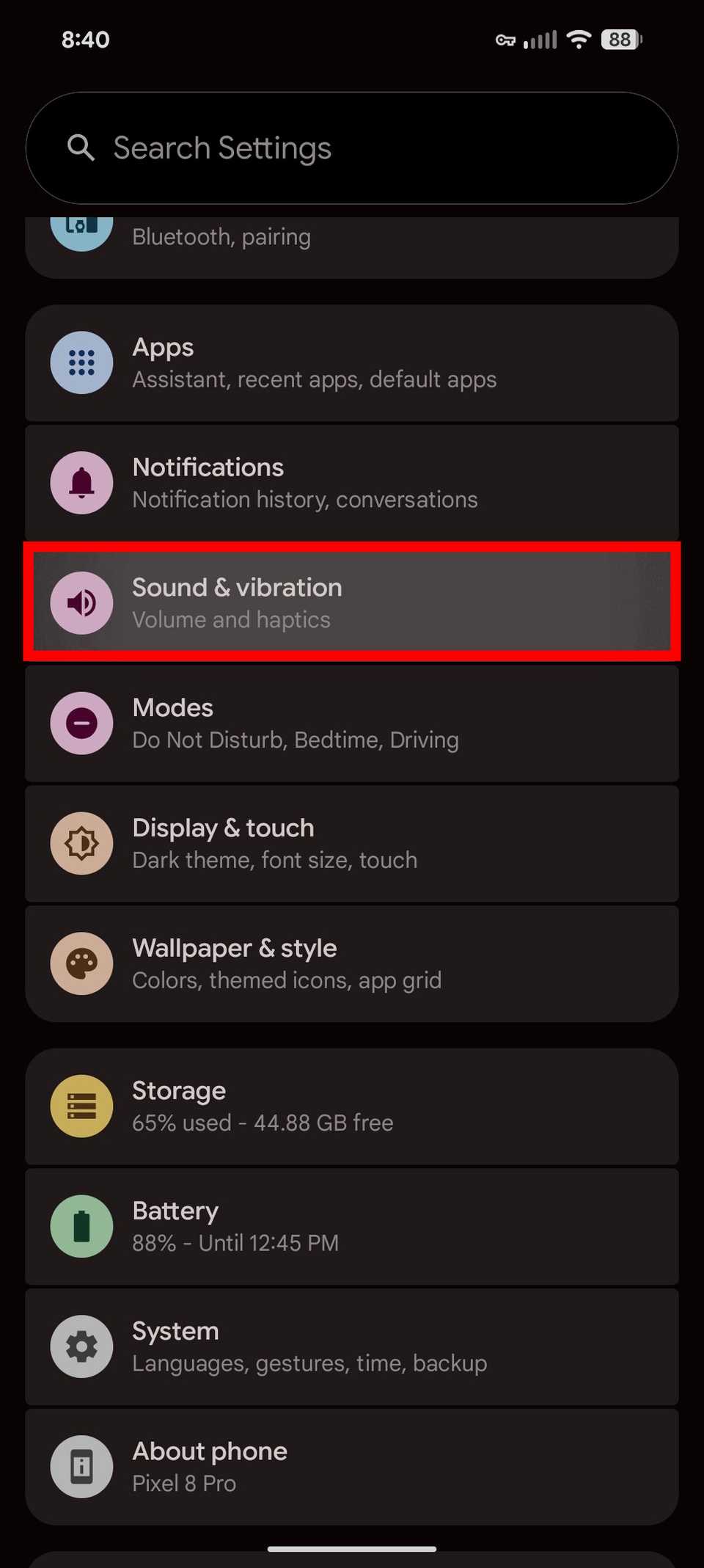
- Go to Settings on your Android device.
- Tap Sound & vibration.
-
Select Notification alert.
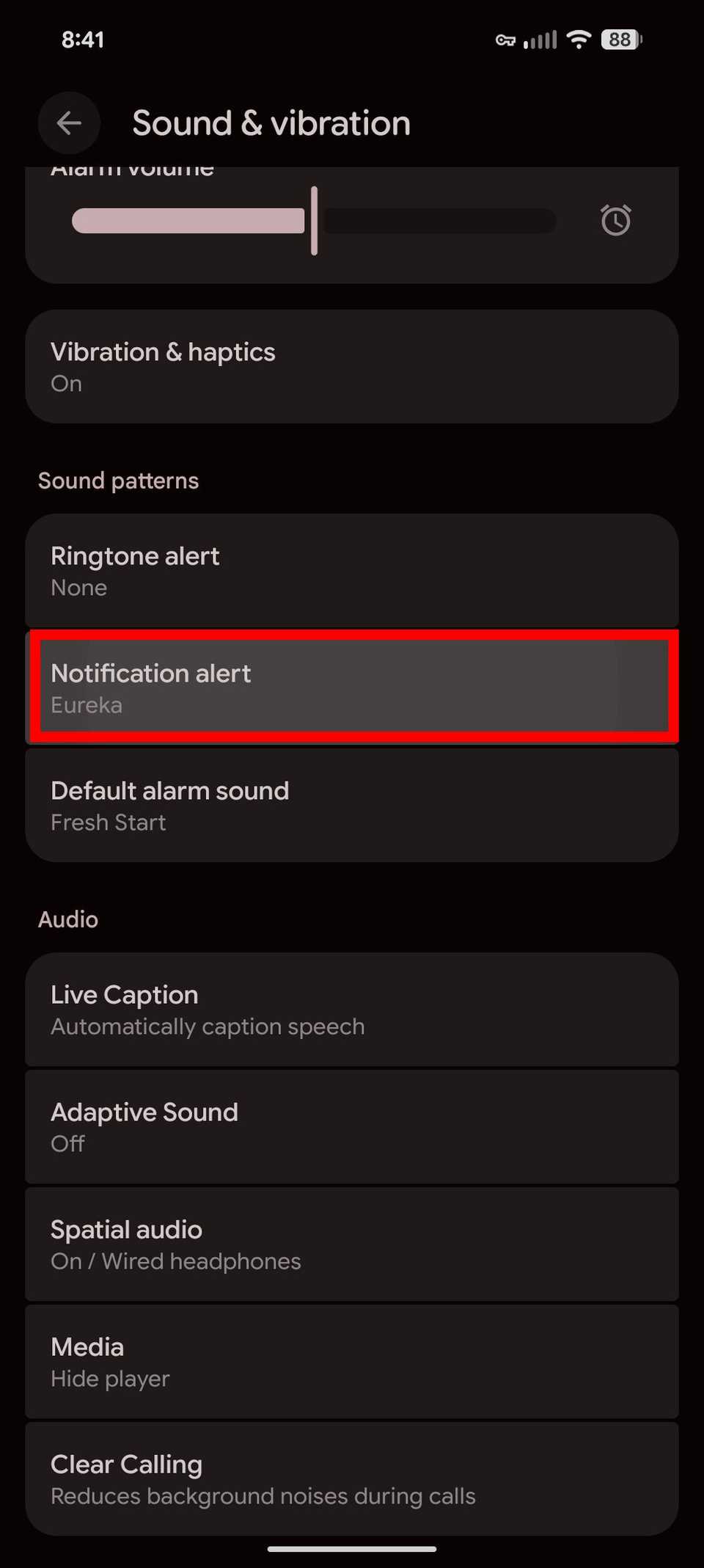
- Choose a category of sounds.
- Tap a new sound.


Changing notification sounds for all apps on a Samsung Galaxy device
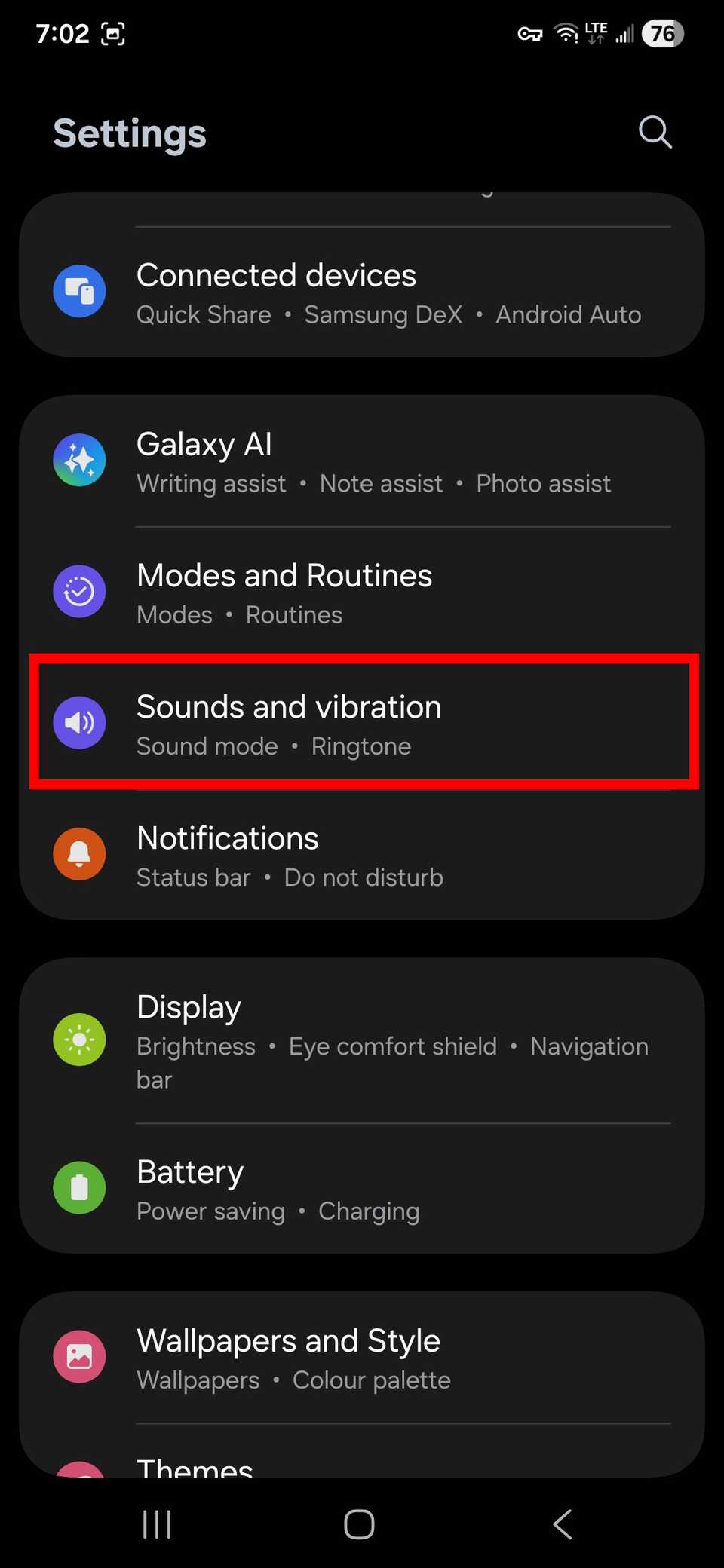
- Go to Settings on your Samsung Galaxy device.
- Tap Sounds and vibration.
-
Tap Notification sound.
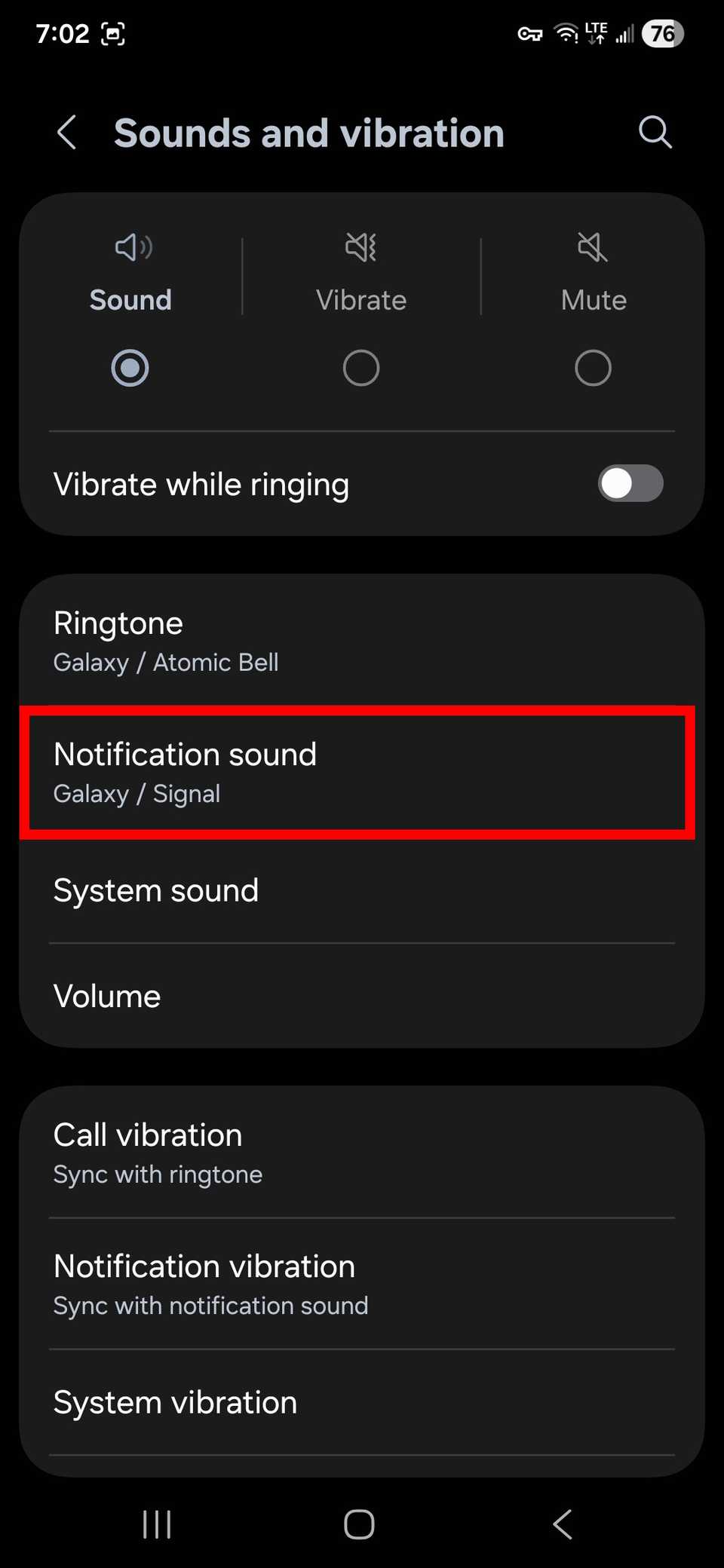
- Choose a new sound.
- Adjust the notification sound volume using the slider above.


16 common Android notification problems and how to fix them
Stay informed on your Android phone
How to change notification sounds by app
Emails can come through your phone, taking over your notifications. It becomes hectic when you have multiple email accounts to juggle.
To help differentiate the notification sounds from other apps, we set a new one for Gmail. You can do this on any Android device with the Gmail app installed.
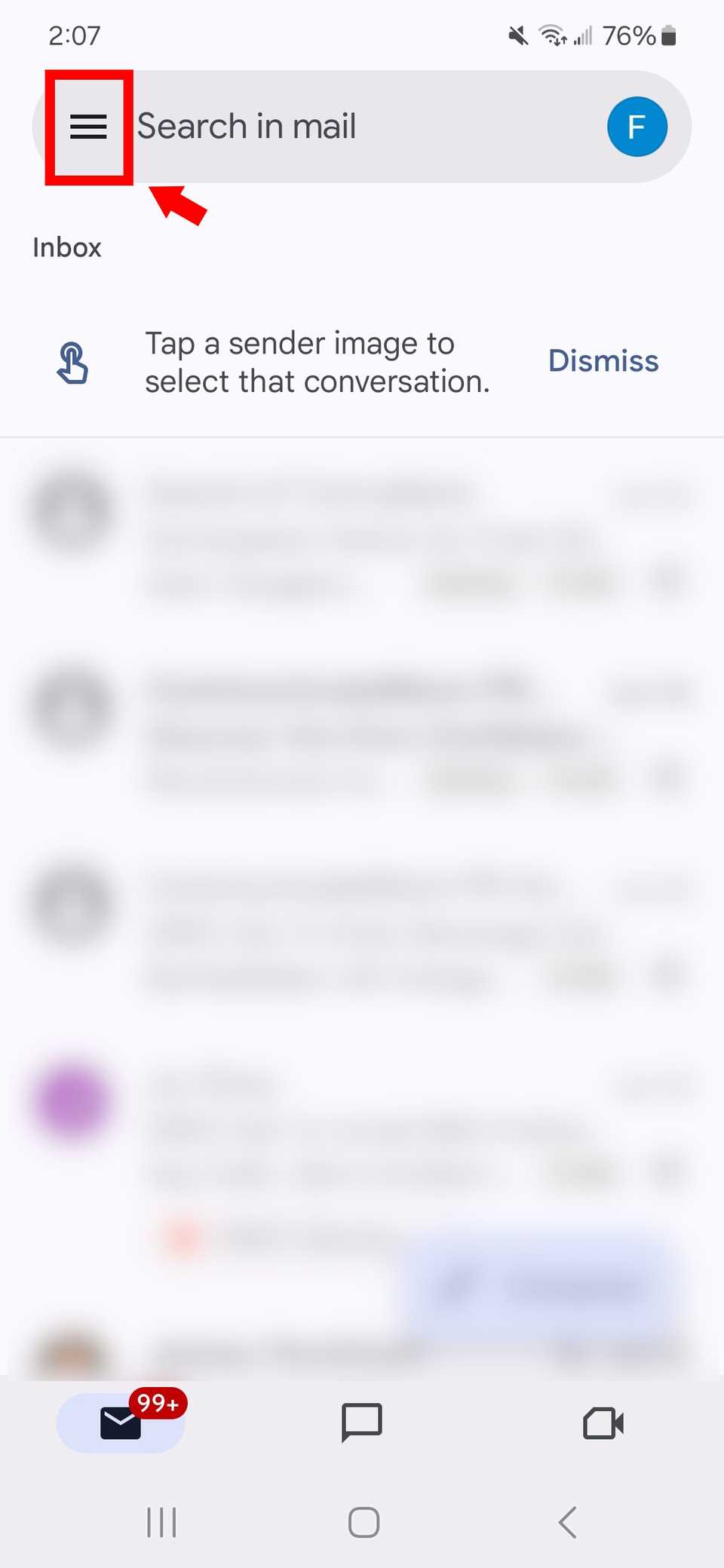
- Open the Gmail app.
- Tap the Hamburger button.
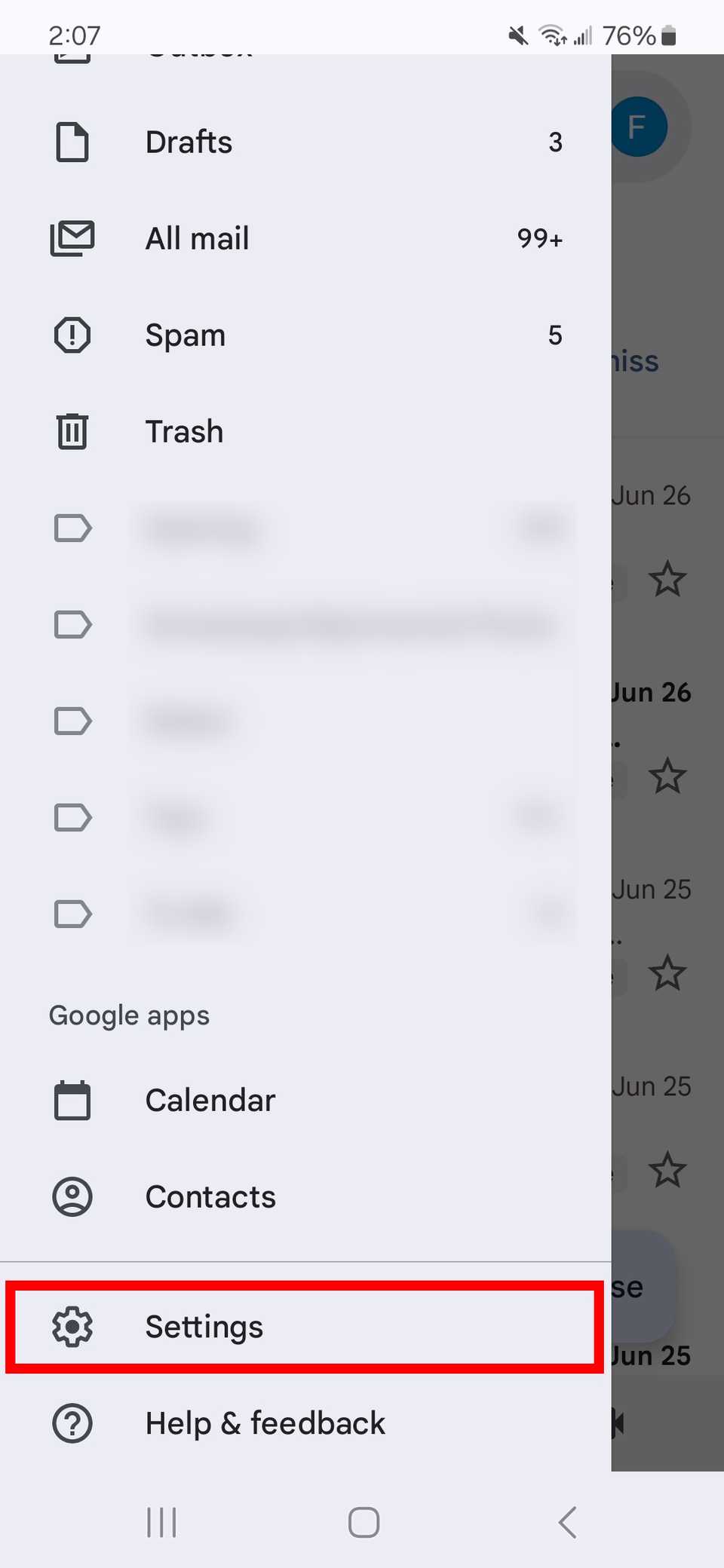
-
Scroll down to Settings.
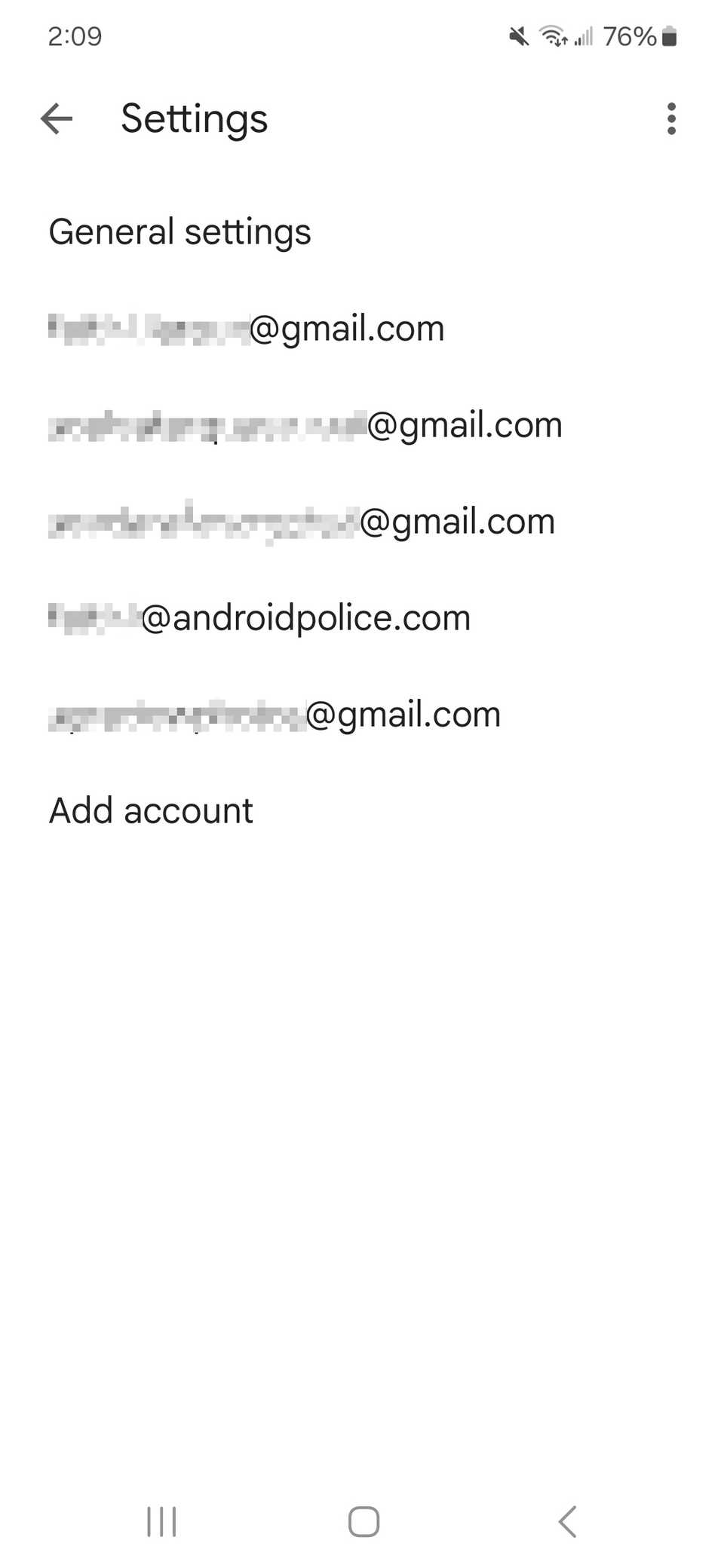
- Tap your email address.
-
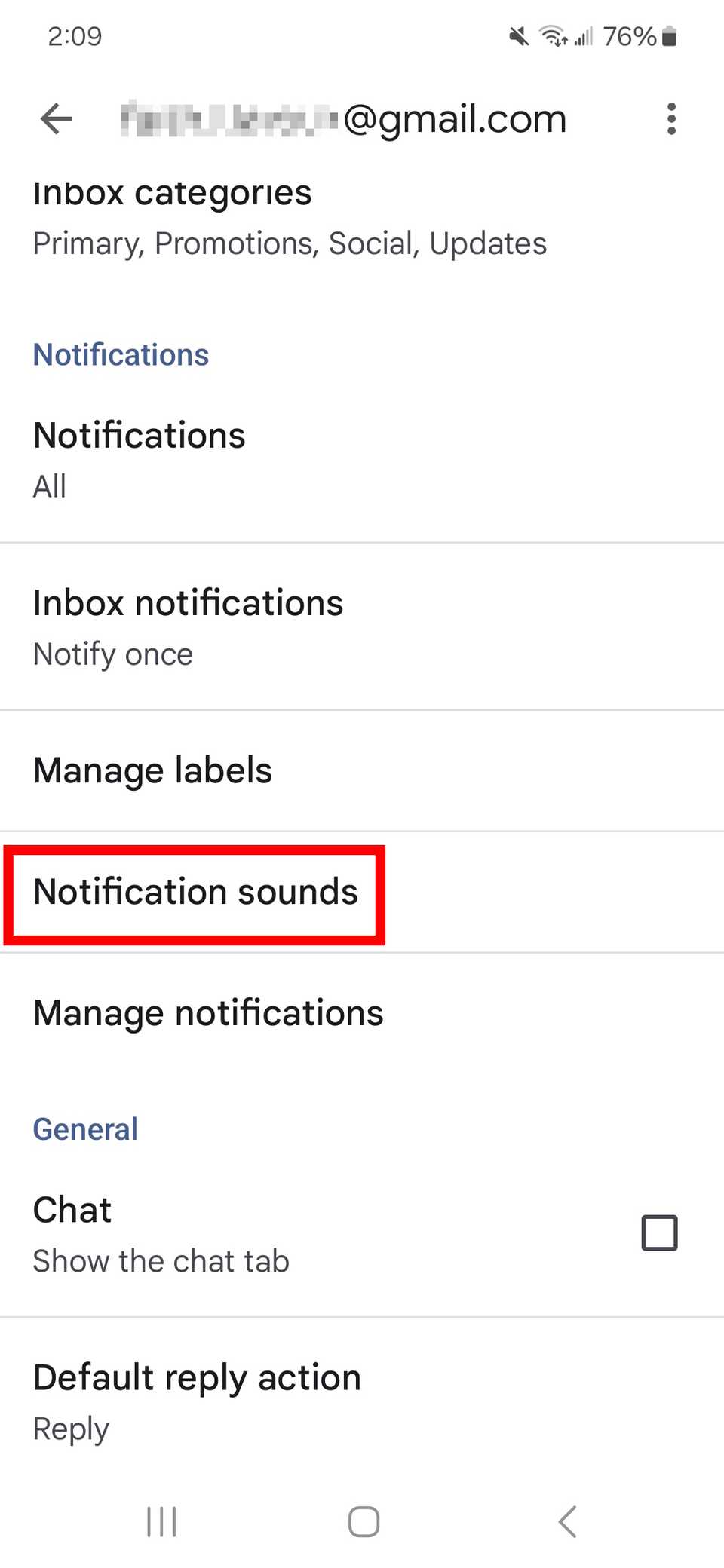
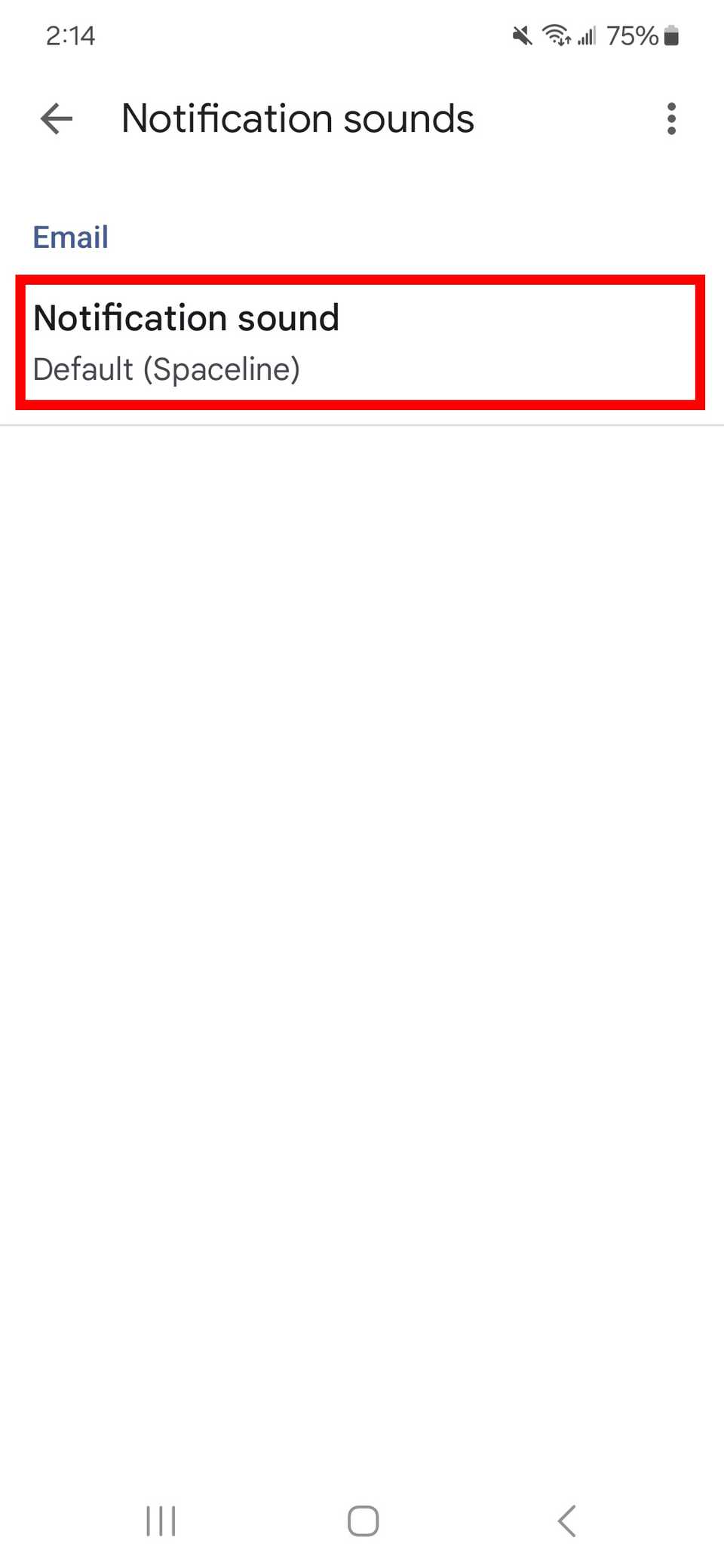
Select Notification sounds.
- Tap Notification sound under Email.
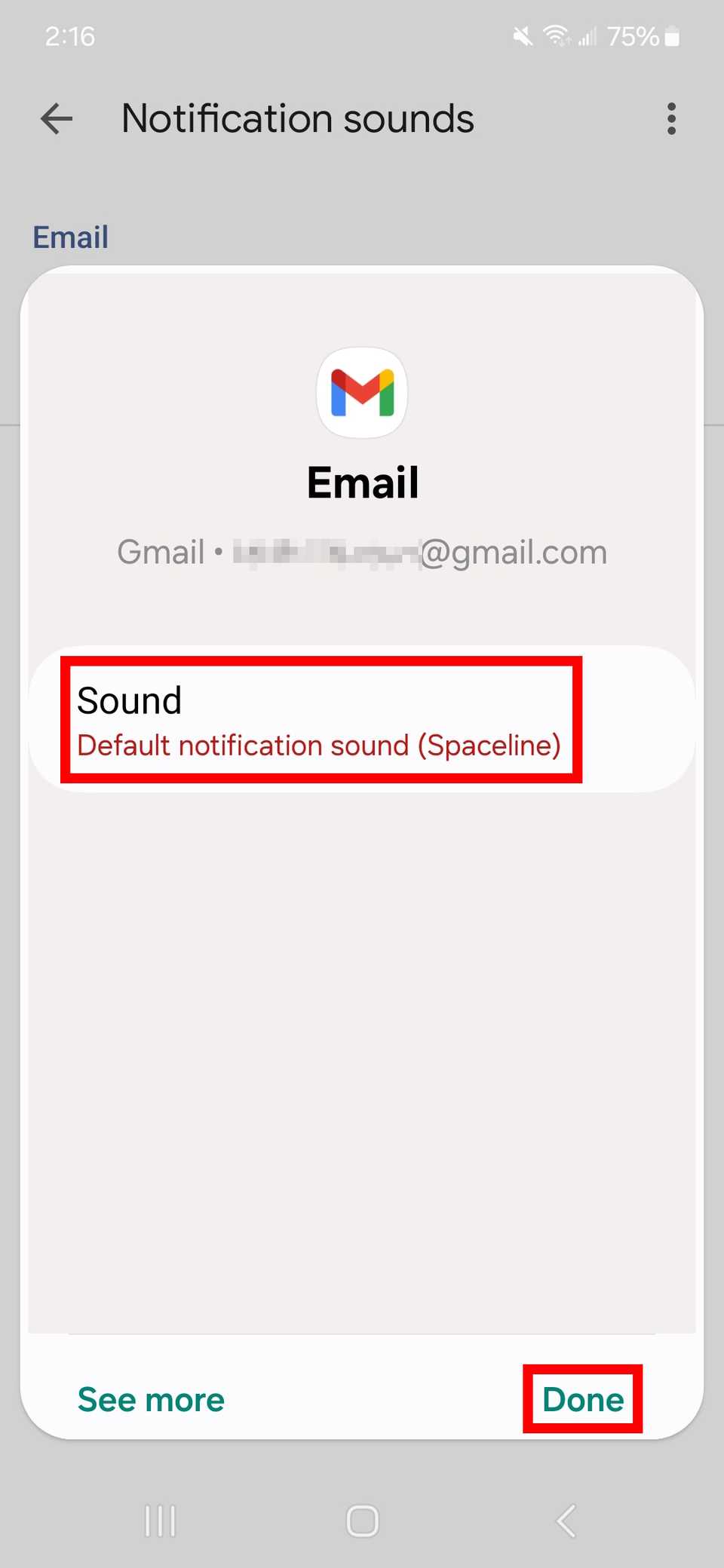
- Select Sound and choose from a list of available sounds. Depending on the device, you may have to complete this action using another app.
-
After picking the new notification sound, choose Done.


Enabling Adaptive Vibrations for your notifications
Pixel phones have an Adaptive Vibration setting you can change. Newer versions of Android automatically adjust the strength of the vibration based on your environment.
So, even if you forget to turn off the notifications and want to avoid disrupting your peers, the alerts should still come through without too much noise.
Select Vibration & haptics in Sound & vibration within your Pixel settings to enable Adaptive Vibration.

6 new Android 15 features that I’ve fallen in love with
The Android 15 features I’m most excited about
Keeping notifications under control while on the go
Recognizing your priority alerts based on sound can be helpful. However, you might need to mute your notifications during important work meetings and lectures.
Instead of silencing them forever, you can opt to snooze them. Snoozing doesn’t silence all your apps indiscriminately. You select which channels to mute while keeping others on, including all the email accounts on your phone.
It’s a great way to declutter your notification space without managing everything.
