Close Menu
TechUpdateAlert

    Subscribe to Updates

    Get the latest creative news from FooBar about art, design and business.

    What's Hot

    My Health Anxiety Means I Won’t Use Apple’s or Samsung’s Smartwatches. Here’s Why

    December 22, 2025

    You can now buy the OnePlus 15 in the US and score free earbuds if you hurry

    December 22, 2025

    Today’s NYT Connections: Sports Edition Hints, Answers for Dec. 22 #455

    December 22, 2025
    Facebook X (Twitter) Instagram
    Trending
    • My Health Anxiety Means I Won’t Use Apple’s or Samsung’s Smartwatches. Here’s Why
    • You can now buy the OnePlus 15 in the US and score free earbuds if you hurry
    • Today’s NYT Connections: Sports Edition Hints, Answers for Dec. 22 #455
    • Android might finally stop making you tap twice for Wi-Fi
    • Today’s NYT Mini Crossword Answers for Dec. 22
    • Waymo’s robotaxis didn’t know what to do when a city’s traffic lights failed
    • Today’s NYT Wordle Hints, Answer and Help for Dec. 22 #1647
    • You Asked: OLED Sunlight, VHS on 4K TVs, and HDMI Control Issues
    Facebook X (Twitter) Instagram Pinterest Vimeo
    TechUpdateAlertTechUpdateAlert
    • Home
    • Gaming
    • Laptops
    • Mobile
    • Software
    • Reviews
    • AI & Tech
    • Gadgets
    • How-To
    TechUpdateAlert
    Home»How-To»How to access Google Photos on any device
    How-To

    How to access Google Photos on any device

    techupdateadminBy techupdateadminOctober 25, 2025No Comments4 Mins Read
    Share Facebook Twitter Pinterest LinkedIn Tumblr Reddit Telegram Email
    How to access Google Photos on any device
    Share
    Facebook Twitter LinkedIn Pinterest Email

    Google Photos is a popular gallery app thanks to its handy features, including cloud backup, image editing, photo organization, and seamless sharing.

    You can go beyond viewing and downloading images, as it packs AI features like Magic Eraser and Magic Editor.

    It works across multiple devices, including Android phones, Android tablets, iPhones, Macs, and PCs. This guide shows you how to access Google Photos on any device.

    Google Photos: Everything you need to know

    Meet the Swiss Army knife of gallery apps

    How to sync Google Photos across devices

    You can access pictures you take on any device after backing up Google Photos. It automatically saves photos and videos to your Google account.

    After syncing your account to Google Photos, you can log in to your Google account and access the pictures from your smartphone, tablet, or computer.

    Google offers 15GB of storage space by default. You must subscribe to Google One to expand or manage your storage more carefully.

    You can check how much memory Google Photos uses by visiting the Google One website. You’ll see your storage details after signing in to your Google account.

    Google Photos can automatically back up photos and videos with the automatic sync option. Choose manual backup to conserve your phone’s battery.

    Turning on automatic synchronization in Google Photos

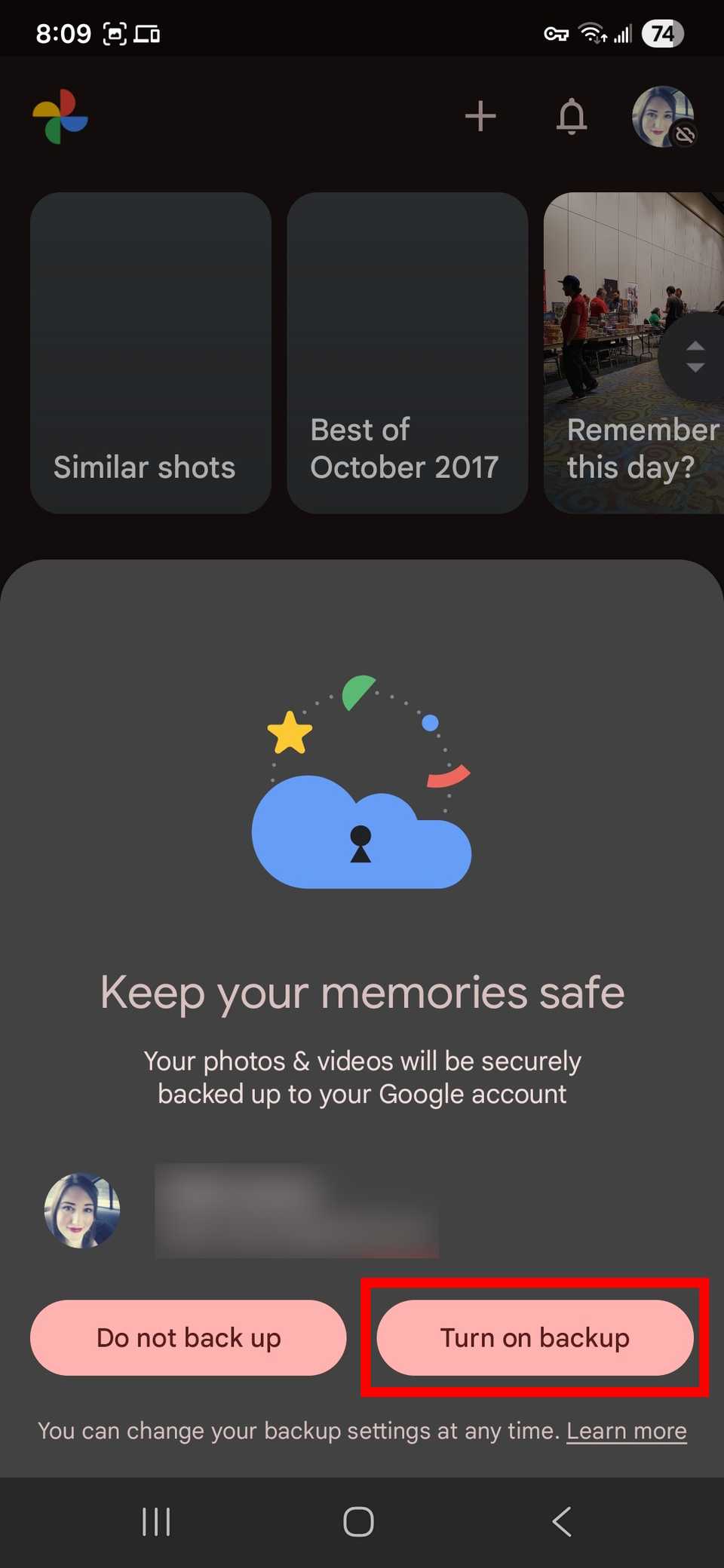
    1. Open the Google Photos app and log in to your Google account.
    2. Tap your profile icon in the upper-right corner.
    3. Select Turn on backup.
    4. Tap Turn on backup in the pop-up window.
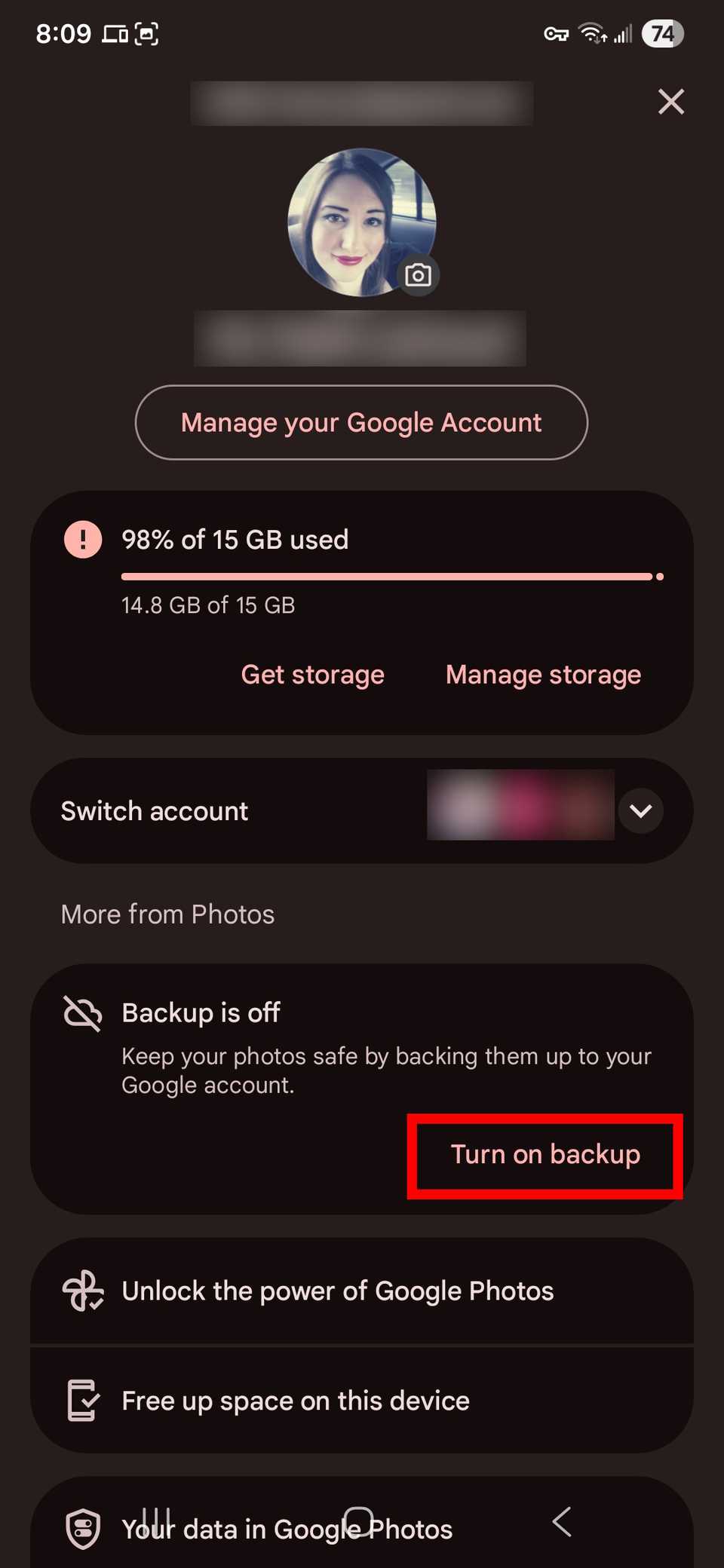
      Red rectangle outline highlighting Turn on backup in Google Photos app
      Red rectangle outline highlighting Turn on backup in pop-up window in Google Photos app

    Google Photos may use Wi-Fi to back up files. You can turn on mobile data for Google Photos backups.

    1. Open the Google Photos app.
    2. Tap the profile icon.
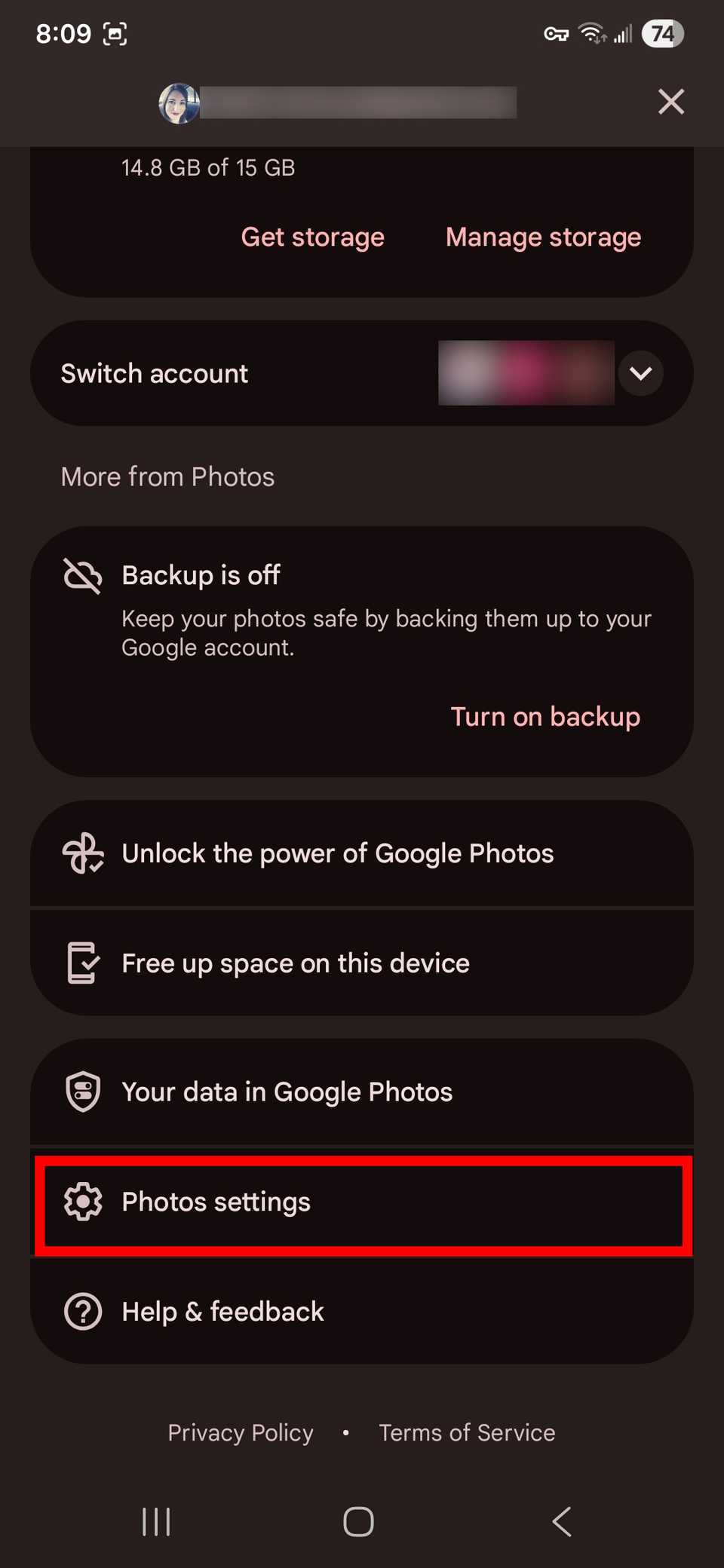
    3. Select Photos settings.
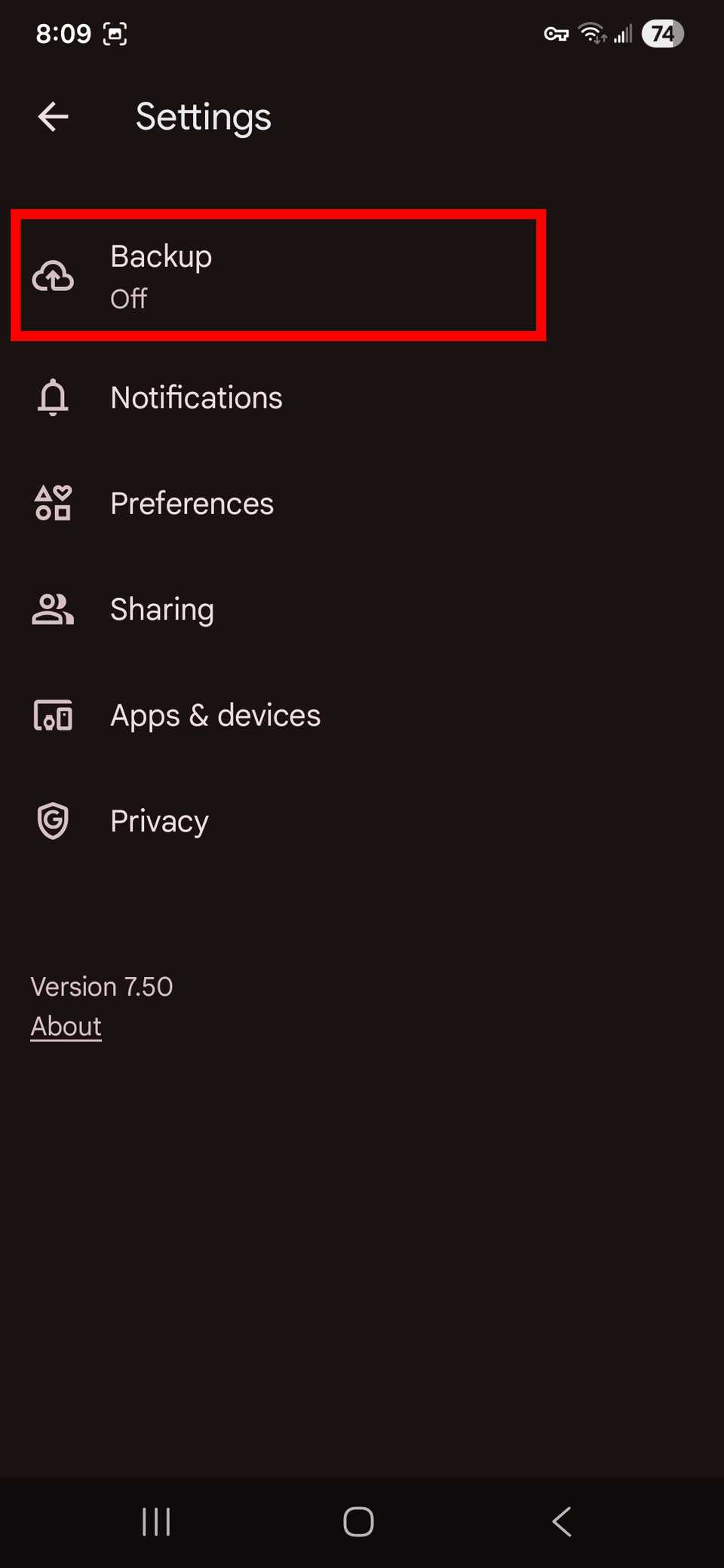
    4. Tap Backup.

      Red rectangle outline highlighting Photos settings in Google Photos app
      Red rectangle outline highlighting Backup option in photos settings in Google Photos app
    5. Select Mobile data usage.
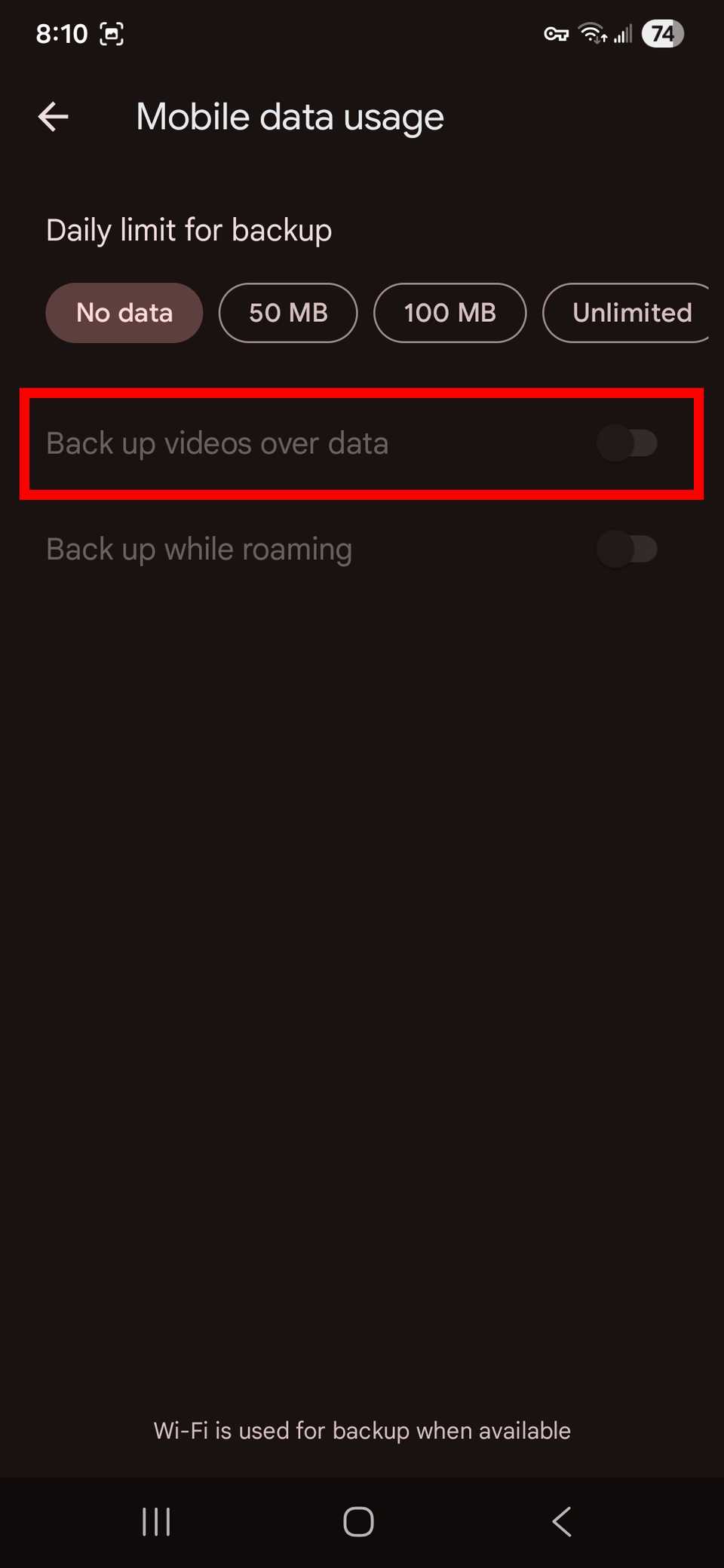
    6. Turn on the Back up videos over data toggle.
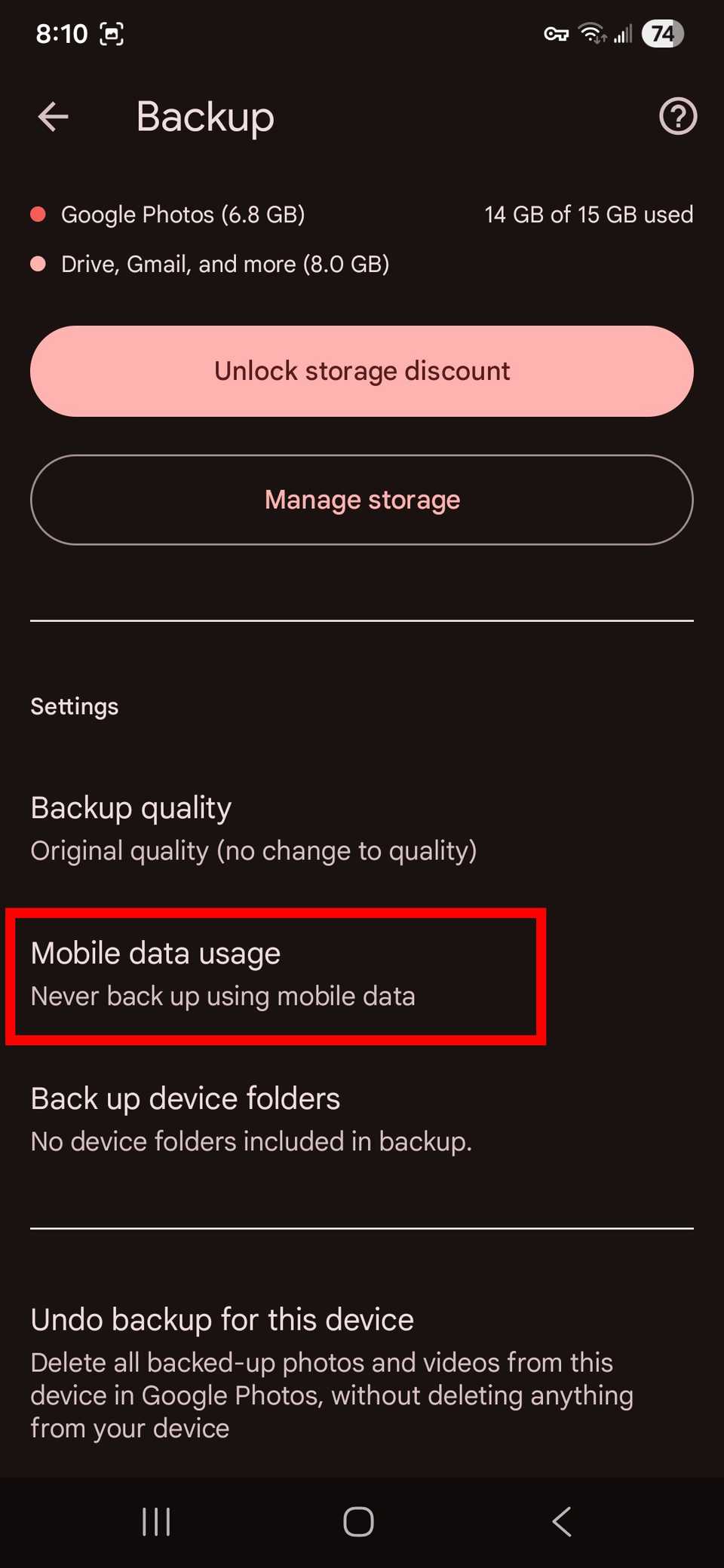
      Red rectangle outline highlighting Mobile data usage in Google Photos app
      Red rectangle outline highlighting Back up videos over data in Mobile data usage settings in Google Photos app

    Manually backing up Google Photos

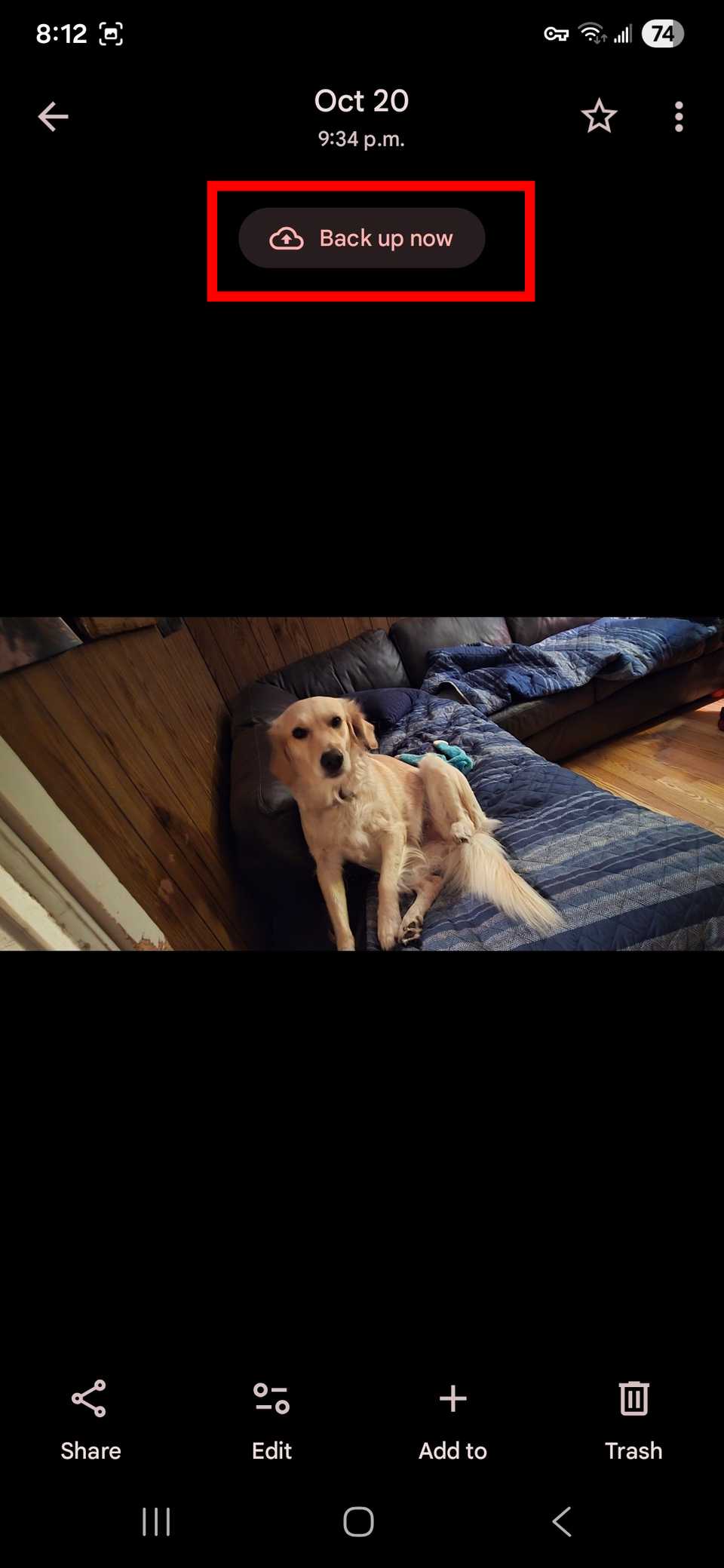
    1. Launch Google Photos.
    2. Tap the photo you want to back up.
    3. Tap the cloud icon.
    4. Back up multiple photos by long pressing an image and tapping other pictures.
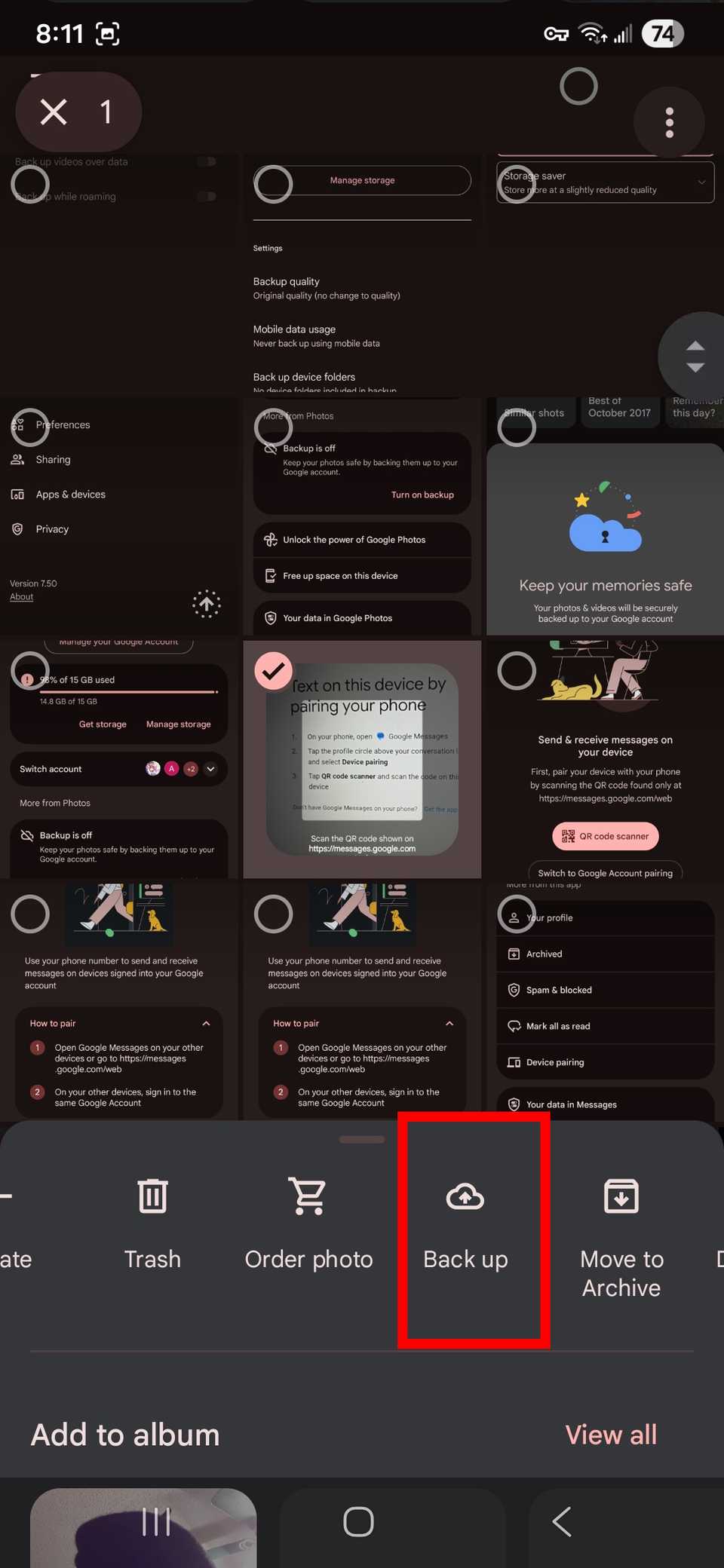
      Red rectangle outline highlighting Back up on a selected photo in Google Photos app
      Red rectangle outline highlighting Back up now on a photo in Google Photos app
    5. Select Back up or Back up now.
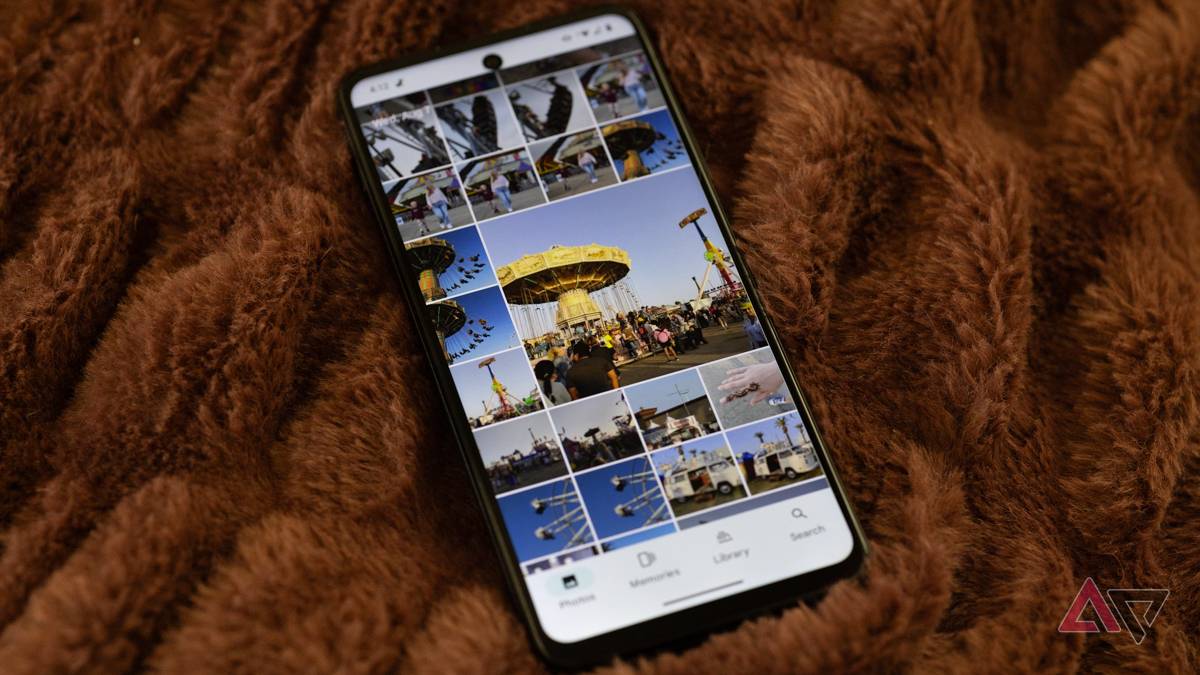
    Close up of phone corner showing google photos app over a collage

    Tame your Google Photos collection with these tips and tricks

    Manage your images with ease

    How to access Google Photos on any phone

    The Google Photos app comes preinstalled on most Android phones.

    You can download the app from the Google Play Store if your device doesn’t have it. If you use an iPhone or iPad, download the iOS app from the Apple App Store.

    After installing the app, launch Google Photos and sign in to your Google account.

    Ensure you give it the necessary permissions to access photos and videos. To verify permissions on your Android device, navigate to Settings > Apps and Notifications > Google Photos > Permissions.

    Red rectangle outline highlighting Permissions in Photos app on an Android phone
    A list of app permissions for the Photos app on an Android phone

    On iPhone, open Settings and select Google Photos to review the permissions.

    How to access Google Photos on a Windows PC or Mac

    You can view and download photos and videos on your computer if you previously backed them up.

    Here’s how to access Google Photos from your PC or Mac by visiting the Google Photos website:

    1. Open any web browser.
    2. Visit photos.google.com.
    3. Sign in to your Google account.
    4. You can view, edit, download, and delete photos or videos.

    Relive your memories with Google Photos

    Google Photos gives you access to your photos and videos from any device after backing them up to the cloud. Photos from your new phone appear on other devices when you turn on automatic backup and sign in to your Google account.

    Make the most of the app’s filters, Magic Editor, Magic Eraser, and other editing tools to enhance your photos. You can also use Google Photos to search your gallery based on metadata or context.

    Access device Google Photos
    Share. Facebook Twitter Pinterest LinkedIn Tumblr Email
    Previous ArticleWill Tim Cook Step Down? Apple CEO’s Impending 65th Birthday Sparks Succession Talk
    Next Article Today’s NYT Connections Hints, Answers for Oct. 26 #868
    techupdateadmin
    • Website

    Related Posts

    Gadgets

    Gear News of the Week: LG Debuts an RGB LED TV, and Google Brings Find Hub to Wear OS

    December 21, 2025
    Mobile

    Deals: Freebies with Google Pixels, discounts on Xiaomi 15, Poco F7 Ultra, and more

    December 20, 2025
    Gadgets

    Google confirms Gemini will fully replace Assistant on phones in 2026

    December 20, 2025
    Add A Comment
    Leave A Reply Cancel Reply

    Top Posts

    NYT Strands hints and answers for Monday, August 11 (game #526)

    August 11, 202545 Views

    These 2 Cities Are Pushing Back on Data Centers. Here’s What They’re Worried About

    September 13, 202542 Views

    Today’s NYT Connections: Sports Edition Hints, Answers for Sept. 4 #346

    September 4, 202540 Views
    Stay In Touch
    • Facebook
    • YouTube
    • TikTok
    • WhatsApp
    • Twitter
    • Instagram
    Latest Reviews

    Subscribe to Updates

    Get the latest tech news from FooBar about tech, design and biz.

    Most Popular

    Best Fitbit fitness trackers and watches in 2025

    July 9, 20250 Views

    There are still 200+ Prime Day 2025 deals you can get

    July 9, 20250 Views

    The best earbuds we’ve tested for 2025

    July 9, 20250 Views
    Our Picks

    My Health Anxiety Means I Won’t Use Apple’s or Samsung’s Smartwatches. Here’s Why

    December 22, 2025

    You can now buy the OnePlus 15 in the US and score free earbuds if you hurry

    December 22, 2025

    Today’s NYT Connections: Sports Edition Hints, Answers for Dec. 22 #455

    December 22, 2025

    Subscribe to Updates

    Get the latest creative news from FooBar about art, design and business.

    Facebook X (Twitter) Instagram Pinterest
    • About Us
    • Contact us
    • Privacy Policy
    • Disclaimer
    • Terms and Conditions
    © 2026 techupdatealert. Designed by Pro.

    Type above and press Enter to search. Press Esc to cancel.