


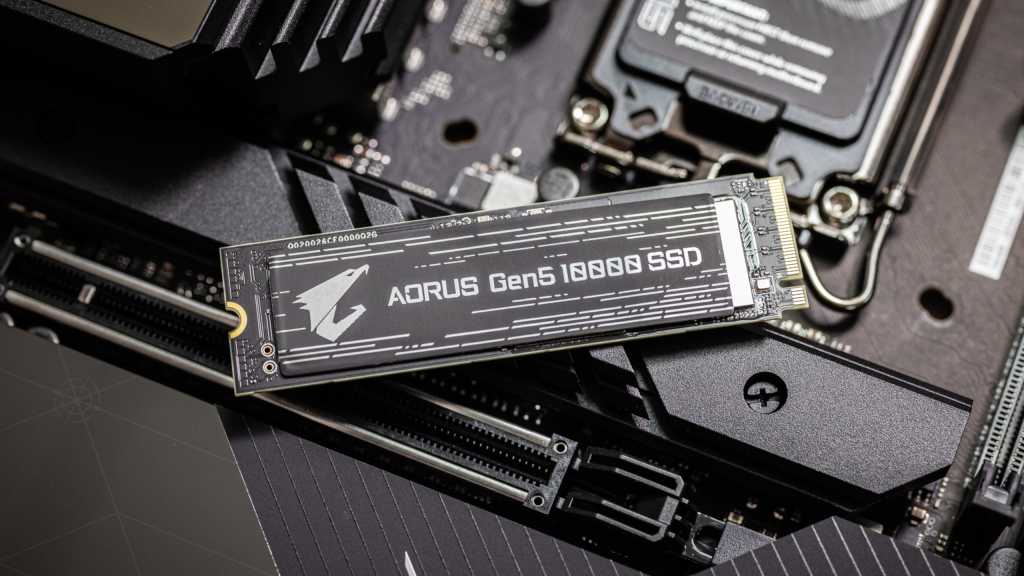
Most people will put a lot of thought into their CPU and GPU requirements when buying or building a new PC, but the storage often gets left by the wayside or is considered only insofar as picking an SSD as opposed to an HDD.
But truth be told, not all SSDs are equal. Without proper consideration of things like the type, size, form, and speed of your SSD, you could be jeopardizing your PC performance. Here are the key points you ought to consider to maximize buying an SSD.
1. What type of SSD do I need?
SSDs come in two main types, either a SATA or NVMe storage interface. SATA is more affordable and is a good option for common applications and casual users. Most premium laptops and desktops, however, tend to come with NVMe SSD using the PCIe interface since these drives tend to be from 3 to 10 times faster than SATA SSDs.
For that reason, for productivity applications and gaming, you’re better off going with a NVMe SSD for the extra bandwidth.
2. What SSD form-factor should I get?
When shopping for an SSD it’s important to know which form-factor fits your system. SSDs come in a bunch of shapes and sizes. If you are in doubt about which one you should get, you should check your laptop’s specifications or ask an expert. Here’s a quick rundown of the main types:
2.5-inch SSD
This type is very common. It looks a lot like an HDD drive and connects over a SATA connection. These are slower than M.2 type.
M.2 SSD
If you’ve got a slim notebook or laptop chances are you’ll have an M.2 SSD — it’s very common. It has a tiny form-factor, sometimes as small as a stick of gum. M.2 SSDs come in both SATA and NVMe variants.
mSATA SSD
mSATA stands for mini-SATA and this kind of SSD uses a very small form-factor similar to the M.2 SSD. mSATA only supports the SATA interface. It’s designed for smaller form-factor laptops and desktops where space is limited.
U.2 SSD
These look like M.2 SSDs but are thicker. Their use is mainly reserved for high-end workstations, servers, and enterprise applications. U.2 SSD has better heat transference than M.2 SSD.
Teamgroup C47 M.2 NVMe SSD
Jon L. Jacobi
3. What storage capacity do I need?
The most common SSD capacities are 128GB, 256GB, 512GB, 1TB, 2TB, and 4TB. When deciding on capacity, it’s best to think about what you’ll need to store on your PC. For example, if you’re mostly going to be using an external drive or flash drive to load and save smaller files and programs, a 256GB or 512GB SSD should be ample space for your needs.
On the other hand, if you want to have a bunch of large programs, movies, or games loaded permanently on your PC, a larger-capacity SSD of 1TB or more is recommended.
One thing to note is that SSD performance begins to suffer when 80 percent of it is full. Therefore, it’s not a great idea to, say, buy a 1TB SSD and store 900GB data on it.
4. What speed do I need?
A lot is written about the things that contribute to the performance of SSD, but for the purposes of purchasing one, there are only a few things you really need to keep in mind. The first is that NVMe with PCIe interface is a faster option than SATA, so you should really get that if you can.
Secondly, there can be big speed differences between different products. For example, a Samsung 970 Pro will read at over 3GBps and write at 2GBps, whereas a Toshiba RC100 reads at 1.2GBps and writes at just under 900MBps. How do you know how quick an SSD is? Read reviews!
The third point worth noting is about NVMe generation. NVMe primarily differs in their maximum theoretical speeds with each successive generation (Gen 3, Gen 4, and Gen 5) effectively doubling the data transfer speed and bandwidth per PCIe lane.
If you plan on working with large data sets or want to futureproof your gaming setup, then a Gen 5 PCIe is what you’ll want. Otherwise for most gaming needs and casual computing Gen 4 or Gen 3 will do just fine. Of course, your CPU and motherboard are determining factors in what generation NVMe is supported.
I hope that helps answer a few critical questions regarding SSD. Remember a good place to start in finding an SSD is to read reviews like the ones we publish on PCWorld.
Further reading:
