


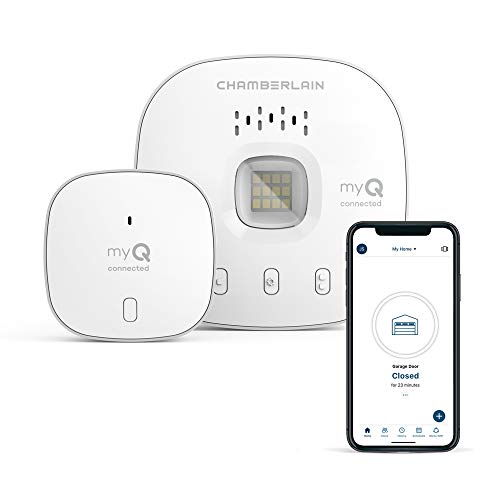
Imagine this: You pull up to your driveway and your garage door opens like magic. You head for your doorstep and walk right through the front door, no keys needed. Already, your favorite playlist is queued up on your smart speakers, and the room is set to the perfect temperature—all without saying a word to a smart assistant or pulling out your phone.
Those feats are possible thanks to a smart home feature called geofencing: that is, setting up a geolocated virtual perimeter or “fence” around your home, your office, or anywhere else you choose. When you cross the boundary—either coming or going—you can set your smart home to do something, usually by triggering an automation or routine.
There’s nothing new about geofencing—all the major smart platforms, from Alexa and Apple Home to Google Home and Samsung SmartThings—have offered geofencing functionality for years, as do many other major smart home ecosystems, including Philips Hue (for smart lighting), Chamberlain (for garage door controllers), and Ring (for smart home security).
Yet geofencing remains a feature that many of us overlook. Heck, I’m supposedly a smart home expert, and I admit to not giving geofencing much of a chance.
Luckily, getting started with a geofence is easy; what’s a little harder is wrapping your head around the possibilities.
Read on for some clever geofencing smart routines to try; this handful of examples may spark ideas for yet more location-based routines.
After that, I’ll give you a quick primer on how to get started with geofencing—it’s actually not that difficult.
Open your garage door like magic
I mentioned this geofencing trick at the jump, and it’s a neat one; having your smart home open your garage door automatically as you approach your driveway.
The way it works is simple: Using either your smart garage door opener’s app (such as the Chamberlain app for its MyQ garage door controller line) or, say, an Alexa routine, you define a circular perimeter–a geofence–around your home, perhaps the size of a city block.
When you cross the border of the geofence, your arrival will trigger the routine, opening your garage door just as you’re driving up.
Related: The best smart garage door openers
Adjust your thermostat with ease
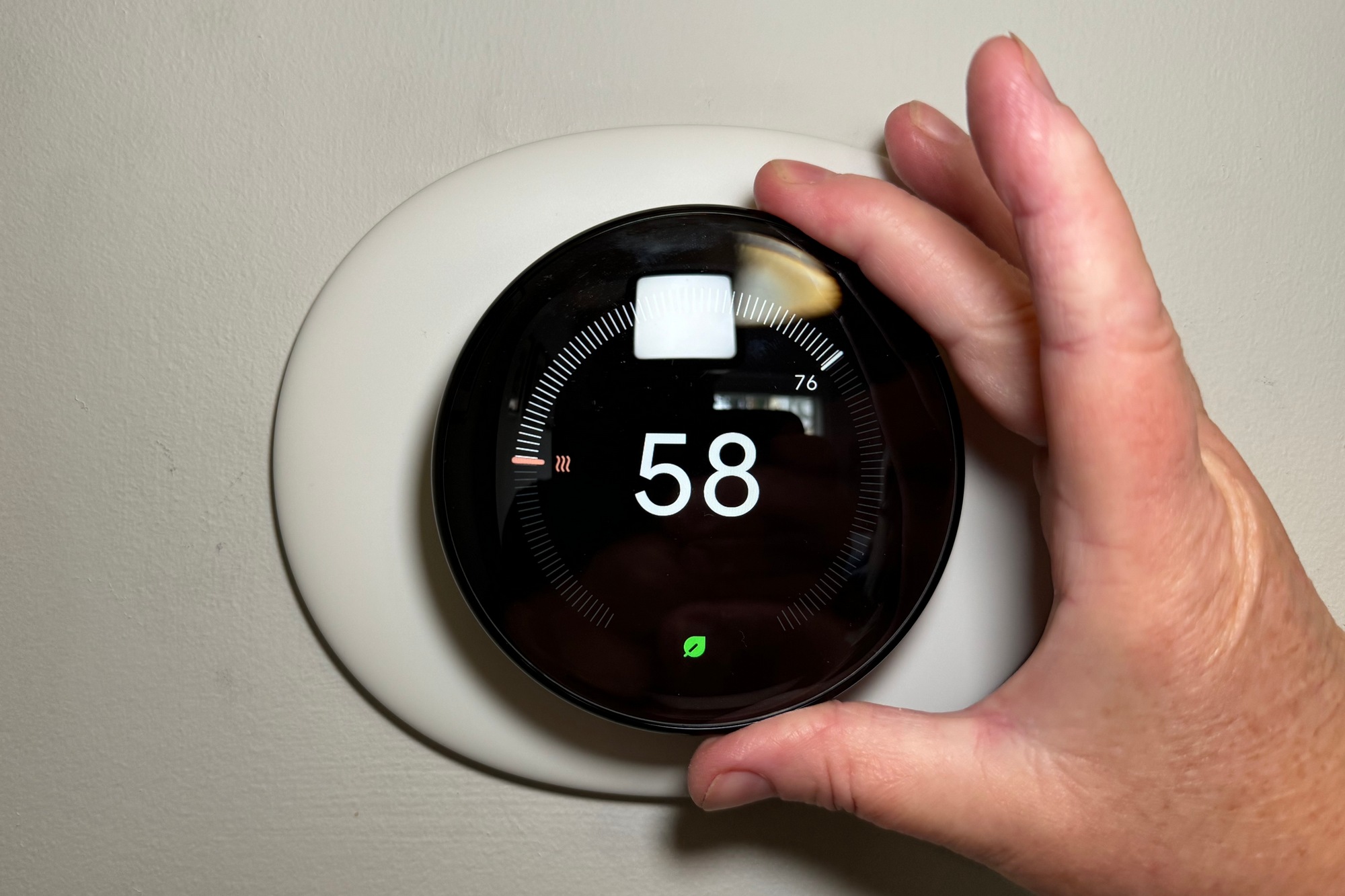
There’s nothing like coming home to a cool environment during the hot summer months, or to a warm, cozy living room in the dead of winter. But even if you already have thermostat automations that tweak the temperature according to the time of day, you should consider location-based automations that adjust the mercury dynamically as you come and go.
For this example, you might want to set the geofencing radius a little wider—say, to an area that’s about a half-hour’s drive to your home, giving your A/C or heating enough time to bring the temperature in your house to the perfect level as you walk inside.
Same goes for when you leave your home. If you cross the geofencing border going the other way, your thermostat might switch to a power-saving routine while you’re gone.
Bonus tip: Most geofencing routines allow for triggering conditions such as “Only do (such-and-such) if no one is home”; that way, your smart home won’t turn change the target temperature if you head out but someone else is staying behind. The best smart thermostats have motion sensors–on the device itself and with some models, sensors you can deploy in multiple rooms–that can determine occupancy, so it doesn’t matter if not everyone has a cellphone.
Arm and disarm your security system
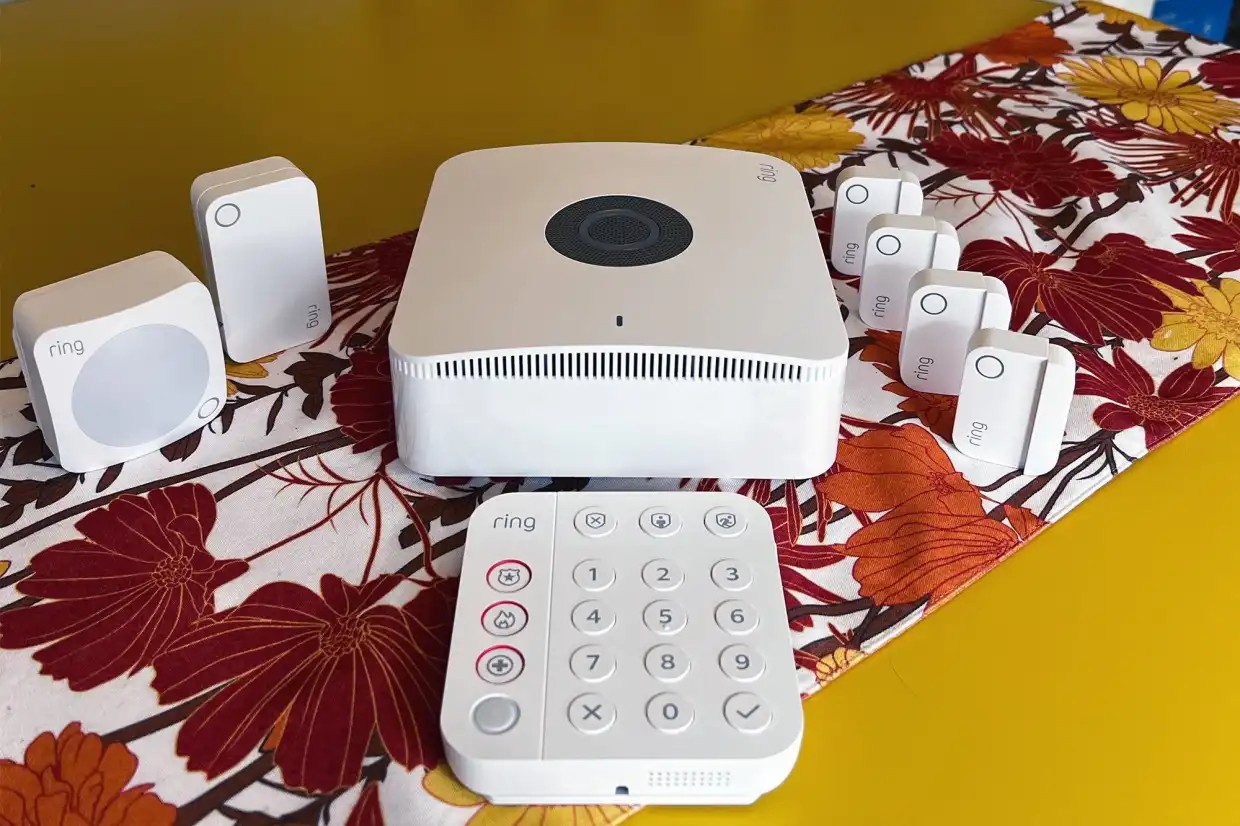
What’s the point of having a smart security system if you forget to arm it when you leave? Good question.
Here’s where geofencing comes into play. Similar to what we just did with the thermostat, you can set up a geofence that automatically arms your security system when you leave home, or disarms it when you return (so no more fumbling with a keypad).
Geofencing is a prominent feature in the Ring app, and most other smart security manufactures offer similar functionality for their alarm systems.
Related: The best smart home alarms and systems
Lock and unlock your front door
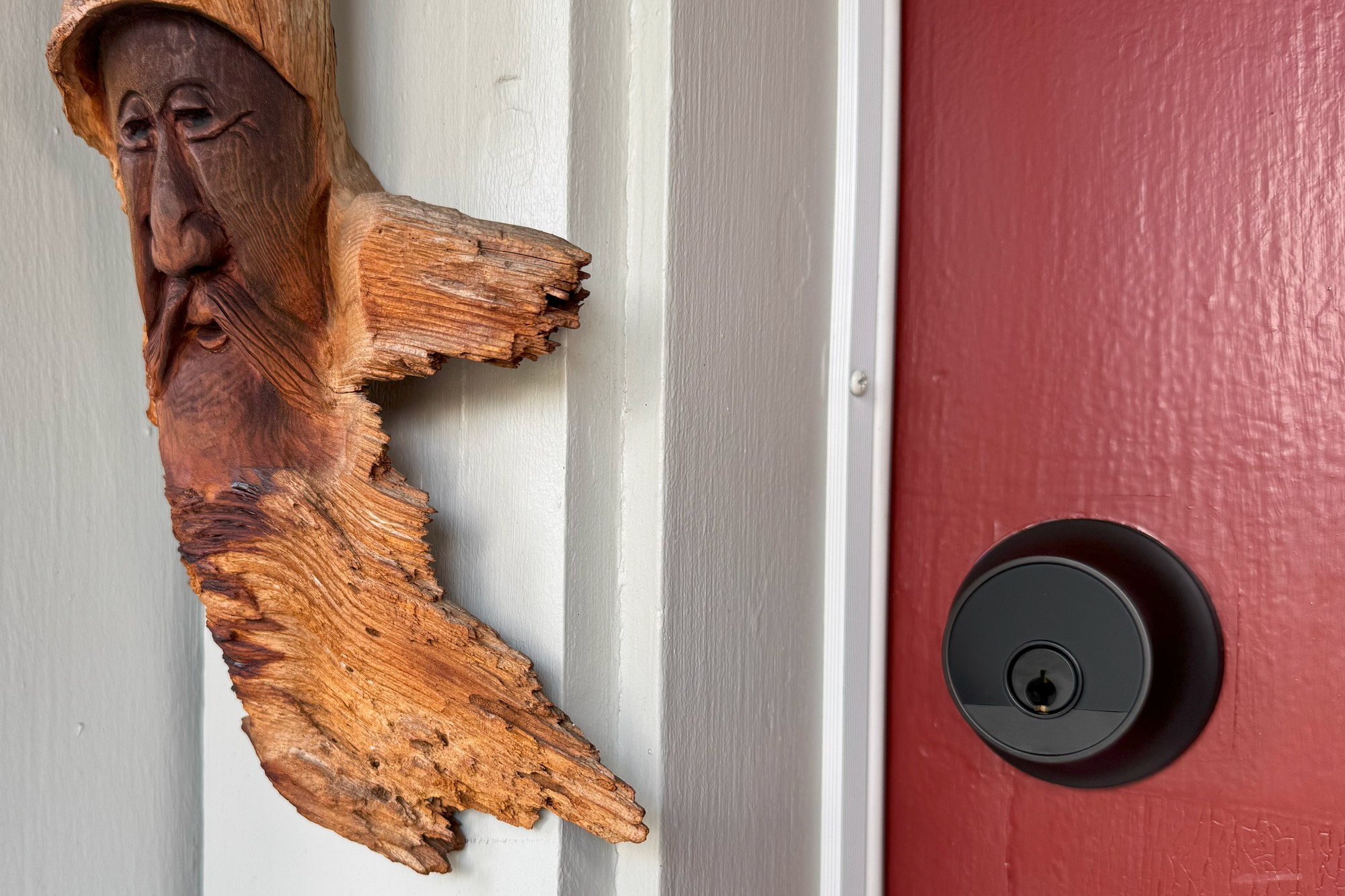

Just as you can use a geofence to arm and disarm your front door, so can you use it to lock and unlock your home’s smart lock, saving you from the trouble of fishing out your keys, pulling out your phone, or remembering a PIN.
In this scenario, you might want a fairly tight geofence radius to help ensure your smart lock stays locked unless you’re in close proximity; ditto for when you’re heading out the door.
Related: The best smart locks
Turn your lights on and off
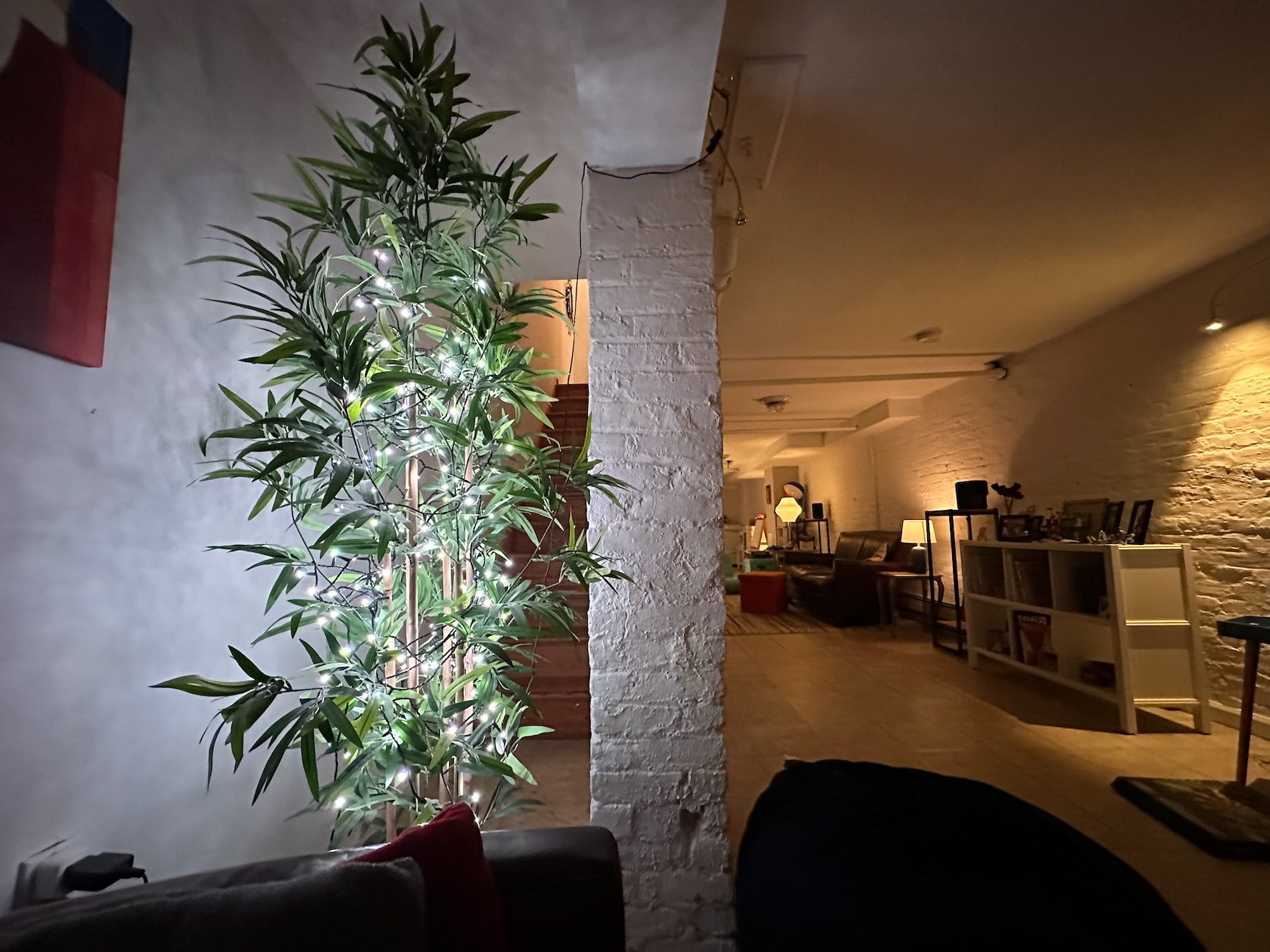
Like coming home to a warm, cozy lighting scene? You can easily set your smart lights to turn on just the way you like as you’re arriving home—or have them turn off whenever you leave.
The Philips Hue app, for example, has a location-based automation trigger that will kick off your favorite lighting routine as you leave or enter a geofenced zone. You can also set the automation to run at any time of day, or only at night.
Related: The best smart lights
Drop the needle on a music playlist
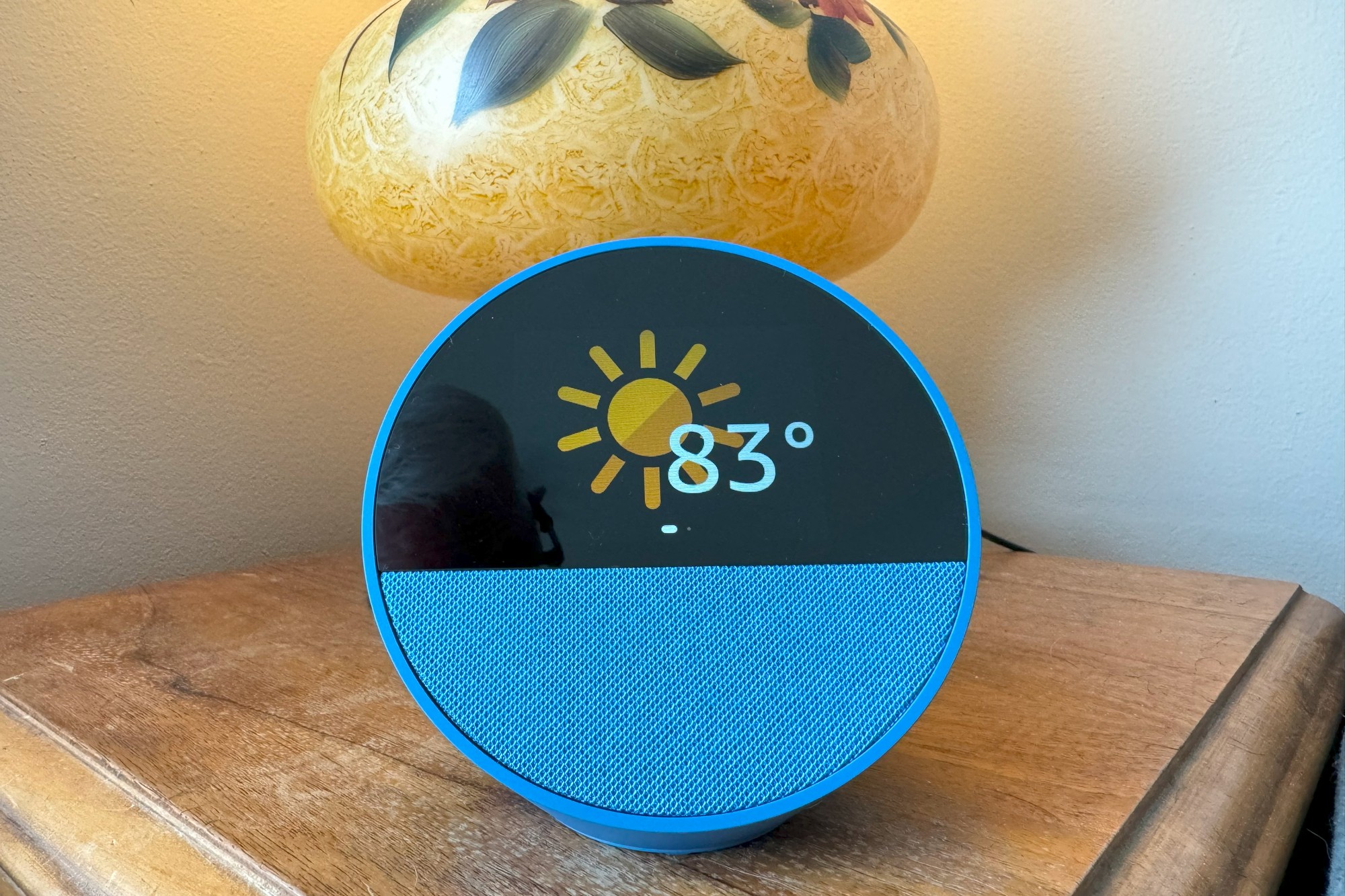
Aside from being greeted by the perfect lighting scheme when you come home, you might also want to hear your favorite tunes, too.
You can easily set a smart home app like Alexa or Google Home to detect when you’ve come home and then play the music of your choice on one or more selected smart speakers.
Related: The best smart speakers
How to create a geofencing routine
Intimidated by the idea of setting up a location-based automation? Don’t be; they’re easy.
Here’s an example using the Alexa app; this should help guide the way for the geofencing functionality in other smart home setups.
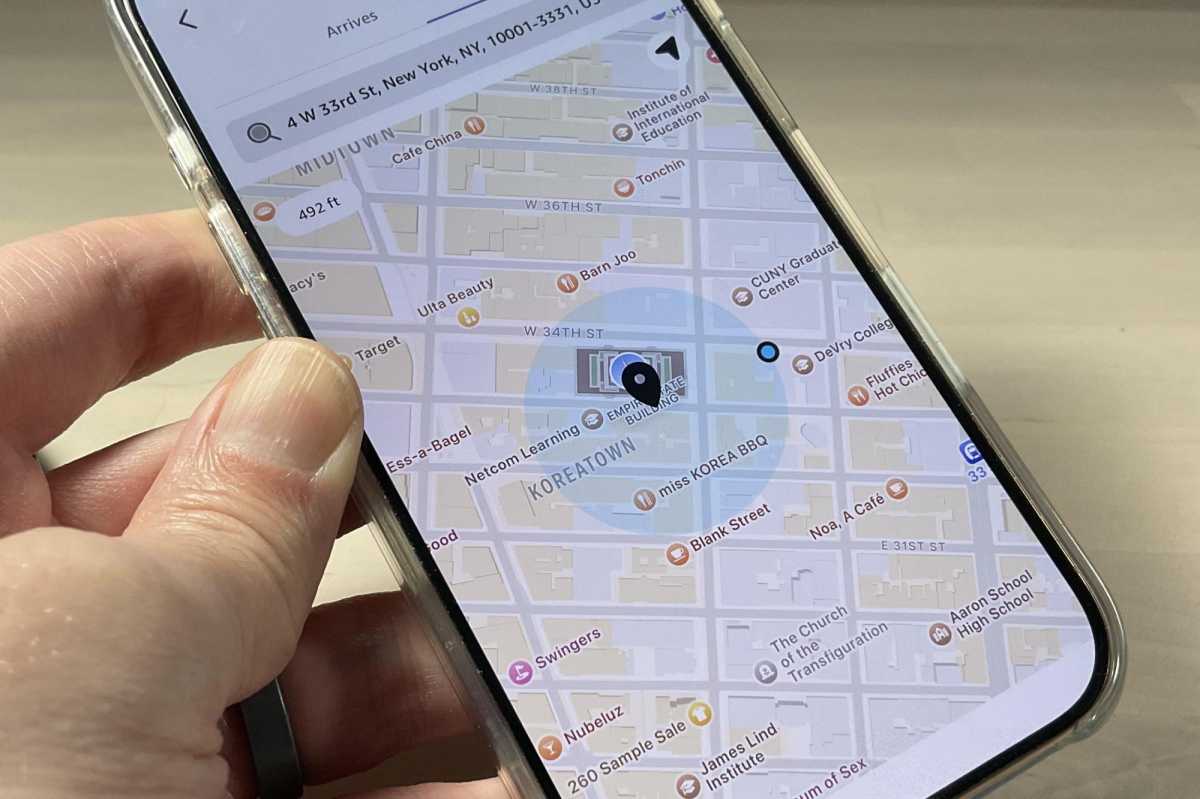
The translucent blue circle around the location is the geofenced area; tap and drag the little blue dot on the edge to expand or contract the perimeter.
Ben Patterson/Foundry
- Open the Alexa app, tap the “+” button, then scroll down and tap Routines to create a new Alexa automation.
- Now, we’ll create a location-based trigger. Under the When section, tap Add an event, then tap Location.
- Next, enter an address or tap Current location; when you do, a map will appear showing the location you picked—such as, say, your home. The translucent blue circle around the location is the geofenced area; tap and drag the little blue dot on the edge to expand or contract the zone.
- At the top of the screen are two tabs; Arrives and Leaves. This setting determines whether the routine gets triggered when you either arrive at the location or leave it. For this example, we’ll choose Arrives. When you’re ready, tap Next, then give your geofenced location a name.
- Now, you’ll land back at the main Routine screen, where you can choose what happens when the automation gets triggered by your geofencing conditions. Under the Alexa Will section, tap Add an action. For this example, we’ll pick Music & Podcasts. You can then pick a song, an artist, a podcast, or a music station from the music-streaming source of your choice. I’ll go ahead and choose Taylor Swift on Apple Music.
- Back at the main Routines screen, tap Choose Device under the Hear Alexa from section, then pick the Alexa speaker where you want to hear the music play; I’ll chose the Echo Dot in my kitchen. Tap Save.
All set! Now, whenever I walk through the front door, my favorite Taylor tunes will begin playing on my kitchen Echo—the perfect way to come home.
This article is part of TechHive’s in-depth coverage of the best smart home systems.
