
Close Menu
TechUpdateAlert

    Subscribe to Updates

    Get the latest creative news from FooBar about art, design and business.

    What's Hot

    My Health Anxiety Means I Won’t Use Apple’s or Samsung’s Smartwatches. Here’s Why

    December 22, 2025

    You can now buy the OnePlus 15 in the US and score free earbuds if you hurry

    December 22, 2025

    Today’s NYT Connections: Sports Edition Hints, Answers for Dec. 22 #455

    December 22, 2025
    Facebook X (Twitter) Instagram
    Trending
    • My Health Anxiety Means I Won’t Use Apple’s or Samsung’s Smartwatches. Here’s Why
    • You can now buy the OnePlus 15 in the US and score free earbuds if you hurry
    • Today’s NYT Connections: Sports Edition Hints, Answers for Dec. 22 #455
    • Android might finally stop making you tap twice for Wi-Fi
    • Today’s NYT Mini Crossword Answers for Dec. 22
    • Waymo’s robotaxis didn’t know what to do when a city’s traffic lights failed
    • Today’s NYT Wordle Hints, Answer and Help for Dec. 22 #1647
    • You Asked: OLED Sunlight, VHS on 4K TVs, and HDMI Control Issues
    Facebook X (Twitter) Instagram Pinterest Vimeo
    TechUpdateAlertTechUpdateAlert
    • Home
    • Gaming
    • Laptops
    • Mobile
    • Software
    • Reviews
    • AI & Tech
    • Gadgets
    • How-To
    TechUpdateAlert
    Home»How-To»Meet Focus, the Windows 11 setting that makes distractions disappear
    How-To

    Meet Focus, the Windows 11 setting that makes distractions disappear

    techupdateadminBy techupdateadminNovember 1, 2025No Comments2 Mins Read
    Share Facebook Twitter Pinterest LinkedIn Tumblr Reddit Telegram Email
    Focus session
    Share
    Facebook Twitter LinkedIn Pinterest Email

    When I’m deep into a story it’s good to have zero distractions on my desktop. That way I can give my full attention to what I’m doing. To do that, I turn on Windows Focus. Focus is a Windows feature designed to help you stay on track by minimizing distractions. It can be a useful tool if you’re working or studying and need absolute radio silence.

    It works by blocking notifications, sounds, and alerts from apps and contacts. You can also customize settings to allow certain notifications to come through if you need to.

    What to do:

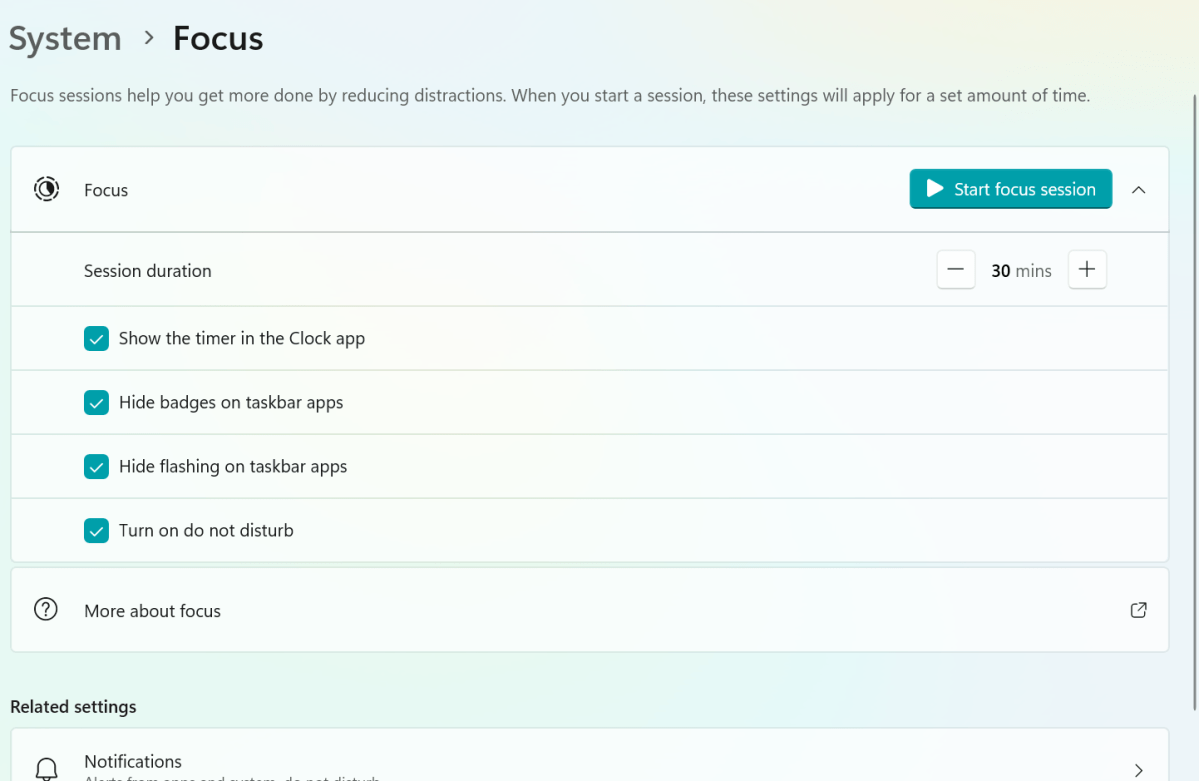
    • You can start a focus session in the Settings app. Just navigate to Settings > System > Focus.
    • Under Focus select the options you want to apply to future focus sessions. You can choose the session duration, show the timer in the Clock app, hide badges on taskbar apps, hide flashing on taskbar apps and to turn on do not disturb.
    • Then all you have to do is start your focus session by clicking on the play button.

    Dominic Bayley / Foundry

    When you start a focus session, a focus timer appears on screen. You can use additional focus tools in the Clock app. Do not disturb is turned on by default when you start a focus session, which automatically silences your notifications.

    That’s all we have for this Try This. If you want more tips and tricks delivered to your inbox each week, be sure to subscribe to our PCWorld Try This newsletter.

    disappear distractions Focus Meet setting Windows
    Share. Facebook Twitter Pinterest LinkedIn Tumblr Email
    Previous ArticleTesla’s New Range of Affordable Electric Cars: Here’s How Much They Cost
    Next Article The proof is undeniable: People will still pay for great shooters
    techupdateadmin
    • Website

    Related Posts

    Gadgets

    Your next Legion Go 2 might run SteamOS instead of Windows 11

    December 21, 2025
    Gadgets

    Microsoft makes theming your Windows 11 PC as easy as phones, but not as much fun

    December 15, 2025
    Mobile

    Running Android apps on your Windows 11 PC is about to feel slightly better

    December 12, 2025
    Add A Comment
    Leave A Reply Cancel Reply

    Top Posts

    NYT Strands hints and answers for Monday, August 11 (game #526)

    August 11, 202545 Views

    These 2 Cities Are Pushing Back on Data Centers. Here’s What They’re Worried About

    September 13, 202542 Views

    Today’s NYT Connections: Sports Edition Hints, Answers for Sept. 4 #346

    September 4, 202540 Views
    Stay In Touch
    • Facebook
    • YouTube
    • TikTok
    • WhatsApp
    • Twitter
    • Instagram
    Latest Reviews

    Subscribe to Updates

    Get the latest tech news from FooBar about tech, design and biz.

    Most Popular

    Best Fitbit fitness trackers and watches in 2025

    July 9, 20250 Views

    There are still 200+ Prime Day 2025 deals you can get

    July 9, 20250 Views

    The best earbuds we’ve tested for 2025

    July 9, 20250 Views
    Our Picks

    My Health Anxiety Means I Won’t Use Apple’s or Samsung’s Smartwatches. Here’s Why

    December 22, 2025

    You can now buy the OnePlus 15 in the US and score free earbuds if you hurry

    December 22, 2025

    Today’s NYT Connections: Sports Edition Hints, Answers for Dec. 22 #455

    December 22, 2025

    Subscribe to Updates

    Get the latest creative news from FooBar about art, design and business.

    Facebook X (Twitter) Instagram Pinterest
    • About Us
    • Contact us
    • Privacy Policy
    • Disclaimer
    • Terms and Conditions
    © 2026 techupdatealert. Designed by Pro.

    Type above and press Enter to search. Press Esc to cancel.