
Close Menu
TechUpdateAlert

    Subscribe to Updates

    Get the latest creative news from FooBar about art, design and business.

    What's Hot

    My Health Anxiety Means I Won’t Use Apple’s or Samsung’s Smartwatches. Here’s Why

    December 22, 2025

    You can now buy the OnePlus 15 in the US and score free earbuds if you hurry

    December 22, 2025

    Today’s NYT Connections: Sports Edition Hints, Answers for Dec. 22 #455

    December 22, 2025
    Facebook X (Twitter) Instagram
    Trending
    • My Health Anxiety Means I Won’t Use Apple’s or Samsung’s Smartwatches. Here’s Why
    • You can now buy the OnePlus 15 in the US and score free earbuds if you hurry
    • Today’s NYT Connections: Sports Edition Hints, Answers for Dec. 22 #455
    • Android might finally stop making you tap twice for Wi-Fi
    • Today’s NYT Mini Crossword Answers for Dec. 22
    • Waymo’s robotaxis didn’t know what to do when a city’s traffic lights failed
    • Today’s NYT Wordle Hints, Answer and Help for Dec. 22 #1647
    • You Asked: OLED Sunlight, VHS on 4K TVs, and HDMI Control Issues
    Facebook X (Twitter) Instagram Pinterest Vimeo
    TechUpdateAlertTechUpdateAlert
    • Home
    • Gaming
    • Laptops
    • Mobile
    • Software
    • Reviews
    • AI & Tech
    • Gadgets
    • How-To
    TechUpdateAlert
    Home»Gaming»Want to Take a Picture Without Touching Your iPhone? Here’s How
    Gaming

    Want to Take a Picture Without Touching Your iPhone? Here’s How

    techupdateadminBy techupdateadminOctober 29, 2025No Comments4 Mins Read
    Share Facebook Twitter Pinterest LinkedIn Tumblr Reddit Telegram Email
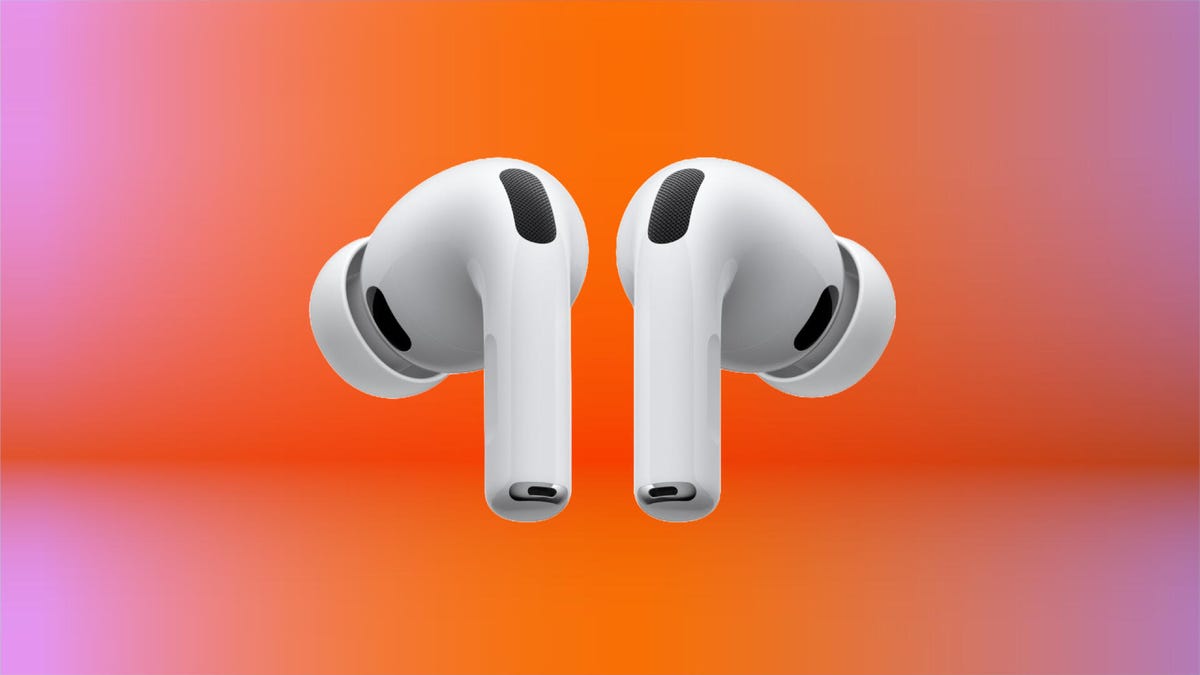
    airpods-pro-3-red-background-1
    Share
    Facebook Twitter LinkedIn Pinterest Email

    Taking photos can be a fun way to save and share memories, but sometimes getting a good picture can be difficult. If you’re taking a group selfie, for example, it might be difficult to get everyone in the shot while keeping your hand out of frame and still being able to press the capture button on your iPhone. But when Apple released iOS 26 in September, the company made it possible to use your AirPods to take photos — so all you have to worry about is getting everyone’s best angle.

    Tech Tips

    The iOS 26 update introduces a handful of new features to your iPhone, including call screening and a Liquid Glass redesign. It also introduces Camera Remote for AirPods, which lets you take a photo with a press on your AirPods. But you have to enable this feature and it only works with AirPods that have an H2 chip, such as the new AirPods Pro 3, the AirPods Pro 2 or the AirPods 4.

    If you have a pair of compatible AirPods, here’s where to find the Camera Remote option and how to use it.


    Don’t miss any of our unbiased tech content and lab-based reviews. Add CNET as a preferred Google source.


    How to turn on the Camera Remote

    1. Connect your compatible AirPods to your iPhone.
    2. Tap Settings.
    3. Tap your AirPods in the Settings menu. 

    The iPhone Settings menu with Zachary's AirPods Pro #2 outlined in red.

    Your AirPods will be named something different.

    Apple/Screenshot by CNET

    4. Tap Camera Remote under Camera Control. 

    The Camera Remote option in iOS 26.

    Apple/Screenshot by CNET

    In the new menu, you can choose either Press Once or Press and Hold. This refers to how you will press the stem on your AirPods to take a picture. Tap whichever you prefer.

    The Camera Remote menu.

    Apple/Screenshot by CNET

    Now you can use your AirPods to snap a picture or shoot a video in Camera. 

    What to know about using your AirPods to take a photo

    Once Camera Remote is enabled, you can use your AirPods to take a photo or shoot a video with any camera mode, like portrait and time-lapse. 

    When you use your AirPods to take a picture in a static mode, like photo or portrait, you will see a countdown from three in the top left corner of your photo’s frame. Your iPhone’s flash will also light up during the countdown to let you know a photo is about to be taken. If you’re taking a selfie, you will only see the numerical countdown on your screen.

    The three-second countdown is automatically enabled and I can’t find a way to disable it. You can extend the countdown in your Camera by tapping the grid of dots in the top right corner of your screen, tapping Timer and tapping either 5s or 10s. You can tap 3s, but this won’t change the countdown.

    The Camera timer menu outlined in red.

    Apple/Screenshot by CNET

    When you take a video using your AirPods, you won’t see a timer or anything. Pressing your AirPods is just like pressing the record button on your iPhone. You can then press your AirPods again to stop recording.

    It’s important to note that Camera Remote only works when at least one AirPod is connected to your iPhone. The easiest way to do this is to put one AirPod in your ear. If you want to take a photo but don’t want your AirPod to show in the picture, you can activate the photo process with Camera Remote, take the AirPod out of your ear during the three-second countdown and hold it in your hand or pocket until your iPhone takes the photo.

    For more on iOS 26, here’s my review of the OS, how to reduce the Liquid Glass effects in the update and how to enable  call and text screening on your iPhone. You can also check out our iOS 26 cheat sheet.

    Watch this: One Month Later: The iPhone 17 Pro Strikes Back

    08:33

    Heres iPhone Picture Touching
    Share. Facebook Twitter Pinterest LinkedIn Tumblr Email
    Previous Article2FA vs Passkeys: Which security solution actually keeps you safer?
    Next Article Here’s How to Recycle Your Old PC, Laptop and Printer for Free in 2025
    techupdateadmin
    • Website

    Related Posts

    Gadgets

    My Health Anxiety Means I Won’t Use Apple’s or Samsung’s Smartwatches. Here’s Why

    December 22, 2025
    Gadgets

    Samsung Galaxy owners get even more customization options, leaving iPhone and Pixel in the dust

    December 21, 2025
    Gadgets

    I Bought a Used iPhone 13 Mini and Learned a Hard Lesson

    December 20, 2025
    Add A Comment
    Leave A Reply Cancel Reply

    Top Posts

    NYT Strands hints and answers for Monday, August 11 (game #526)

    August 11, 202545 Views

    These 2 Cities Are Pushing Back on Data Centers. Here’s What They’re Worried About

    September 13, 202542 Views

    Today’s NYT Connections: Sports Edition Hints, Answers for Sept. 4 #346

    September 4, 202540 Views
    Stay In Touch
    • Facebook
    • YouTube
    • TikTok
    • WhatsApp
    • Twitter
    • Instagram
    Latest Reviews

    Subscribe to Updates

    Get the latest tech news from FooBar about tech, design and biz.

    Most Popular

    Best Fitbit fitness trackers and watches in 2025

    July 9, 20250 Views

    There are still 200+ Prime Day 2025 deals you can get

    July 9, 20250 Views

    The best earbuds we’ve tested for 2025

    July 9, 20250 Views
    Our Picks

    My Health Anxiety Means I Won’t Use Apple’s or Samsung’s Smartwatches. Here’s Why

    December 22, 2025

    You can now buy the OnePlus 15 in the US and score free earbuds if you hurry

    December 22, 2025

    Today’s NYT Connections: Sports Edition Hints, Answers for Dec. 22 #455

    December 22, 2025

    Subscribe to Updates

    Get the latest creative news from FooBar about art, design and business.

    Facebook X (Twitter) Instagram Pinterest
    • About Us
    • Contact us
    • Privacy Policy
    • Disclaimer
    • Terms and Conditions
    © 2026 techupdatealert. Designed by Pro.

    Type above and press Enter to search. Press Esc to cancel.