



So there it is–my new mini PC, the A9 Max from Geekom. A smart little powerhouse, barely bigger than a sandwich tin, whisper-quiet and amazingly powerful. I unpacked it, plugged it in, and completed the initial setup. Everything works perfectly, as my test shows.
And yet I realize after just a few minutes: it won’t stay this way for long. As soon as the software is installed, my fingers start itching for a screwdriver. Why? Because an off-the-shelf PC is always a compromise–a very good one, but not my personal ideal.
Christoph Hoffmann
As a technology journalist and IT expert, I look at ready-made PCs from a different perspective. Manufacturers have to appeal to a wide audience and, above all, put an attractive price on it. This inevitably means that costs are cut in certain areas. Not in the CPU, since that’s the showpiece, but in components whose true performance is only revealed in demanding everyday use.
For me, the purchase of such a mini PC is therefore not the end, but the beginning of an optimization project. I’m buying an excellent foundation on which to build my customized system.
More RAM brings a performance boost
The first and easiest upgrade is almost always the RAM. The Geekom A9 Max comes with 32GB of RAM, which is more than enough for most users and everyday tasks such as browsing, office work, and streaming. But my everyday use is different.
I often run a virtual machine for testing software, dozens of browser tabs with CPU-intensive web applications, image editing programs, and communication tools at the same time. This is where 32GB quickly becomes a bottleneck. The system starts to feel sluggish, switching between programs takes longer, and productivity suffers.
The solution is simple and inexpensive: an upgrade to 64GB, for example with the Kingston FURY Impact SO-DIMM 64GB DDR5-5600 CL40 kit. Replacing the RAM modules usually takes just a few minutes, and the results are immediately noticeable. Everything runs more smoothly, the system has more headroom, and it’s better prepared for tomorrow’s software. For me, this small investment offers the best bang for your buck.
SSD upgrades: more speed and storage
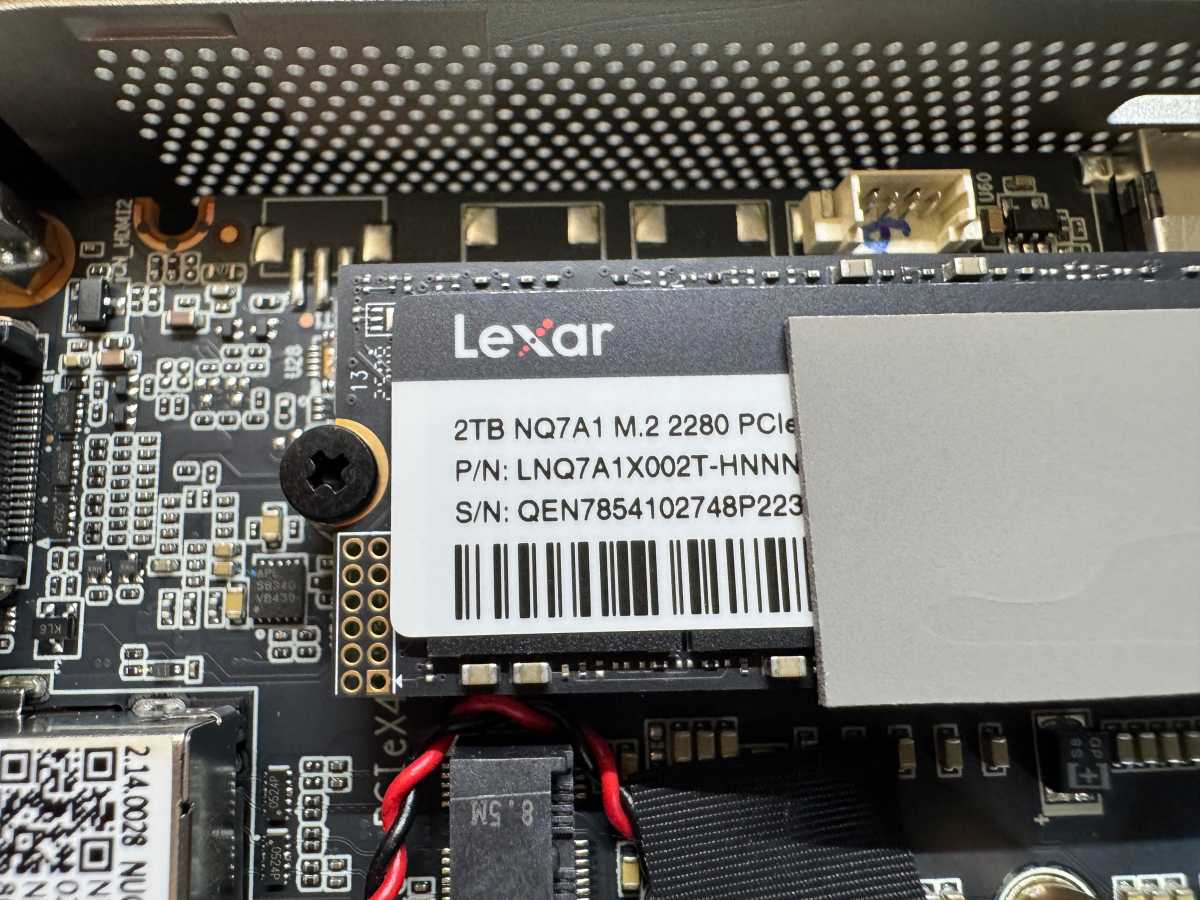
The second candidate for an immediate improvement is the mass storage device, i.e. the SSD. Here, manufacturers save on two fronts: capacity and speed. Models with 512GB or 1TB are often installed. The NVMe SSD with 2TB of capacity in our A9 Max comes from Lexar and is labeled LNQ7A1X002T.
Christoph Hoffmann
That sounds like a lot at first, but I traditionally separate the Windows installation on the C: drive from my data, which I sync with Dropbox. That’s why I’m putting a second SSD in the mini PC–an external hard drive would be an option, but internal storage is unbeatable for quick access.
However, speed is even more important to me. Not every NVMe SSD is the same. Manufacturers often install cheap models that are faster than old SATA hard drives, but are nowhere near the potential of modern interfaces.
The NVMe SSD from Lexar installed in the Geekom delivers a read performance of 6,242 MB/s and a write rate of 5,423 MB/s in CrystalDiskMark. That’s an above-average result for a PCIe 4.0 SSD, so there’s no reason to replace it for performance reasons.
The system includes a short M.2 slot (M.2-2230) for an additional SSD. The selection of compatible drives is somewhat limited. For our upgrade, we chose the Crucial P310 SSD 2TB. The alternative is the Corsair MP600 Mini, which comes in 1 and 2TB versions.
If the standard SSD installed in the mini PC delivers below-average values, it makes sense to replace it with a high-end SSD. It transforms the mini PC into a real powerhouse. Programs start without delay, large files are copied in seconds, and the entire system feels more direct and responsive. It’s a level of comfort I wouldn’t want to miss in my daily work.
Upgrading is easy
Before you start ordering or visiting a local dealer, you should check the exact specifications of the mini PC. The Geekom A9 Max has a short M.2 interface (M.2-2230) for an additional SSD, suitable for the Crucial P310 SSD 2 TB M.2.
The RAM configuration is interesting. The A9 Max (and many other models) comes with 32GB of RAM with two 16GB modules. To upgrade to 64GB, both sticks must be replaced.
There’s a good selection of compatible 64 GB kits (2 × 32 GB) dual-channel DDR5 with 5600 MHz. Popular options include the Crucial CT2K32G56C46S5 and the Crucial Pro CP2K32G56C46U5. Alternatively, you can choose a single (though more expensive) memory stick to keep the option of upgrading to 128GB open.
Before you begin the upgrade or installation, make sure the mini PC is completely switched off and disconnected from the power supply. To discharge any residual power from the system, press and hold the power button for about five seconds.
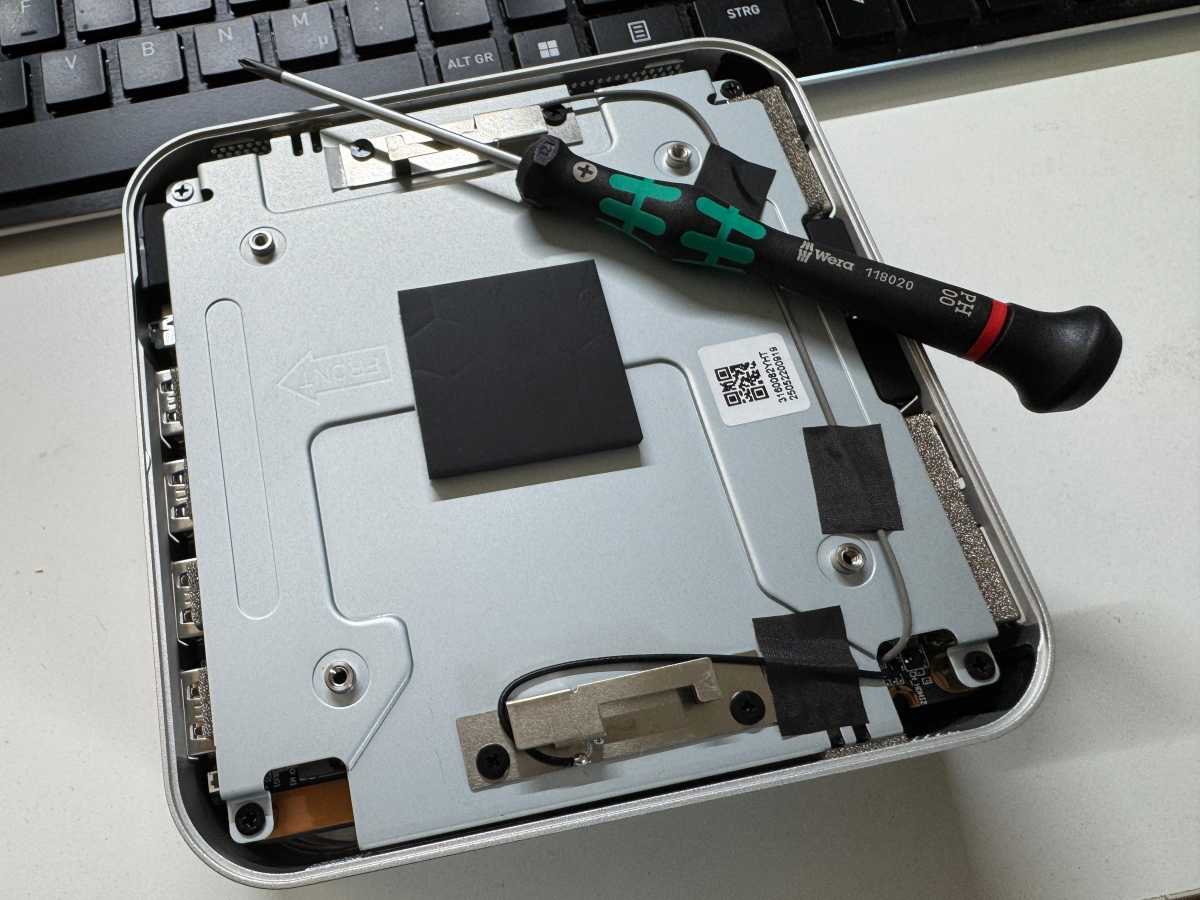
Opening the case can be a bit tricky (see section: Troubleshooting: No more Wi-Fi and Bluetooth). The screws on the underside are hidden behind the rubber feet, which can be pried out with a pointed object. Once the screws are loosened, handle everything with care.
Christoph Hoffmann
Once the inner workings of the mini PC are exposed, you can access the slots for the two SSDs (1 × M.2 2280 and 1 × M.2 2230) and the two memory slots. Some mini PCs also include a mounting bracket for a 2.5-inch SATA SSD, such as the Samsung 870 EVO.
With the Geekom A9 Max (and most other models), insert the M.2 SSD at a slight angle into the slot provided. Then carefully press it down and secure the end with the small screw provided. That’s it!
The RAM modules are held in place by small metal or plastic retaining clips on each side. Gently push these clips outwards to release the RAM module, which will lift up slightly and can be removed.
Take the new RAM module and pay attention to the notch. This must match the corresponding guide in the slot to prevent incorrect installation.
Insert the module into the slot and press it down firmly and evenly until you hear the retaining clips on the side click into place. Done!
After installation, close the case and reconnect all cables. Start the mini PC and enter the BIOS (usually by pressing F2 or Del) to confirm that the new RAM is recognized.
Once installed, the new SSD won’t automatically appear as a drive in Windows. It must first be initialized in Disk Management.
That’s it! The mini PC now has more storage space and, thanks to the RAM upgrade, extra performance headroom.
Troubleshooting Wi-Fi and Bluetooth issues
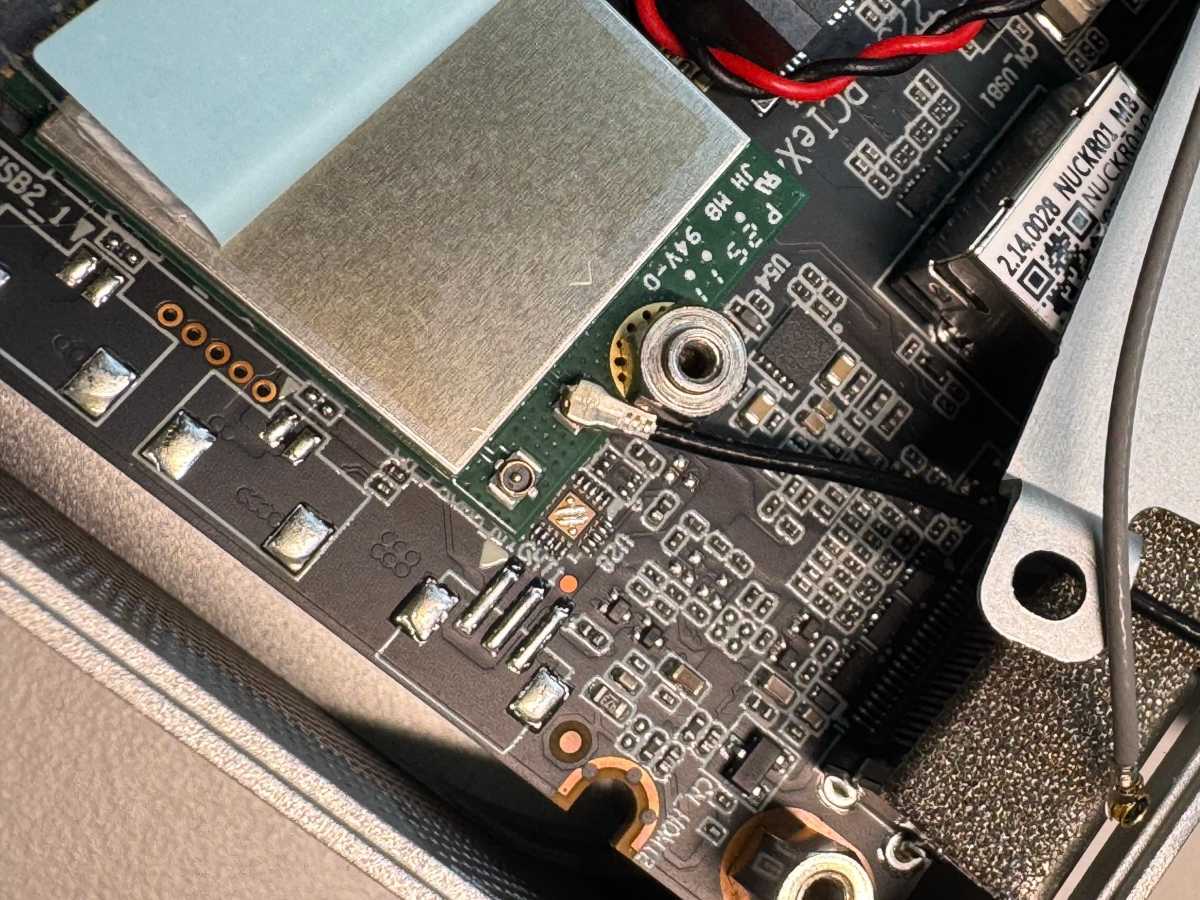
Please note: When opening the case and removing the inner metal cover, the black and gray cables may become disconnected. These are soldered to the metal cover and connected to the Wi-Fi card. If the connection is lost, Wi-Fi or Bluetooth functionality will no longer be available.
The cables are fixed to the metal cover with adhesive strips, which limits their length. To ensure that the cables stay firmly attached when the cover is lifted, it’s best to remove the strips and reposition the cables so they remain plugged in.
Christoph Hoffmann
If the cables have already been disconnected, the ends must be reconnected to the Wi-Fi card. This is located underneath the M.2-2280 connector, which is why the SSD must first be carefully removed.
After exposing the Wi-Fi card, carefully lift the self-adhesive, transparent plastic cover with tweezers or fold it back. Then carefully reconnect the black cable to the connection labeled “Main” and the grey cable to the “AUX” connection.
This process requires patience and may take several attempts. Make sure the cover is properly closed before reinserting the SSD.
