


Car infotainment systems have historically been a weak point in vehicle design. Often clunky and inefficient, essential features and functions were buried under layers of unnecessary screens and disclaimers.
The design detracted from the driving experience, leading many to seek alternatives, such as reliable smartphone or tablet mounts for navigation.
What is Android Auto?
Hey Google, how’s the traffic to work?
Android Auto borrows features and functionality from various smartphone apps and platforms to offer a convenient infotainment solution.
It’s a fantastic choice for those tired of relying on their smartphone’s Maps or dealing with traditional radio setups for music. Plus, its customizable nature lets you bring the most important features to the forefront.
However, to get the most out of this experience, you need to set up and manage your infotainment and app settings properly.
Here’s how to get a handle on Android Auto and your car’s infotainment system.
How to change your Android Auto app order
One of the first things to do is rearrange the app icons on the apps list so you can quickly get to the ones you use most, whether it’s Google Maps or Spotify.
By default, Android Auto shows the apps you open most often.
If you want quick access to anything else, adjust the order. It’s simple to do on a connected smartphone with the Android Auto app.
Here’s how to change the layout of the Android Auto app screen:
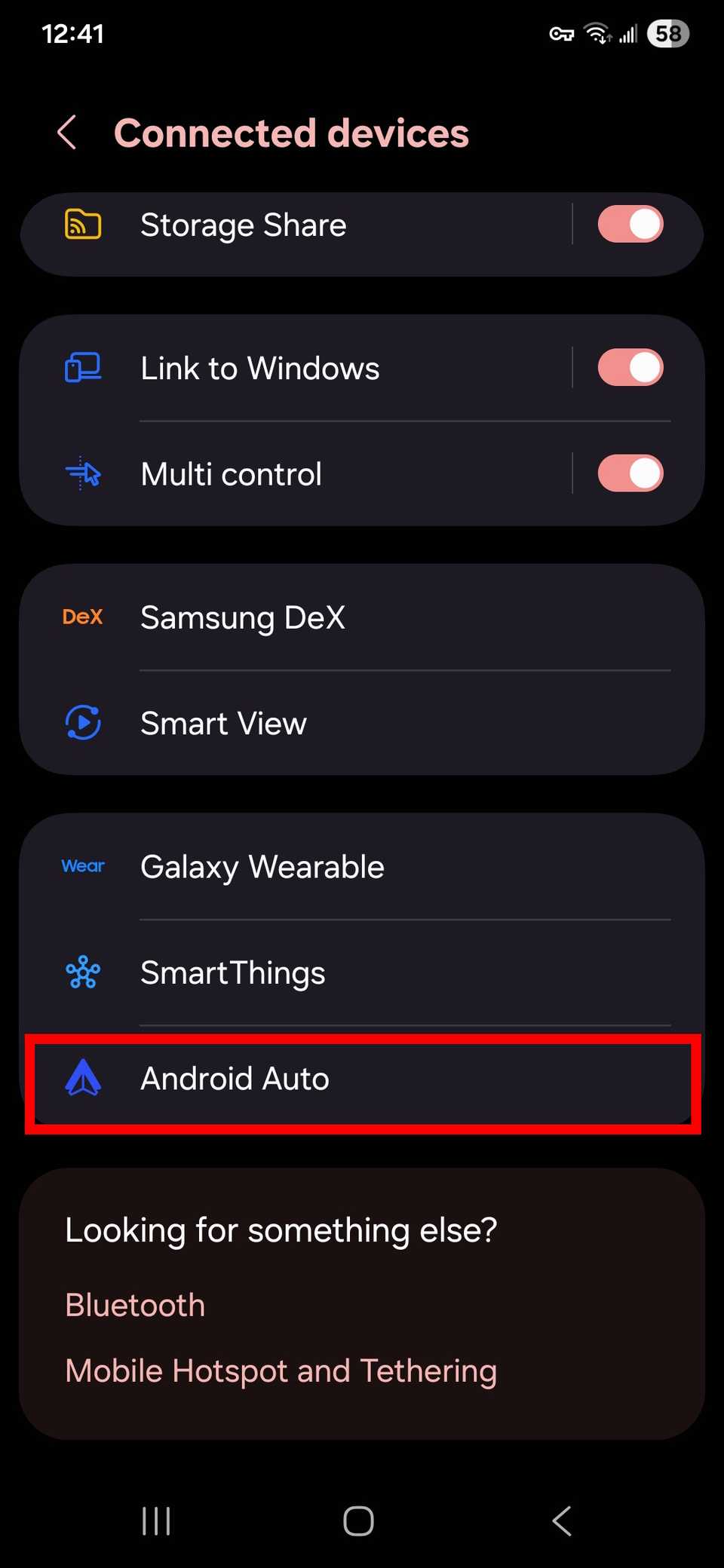
- Unlock your phone and open the Settings app.
- Scroll to Android Auto or search for it in the search bar.
- Open the Android Auto settings.
-
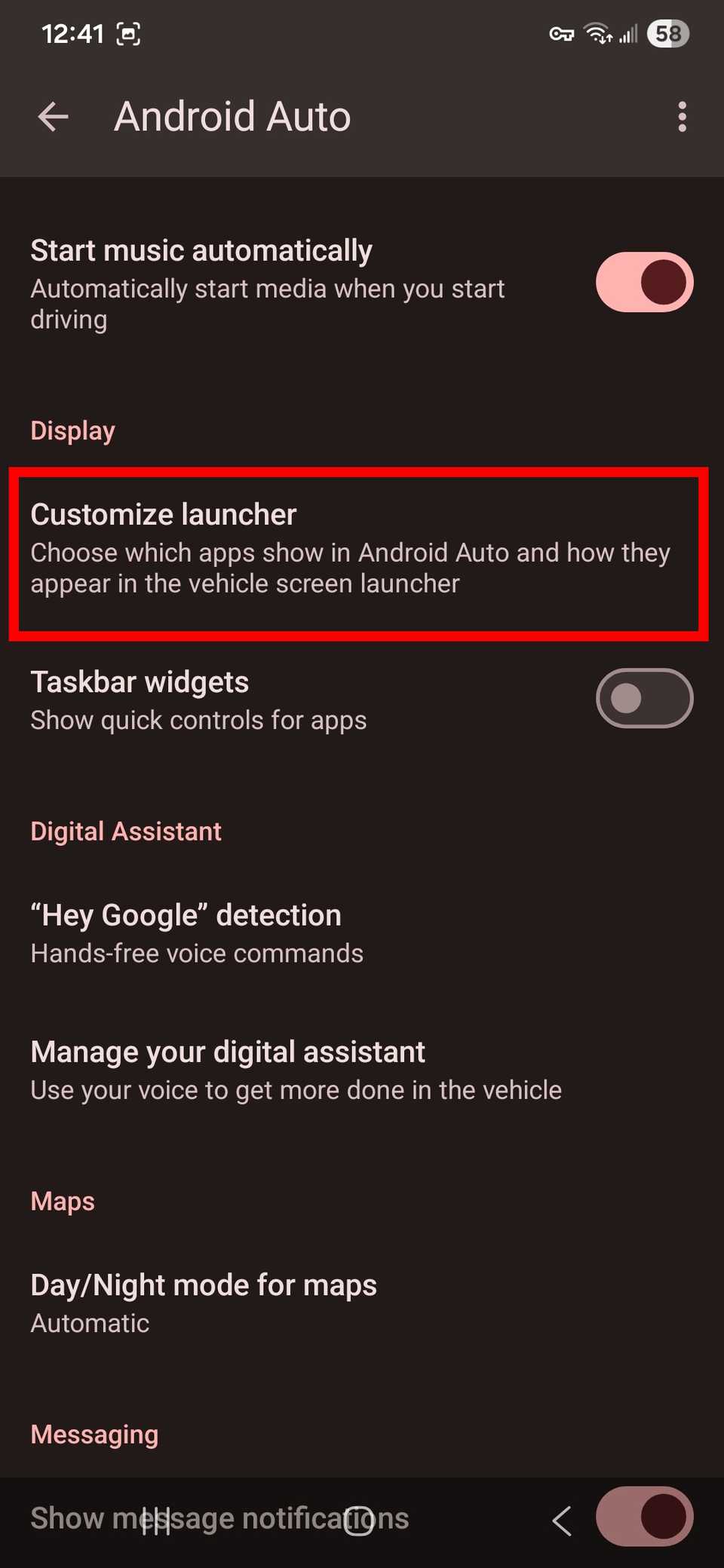
Select the Customize Launcher option.
-
Choose Launcher sorting.
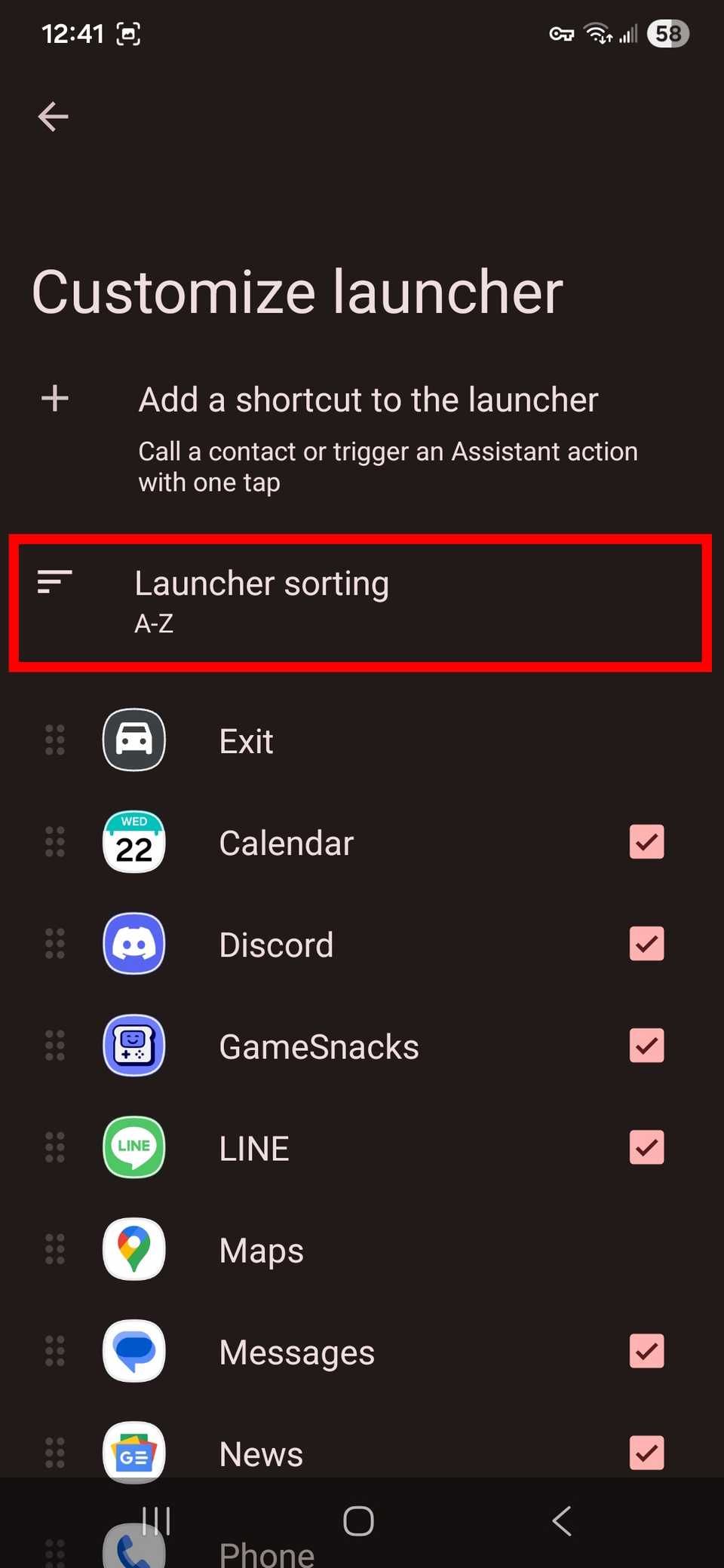


Select simple alphabetical sorting to arrange your currently installed apps from A to Z. To create a custom order, choose Custom to drag the apps into the positions you like.
If your phone is connected to your vehicle, the app order updates automatically.
How to change your Android Auto layout
The Android Auto home screen is designed to help you focus on the road. Nearly half of it is dedicated to displaying navigation assistance when it’s active.
The other side houses a drawer of widgets, giving you access to apps and functions without having to tap through and navigate the dedicated apps screen.

An update to Android Auto unlocked the ability to choose which side each pane displays on. You can choose whether the widget drawer or the navigation should be closer to the driver.
Unlike the custom sorting layout on the app screen, this can be done through the in-car Android Auto interface or in the Android Auto app. Here’s how:
- Go to the Android Auto home screen in your car’s infotainment center, and select the app screen in the lower-left corner (the square of dots icon).
- Select the Settings app.
-
Choose Change layout.
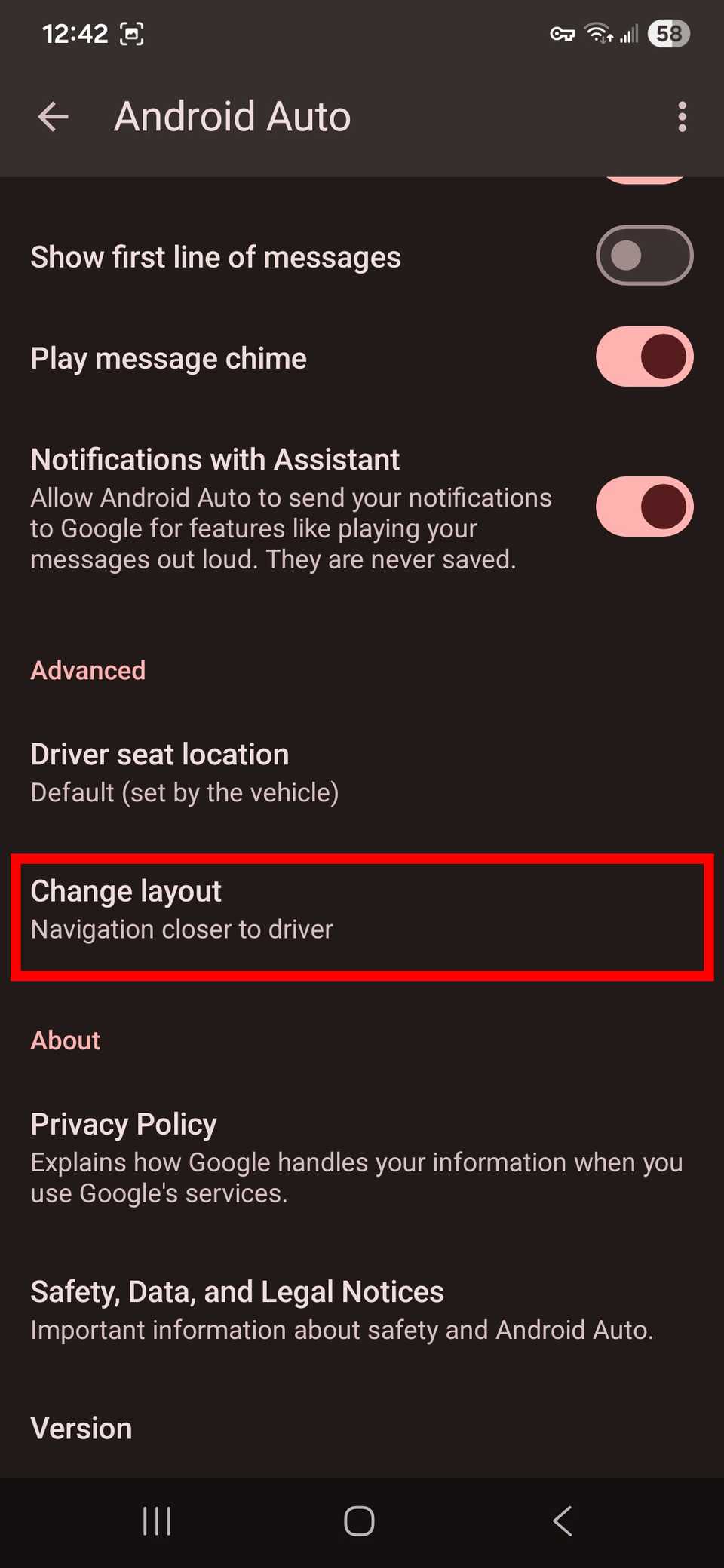
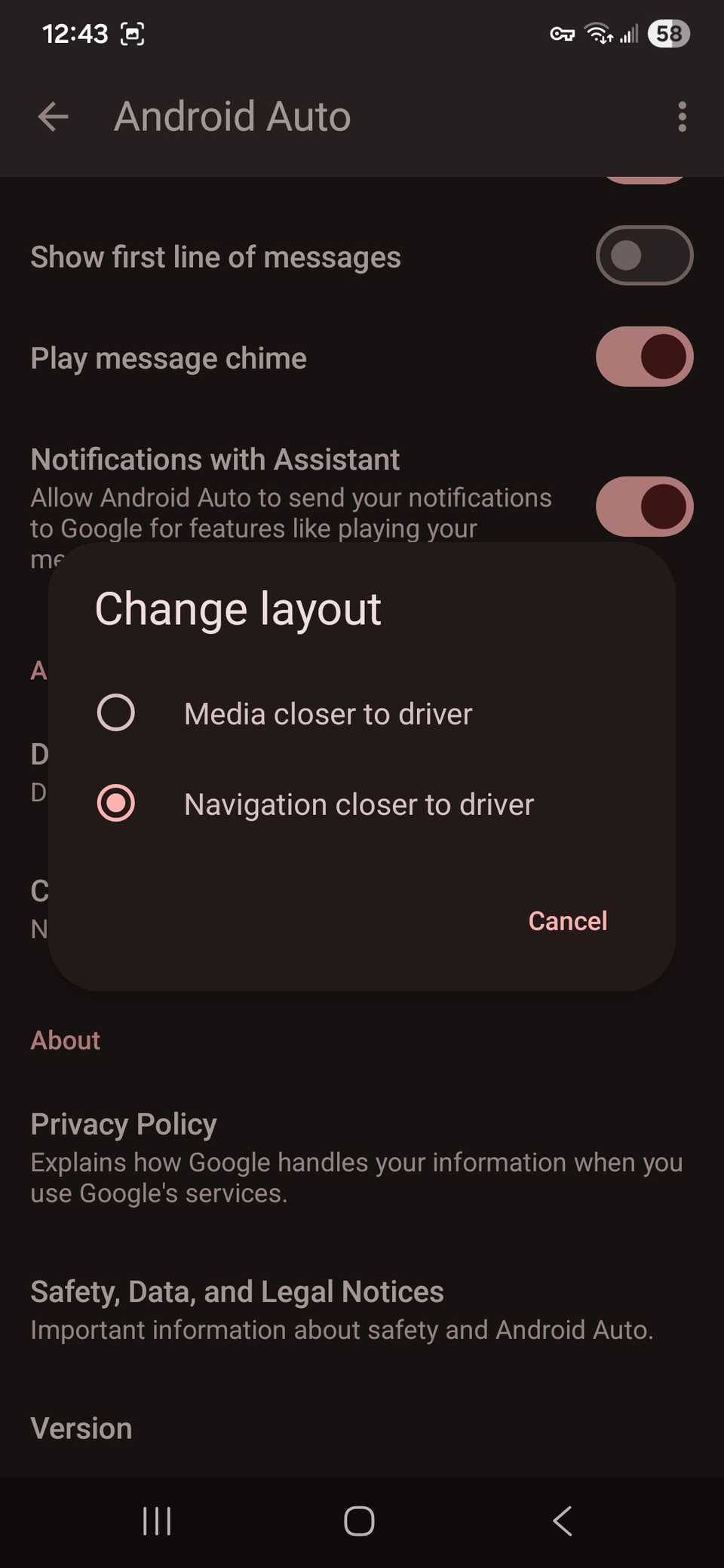


The following screen lets you toggle between Media closer to driver or Navigation closer to driver.
The Media option shifts the widget pane closer to the driver’s side of the cabin, while the Navigation option shifts the map screen to the driver’s side.

How to update Android Auto
Installing the latest Android Auto build is essential for a smooth long trip
How to change your Android Auto wallpaper
If you want a quick aesthetic customization to make your Android Auto interface feel more your own (or crave a visual upgrade), swap out the wallpaper.
You can only do this by changing your phone’s wallpaper and having your car’s infotainment system switch to it.

Here’s how to enable switch wallpapers in the Android Auto in-car app:
- Open the Settings app.
- Toggle on Use phone’s wallpaper in Android Auto.
- Return to your device and change your device’s wallpaper.
The Settings app also gives you access to other options, including switching between Day and Night mode (or swapping automatically) or whether you want to display Taskbar widgets.
The latter, for instance, displays Spotify playback controls at the bottom of the screen at all times, not only when the widget or app is active.
How to add Android Auto shortcuts
Shortcuts in Android Auto let you perform specific actions faster and more conveniently while using your car.
Here’s how to add Android Auto shortcuts:
- Unlock your phone and open the Settings app.
- Scroll to Android Auto or search for it in the search bar.
- Select Customize Launcher.
-
Tap on Add a shortcut to the launcher.
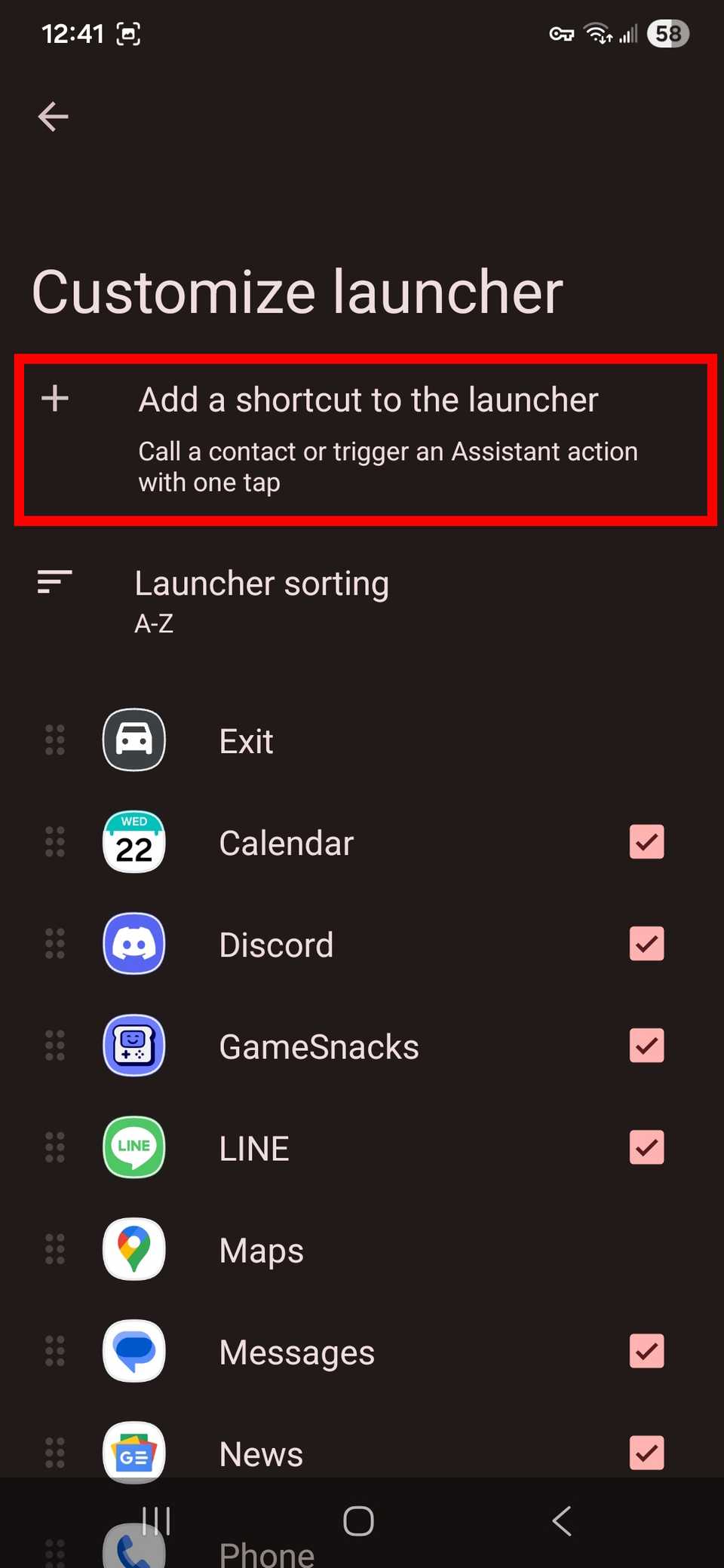

For a Call a contact shortcut, select the contact you want to call. The shortcut appears at the bottom.
For an Assistant action shortcut, type your request in the Assistant command section. Then, name your shortcut, test it, and tap Create Shortcut.
Smooth out your road trip
Android Auto changes the game for driving. The app is easy to manage and works on Android 9 or later.
Get directions, jam out to your tunes, and check your messages without taking your eyes off the road for too long.
But it’s more than using your favorite apps and channeling your favorite automations. There are heaps of settings you can change that can really improve your experience.
