


Although instant messaging apps like WhatsApp, Telegram, and Facebook Messenger dominate the market, many prefer Google Messages to stay in touch with friends and family.
In addition to sending and receiving SMS and MMS, Google Messages supports RCS (Rich Communication Services). It’s easy to unlock these advanced messaging features on Android phones.
Despite being the most commonly used via the app, Google Messages is also available on the web.
You can easily set up Google Messages on your desktop computer to check your messages or OTPs from banks and credit cards. Our guide shows you how to do this with minimal setup, or none at all.
How to enable, disable, and use RCS Chat in Google Messages
It’s probably time we moved on from the old SMS standard
How to send and receive Google Messages from your computer
Before you can send and receive text messages from your computer, you must install the Google Messages app. It is preinstalled on most Android phones, even the most affordable ones.
If you use a different SMS application, grab Messages from the Play Store using the link below.
It’s also worth ensuring RCS is activated on your device for a modern experience, although sending texts from your computer isn’t necessary.
After downloading Google Messages, set it as the default option on Android.
Usually, when you open the app, the system asks you to make it the default app. If the pop-up doesn’t appear, follow the steps below to make the changes:
- Open Settings on your Android phone.
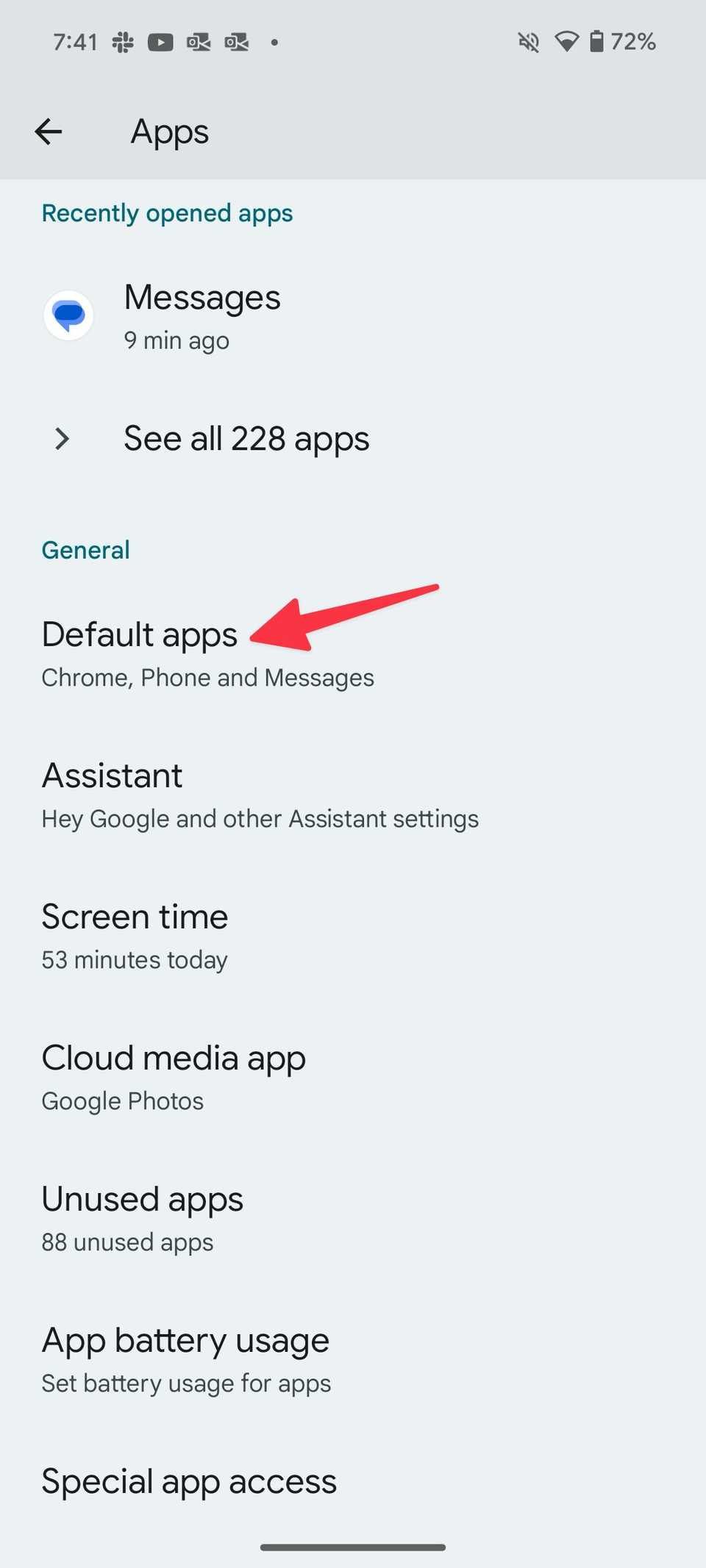
- Tap Apps and select Default apps.
-
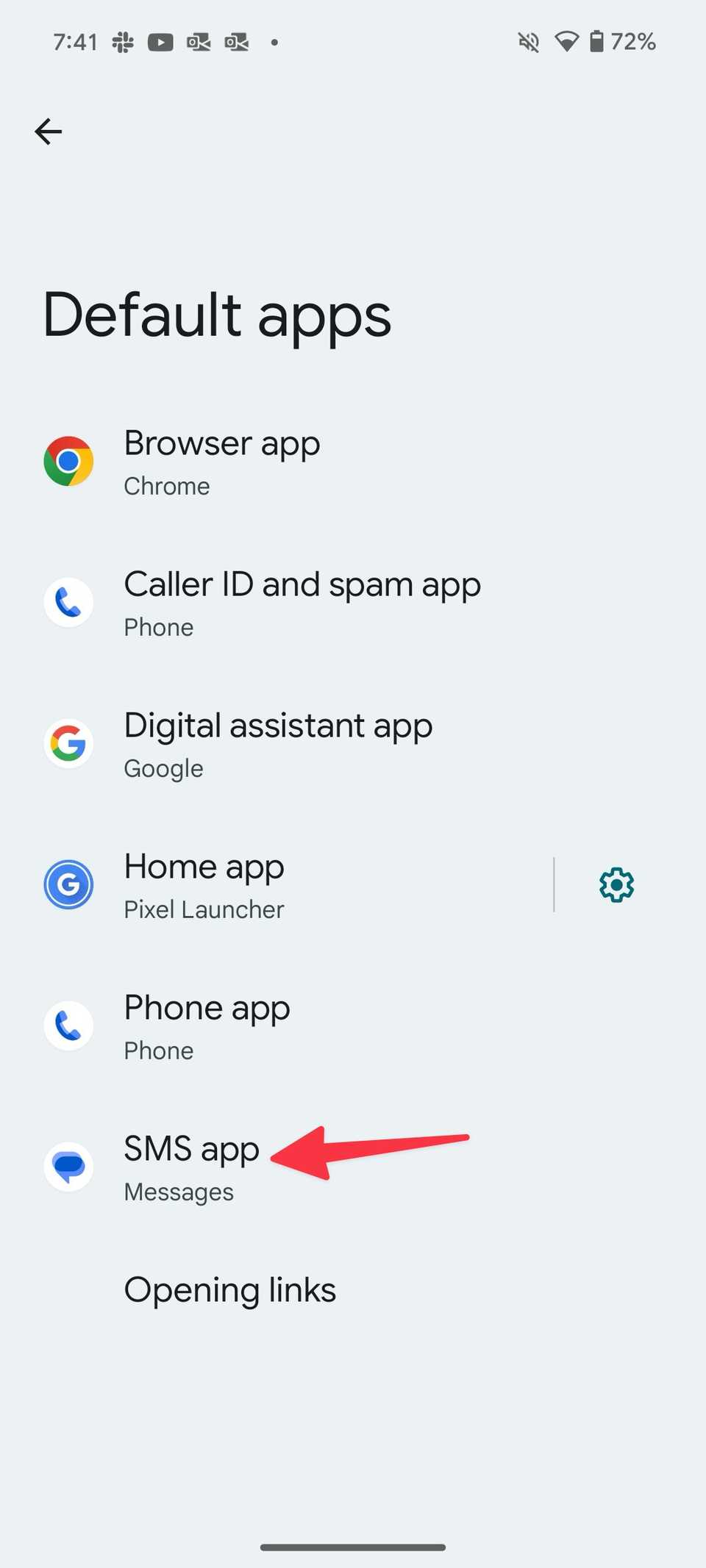
Select SMS app.
-
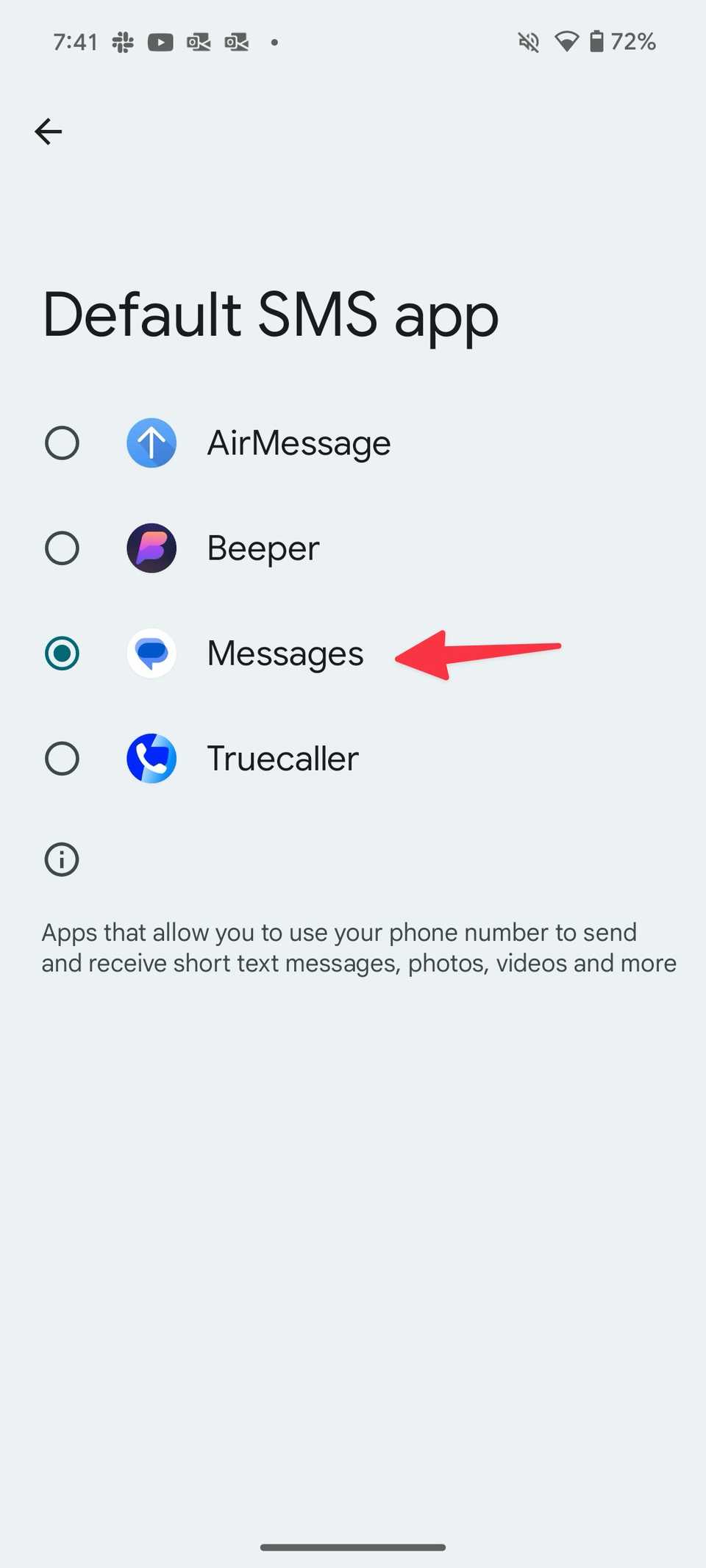
Tap the radio button beside Messages.


Set up Messages on the desktop
Now, you are ready to set up and activate Google Messages on your preferred browser on a Windows desktop or Mac.
There are a couple of ways to do this:
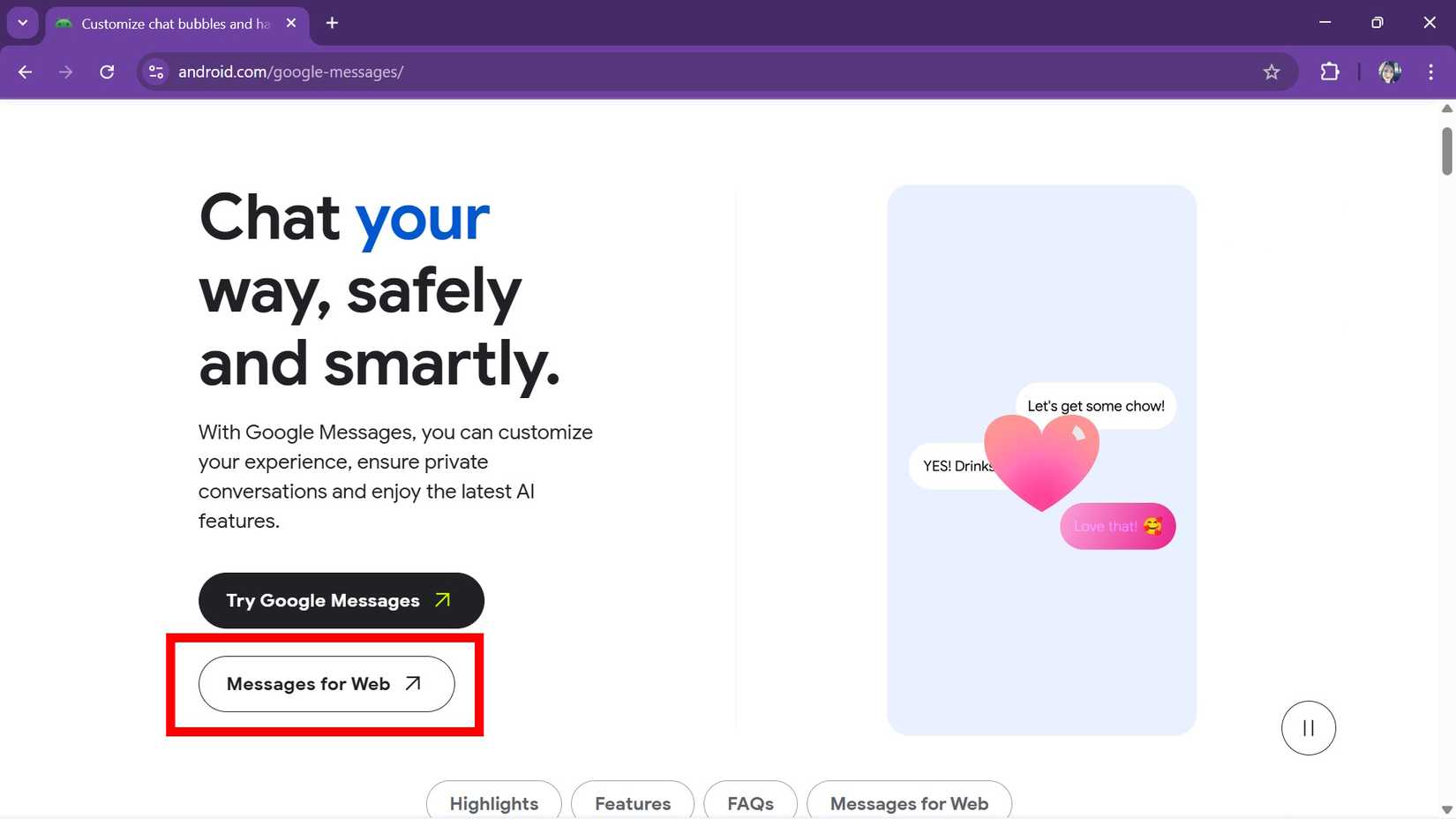
- Open a browser and go to Google Messages.
-
Click the Messages for Web button to launch the web client for Messages (you do not have to be signed in to your Google account for this to load).
- Sign in with your Google account details.
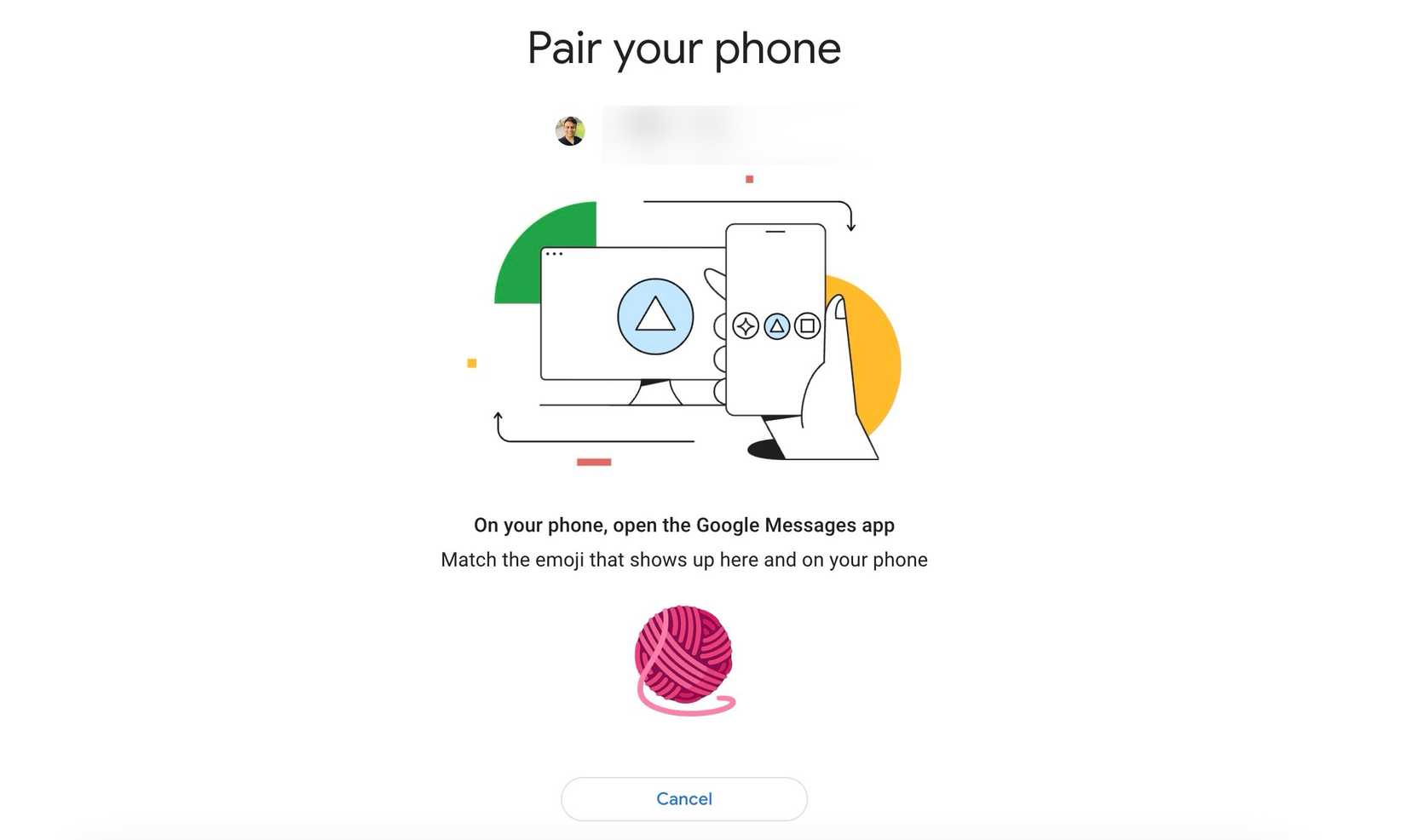
- When you enter your Google login information, it shows a random emoji.
-
Open the Google Messages app on your Android phone and tap the emoji to confirm the authentication.
-
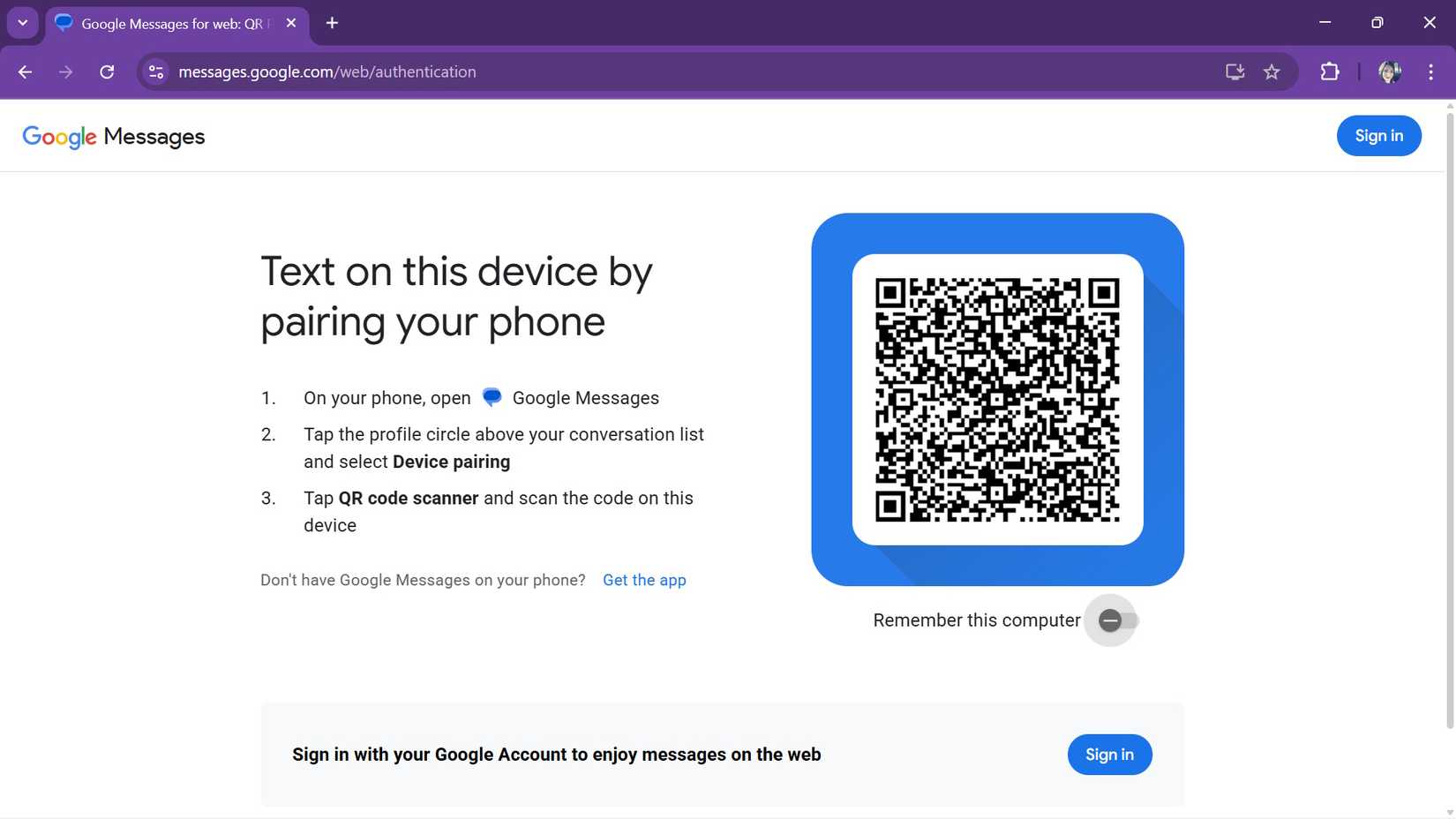
If the trick above doesn’t work, connect your Android phone with a QR code. Select Pair with QR code. Turn on the Remember this computer toggle so that the service doesn’t log you out automatically.
- Open the Messages app on your smartphone.
-
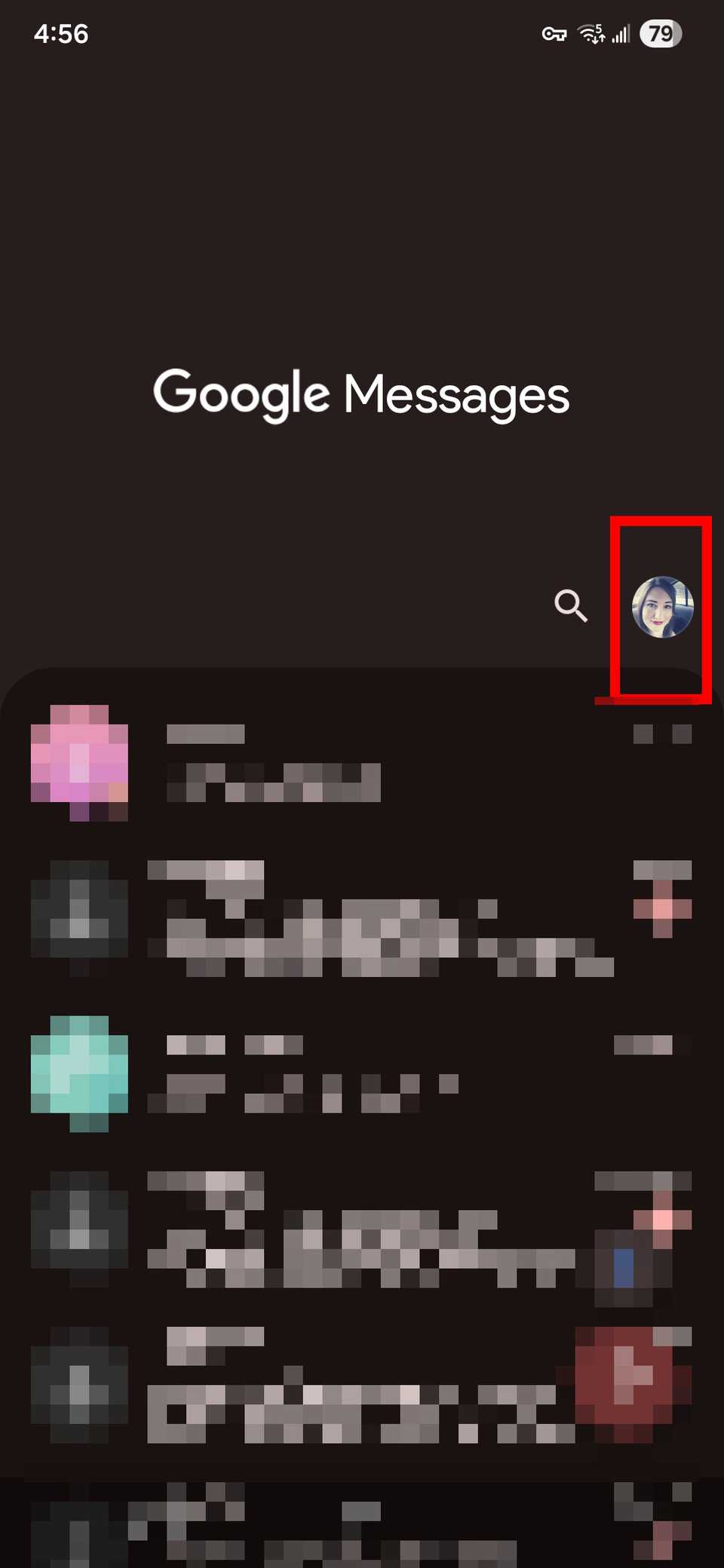
Tap the profile icon in the right corner and select Device pairing.
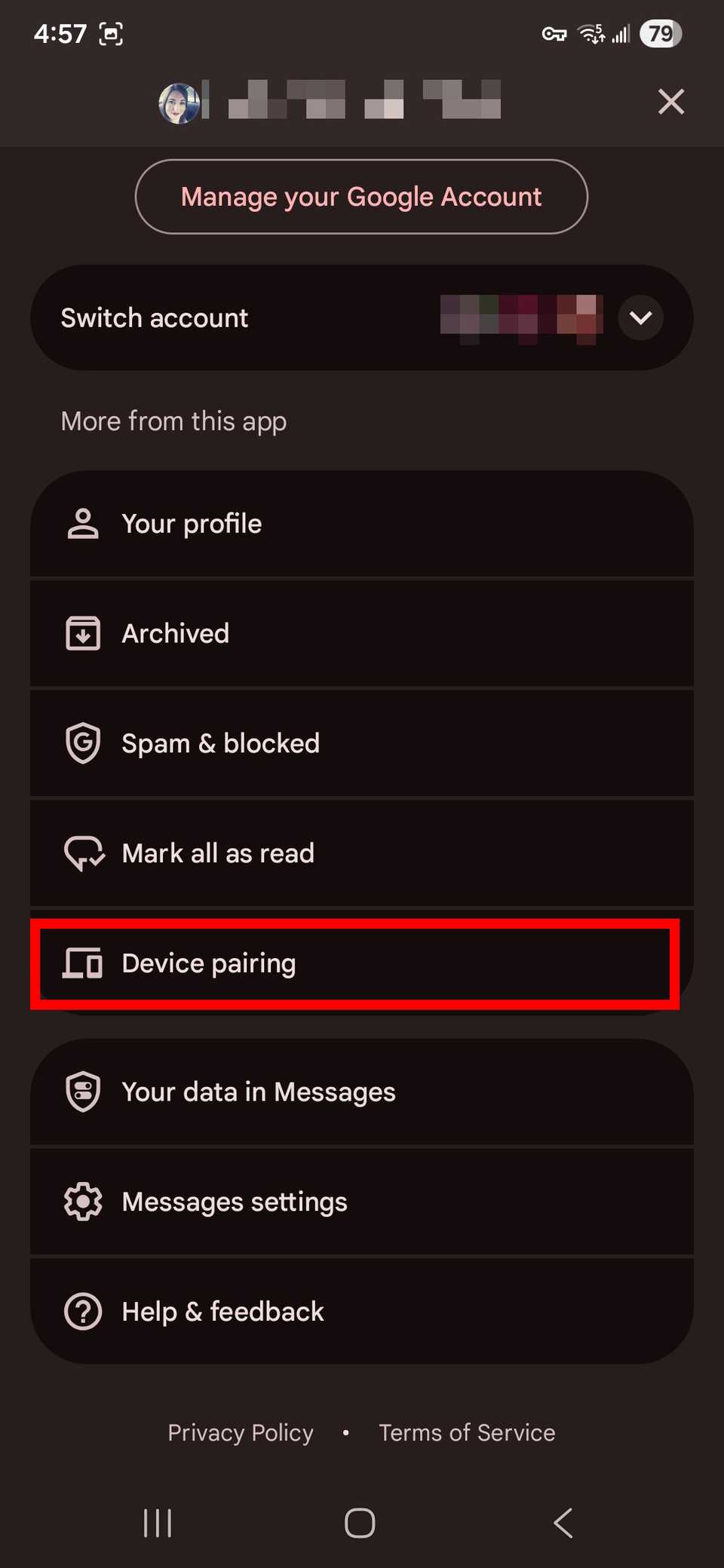
-
Tap Switch to QR Pairing > QR code scanner to open your phone’s camera.
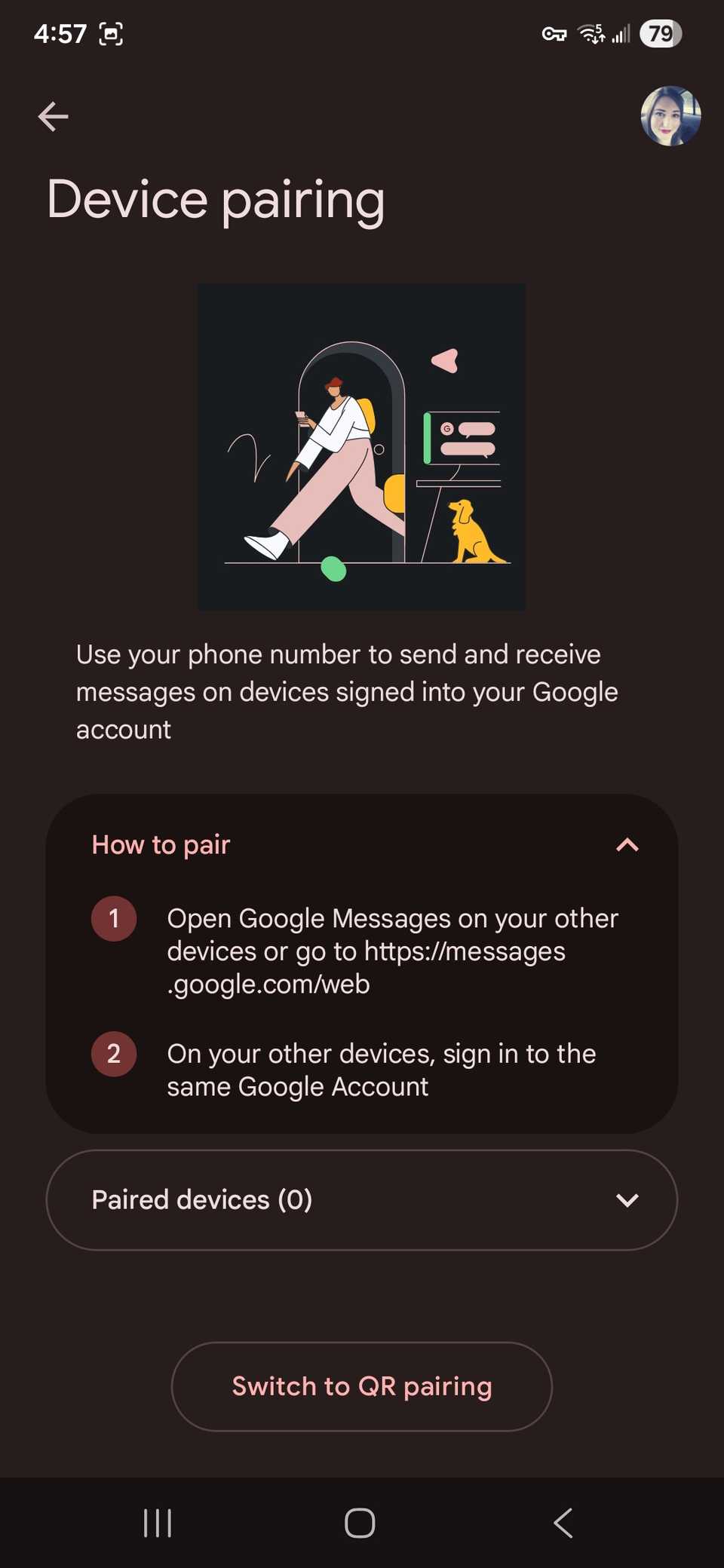
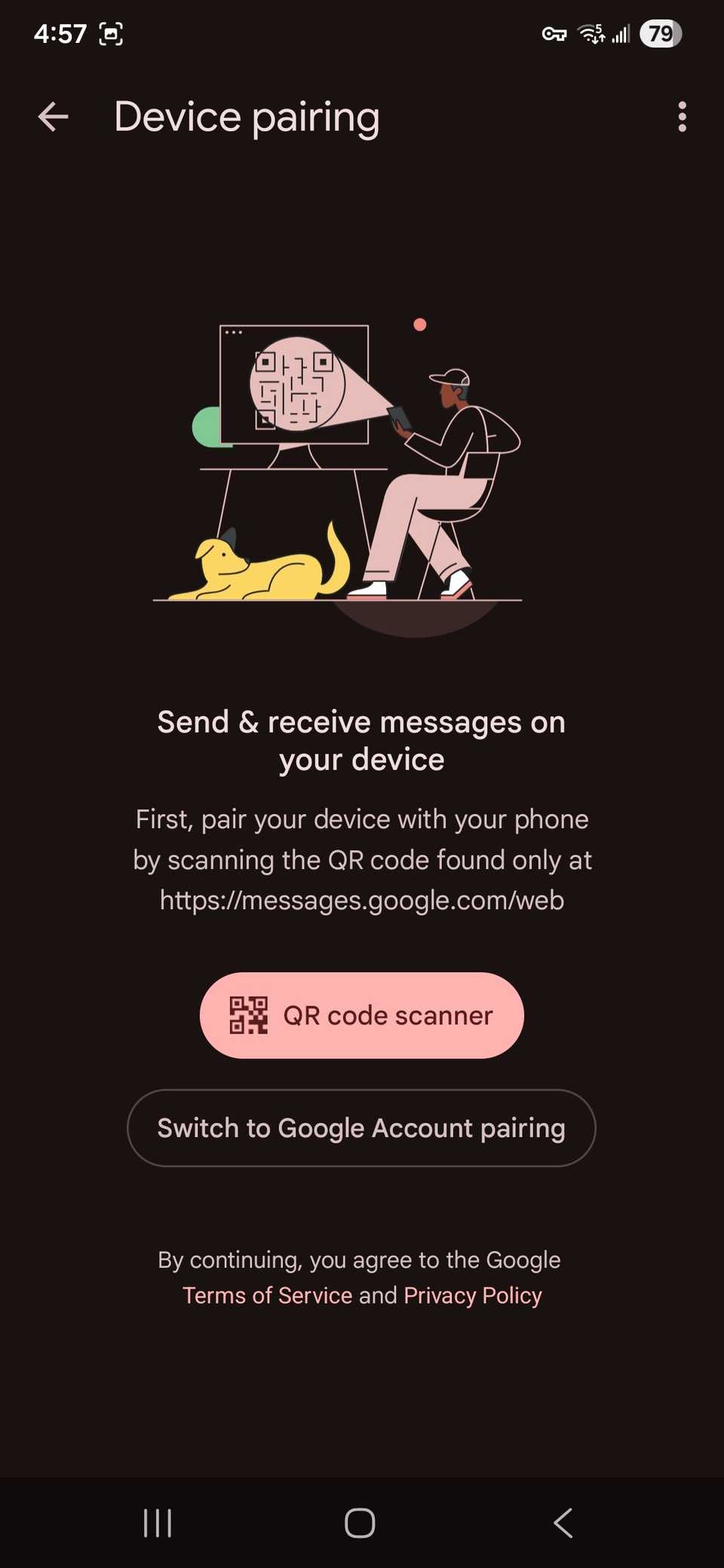
- Point your phone at your laptop or desktop PC screen and scan the QR code.
-
Your phone and computer reload.
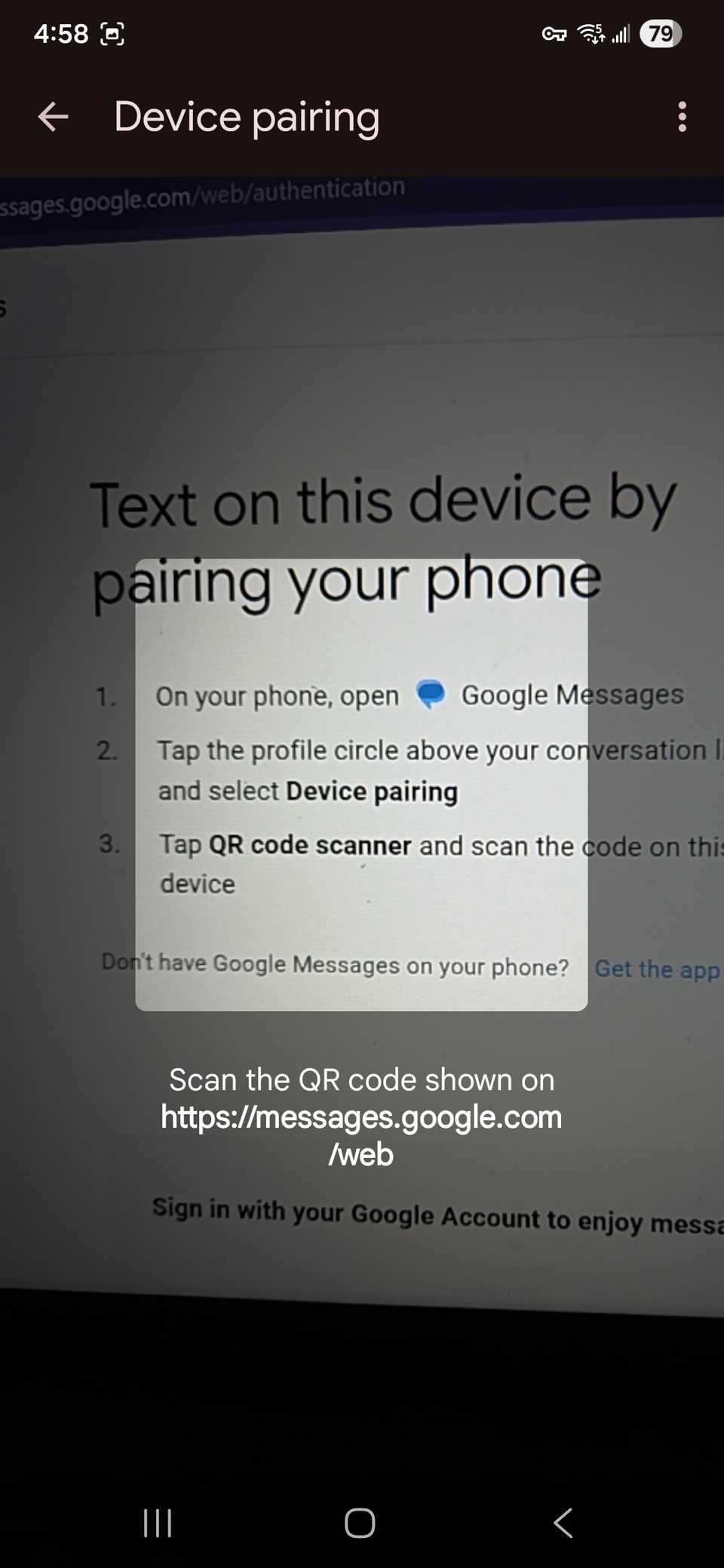
- Your web browser displays your inbox with a list of conversations on the left.


To keep Messages linked to your computer even after you close the window, click Yes on the pop-up message above your threads if you didn’t toggle it on previously.

The Messages web app works the same way as on your phone. The UI is similar.
You’ll see your phone contacts synced with the web client if you aren’t signed in to your Google account.
Google Messages features
Here are the noteworthy Google Messages features to try on your desktop.
-
Select Start Chat and compose a message with anyone on your contacts list. Google Messages supports all the relevant chat features, like emojis, stickers, GIFs, media attachments, and more.
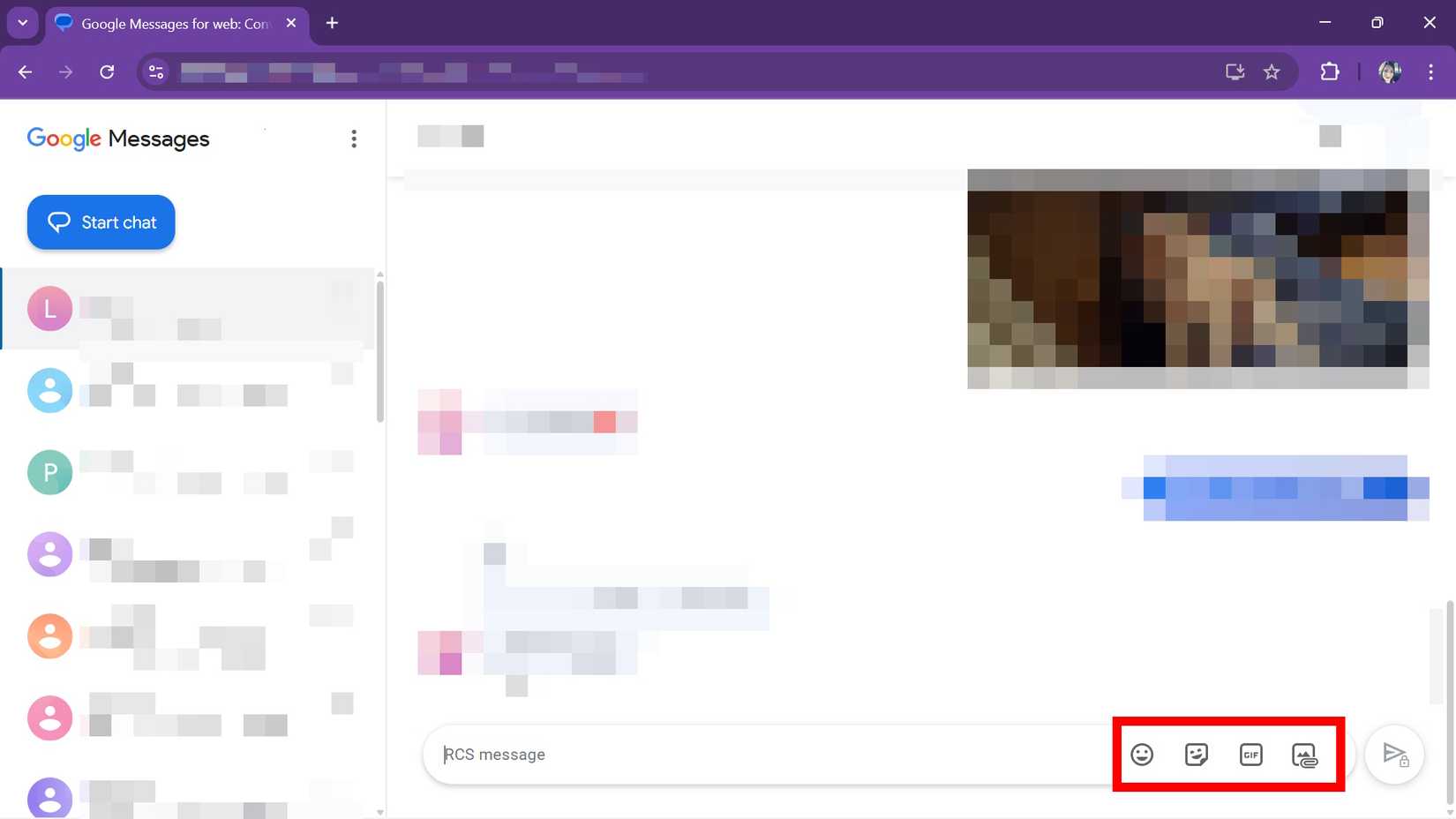
- Pin important conversations, archive and delete irrelevant ones, and mute chat threads from the desktop app.
- Choose the SMS option that appears in the Send button when the RCS option isn’t available.
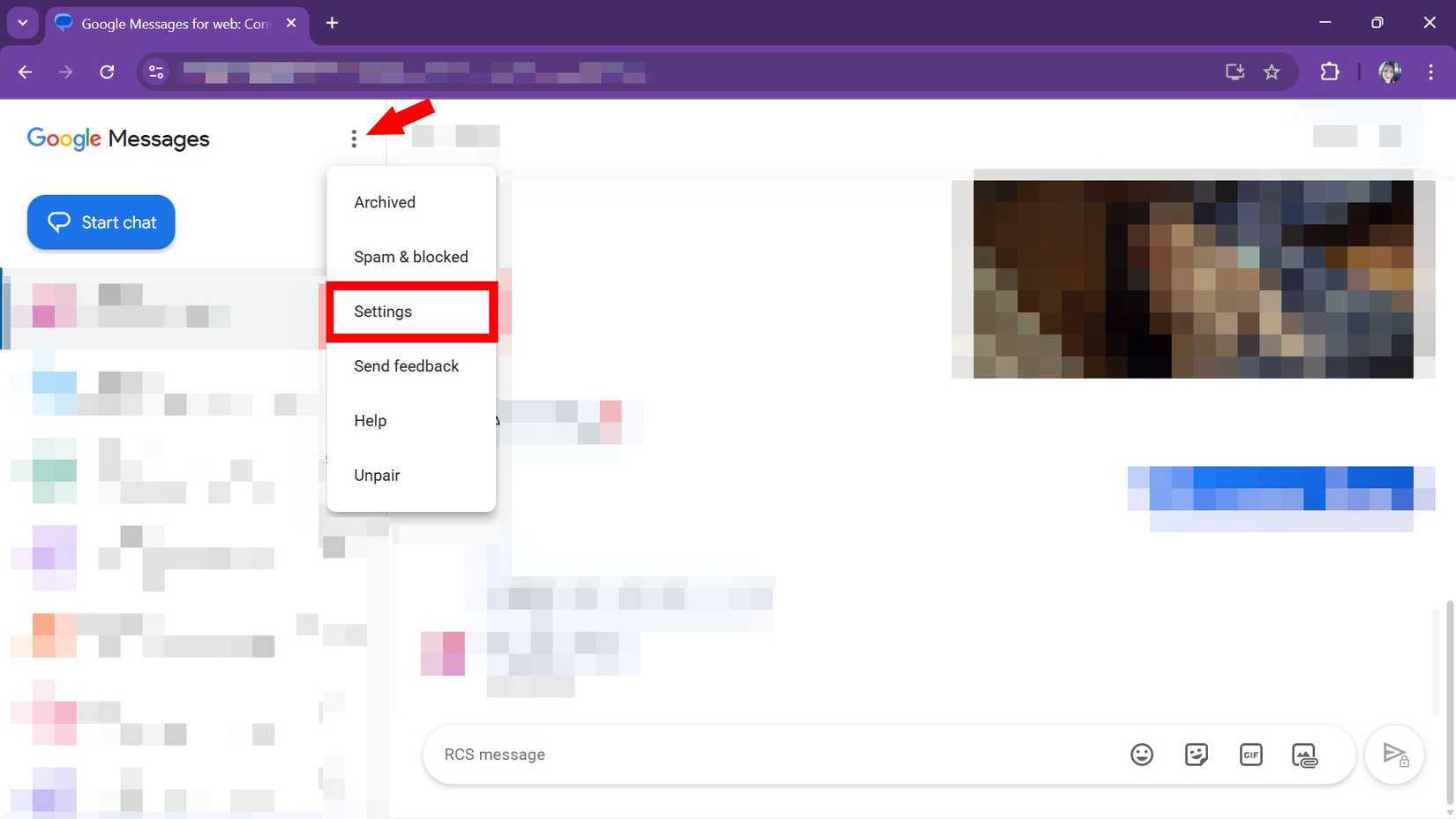
- Click the overflow menu (the three-dot icon) on a conversation and select Spam & Blocked if you frequently receive spam messages.

Google Messages for web is a robust offering with all the required features for smooth communication.
You won’t miss other instant messaging apps or your Android phone for managing Messages chats.
Google Messages also supports a dark theme. You can turn on dark mode and tweak other options from Settings. Here’s what you’ll do:
- Visit Google Messages on the web.
-
Click the overflow menu in the upper-left corner and open Settings.
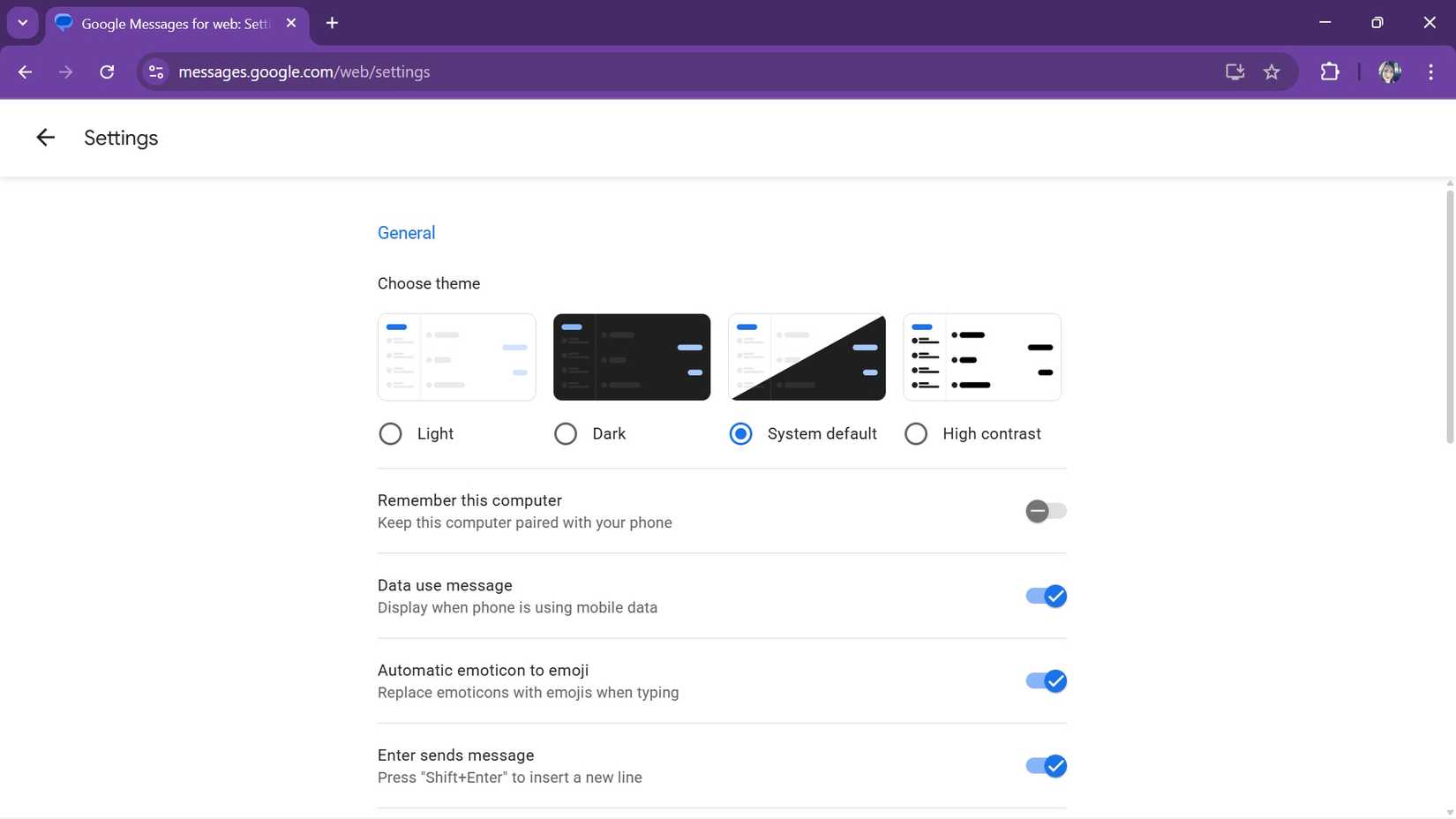
- Select Light, Dark, System Default, or High contrast.
-
Turn on notifications, message previews, and audio notifications, and make other changes from the same menu.


For Google Messages to work in your browser, your computer and smartphone need an active internet connection.
However, they don’t need to be on the same network, which means you can use Google Messages to text people even when you forget your phone at home.
How to create a Google Messages web app
Google Messages works in a web browser and doesn’t require installing an app on your computer. This also means it lives next to the other tabs that are open on your computer.
Even if there isn’t a built-in app, you can install it as a web app on your computer. We use Google Chrome as an example. Here’s how to do it:
- On your computer, use Google Chrome to open Google Messages for web.
- Tap the overflow menu (the three-dot icon) in the upper-right corner of Chrome.
- Expand Save and Share.
-
Select Install Messages.
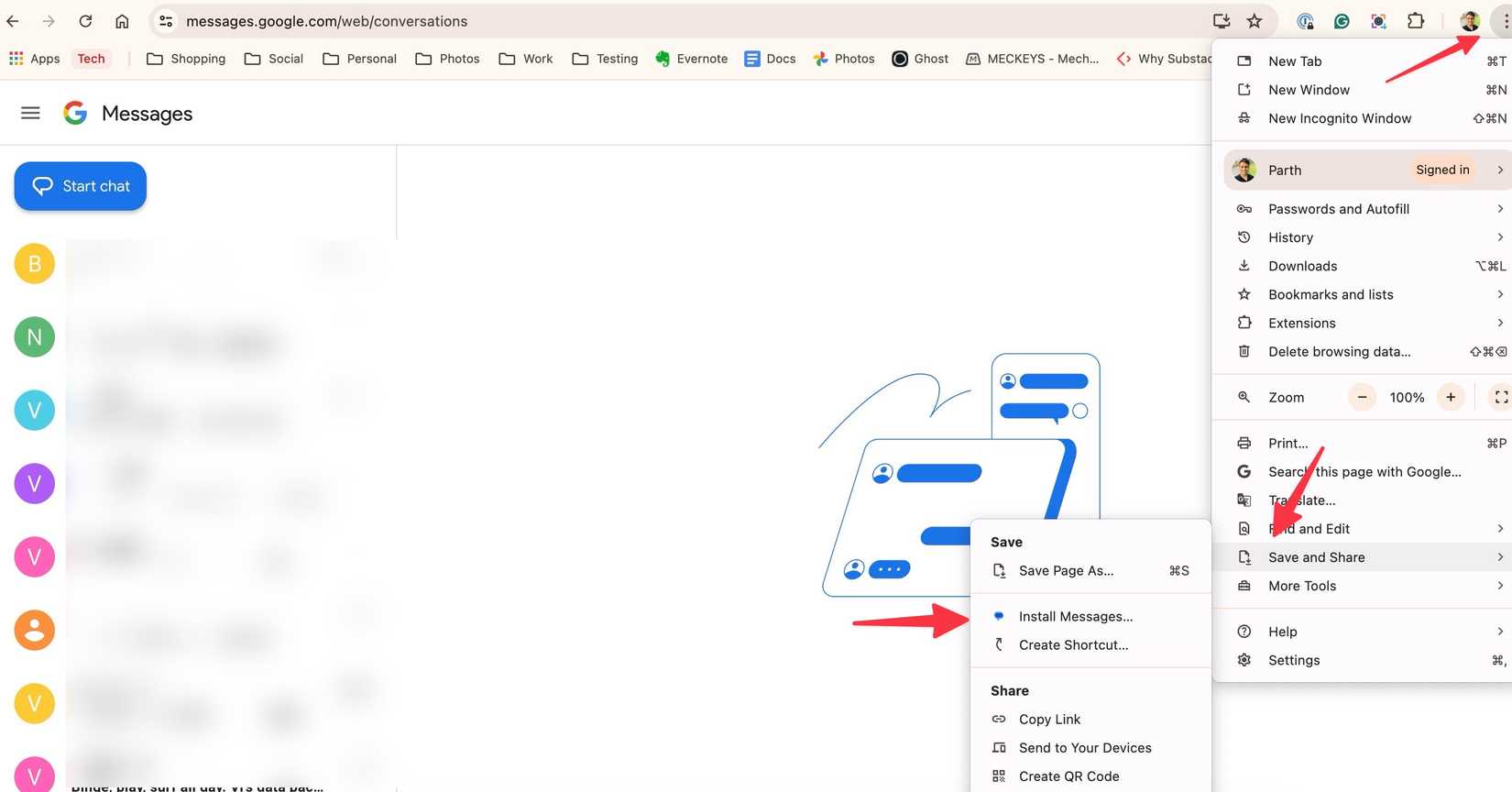
- Chrome shows a pop-up to install Messages on your desktop.
-
Select Install.
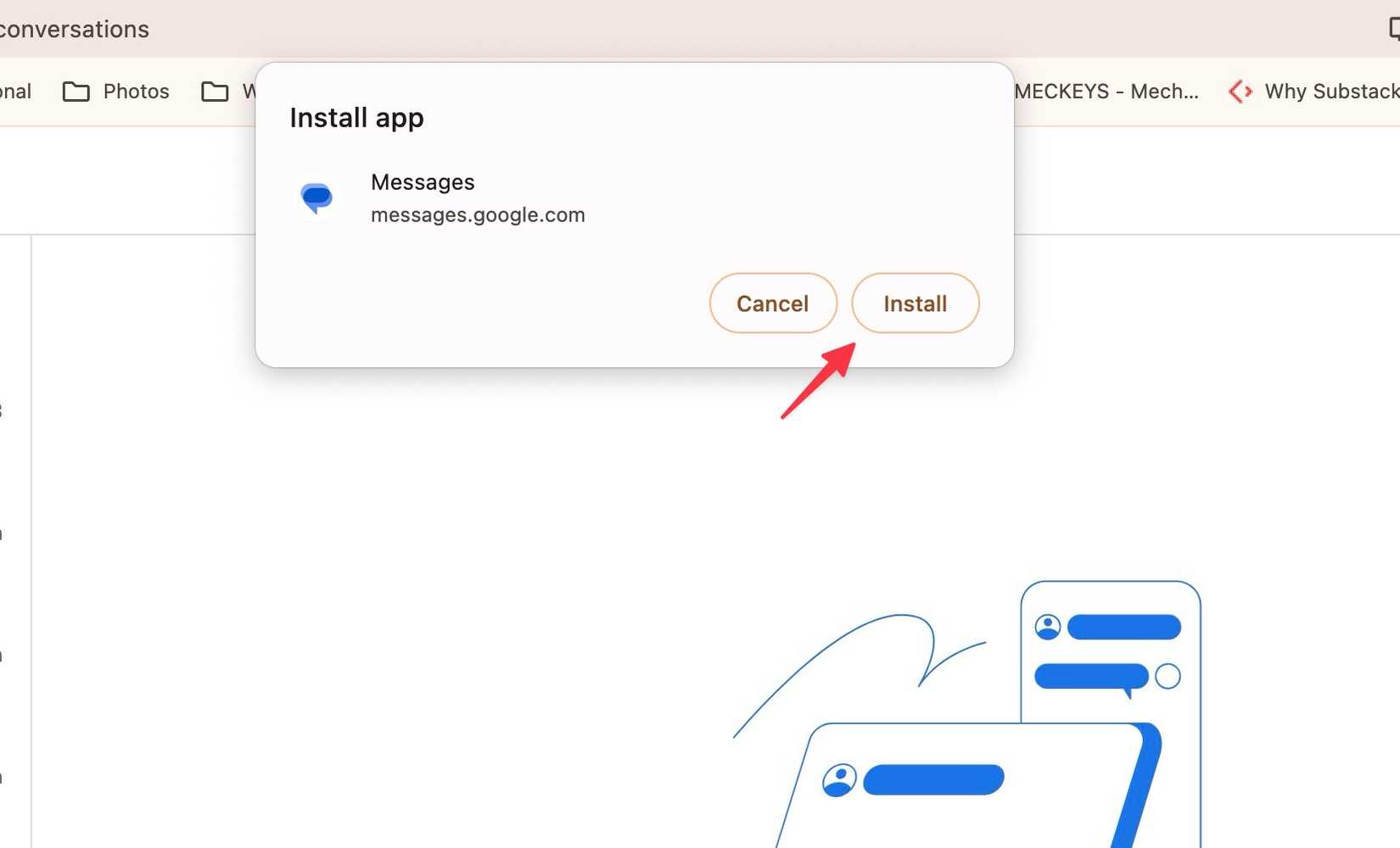


That’s it. You can now pin Messages to your Mac Dock or Windows Start menu and Taskbar. You are only a click away from accessing and composing messages on your PC.

Make the most out of Google Messages
Google Messages is a complete messaging app that lets you text relatives, detect spam, mark unread, and customize how you send and receive messages.
Though Google Messages offers many interesting features, it can still be overwhelming to use.
Managing Google Messages is easy. You don’t need to be a social butterfly to keep tabs on important texts to worry about missing them. You can pin conversations and categorize your notifications.
Now, thanks to the web app, Google Messages has many features you can now explore right on your computer.
