


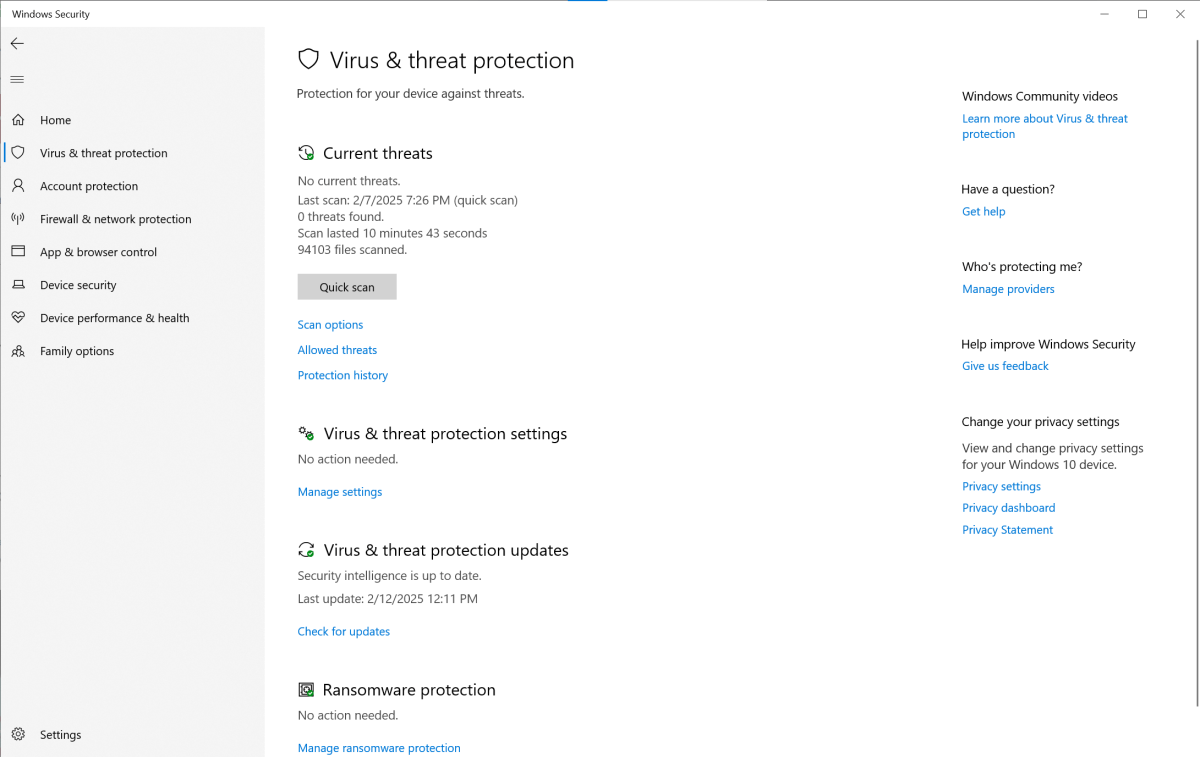
Antivirus programs are comprehensive packages that not only detect and block virus types, but often also include functions to protect against phishing and ransomware as well as other features such as a VPN or a password manager.
To do this, they require a lot of RAM, which other applications then lack.
The most time-consuming part is of course the monitoring of ongoing file actions. When starting and installing programs, the antivirus software monitors all executable files as well as the documents that are subsequently loaded. This ties up both memory and CPU resources.
On current PCs with modern multi-core processors and 32GB RAM, this hardly plays a role. With older models, however, it is often clearly noticeable that the virus protection slows down the computer.
In this article, you will find a number of tips that you can use to speed up your antivirus software or reduce its impact on the performance of your computer — especially Microsoft Defender.
Microsoft Defender has a special status
Last year, in a test of antivirus software, we specifically scrutinized its effects on the speed of file actions such as copying and compressing as well as actions on the internet.
The assumption at the time was that Microsoft Defender would hardly have any influence on these tasks, as it accesses files that are loaded by the operating system anyway.
But the opposite was the case. The Defender even proved to be particularly resource-hungry and ended up in penultimate place in the list of 15 test candidates.
We have therefore compiled several tips specifically for Defender in this article. On older, somewhat slower computers, we recommend switching to the resource-saving, free programmes from Avast or AVG or to the test winner Eset Internet Security, which has since been renamed Eset Home Security Essential.
Improve the hardware base: Upgrade to an SSD
An antivirus program, like any program and Windows itself, benefits from powerful hardware. The speed of virus scans can be significantly increased by moving your system drive from a hard drive to an SSD.
Models with a PCIe interface and NVMe protocol are preferable. However, SATA SSDs also have clear advantages over hard drives in terms of speed.
Further reading: Best SSDs: From SATA to PCIe 5.0, from budget to premium
Another recommended measure is to expand the RAM. a PC today should have at least 16GB of RAM. If you want to be on the safe side, increase to 32GB. In this way, the antivirus engine can be kept completely in the fast RAM and Windows does not have to reload any modules.
Quick scan instead of a full scan
The recommended scan method for everyday use is the quick scan. You should only run a full scan after reinstalling the antivirus software.
PCWorld
All antivirus software regularly scans the PC for malware; these scans run invisibly in the background. These are usually quick scans that only include folders that are the preferred targets of malware, such as the Windows folders required for system startup or the registry folders.
Removable storage devices such as USB drives are also scanned during a quick scan, as are the active processes, the RAM, and the files in the user profiles.
In addition, every antivirus program also offers a full scan. It scans all files in all folders on the hard drive. This process can take several hours. If new virus definitions are loaded during this time, the scan even has to start again from the beginning.
You normally have to start a full scan manually. However, you should only use this scan method if you have reinstalled an antivirus programme. Otherwise, a quick scan in conjunction with the real-time scan of the antivirus programmes offers sufficient protection against malware.
Microsoft Defender: Quick scan weekly
Just like other antivirus programs, Defender also performs regular quick scans (see the box “No daily quick scan with Defender”). You can also set the program to start a scan every week on a specific day and at a specified time.
This allows you to select a time for the quick scans when your PC is normally idle.
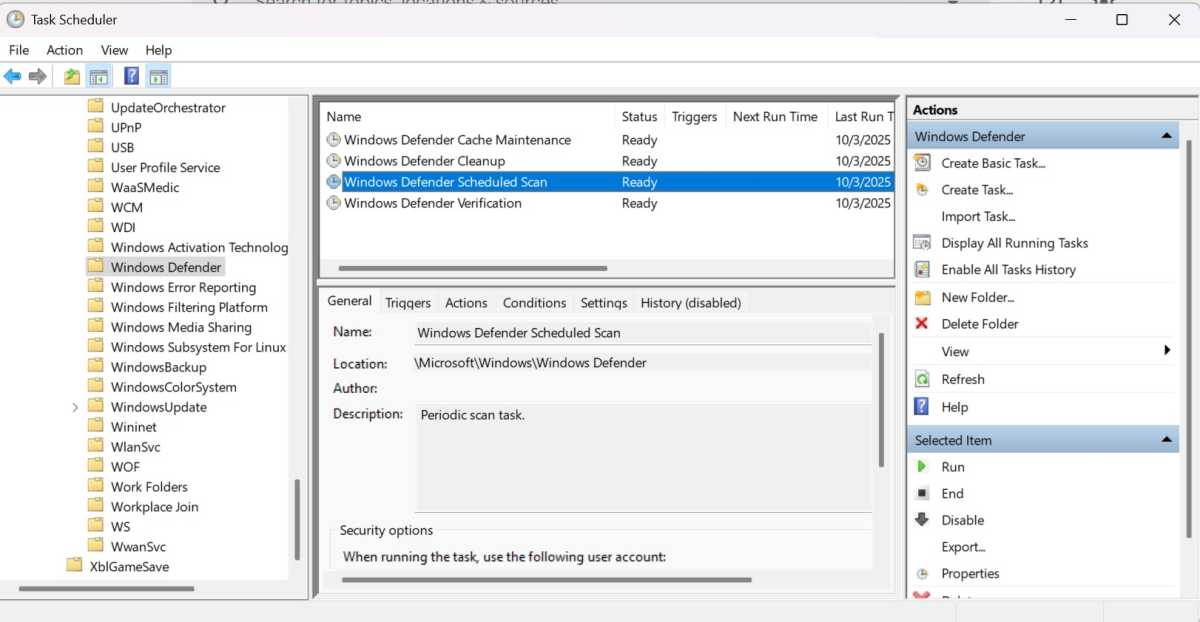
To specify the execution of the Defender’s quick scans, you need the task scheduler, where the Defender already has an entry that you need to adjust.
Foundry
To do this, proceed as follows:
Type tasks into the search window of the taskbar and click on the hit “Task Scheduler.”
Click on the small arrow in front of “Task Scheduler Library” and then on “Microsoft > Windows.” Scroll down the folder list and select “Windows Defender.” In the top window of the middle column of the task scheduler, move the tab under “Name” to the right so that the full names are visible and double-click on “Windows Defender Scheduled Scan.”
In the “Windows Defender Scheduled Scan Properties” window, open the “Triggers” tab and click on “New.” In the next window, select “Weekly,” set the desired day of the week and time to run the quick scan and close the window by clicking “OK.”
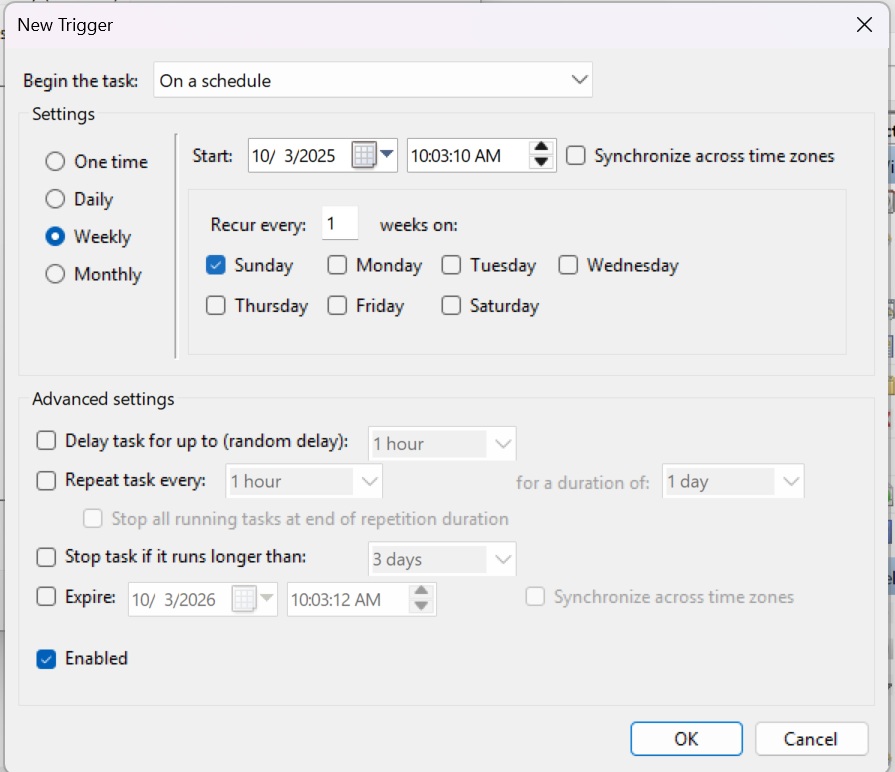
Use the “Trigger” tab to set the day and time for the Defender scans in the task scheduler.
Foundry
Switch to the “Actions” tab, click on “New” and first make sure that the “Start program” option is set next to “Action.” Click on “Browse” under “Program/Script” and select the file “C:\Program Files\Windows Defender\MpCmdRun.exe.” Enter -scan -scantype 1 in the “Add arguments” field.
This will ensure that the Defender performs a quick scan. Then close all task scheduling windows with “OK.” With other antivirus programs, you can normally set directly in the software that they should only perform a scan on a certain day of the week.
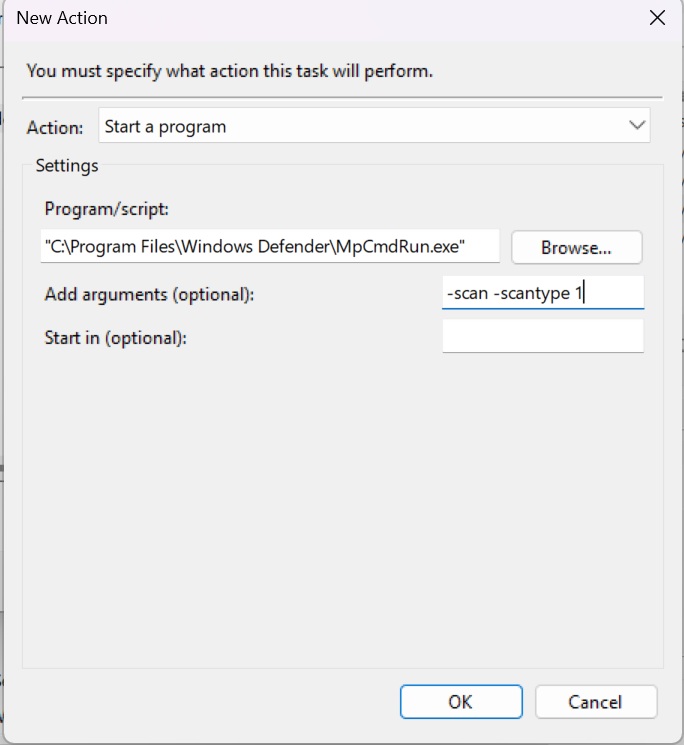
In the “Actions” tab, tell the task scheduler which program it should start with which parameters.
Foundry
No daily quick scan with Defender
By default, Defender does not perform daily virus scans for performance reasons, but only starts these scans when necessary, at the latest after one week.
However, a number of prerequisites must be met for this:
- The previous quick scan took place after the last Security Intelligence update was installed. These updates contain, among other things, updated virus definitions. Defender downloads them from the cloud at regular intervals.
- Real-time protection has not been deactivated since the last quick scan.
- The computer has been restarted.
Reduce the scan volume: Exclude file types
Another way to speed up an antivirus program is to reduce the number of files it scans. You can achieve this in two ways: Either you exclude certain file types from the scan or you clean up your computer thoroughly and delete large files in particular.
In most cases, malware attacks executable files such as EXE, COM, JAR, PIF, SCR, or BAT files, but also office documents with macros in DOC, DOCX, XLS, XLSX, PPT, PPTX, DOT and XLT formats, PDF files, archive files with the extensions ZIP, RAR, 7Z, TAR, ARJ, CAB, LHA, and LZH, script and control files (VBS, JS, CMD) as well as installation packages in the formats MSI (Windows), APK (Android), and DMG (Mac OS). There are also system files (SYS and OCX) and some other formats such as RTF, XML, and SWF.
These file types should therefore always be included in the antivirus program’s scans. Other files, such as the large collection of graphics and sound files, can be ignored without running any great risk. However, this may significantly shorten the scan times of the software.
Every antivirus package offers the option of excluding certain file types. Often some are already excluded.
In Defender, click on “Virus and threat protection,” go to “Manage settings” under “Virus and threat protection settings,” scroll down and click on “Add or remove exclusions.” Click on “Add exclusion,” select “File type,” enter the file extension, e.g. BMP, and click on “Add.”
You can also exclude individual files or entire folders from the scans. In Defender, this is done via the same menu that you use to define the file types for a scan.
Installing applications on Dev-Drive
Since version 11 23H2, Windows offers the option of setting up developer drives, or dev drives for short.
These drives are formatted with the ReFS file system, which offers high access speed, especially for large volumes of data.
The Defender also works on dev drives with an asynchronous virus scan. Instead of checking a file for viruses before it is opened, as in normal operation, the scan in this mode only takes place after the file has been loaded, which speeds up the start and execution of applications.
However, this speed advantage comes at the expense of security.

It is best to create a virtual hard drive for your dev drive. It consists of a single, large file that behaves like a separate partition.
Foundry
Dev drives must first be formatted. Please note that these drives must be at least 50GB in size. As the ReFS file system is not bootable, you cannot use a dev drive as a system drive.
To create a dev drive, open the “Settings” in the Start menu and click on “System > Storage > Advanced storage settings > Disks and volumes > Create dev drive.”
In most cases, the easiest way is to create a virtual hard disk (VHD), which then holds the dev drive.
Therefore, click on “Create new VHD.” In the following window, give the hard disk a name, specify a storage location (this can be a folder or subfolder) and define the size. A dev drive must contain at least 50GB. You can leave all other settings as they are. Then click on “Create.”
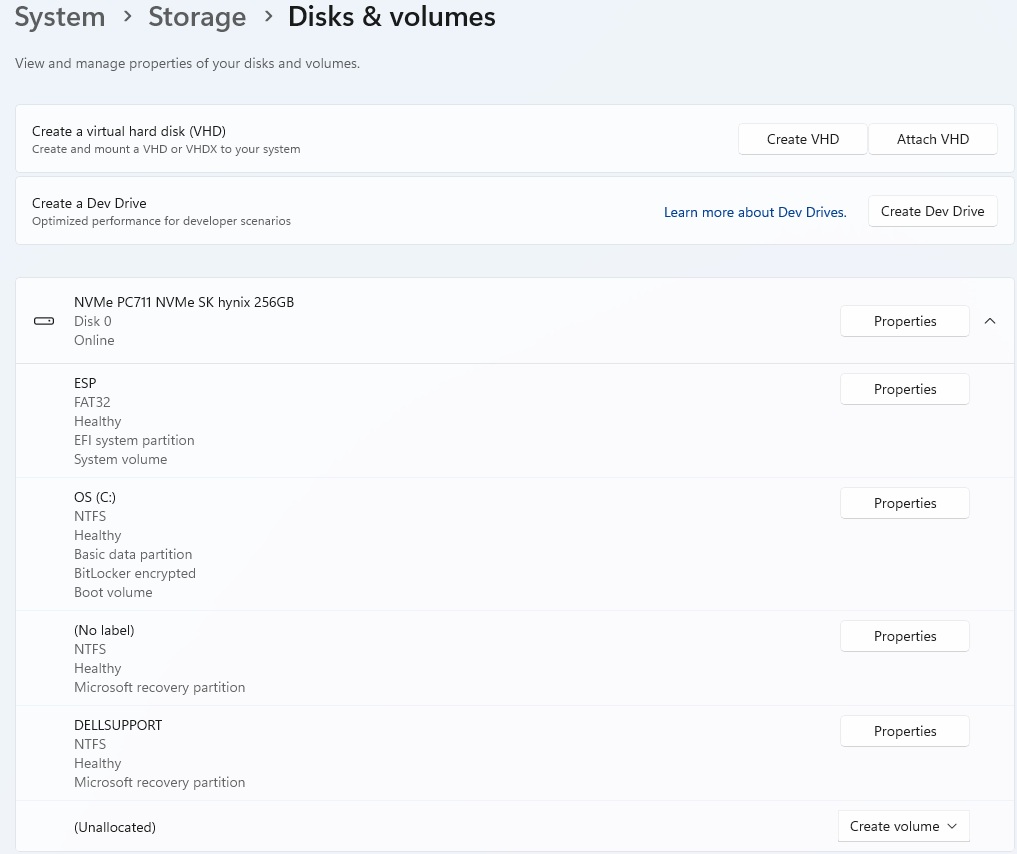
Windows offers the option of creating special partitions with higher performance but a lower security level. These dev drives can then accommodate any applications.
Foundry
Now check whether the dev drive protection is already active. Click on the “Windows Security” icon in the bottom right-hand corner of the taskbar, select “Virus and threat protection,” scroll to “Virus and threat protection settings,” and click on “Manage settings.”
In the following window, the switch for “Dev Drive Protection” should be set to “On.” After clicking on “Show volumes,” your newly created dev drive should appear in the overview. This drive will also appear in Explorer with its own drive letter.
Microsoft has designed the dev drives for software developers who can save and test their projects on them without Defender protection constantly interfering. However, you can also use these drives for other applications that require high performance.
