
Close Menu
TechUpdateAlert

    Subscribe to Updates

    Get the latest creative news from FooBar about art, design and business.

    What's Hot

    My Health Anxiety Means I Won’t Use Apple’s or Samsung’s Smartwatches. Here’s Why

    December 22, 2025

    You can now buy the OnePlus 15 in the US and score free earbuds if you hurry

    December 22, 2025

    Today’s NYT Connections: Sports Edition Hints, Answers for Dec. 22 #455

    December 22, 2025
    Facebook X (Twitter) Instagram
    Trending
    • My Health Anxiety Means I Won’t Use Apple’s or Samsung’s Smartwatches. Here’s Why
    • You can now buy the OnePlus 15 in the US and score free earbuds if you hurry
    • Today’s NYT Connections: Sports Edition Hints, Answers for Dec. 22 #455
    • Android might finally stop making you tap twice for Wi-Fi
    • Today’s NYT Mini Crossword Answers for Dec. 22
    • Waymo’s robotaxis didn’t know what to do when a city’s traffic lights failed
    • Today’s NYT Wordle Hints, Answer and Help for Dec. 22 #1647
    • You Asked: OLED Sunlight, VHS on 4K TVs, and HDMI Control Issues
    Facebook X (Twitter) Instagram Pinterest Vimeo
    TechUpdateAlertTechUpdateAlert
    • Home
    • Gaming
    • Laptops
    • Mobile
    • Software
    • Reviews
    • AI & Tech
    • Gadgets
    • How-To
    TechUpdateAlert
    Home»Laptops»Don’t Tell Anyone, but Here’s How to Lock and Hide Apps on Your iPhone
    Laptops

    Don’t Tell Anyone, but Here’s How to Lock and Hide Apps on Your iPhone

    techupdateadminBy techupdateadminOctober 16, 2025No Comments4 Mins Read
    Share Facebook Twitter Pinterest LinkedIn Tumblr Reddit Telegram Email
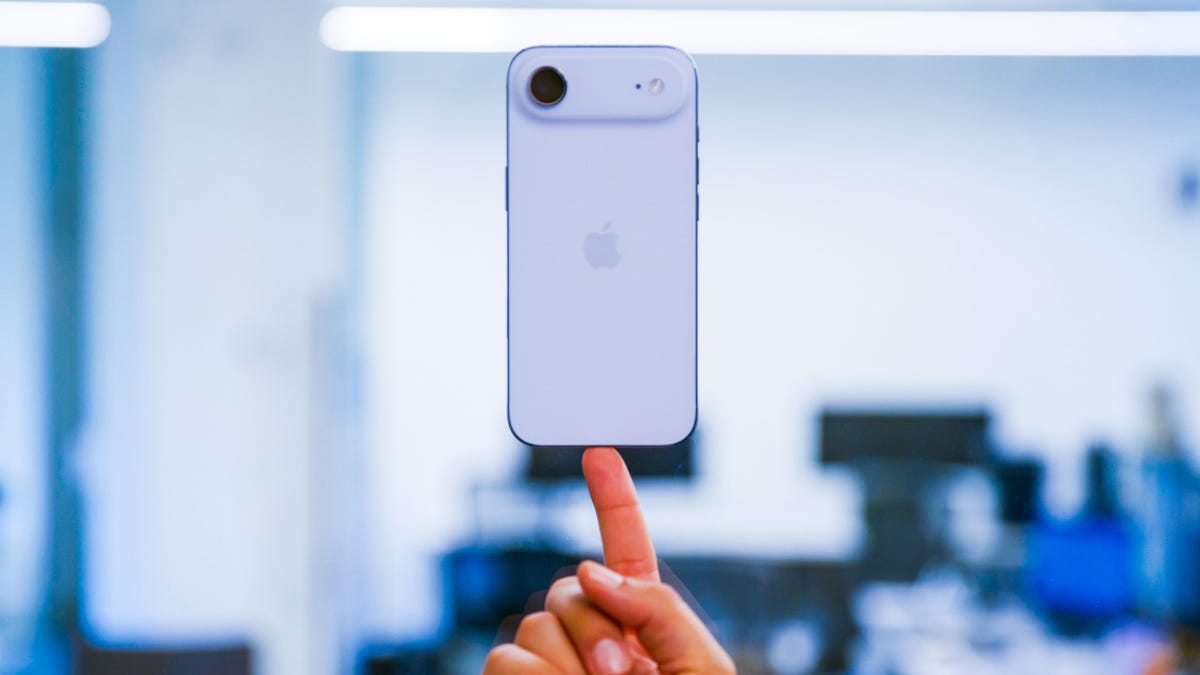
    iPhone Air
    Share
    Facebook Twitter LinkedIn Pinterest Email

    Sometimes my nephew wants to watch monster truck videos on my iPhone so I’ll pull up a video on YouTube and hand him my phone. But if I get distracted by something else, he’s suddenly looking through my Amazon app and about to buy a monster truck toy — or five. Luckily, Apple lets you lock and hide apps so I can keep my nephew out of my shopping apps so I don’t suddenly have a $500 charge for various monster truck memorabilia.

    Tech Tips

    When Apple released iOS 18 in 2024, the tech giant introduced a feature to lock certain apps on your iPhone. That way you can keep kids and others out of your apps. You can also hide certain apps in their own hidden folder so others are not tempted to open them and invade your privacy. So now I can hand my nephew my iPhone and not worry that he might get into something he shouldn’t be in.

    Here’s how to lock and hide your iPhone apps for an extra layer of security. 


    Don’t miss any of our unbiased tech content and lab-based reviews. Add CNET as a preferred Google source.


    How to lock your iPhone apps

    1. Long press an app.
    2. Tap Require Face ID.
    3. Tap Require Face ID again.

    A menu asking to require Face ID for the Amazon app.

    Apple/Screenshot by CNET

    Now every time you try to access this app, it will need your Face ID or passcode to open. You can’t lock every app on your iPhone. Some apps, like Camera, Find My and Settings can’t be locked. But you can lock most apps, such as App Store, Messages and third-party apps.

    How to hide your iPhone apps

    Hiding apps on your iPhone also locks them. It follows the same process as locking apps. Keep in mind this option isn’t available for all apps. In my experience, you can only hide third-party apps, such as Instagram and Twitter.

    Here’s how you can hide these apps on your iPhone.

    1. Long press an app.
    2. Tap Require Face ID.
    3. Tap Hide and Require Face ID.

    Your iPhone will then ask for your Face ID or passcode, then it will ask if you’re sure you want to hide the app. A new menu will appear on your phone that says hiding an app will remove its icon and name from your home screen and place it in a Hidden folder in your App Library. The menu will also say you won’t receive any notifications from the app.

    A menu about what will happen if you hide an app such as Bluesky.

    Apple/Screenshot by CNET

    Tap Hide App at the bottom of the menu and your iPhone will hide the app. To see your hidden apps, swipe right until you’re in your App Library. Scroll to the bottom of the page where you’ll see a folder labeled Hidden with a symbol that looks like an eye with a line across it. Tap this folder and enter your Face ID or passcode. The folder will then display your hidden apps.

    The iPhone App Library with the Hidden folder outlined in red.

    Apple/Screenshot by CNET

    It’s important to note that if you do hide apps in the Hidden folder, you can still see those apps in other places on your iPhone, like in the Battery Usage menu in Settings.

    How to unhide and remove locks

    If you want to unhide or remove a lock from an app, long press on the app, tap Don’t Require Face ID and enter your Face ID or passcode. Your locked apps will now be unlocked and your hidden apps will be removed from the Hidden folder.

    Unhiding apps doesn’t automatically put them back on your home screen. To add an app back to your home screen, go to your App Library, long press on the app and tap Add to Home Screen. 

    For more iOS news, here’s my review of iOS 26, as well as how to reduce the Liquid Glass effects and how to block spam calls in the update. You can also check out our iOS 26 cheat sheet.

    Watch this: iPhone 17 Preorders Spike, Satellites Expose Unencrypted Data, Nvidia’s AI Personal Supercomputer | Tech Today

    03:03

    apps Dont Heres Hide iPhone lock
    Share. Facebook Twitter Pinterest LinkedIn Tumblr Email
    Previous ArticleRedmi K90 series to debut this month with a Pro Max variant
    Next Article Your Weeknight Dinner Routine Is Boring. This Air Fryer Chicken Recipe Is Here to Save It.
    techupdateadmin
    • Website

    Related Posts

    Gadgets

    My Health Anxiety Means I Won’t Use Apple’s or Samsung’s Smartwatches. Here’s Why

    December 22, 2025
    Gadgets

    The best movies, gadgets, apps, books, and podcasts of 2025

    December 21, 2025
    Gadgets

    Samsung Galaxy owners get even more customization options, leaving iPhone and Pixel in the dust

    December 21, 2025
    Add A Comment
    Leave A Reply Cancel Reply

    Top Posts

    NYT Strands hints and answers for Monday, August 11 (game #526)

    August 11, 202545 Views

    These 2 Cities Are Pushing Back on Data Centers. Here’s What They’re Worried About

    September 13, 202542 Views

    Today’s NYT Connections: Sports Edition Hints, Answers for Sept. 4 #346

    September 4, 202540 Views
    Stay In Touch
    • Facebook
    • YouTube
    • TikTok
    • WhatsApp
    • Twitter
    • Instagram
    Latest Reviews

    Subscribe to Updates

    Get the latest tech news from FooBar about tech, design and biz.

    Most Popular

    Best Fitbit fitness trackers and watches in 2025

    July 9, 20250 Views

    There are still 200+ Prime Day 2025 deals you can get

    July 9, 20250 Views

    The best earbuds we’ve tested for 2025

    July 9, 20250 Views
    Our Picks

    My Health Anxiety Means I Won’t Use Apple’s or Samsung’s Smartwatches. Here’s Why

    December 22, 2025

    You can now buy the OnePlus 15 in the US and score free earbuds if you hurry

    December 22, 2025

    Today’s NYT Connections: Sports Edition Hints, Answers for Dec. 22 #455

    December 22, 2025

    Subscribe to Updates

    Get the latest creative news from FooBar about art, design and business.

    Facebook X (Twitter) Instagram Pinterest
    • About Us
    • Contact us
    • Privacy Policy
    • Disclaimer
    • Terms and Conditions
    © 2026 techupdatealert. Designed by Pro.

    Type above and press Enter to search. Press Esc to cancel.