


As we quickly approach the first half of October 2025, we can now look at the most significant features and improvements that Microsoft has been working on for Windows 11 in the channels of the Windows Insider Program.
In the first two weeks, the software giant has made available several previews, including some from version 24H2 and 25H2, as well as others not tied to specific development versions.
In the case of the Canary Channel, Insiders received build 27965 and 27959. Also, the Dev and Beta Channels received two identical previews, including builds 26220.6772 and 26120.6772, as well as builds 26220.6780 and 26120.6780.
Here, I’ll highlight the new changes and features that were released during the first half of October 2025. You can also check out the improvements released in September 2025 on this page.
This guide highlights the changes that Microsoft officially announced for the operating system. If you have a device enrolled in any of the channels of the Windows Insider Program, note that typically the company rolls out new features gradually, and it could take several flights before you can see them in your setup.
Biggest improvements from the Windows Insider Program in October 2025
These are the most significant changes the development team has unveiled over the last two weeks.
1. Settings app AI agent improvements
Starting with builds 26220.6780 and 26100.6780, Windows 11 received an updated version of the Settings app that improves the AI agent integration.
In this release, on the “Home” page, the company is updating the “Recommended settings” card to show AI agent actions for recently changed settings.

Inside the search box, this update will now show more results, depending on the query. Also, if the setting you’re trying to change can no longer be modified any further, the agent will provide information and an option (if applicable).
2. Drag Tray new support
In the past, the feature allowed dragging a file to the Top of the screen, which would bring up the “Drag Tray” interface for sharing the file with a supported app. Starting with this release, the feature supports dragging and dropping multiple files.

2. Administrator Protection in the Windows Security app
Although the Administrator Protection isn’t a new feature through the Windows Insider Program, it’s worth pointing out that the feature is yet again available through the Windows Security app.

3. Run command with dark mode support
Microsoft appears to be resuming the work to fix the dark system mode across the desktop experience. Starting with the release of the update KB5067103, the company is updating the “Run” dialog box (also referred to as the Run command) to follow the dark system mode.

However, the software giant notes that this change is rolling out really slowly, and it can take a few releases before it’s available to every Insider.
4. Click to Do improvements
As part of the release of builds 26220.6772 and 26100.6772, Windows 11 for Copilot+ PCs has received an updated version of Click to Do with a couple of improvements.
For example, now, there’s object selection that precisely selects objects within images to speed the selection process when using the mouse. Once you select the object, the context menu will help you to easily copy and paste or perform different actions.

Also, if you hover over or select a number and unit within a snapshot, a context menu will appear showing different conversions.

Currently, conversion works for length, area, volume, weight, temperature, and speed.
5. Windows Hello with external fingerprint support
Microsoft has also noted that its Windows Hello Enhanced Sign-in Security (ESS) feature now supports external fingerprint sensors on Windows 11.
In the past, this advanced security feature was limited to built-in biometric sensors, but now, it’s expanding to other sensors.
As a result of this change, on the “Sign-in options” page, you’ll now find a new “Enhanced sign-in security” option to set up external fingerprint sensors with this technology.

The above screenshot shows the default option for all devices. If your computer supports this feature, the option will read, “Set up.”
It’s worth noting that the operating system has long supported fingerprint sensors, but the ability to enable this feature with “Enhanced Sign-in Security” is a new addition that offers enhanced security.
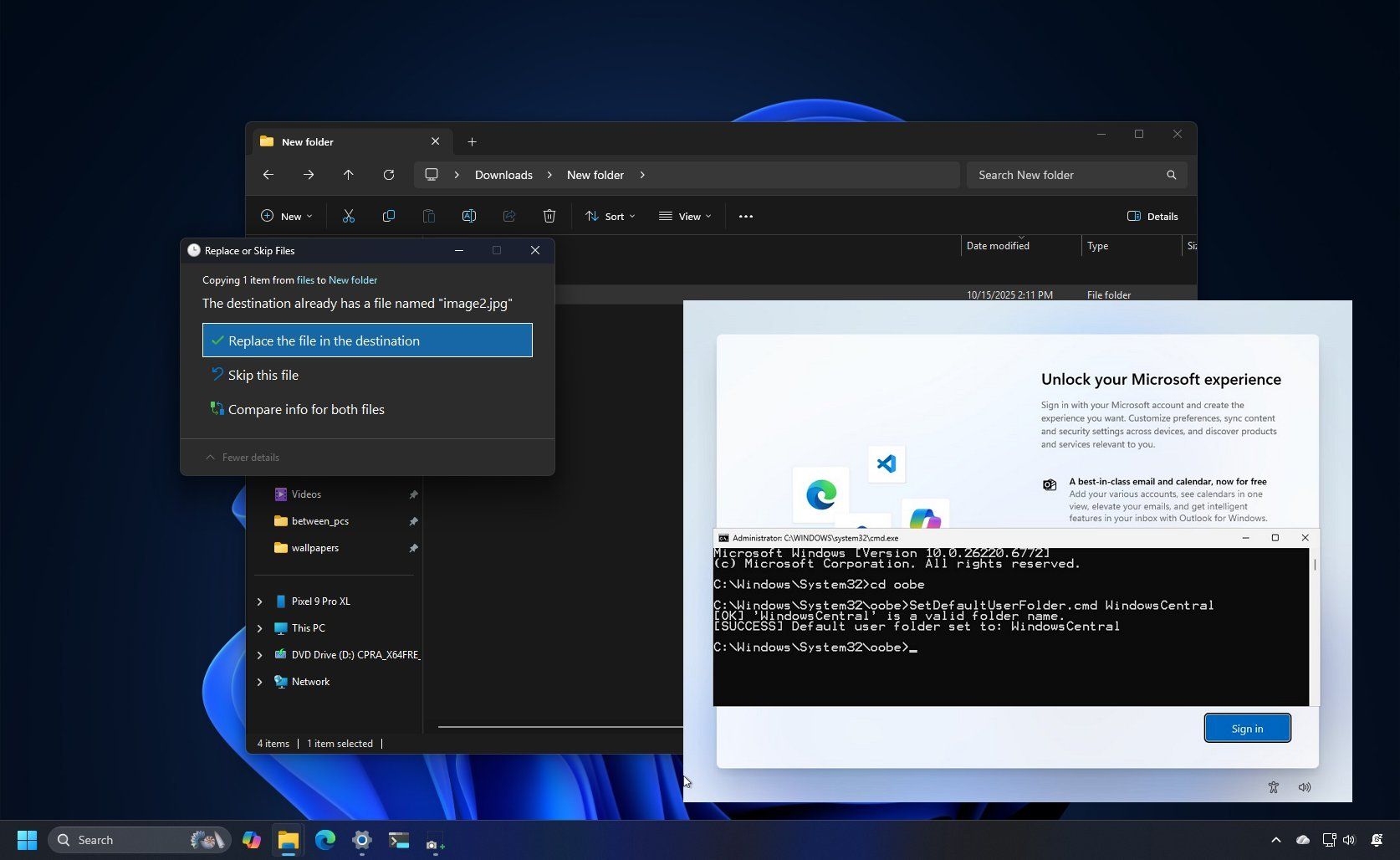
6. Configure the user folder name from OOBE
Microsoft has also updated the Out-of-box Experience (OOBE) with the ability for advanced users to set the user folder name during the initial setup.
Starting with builds 26220.6772 and 26100.6772, while in the Out-of-box Experience, on the “Sign in” page, you can now open Command Prompt using the “Shift + F10” keyboard shortcut, and then from the oobe directory, run the SetDefaultUserFolder.cmd NewFolderName command to set the user folder name.

Once you have completed the steps, you can continue with the account creation, and the system will then use the name you specified to configure your account folder.
When using this command, replace “NewFolderName” with a name using up to 16 characters.
Related to the Out-of-box Experience, starting with the latest previews available in the Dev and Beta Channels, Microsoft is disabling known workarounds to bypass the Microsoft account requirement to set up a local account during the initial setup.
The company doesn’t mention the methods that are now blocked, but some of them include the OOBE\BYPASSNRO and start ms-cxh:localonly commands.
According to the announcement, the reason is that these workarounds “inadvertently skip critical setup screens, potentially causing users to exit OOBE with a device that is not fully configured for use.” As a result, Microsoft is now forcing users to complete the Out-of-the-Box Experience with an internet connection and a Microsoft account.
7. File Explorer with dark mode improvements
The latest preview of Windows 11 in the Dev and Beta Channels is also shipping with an updated version of File Explorer that, like the Run command, now includes various improvements for the dark mode experience.
Starting with builds 26220.6772 and 26100.6772, the dark mode experience is expanding to the copy, move, and delete dialogs.

Furthermore, the dark mode is also expanding to progress bars and chart views, dialogs to confirm states (such as skip, override, and file selection), and multiple confirmation and error dialogs.
In the Canary Channel, starting with the release of Windows 11 build 27965, Microsoft began integrating the new Start menu design.

The new menu combines the “All” menu with the “Pinned” and “Recommended” sections into a larger and scrollable interface.
As part of the changes, the menu is bigger and will auto-resize, depending on the screen size.
Also, the “All” section now displays apps grouped by category, with the option to switch views.
In addition, and perhaps more importantly, you can now remove the “Recommended” section by adjusting certain settings on the “Start” settings page.

Finally, as a result of this new layout, the “Start” page no longer includes the layouts setting, and it introduces a new option to show all the pins app by default.
Also, as part of build 27965, Windows 11 ships with the recently announced “Edit” tool, which is a text editor that you can use with the mouse in Command Prompt.

It’s a simple app to make it easier to edit or create a text file without switching applications, such as Notepad.
10. Hardware indicator new setting
Microsoft has also released Windows 11 build 27959 in the Canary Channel, introducing a new “Position of on-screen indicators” setting. This setting allows you to adjust the position of hardware indicators, such as volume and brightness, on the screen.

The options available include Bottom center, Top center, and Top left.
11. Windows 11 new shortcuts
In the Canary Channel, the company is also updating the keyboard shortcuts to enter an En dash (–) or an Em dash (—) more easily using the “Windows key + Minus” to insert an En dash, and “Windows key + Shift + Minus” to insert an Em dash.
12. Windows Share with pin option
Finally, Windows 11 build 27959 has updated the Windows Share interface to include an option that allows you to pin your favorite apps under the “Share using” section, making them easier to access.
Wrapping it up
With a dozen new features landing in the first half of October, Windows 11 Insiders have plenty to explore — from subtle quality‑of‑life tweaks to bigger changes that hint at where Microsoft is steering the OS next.
As always, not every experiment will make it to general release, but these previews give us a clear look at the priorities shaping Windows 11’s future. If you’re testing the builds, keep an eye out for feedback opportunities — your input could help decide which of these features stick around when the update rolls out to everyone.

More resources
Explore more in-depth how-to guides, troubleshooting advice, and essential tips to get the most out of Windows 11 and 10. Start browsing here:

Follow Windows Central on Google News to keep our latest news, insights, and features at the top of your feeds!
