


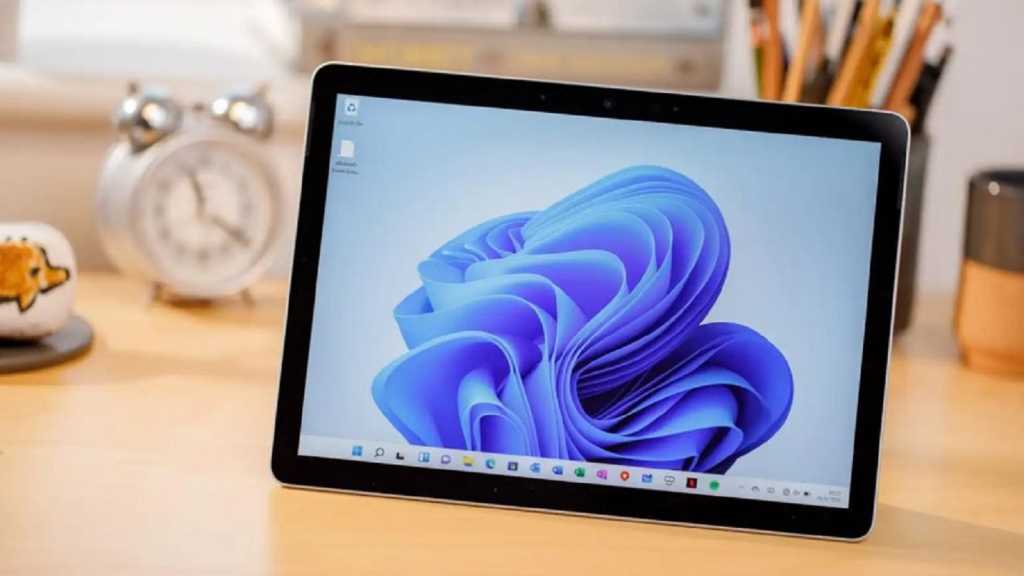
No operating system is without its merits, and that includes Windows 11, even as much as I complain about Microsoft’s latest operating system. Its handful of useful features continues to grow as time goes on, with more and more being rolled out every year.
But with helpful utilities and settings trickling out slowly, it’s easy to miss a few here and there, especially when the flashier features hog the news headlines. We’ve pulled out 10 features that we don’t think get enough love—if you’ve heard of them and haven’t tried them yet, now’s the time.
Further reading: The Windows 11 survival guide for Windows 10 refugees
Notepad tabs
PCWorld
Notepad actually predates Windows, but it’s still fully relevant (and useful!) today. The streamlined app lets you open a window to make quick notes. And in Windows 11, you can now manage and navigate between open files in a single window, thanks to the addition of tabs. It’s far tidier than opening a new instance of Notepad for each file—and combined with the new dark mode, it makes the app look and feel modern.
PCWorld
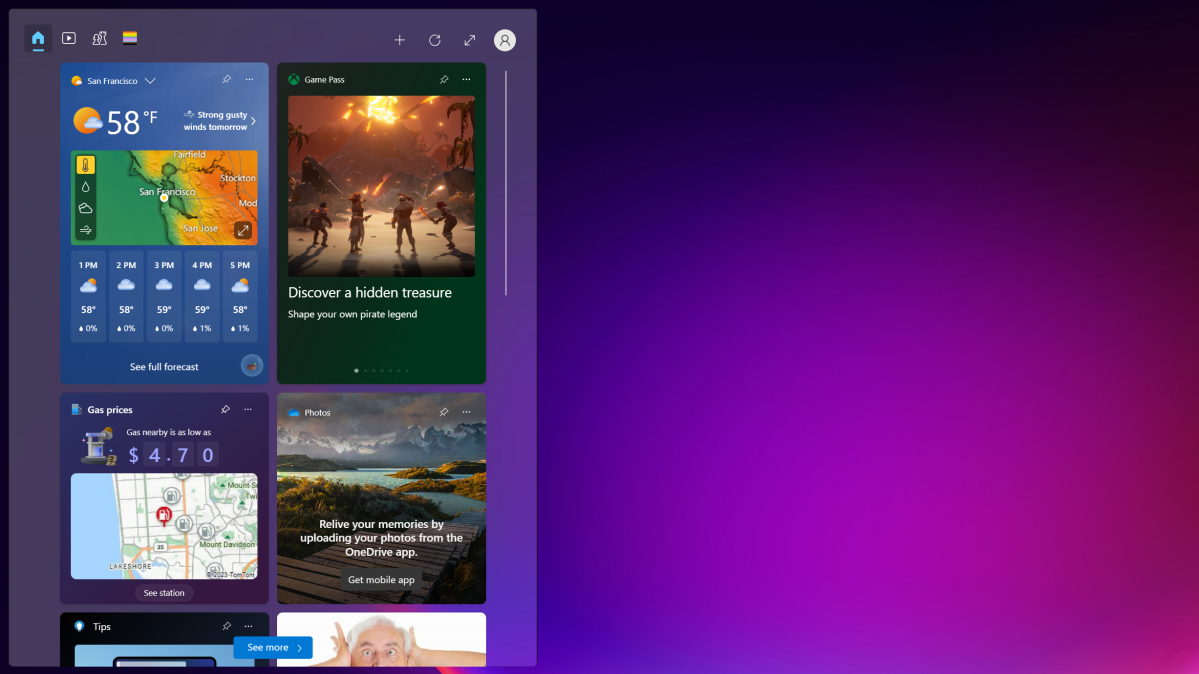
Windows 11 makes a wealth of info available with just one mouse click (or quick tap of Win + W). Right now you can get weather, stock prices, sports updates, and entertainment news, and those cards are slowly being joined by new additions, like for Xbox Game Pass. It’s a much easier way to stay up to date than fully shifting to a browser and poking around in your tabs.
Screen recording
PCWorld
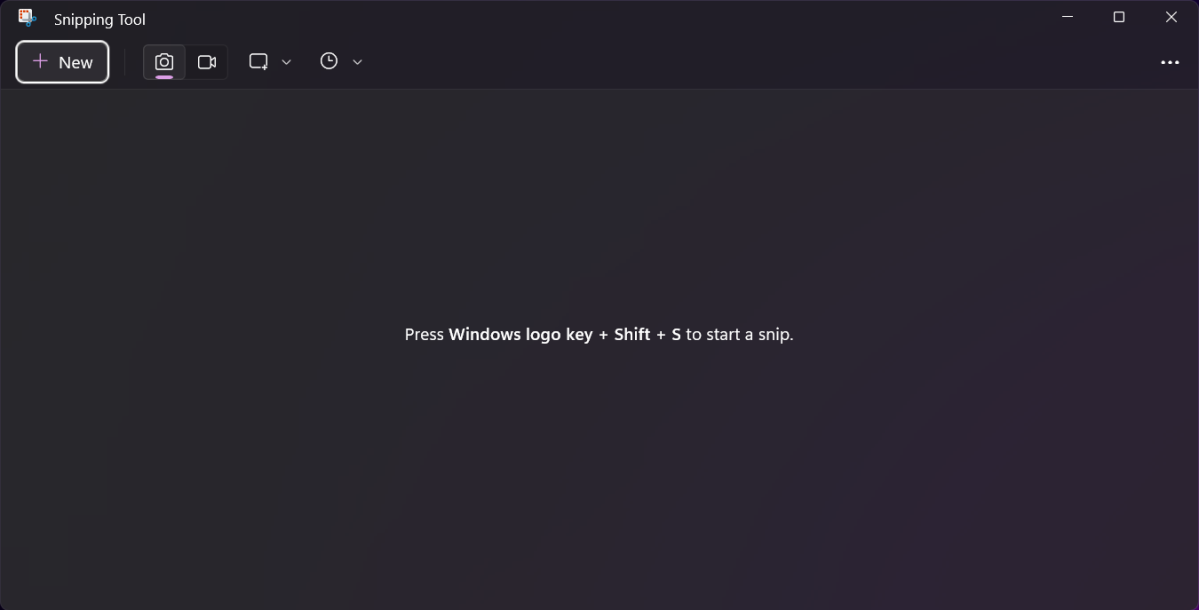
Previous versions of Windows had a Snipping Tool app, but you could only take screenshots. In Windows 11, screen recording finally gets added—and unlike Windows’ Xbox Game Bar’s recording feature, you can use it to capture specific parts of your screen. If you serve as informal tech support for family and friends, this feature can make your life a lot easier when explaining how to tinker with an app or in Windows. (Note: You’ll have to open the full Snipping Tool app for screen recording—it doesn’t appear in the Win + Shift + S keyboard shortcut overlay.)
Quick Assist
PCWorld
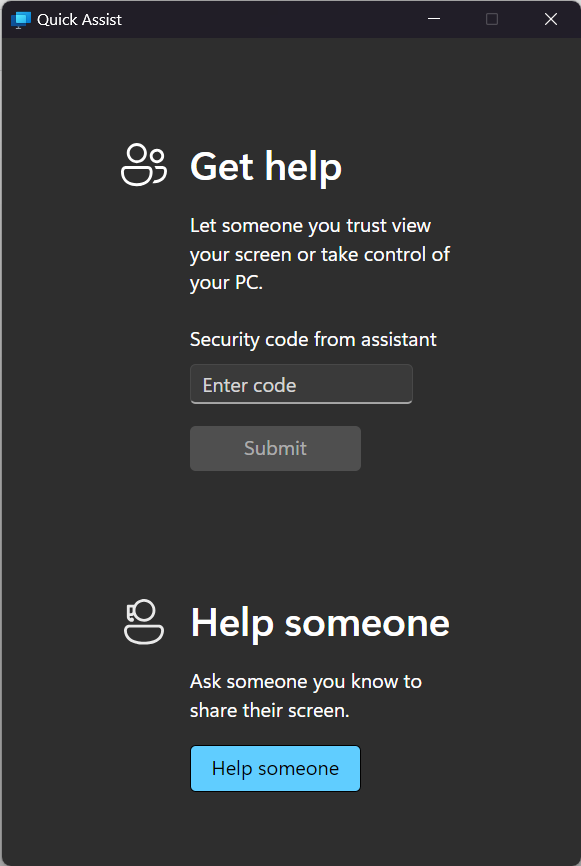
If your loved ones can manage unfamiliar but basic interactions with a PC, a Windows Pro license isn’t necessary to provide them remote support. You can have them fire up Quick Assist instead. (Remember this app from Windows 10? It’s still around in Windows 11.) Once in the program, they’ll log in to their Microsoft account, and then generate a six-digit code to send to you. You’ll input that code into Quick Assist on your PC, at which point you can then see what’s happening on their end, and even request full control of their PC.
Clock info
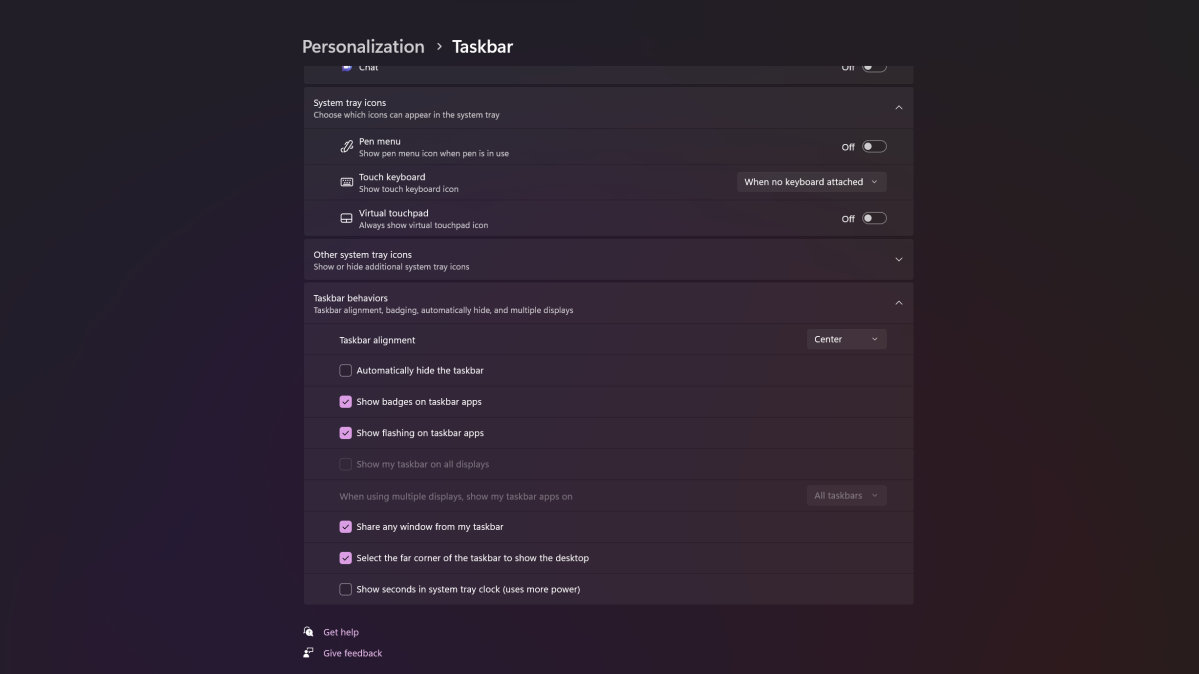
This tiny tweak adds more precision to your clock readout.
PCWorld
If you’ve needed more precision in your clock readout on the Windows 11 taskbar, you’re in luck. You can now add seconds to the display—but you’ll have to head to taskbar settings to flip it on, rather than your date and time settings. Under Taskbar behaviors, scroll to the bottom of the list and check the box for Show seconds in system tray clock.
File Explorer tabs
PCWorld
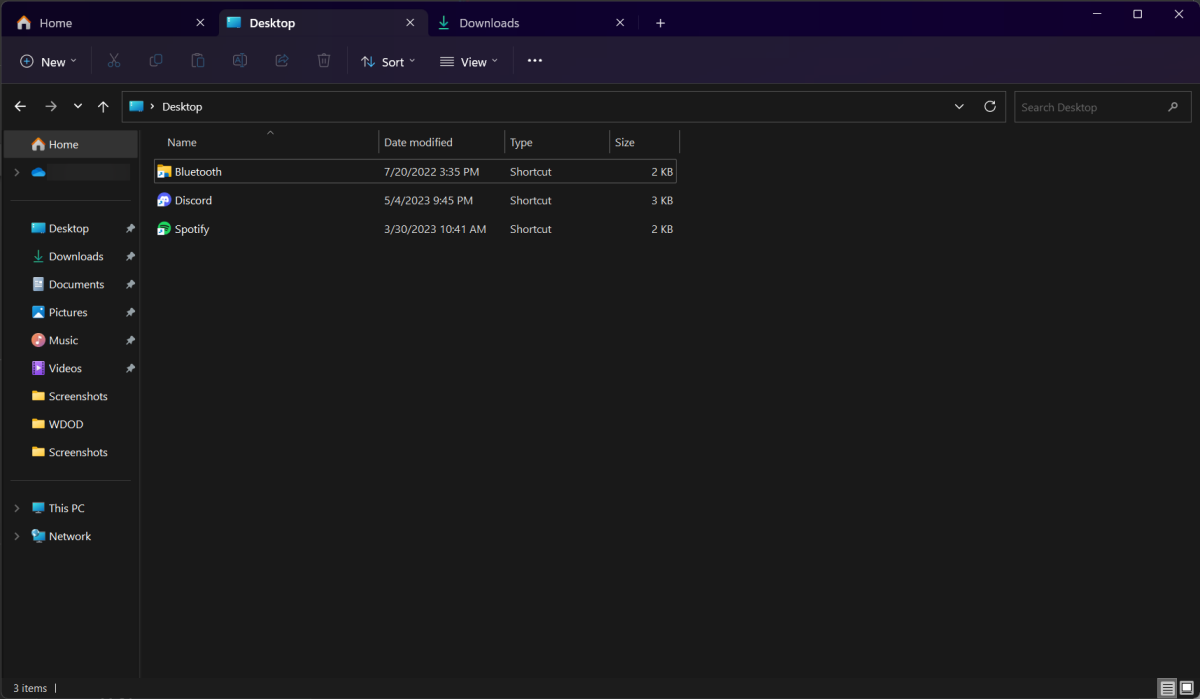
Microsoft didn’t just add tabs to Notepad. File Explorer got the upgrade, too. You no longer need third-party software to enable the feature (like Stardock’s excellent Groupy). All your numerous Explorer windows can now be grouped as tabs in a single container. Just click the “+” button in the top-most menu bar (or hit Ctrl + T on your keyboard)—each new tab will appear along the top of the window, just like a web browser.
Fast Snap Bar access
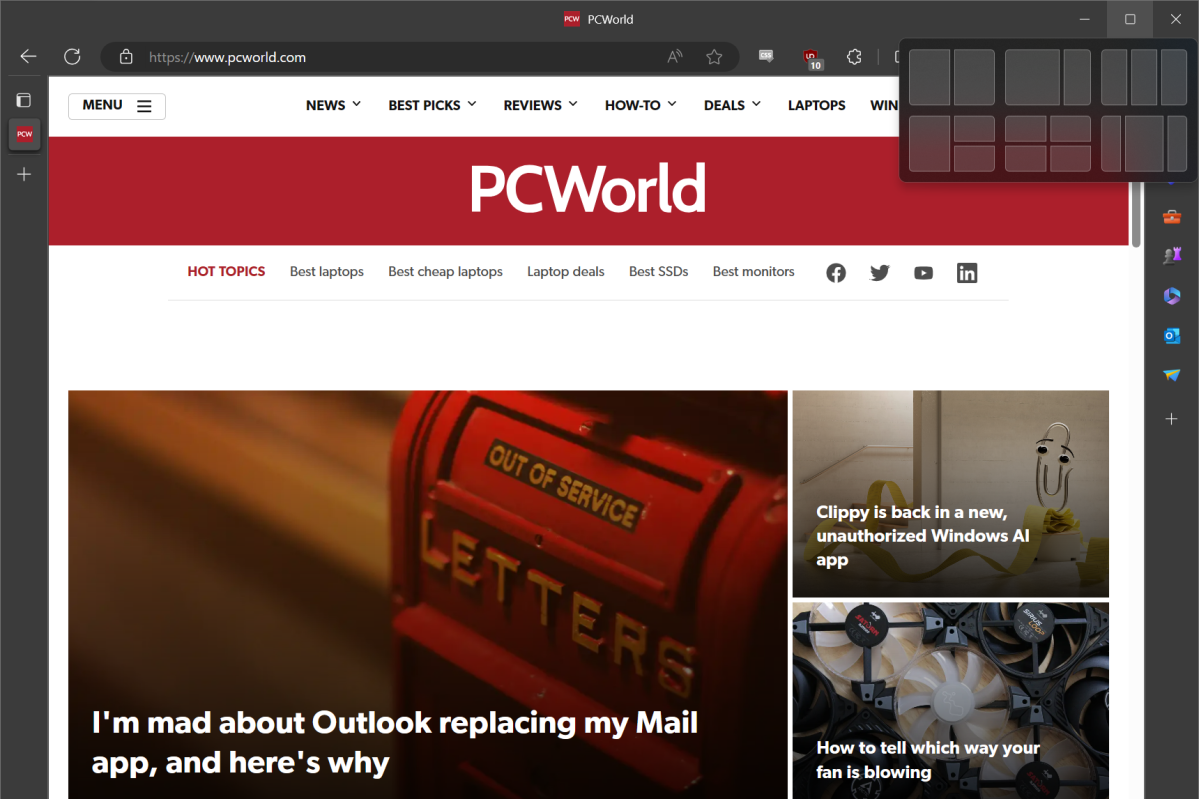
We love Snap, and having fast access to the default layouts makes it even easier to get the right arrangement for your open windows.
PCWorld
Snap is one of our favorite features in Windows—being able to automatically resize and align windows saves time and makes working a lot easier. And not only do you get more layouts to choose from in Windows 11, but you can access them faster, too. Just hover your mouse over the maximize button in the upper right-hand corner of any window. A small pop-up menu will appear showing six different template options. Roll your cursor over any of the grids, and your current window will get sent to that position. Keyboard users can instead tap Win + Z, then the number of the layout they want.
Further reading: 12 handy Windows shortcuts you probably don’t know
Power savings
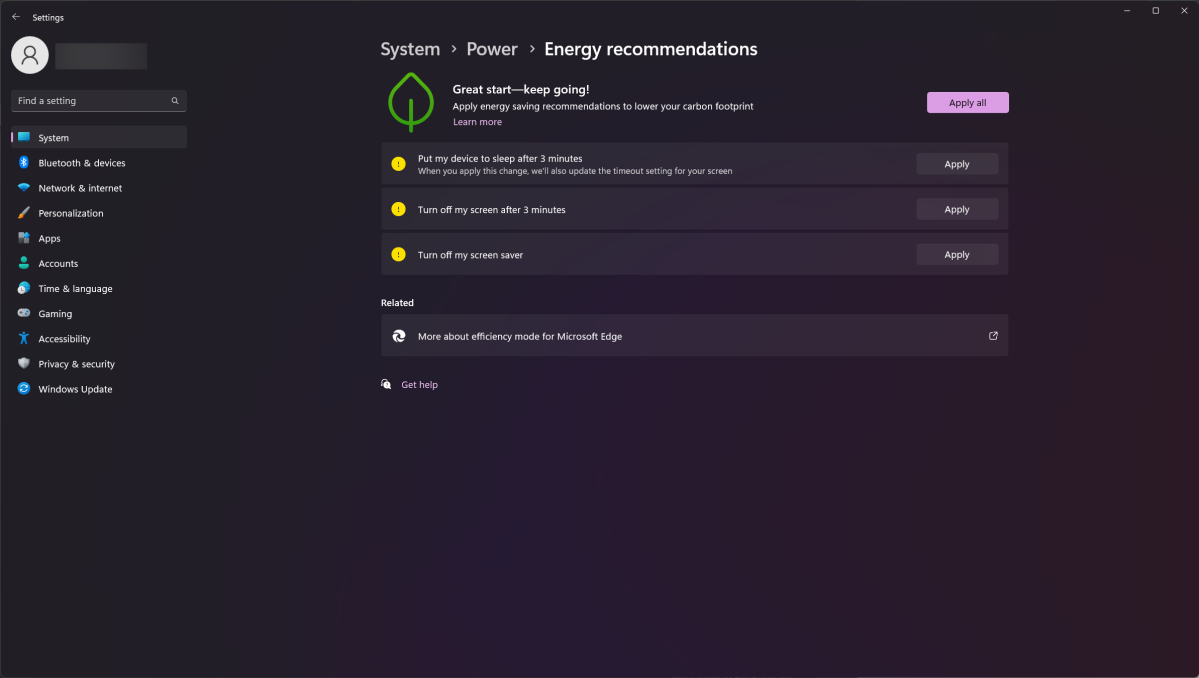
Microsoft’s Energy Recommendations can help reduce your power bill.
PCWorld
Energy costs keep climbing—and in some parts of the world, they’re still at record prices. While you can of course switch your power plan in Windows to something lighter, Windows 11 has a few specific settings you can turn on to reduce idle power consumption. (After all, why pay for the higher electricity use when you’re not active on the PC?) You’ll find these under Settings > System > Power & battery > Energy recommendations. You can then turn on one or more of the suggestions. These more stringent settings will help extend battery life on laptops, too.
Virtual desktops
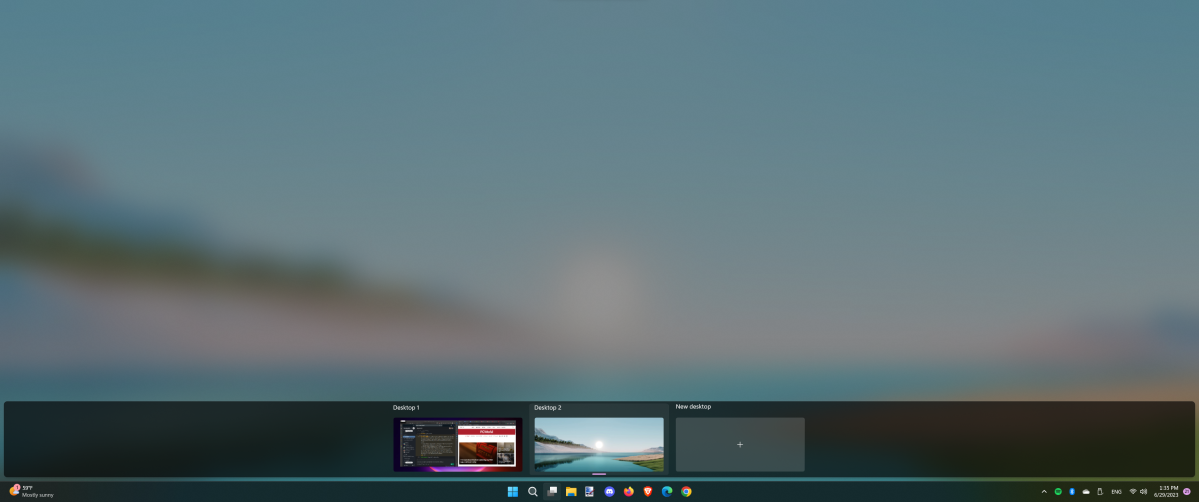
You can set different backgrounds for each of your virtual desktops to tell them apart.
PCWorld
This feature might be one of the most underrated in Windows. Virtual desktops, which first launched in Windows 10, let you spread your active apps and windows among different home screens—it reduces clutter and makes your primary desktop less overwhelming. Some people use their virtual desktops to separate out work from play (or research from daily tasks), while others separate programs by category or function. Navigating between your desktops is as fast as clicking on the Virtual Desktop taskbar icon or tapping Win + Ctrl + Left/Right Arrow.
Clipchamp
PCWorld
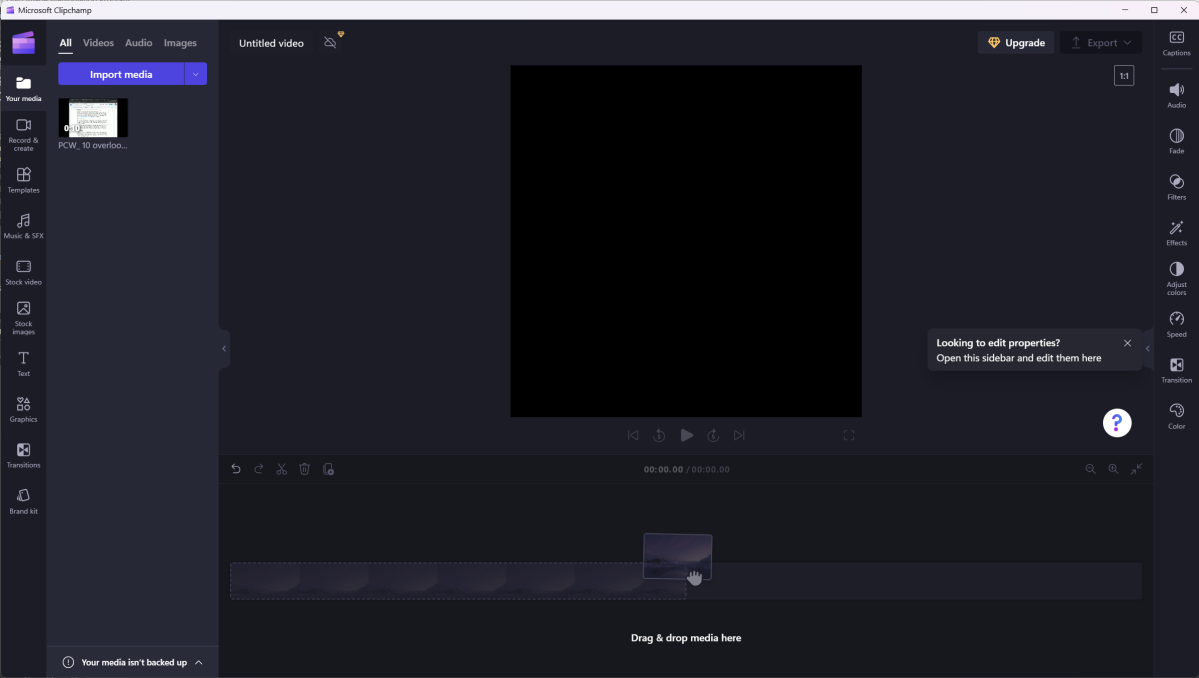
Davinci Resolve is great if you need deep video editing capabilities, but Microsoft has an alternative free option that’s easier to jump into. Clipchamp can handle quick cuts, fades, and media insertions with ease, and the interface is far less intimidating. It also handles direct uploads to services like YouTube and TikTok, as well as cloud saves for OneDrive, Google Drive, and Dropbox. Combine this program with the built-in recording features in Windows (i.e., Xbox Game Bar or Snipping Tool) and you can be on your way to internet fame quickly.
