



What’s the first thing you do when you start a fresh Windows install? For myself and many others, it’s installing Chrome (usually using Ninite). I throw Brave and Firefox on there after, but Chrome comes first. It’s part of the ritual. But as useful as Chrome is for downloading drivers and the Steam launcher, you can make it far more capable with the right extensions. After I’ve downloaded it, there are always a handful I install right away.
If you’re staring at a fresh—starkly white—Chrome install and would like a few tips about how to make it that bit better, here are some of my favorites.
DarkReader: Dark mode for Chrome
Give your eyes a break with the Dark Reader extension for Chrome.
Jon Martindale
Argh my eyes! I don’t know whether I’m just getting older or my laser eye surgery is wearing off, but the stark whiteness of most modern websites feels blinding. I find working in dark mode much more comfortable, but unfortunately there are only so many websites that have a proper dark mode, and even then it’s not always uniformly applied. Pop open a private tab and watch how all your personalized dark modes disappear just as fast.
With DarkReader you don’t have to worry about that. Regardless of the kind of blanched-white backdrops a website wants to shine your way, DarkReader nips that in the bud and forces a dark mode that it creates on the fly, inverting brighter colors and whites and making the web a more comfortable place to explore.
Grammarly/Prowritingaid: Stop making typos (as much)
Listen, I do this for a living typing out thousands of words every single day and I still make use of smart extensions like Grammarly and ProWritingAid to make my writing that extra bit better. Even if you use ChatGPT or other AI to craft emails or longer-form content for you, having a writing assistant like these give it a once over is a real help.
Both are better in their paid versions, but they work well enough in the free edition too. And you can even enjoy them outside of Chrome if you like.
StayFocusd: Block or limit time wasting sites

If you’ve followed my coverage at PCWorld at all, you’ll know I struggle with procrastination and a big part of that is staying on task. If you, like me, find that you can’t quite stay away from Reddit when you’re supposed to be writing a guide on Chrome extensions, then StayFocusd is a great tool.
It lets you block websites outright, or time limit your access to them by time or date. It won’t stop you going to another browser for your fix, but it does block you just enough to make you question whether you should get back to work instead.
Various password managers: Pick your favorite
I’m a big fan of low-fi password managers that keep everything decidedly offline, but I’m not the only one in my family and not everyone feels the same. Other people prefer cloud-based options, so when I install Chrome on a fresh PC, I usually install their password manager too so they can readily access it.
Which password you use is down to your personal preferences (though we have a few of our own). Regardless of which one you prefer, though, you can find a Chrome extension for it on the Chrome store.
Adguard: Block ads, limit socials
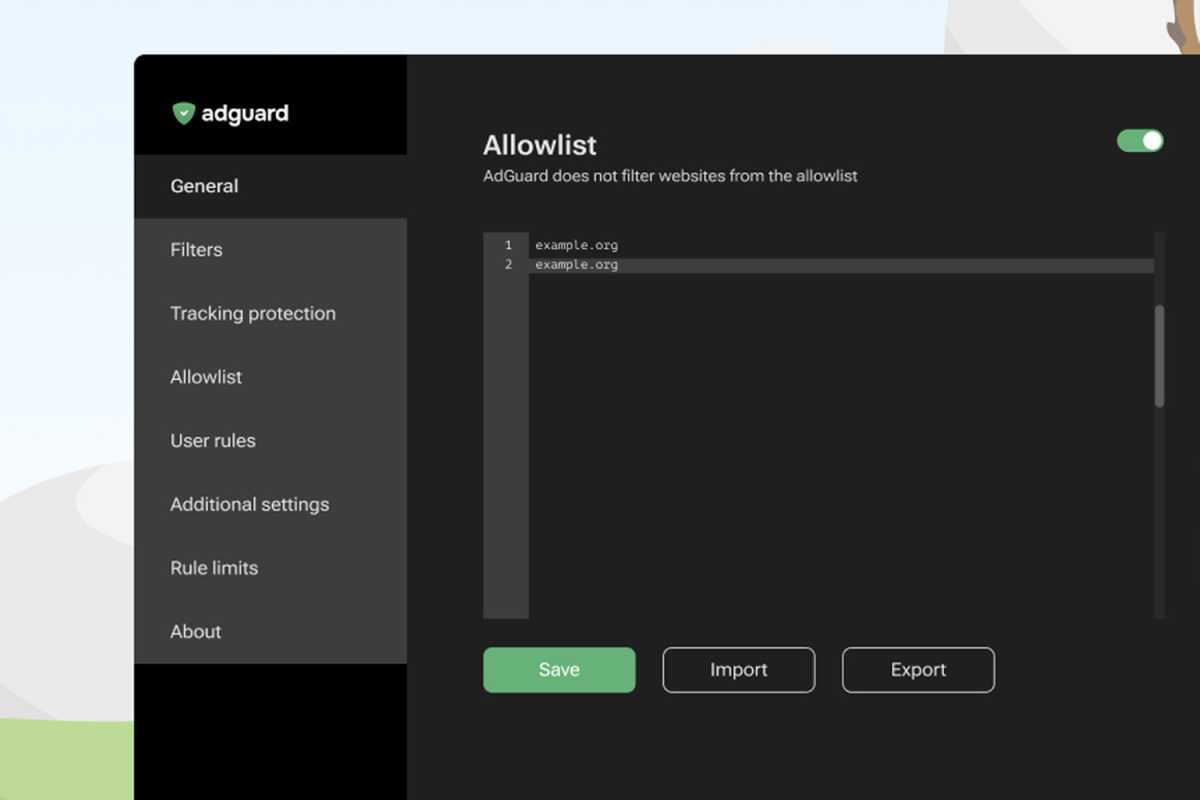
Blocking adverts online is a tricky business as sites often don’t like you doing it because it impacts their revenue. That’s why unfortunately, tools like Adguard—which are effective at blocking ads—will often make certain platforms like Instagram, Facebook, and similar unusable. They just don’t want to serve content if they can’t sell it to you.
Outside of social media, though, Adguard is an effective way to block some of the more nefarious tracking adverts. It won’t get them all, and some sites might not like it, but if you want a cleaner web experience, Adguard does a great job. It’s particularly useful for YouTube.
Raindrop.io: Save to read/watch later
Another effective way I’ve found to beat procrastination is to lean into it: I’ll do it later. But instead of that being the work I’m supposed to be doing, I try to do the things I shouldn’t be doing at a more convenient time. Raindrop.io is a really useful tool for that, as it lets you save articles, web pages, videos, and more to look at later. It saves it all in a handy wallet that you can tag in collections for later filtering and you can even sync it up with your phone.
Perfect for reading something later on the toilet.
Ghostery: A simpler tracker blocker
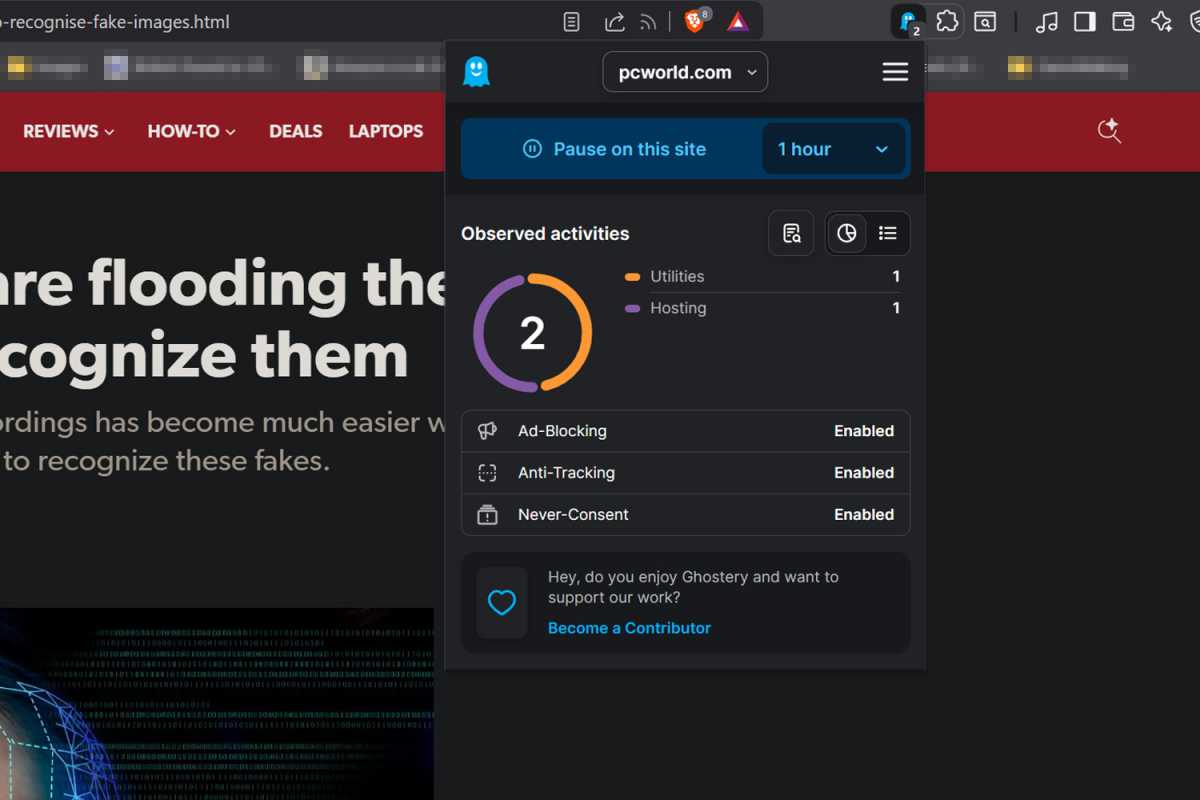
Ghostery is another useful ad blocking tool that might work better for you than AdGuard, depending on your preferences. Although it does block ads, Ghostery’s main function is to go beyond that and remove your personal information from trackers, making it harder for websites to find out about you—whether there’s an advert involved or not.
This is particularly useful for stopping behavioral tracking on websites that might monitor what you do across the web. This can actually improve page load times in some cases as all the content that would otherwise need to load is simply blocked at the source. It also helps you make more informed choices about the sites you click through to by showcasing tracking information within search result pages.
Onetab: Save memory, reduce clutter
Are you spotting a theme here? I’m a messy worker too and as I work on multiple articles throughout the day my tab list can get extremely busy. Multiple browser windows with dozens of tabs in each; not only is it hard to parse through it’s also unnecessarily resource intensive.
That’s where OneTab comes in to save the day. By collecting tabs together under a single header tab, you can streamline what you’re working on and better organize them together. This makes it easier to find what you’re looking for, come back to something you were working on earlier, and categorize tabs so that you save time not clicking through them all.
Memory use drops by up to 95% with it enabled, too, helping your system respond better.
Google Keep: Great for note taking
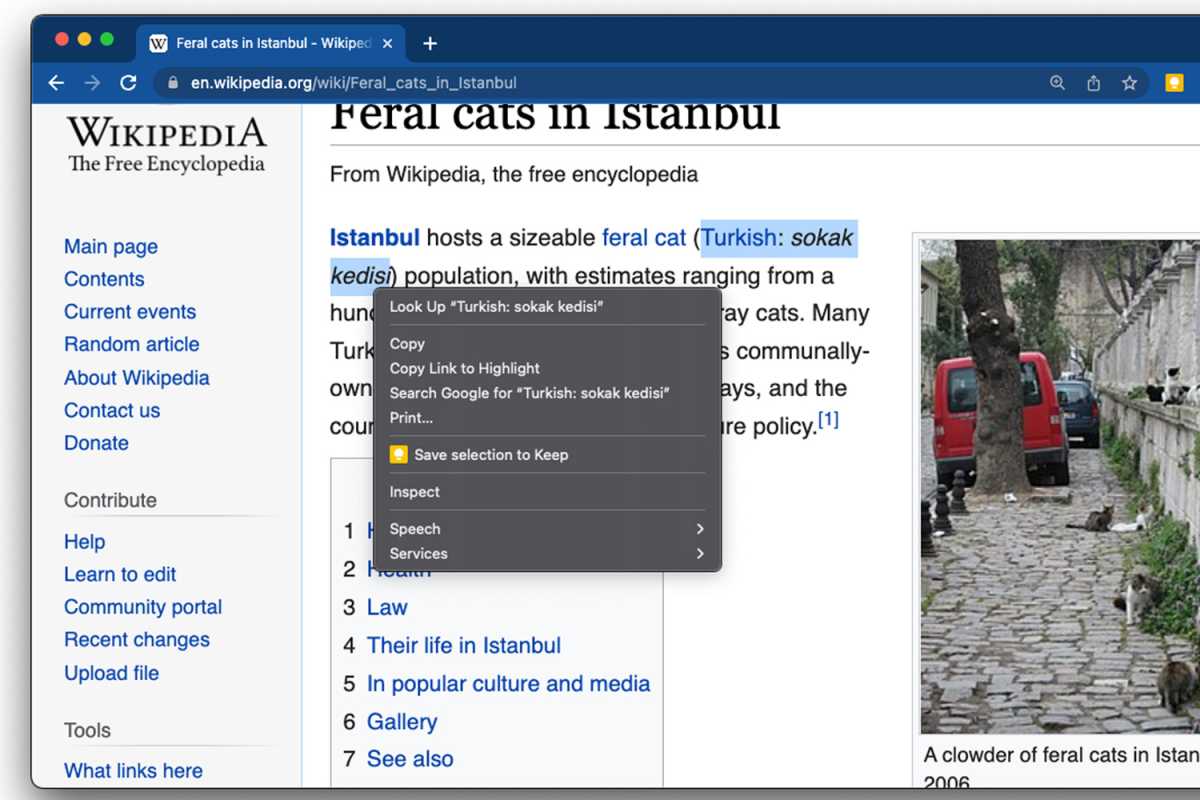
If you’re researching for a personal or professional project, saving notes for later can be a godsend in retaining the context of what you’re looking at, or helping to craft a narrative from all your research sources. Google’s Keep extension works just like the app on your phone. Along with your personal notes, though, you can also save page links, text, and images, add labels, and sink it up with your phone to work on later.
VolumeMaster: Make it LOUD
Watching an old YouTube video and the volume’s too low? Find that new Netflix show dialogue is just too quiet to make out what they’re saying? Time to give it a boost.
VolumeMaster lets you increase the stock Chrome tab volume by up to 600%. That’s enough to give your ears a beating and your speakers a workout, so be careful with already-load videos. But for anything that’s just too quiet to make out, VolumeMaster is a great way to regain control of your audio.
Hive AI Detector: Spot AI images if you aren’t sure
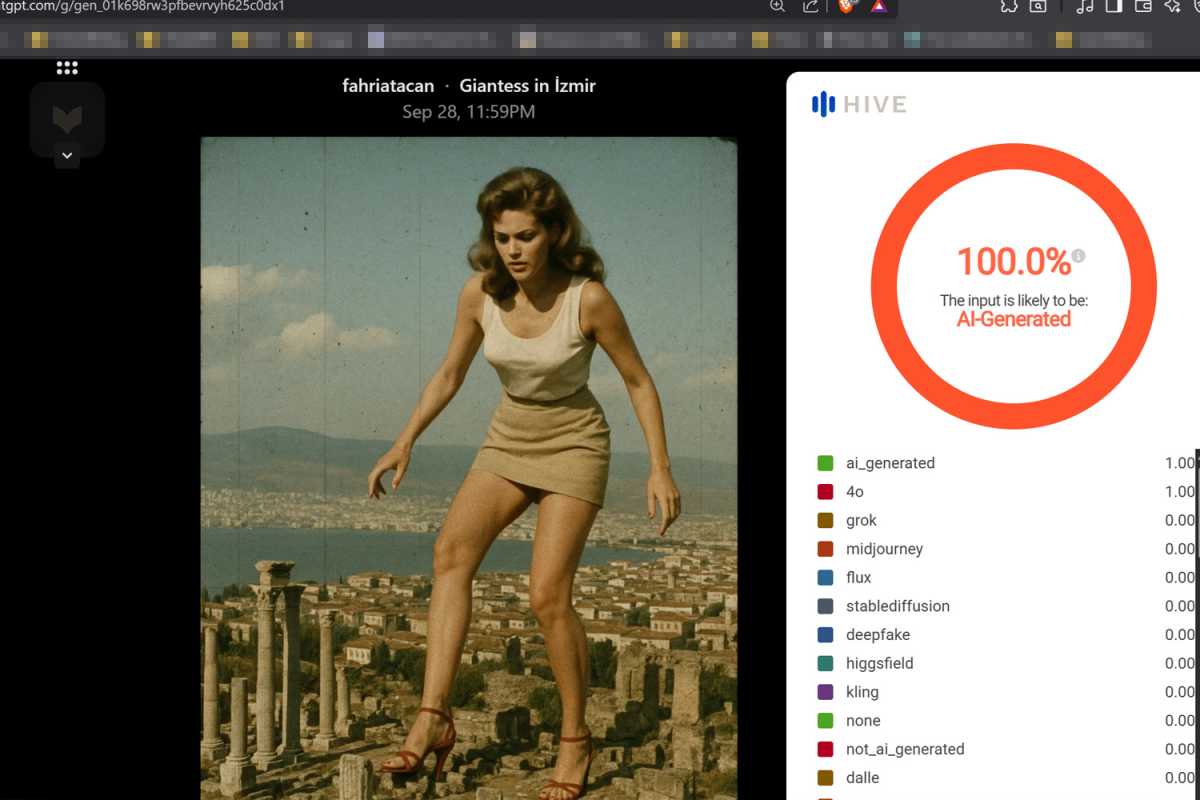
Did you try that test out a few months ago to see if you could spot AI images? I figured I was pretty well situated to ace it and barely scraped by with a 60% success rate. That felt like an embarrassing failure, but I’m far from alone.
Spotting AI images can be hard, but Hive’s AI Detector can make it a little easier. Don’t let yourself get duped by fake AI generated images. Just run this free extension as a litmus test for what’s real and what’s not.
Want even more tips? Here’s how to spot AI images yourself.
