


Google’s advanced multimodal large language model (and AI assistant) is flexible. Google Gemini can enhance your tech usage, answer your questions, and help you generate content.
It’s no doubt a powerhouse tool for productivity.
Google’s AI has been gradually integrated into Google products, including smartphones, particularly with the Gemini Live feature. Moreover, Gemini launched as the default AI assistant for the Pixel 9 series.
However, these days, even without owning a suitable Gemini-powered device, you can still access Gemini features within the app and its web version.
You can freely access some features, as long as you have a working smartphone, computer, or web-supported browser device, such as a Chromebook.
One of these nifty features is Gemini Gems. Gemini Gems are like customizable versions of the AI model. You can use these Gems to bypass repetitive prompting and have it focus on the tasks you need help with.
Our guide teaches you about Gemini Gems, how to access them, and how to share them.
What are Gemini Gems, and what are they good for?
Gemini Gems are tailor-specific AI models designed to help you with tasks and topics. It’s like having a customized digital assistant or experts who are highly proficient in the tasks and topics you need help with.
These Gems are customizable, but you can also select pre-made Gems that have already been trained for the designated tasks or topics at hand.

You can use Gemini Gems to assist with your homework, be your career guidance counselor, or even a coding partner.
And if you decide to create your own custom Gem, these Gems are built to store detailed prompts and guidelines, saving you time from re-explaining and re-training every time you use them.
You can custom-make your own Gem by uploading files from Google Drive to feed them more context and writing a clear set of instructions to outline its purpose and desired output.
Google recommends you use a structured approach for designing your Gem. The four main approaches include:
- Specify your Gem’s persona: Tell the Gem what role to play and how it should respond,
- Task: Specify what you want it to do or create.
- Context: Provide background details.
- Format: Mention the desired structure.
How do you access Gemini Gems?
Gemini Gems is available through the Gemini app or web version. You can only customize, edit, and delete Gems through the web version of the app.
Gems can’t (currently) be used with Gemini Live.
Gems were previously only available to Gemini Advanced users (a paid subscription). Later in March 2025, it became available for free to all users.
To access your Gems, go to gemini.google.com or open the Gemini app on a mobile device. Select Explore Gems.

What can you do with your Gemini Gems?

Along with creating your own personal Gems that you customized and trained, you can share them. Sharing Gems becomes a collaborative effort that you can integrate directly into your workflow.
For example, suppose you are working on a project and you and your colleagues don’t want to repeat repetitive tasks, such as organizing data into tables and providing simple summaries of that data.
In that case, you can create a Gem that automates these tasks for you. All it takes is one person to create a Gem, and then have the same person pass it along to everyone else.
You don’t necessarily have to use Gems to help with productivity tasks. You can create Gems recreationally. For example, you can generate a Gem to assist in meal planning for specific diets and share it with your household.
Sharing Gems is easy. It works exactly like sharing anything in your Google Drive, such as a Google Doc or Sheet, since it only requires changing a simple setting.
You can also control what others can do before sharing them. For example, you can set specific people to view them, while granting others editing access.
It’s a fun tool. But more importantly, it can save a lot of time by accessing similar Gems you can otherwise skip out on creating.
How to share Gemini Gems on mobile and desktop
To start sharing Gems, you first have to create and save your Gem creations that you made through the Gemini web version. After you’ve created some Gems, you can begin sharing them.
Before starting, ensure you’re signed in to the correct Google account that you used to create and save your custom Gems.
Here’s what you’ll do.
After you’ve shared your Gems, you can find all shared Gems on your Google Drive in the Gemini Gems folder. You can also change the permissions through your Gemini Gems folder on Drive.
How to share your Gemini Gems on mobile
- Open gemini.google.com on your mobile web browser.
- Tap the Hamburger button in the upper-left corner.
- Select Explore Gems.
- Scroll down to the My Gems section in the Gem manager.
- Tap the Share button next to a Gem you wish to share.
- Inside the Add people, groups, spaces, and calendar events field, type the contact you wish to send the Gem to.
- Alternatively, you can also select the Copy link button below if you want to send a link instead.
-
After you have made your selection, tap Done.
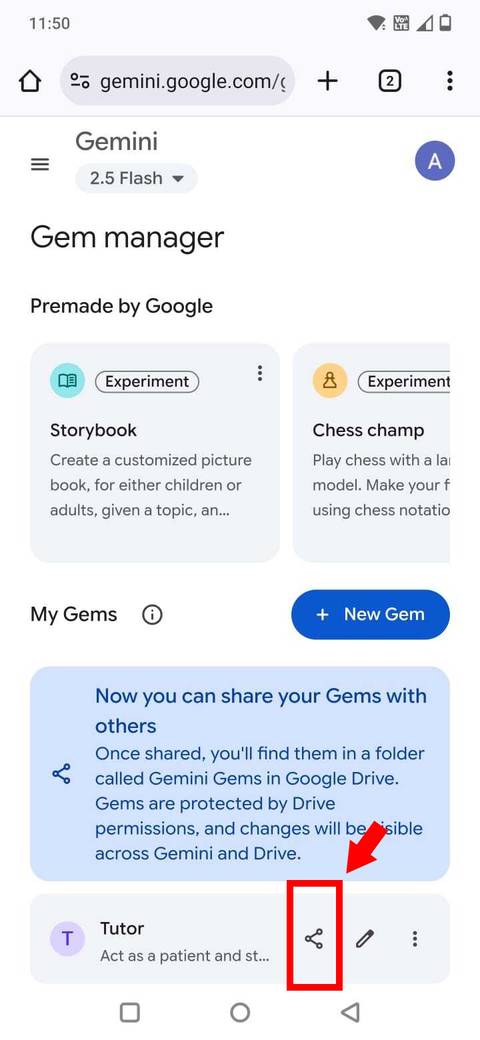
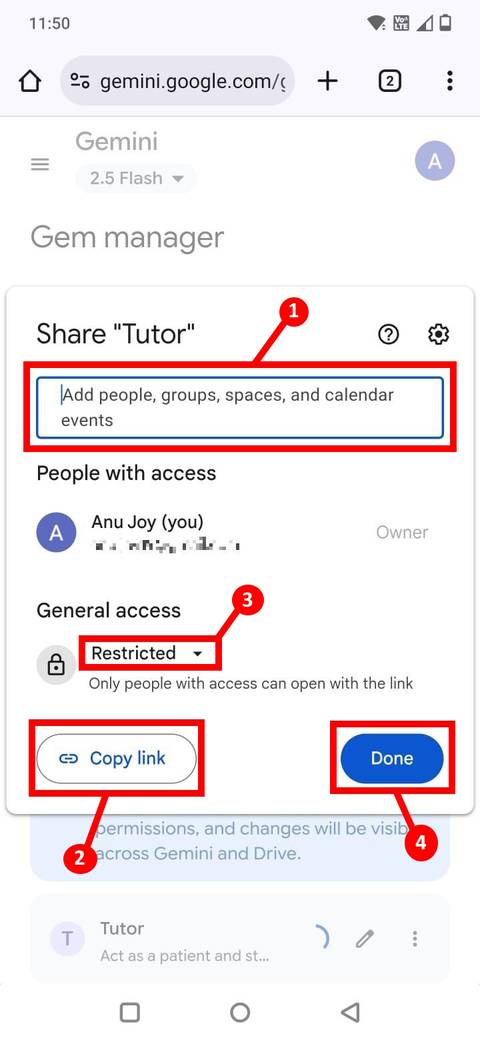


If you wish to change the view and edit permissions of the Gem you plan to share, tap the drop-down arrow under General access.
How to share your Gemini Gems on your computer
- Open gemini.google.com on a computer.
- Click the Hamburger button in the upper-left corner.
- Select Explore Gems.
- Scroll down to the My Gems section in the Gem manager.
-
Click the Share button next to a Gem you wish to share.
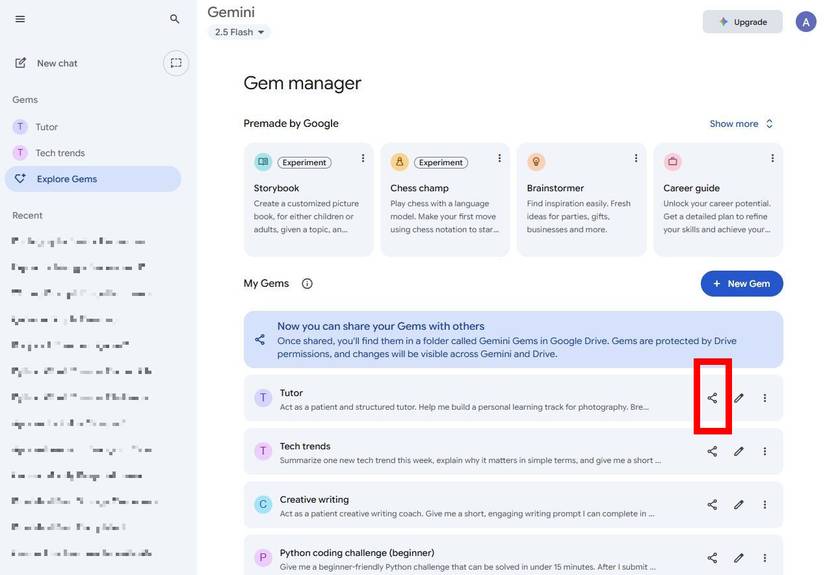
- Inside the Add people, groups, spaces, and calendar events field, type the contact you wish to send the Gem to.
- Alternatively, you can also select the Copy link button below if you want to send a link instead.
-
After you have made your selection, click Done.


You can also view and edit the permissions of the Gem you plan to share by clicking the drop-down arrow under General access.
Keep improving your Gemini Gems creations
While in practice, creating new Gemini Gems can be more challenging than it’s worth, hence, sharing custom-made Gems becomes a more enticing practice than making your own.
It requires a lot of effort and mastering the prompt language, while providing the AI with the proper context to work the way you want it to.
But, if you’re interested in integrating AI into your workflow, Gemini Gems might be precisely what you need — and now that it is free for all users, there is no better time than the present to get some practice in.
