


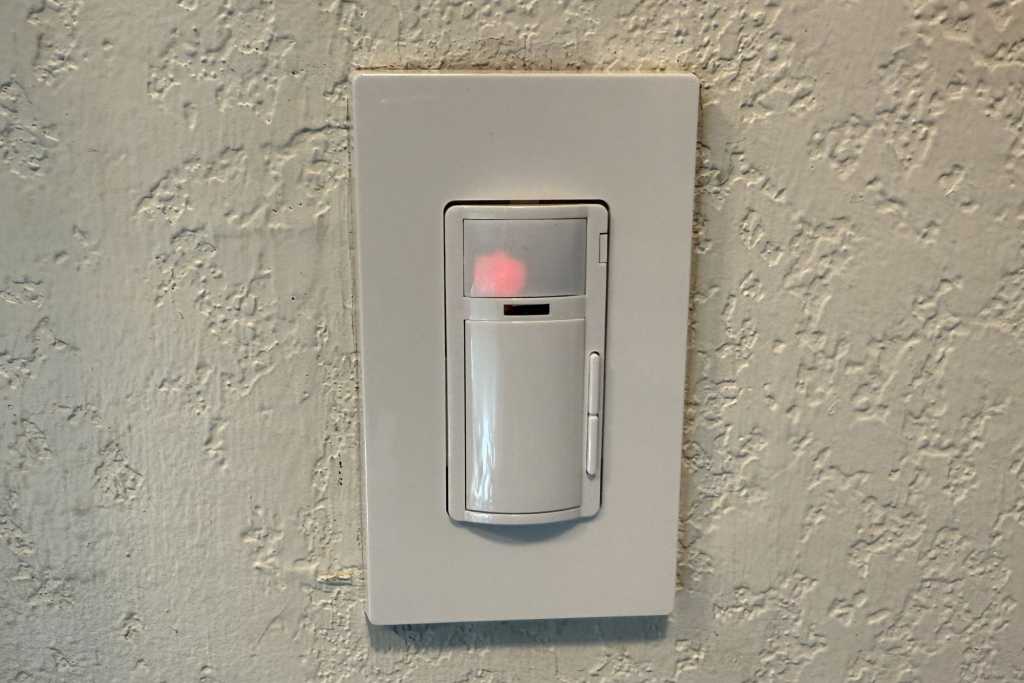
At a glance
Expert’s Rating
Pros
- Connects directly to Wi-Fi, no bridge or smart home hub required
- Impressive motion sensor catches everything
- Incredible collection of user options
- Great 3-way support, including a wireless option
Cons
- Requires a neutral wire
- Motion sensitivity is nearly blind at lower levels
- More expensive than the competition
Our Verdict
Leviton’s updated motion-sensing dimmer pulls out all the stops with wired (or wireless) 3-way circuit support and impressive customization options.
Price When Reviewed
This value will show the geolocated pricing text for product undefined
Best Pricing Today
Best Prices Today: Leviton Decora Smart Motion Sensing Dimmer (model D2MSD)
£132.65
With both dimming and motion sensing built in; plus, support for 3-way wiring setups, Leviton’s 2nd-gen Decora Smart Motion Sensing Dimmer (model D2MSD) in-wall smart switch has just about everything you could ask for.
As its name explicitly states, this is an update to an earlier model, the main additions being improved compatibility with third-party ecosystems and support for Leviton’s wireless remote control companion, which I’ll delve into in a bit. All told, it’s well worth its $40 street price.
Specifications
This dimmer has an extensive list of features, but the short of it is that it’s quite the loaded device.
A Guidelight setting turns a controlled light on very dimly when motion is detected at night, but turns the light on to your normal brightness settings when daylight is detected.
Again, this is an in-wall switch that requires permanent installation and the presence of a neutral wire in the box where it’s installed. The switch is rated to support up to 300 watts of LEDs or 450 watts of incandescent bulbs, or another load of up to 450 volt-amps. It’s also compatible with MLV (magnetic low voltage) loads. As with most dimmers, fluorescent bulbs are not recommended for use with this product (although dimmable compact fluorescents are OK).
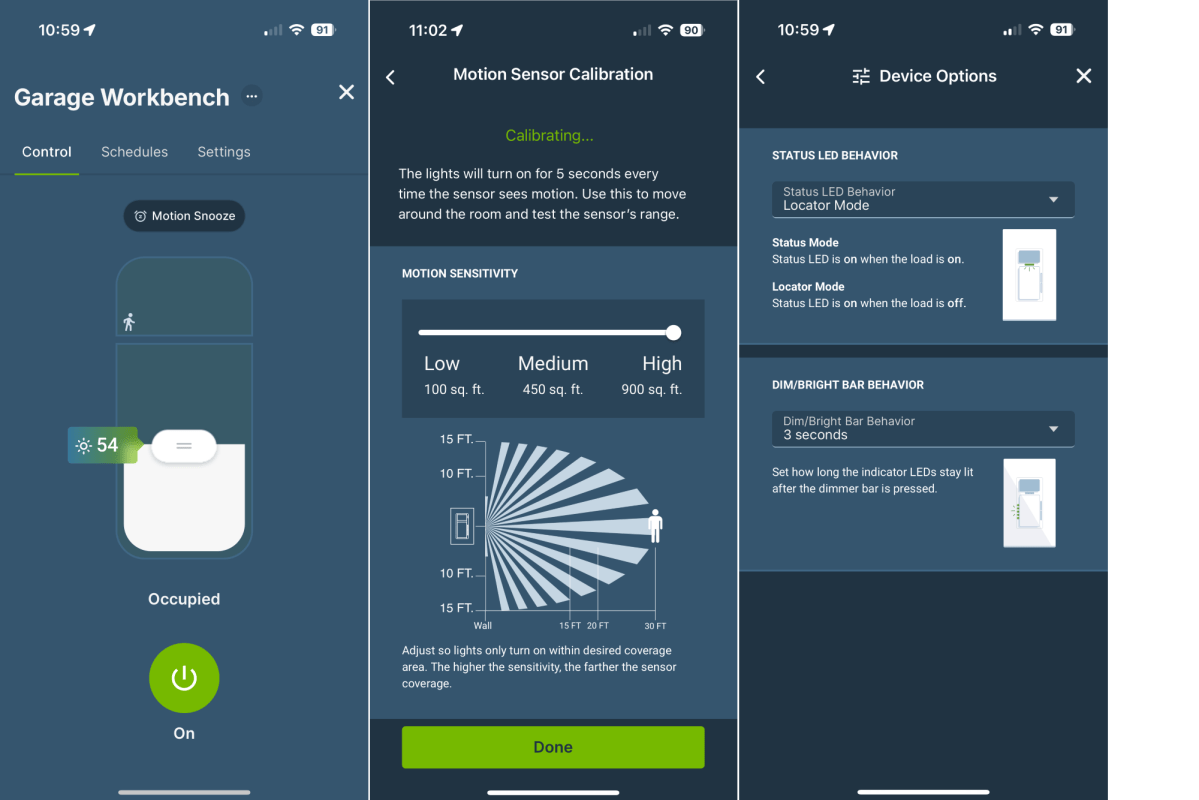
Leviton’s app offers a host of fine controls for the company’s motion-sensing dimmer.
Christopher Null/Foundry
The switch connects to 2.4GHz Wi-Fi networks only, and you’ll need Leviton’s mobile app for setup and management. You can also integrate the dimmer into Amazon Alexa, Apple HomeKit, and Google Assistant ecosystems. It is not, however, compatible with Matter today (Leviton tells me a firmware update is in the works; many of the company’s other 2nd-gen Wi-Fi products–including its conventional on/off switch and dimmer–already support Matter after a firmware update).
The centerpiece of the device is its built-in motion sensor, which sits just above the button-style power switch. This sensor features a 180-degree field of view with a maximum range of 30 feet. Naturally, the sensor’s primary function is to turn the lights on when motion is detected, though this can be easily disabled and adjusted in the app.
Physical controls work as expected. Press the central button once to toggle the light on or off. Or use the pair of tiny buttons to the right of the power button to adjust brightness, either by tapping up or down to quickly jump through 10 broad levels of brightness, or by holding one of the buttons down to more smoothly and gradually adjust it, releasing when you get to the light level you want.
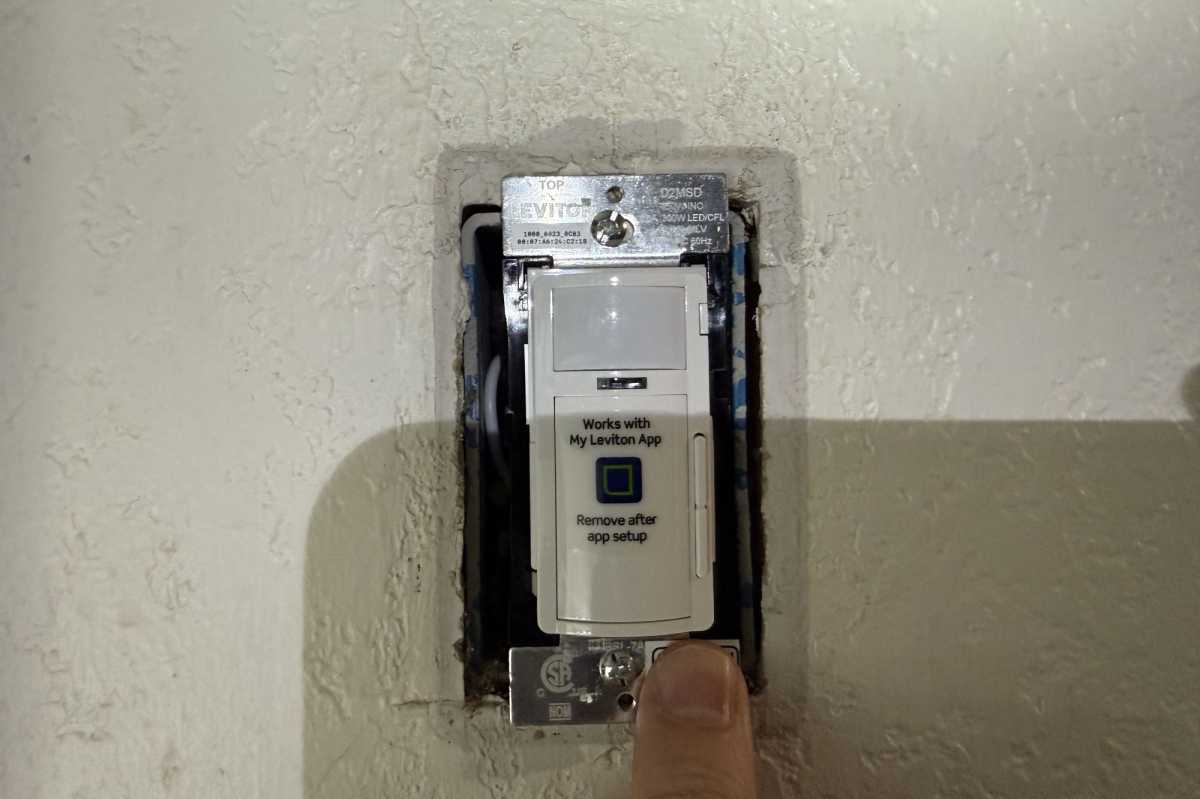
Press the large button beneath the motion sensor to toggle the controlled light on and off; press the small buttons on the right-hand side to brighten or dim the light.
Christopher Null/Foundry
Lastly, the device supports the Leviton Anywhere Companion Dimmer ($27 at Amazon), a wireless remote control with a 50-foot range that syncs with the D2MSD and replicates its dimming functions (although not its motion-sensing feature). It’s also compatible with the Leviton Anywhere Companion Switch ($25 at Amazon) Powered by two coin-cell batteries, either device can be mounted to the wall and covered with a plate to emulate a three-way switch without requiring any wires or electrical work at all (the Switch product, of course, lacks a dimming feature).
If the switch you’re replacing is already wired on a 3-way circuit, however, you’ll need to replace that other switch with a Leviton Dimmer Companion ($27 at Amazon) or Switch Companion ($25 at Amazon)—both of which are wired products—for the D2MSD to work.
Installation and setup
Like most wired smart switches and dimmers, the D2MSD requires a level of comfort with light electrical work and a modest amount of know-how to complete the installation properly (we can walk you through the process with this easy-to-follow guide to installing a light switch). The device is designed entirely with pigtail connections, with wire nuts included in the box to help you connect the four mandatory wires (five if connecting to a 3-way circuit).
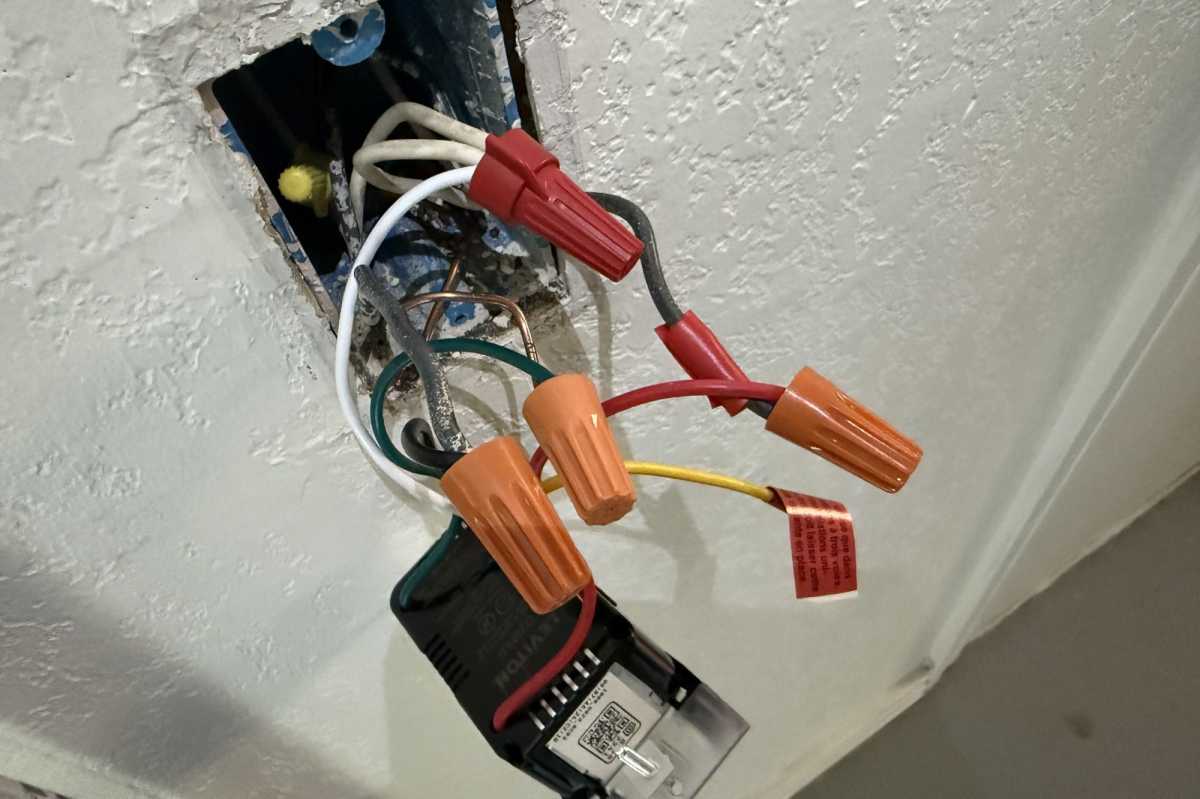
The Leviton smart dimmer D2MSD requires a neutral wire and it offers the option of a 3-way installation via a traveler wire (or you can use Leviton’s wireless companion switch).
Christopher Null/Foundry
As is common, the in-wall portion of the dimmer is rather large (though Leviton says the 2nd Gen device is slimmer than the 1st Gen), so getting it into the receptacle so it’s fully flush against the wall can take some effort, but I was able to wedge the device into place without much trouble. A white switch plate is included in the box, which snaps on over a mounting frame that connects to the switch with two small screws (so the screws won’t be visible when you’re finished).
From there, electronic onboarding is completed through the My Leviton app. The app is straightforward, auto-discovering new Leviton devices nearby as soon a they are powered on. A few simple choices let you bridge the device to your 2.4GHz Wi-Fi network. Oddly, while setup runs you through a few basic configuration options, it does not prompt you to update firmware. You’ll want to do that manually, under the “Device Health” menu option in the Settings tab; out of the box mine was well out of date.
If you want to add the switch to HomeKit, the QR code is printed on a sticker attached to the switch, beneath the frame.
Using the Leviton Decora Smart Motion Sensing Dimmer
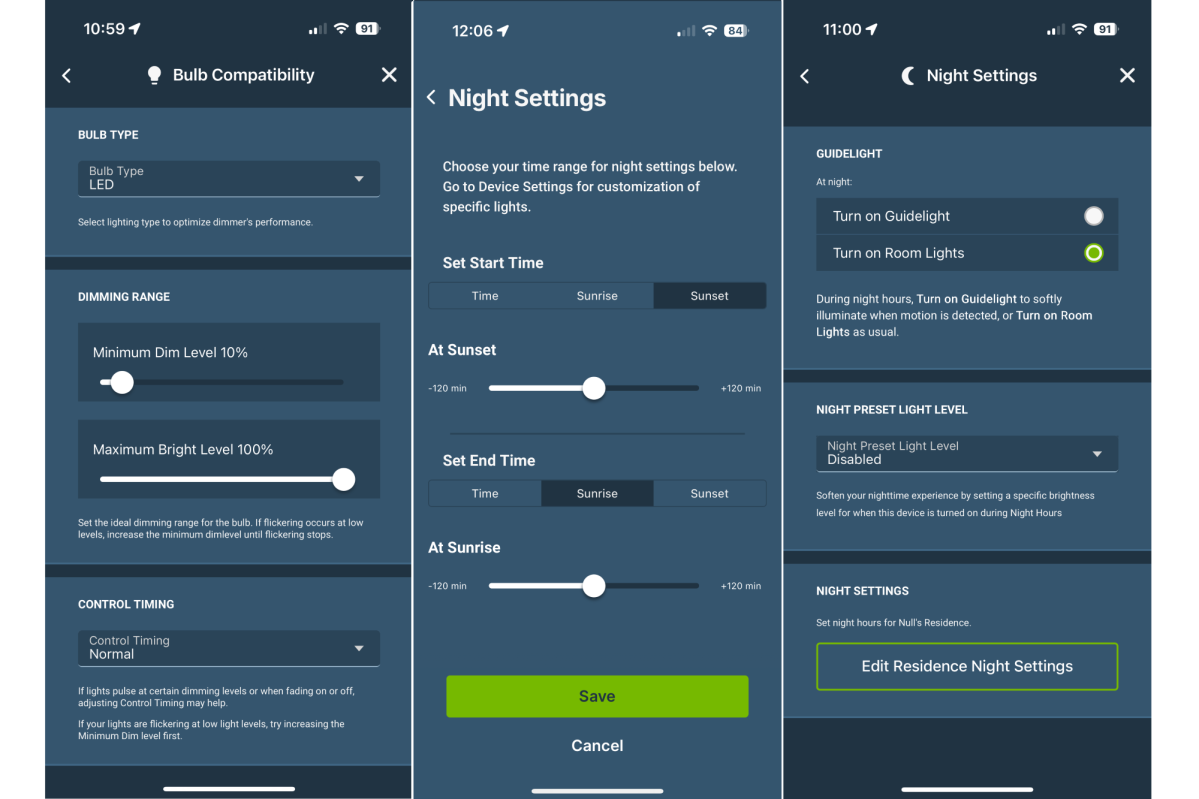
Leviton’s smart dimmer can support a variety of lighting types, including compact fluorescent, incandescent, LED, and magnetic low voltage loads.
Christopher Null/Foundry
Out of the box, the D2MSD worked exactly as I expected it to. At the highest motion sensitivity setting, the switch was very responsive to movement in the room. I installed the switch in my garage, on the same wall as the door leading into the house, about 6 feet away from it. The sensor was so effective that the connected light would typically be on by the time I took my first step from the house into the garage, with zero delay.
It’s almost too sensitive, to be honest; yet I found the medium and low sensitivity levels to be too insensitive to use. The low setting often would not activate without me standing directly in front of the dimmer and waving my arms. What I would really like is a sensitivity setting somewhere between high and medium, though that’s a very minor complaint.
The dimmer can either be set to return to the most recently used brightness level or to a preset brightness each time it is used. Fade on and off speeds can also be set by the user.
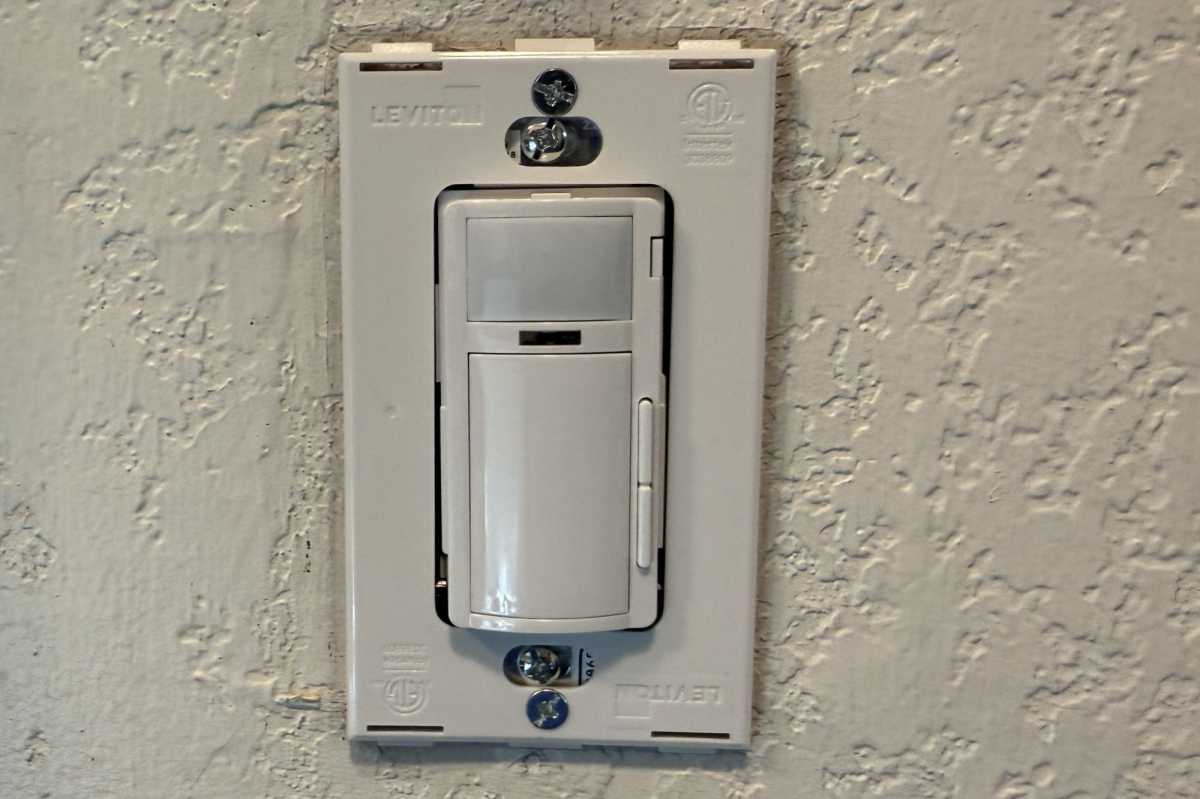
One half of Leviton’s two-piece switch cover gets screwed to the switch itself. The other half snaps onto this half, hiding the screws.
Christopher Null/Foundry
Digging deeper into the settings, the dimmer can be set in one of two modes: Occupancy turns the lights on when motion is detected and off when it stops; Vacancy requires you to turn the light on manually, it then leaves them on until motion stops, at which point it turns them off. You can configure the length of time for no motion to be detected until the lights turn off, with options ranging from 1 to 60 minutes.
An ambient light sensor built into the switch can be used to keep the lights off if the room is already bright from another source (such as daylight from a window). This can be toggled on or off and the minimum light level specified by a slider. (You’ll need to use some trial and error to dial this in.)
A final motion sensor feature is the option to enable or disable a red LED within the sensor to flash if motion is detected. There’s also a separate green LED under the motion sensor that can be set to be either on or off when the light is active, or off altogether.
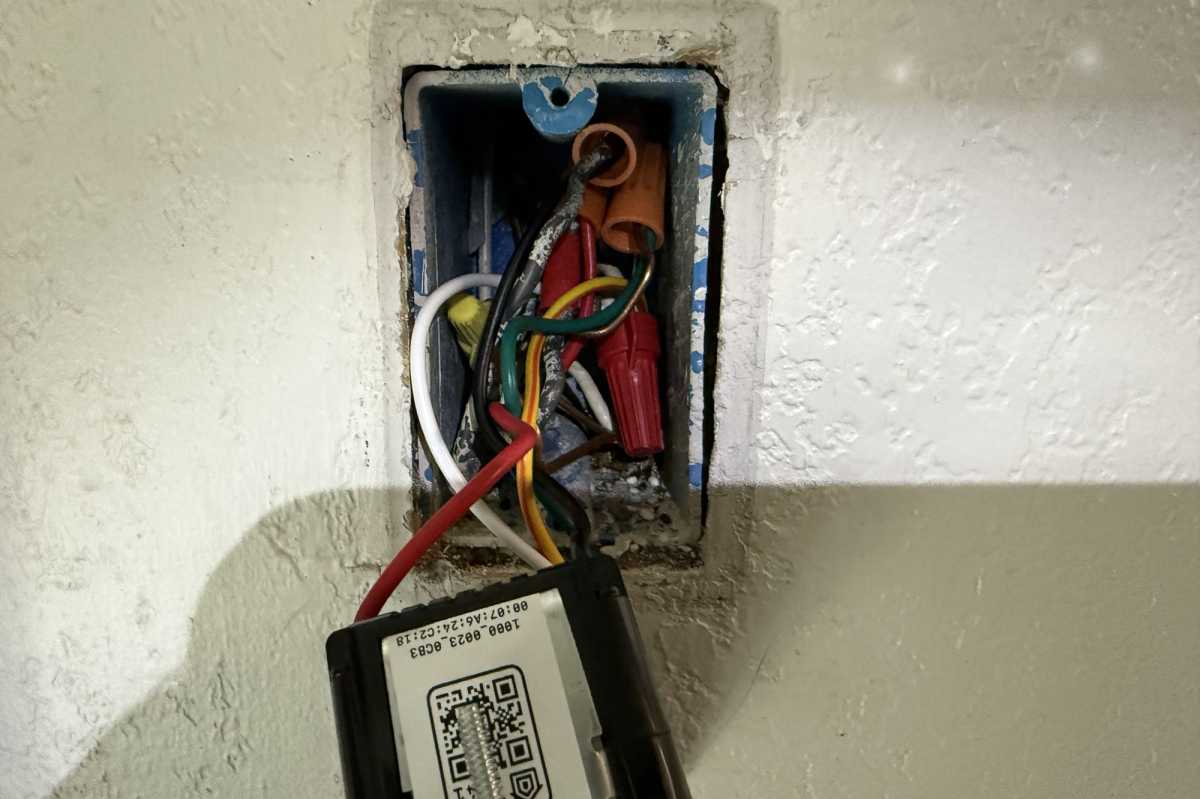
You can add Leviton’s smart dimmer to your Apple HomeKit ecosystem by scanning the QR code on the device.
Christopher Null/Foundry
Another handy feature of the switch is called Guidelight. This is an optional mode that turns the lights on very dimly during night hours when motion is detected, but turns the lights on to your normal brightness settings during other times. These hours can be configured manually or in relation to sunrise and sunset, based on your location.
I had zero trouble with any of these features, and the dimmer worked flawlessly throughout a week of testing. The hardware controls work well, and the app is easy to navigate and quick to respond. Novices should find it easy to work with, but power users who want total control over the way it works won’t be disappointed, either.
Should you buy the Leviton Decora Smart Motion Sensing Dimmer 2nd Gen D2MSD?
I’ve been using a very similar product, the motion-activated Kasa Smart ES20M Smart Wi-Fi Dimmer from TP-Link, for nearly three years. After replacing it with Leviton’s device, I must say the edge goes to Leviton.
These are both very good products, but Leviton’s device has a superior motion sensor, it supports 3-way circuits–including that wireless remote–and I simply preferred working with the My Leviton app over the Kasa Smart app. You’ll pay $15 more for the D2MSD, however, so if cash is a concern, TP-Link offers performance that’s nearly as good. If you don’t need 3-way support, you can’t go wrong with either selection.
