


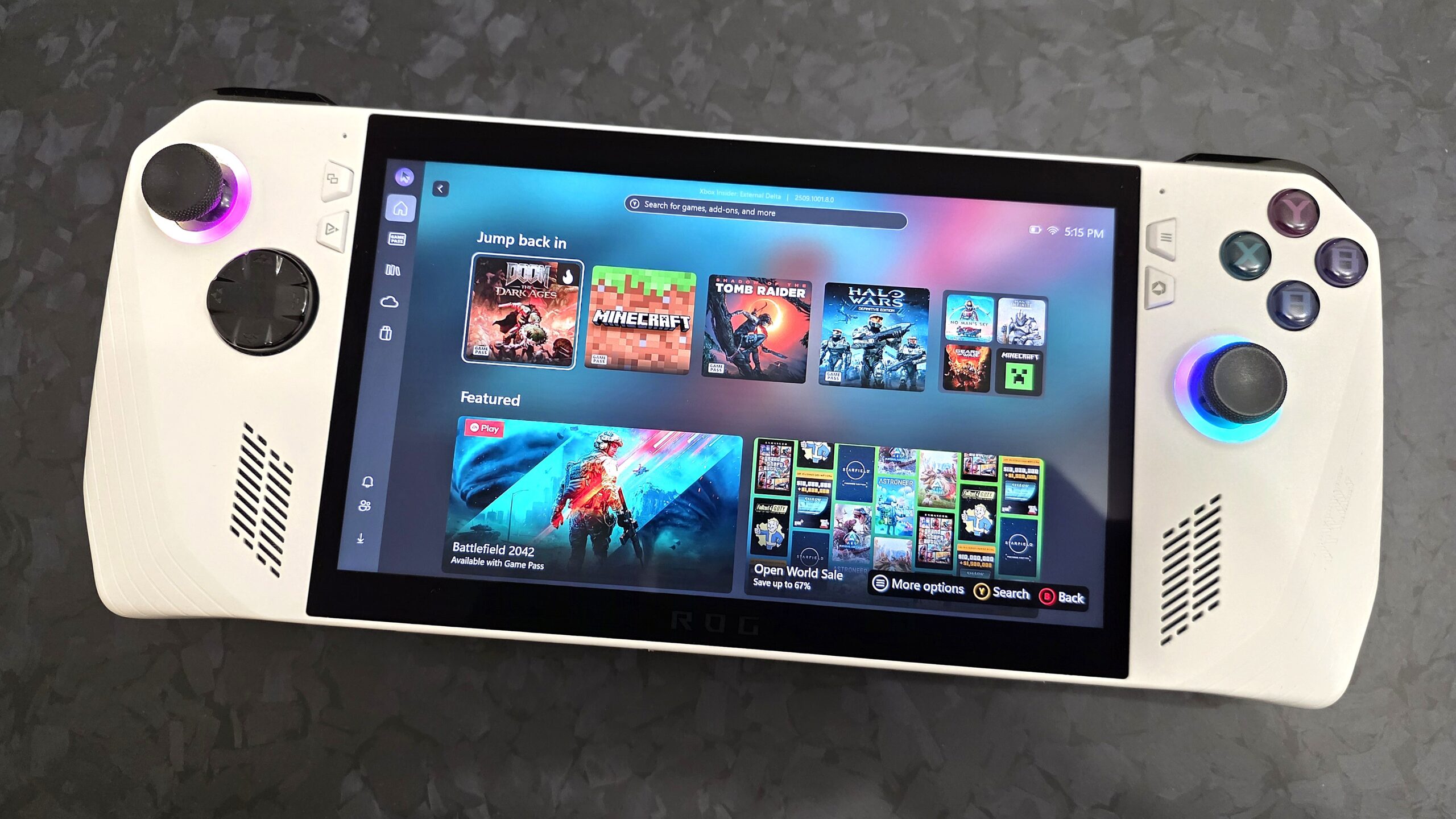
Windows 11’s upcoming handheld gaming mode is highly anticipated for the thousands of gamers who are currently using a Windows-powered gaming handheld, as Microsoft has promised an improved user experience and optimized performance thanks to changes to how the OS loads certain things in this mode.
We had our first look at the new user experience on the upcoming Xbox Ally back in August, but since then we’ve been able to get it running on an original ASUS ROG Ally at home, giving us a chance to go in-depth on the user experience and benchmark a couple of games to see how the new user experience improves things and whether there are any potential performance improvements.
The user experience is good now

Handheld gaming mode addresses the biggest issue with Windows 11 when it comes to the overall gaming handheld form factor, and that’s using the OS to get into your games. It’s widely known that Windows 11 kind of sucks on small screens and hardware where the primary input method is a gamepad.
Microsoft has done a lot of work to improve this experience, to the point where it’s almost as intuitive as Steam’s Big Picture mode or Nintendo’s Switch UI. From the login screen to the “launcher” interface, everything has been updated so you can interact with it using a gamepad.
That means you can now punch in your account pin using the gamepad controls, and you can even type into text boxes using the on-screen keyboard via the analog sticks and A button, just like on an Xbox console. These are small improvements, but they make one hell of a difference when it comes to using Windows on a handheld gaming device.
The new launcher interface replaces the Windows desktop. It’s essentially just the Xbox app running in a full-screen mode, but there are additional hooks into the OS to make the entire experience more seamless and heavy lifting in place of that traditional desktop UX. In this mode, things like the Start menu and Taskbar, as well as your desktop wallpaper aren’t loaded in. It’s just the Xbox app.

Microsoft just announced that the Xbox app is now able to show and run all your Windows games, regardless of where they were sourced from. That means this interface now shows every game you have installed, whether that be from Steam, GOG, Epic Games Launcher, or installed with a CD locally. That means you can get into any game from this dedicated Xbox interface, without needing to open into the traditional desktop first.
When in this mode, Microsoft makes some key changes to touchscreen gestures and Windows 11’s Task View interface. Usually, swiping in from the left will open Windows 11’s Widgets Board, and swiping up from the bottom opens the Taskbar or Start menu. In fullscreen gaming mode, these gestures are replaced.
Now, the swipe in from left gesture opens the Xbox Game Bar, and swiping up from the bottom opens Task View, which has been redesigned to make switching between open apps and games more fluid using a gamepad. This interface is now an integral part of the experience, making it easy and fluid to move between running games and apps on the fly.

This is mainly because when in this mode, everything runs in fullscreen. You can’t run two apps or games side by side like you can on the traditional interface, and that’s by design as handheld screens are small and not very good at multitasking with two things at once. Plus, why would you want to run two games side by side anyway?
That’s where the new Task View comes in, as it makes moving between open apps and games easy and fluid, using just the gamepad bumpers or analog sticks to move through your open activities. Some apps that you run will still display window controls in the top right corner, but other than the close button, the minimize and cascade buttons no longer do anything. Everything is done via the new Task View interface.
How does it optimize performance?

The new handheld gaming mode makes several optimizations to Windows 11 to ensure games run as smooth as possible when in this mode. One of the key changes made is that it sets all of your startup apps to disabled at boot. That means when you login and see the Xbox interface, apps like OneDrive, Steam, GOG, Discord, and others that are usually set to run at startup aren’t loaded in. That frees up a lot of system resources on its own, and does allow games to run with better performance.
In our testing, we did find a noticeable improvement in performance when you are running a game in handheld mode when Windows is set to have all your startup apps disabled. Running the same benchmark tests in desktop mode, with all the startup apps running in the background, does result in worse performance.
But if you’re somebody who already curates the kind of apps that run at startup on your handheld, you likely won’t see much of a performance increase in handheld gaming mode versus desktop mode. In our testing, running benchmarks in handheld gaming mode, then switching to desktop mode with all startup apps off, and then running the benchmarks again, we saw no noticeable difference in performance.
That means that even though Windows 11 has to load in additional elements like the Start menu and Taskbar when switching to desktop mode, they alone don’t actually impact overall system performance and make little to no difference in how your game runs. It’s all your startup apps that are the biggest draw on system resources.
It’s the same story with battery life. Ideally, battery life should be better in handheld gaming mode, because nothing runs in the background at boot. And yeah, in our testing we got roughly an additional hour of battery life when in handheld mode vs desktop mode with startup apps enabled. But if you disable all your startup apps when entering desktop mode, battery life is about the same between the two modes.
That means that any performance gains you’re going to see with Microsoft’s new handheld gaming mode come specifically from the fact that the OS sets all your startup apps to disabled by default. You can configure this if you want, for example, you can set Steam or GOG to run in the background at launch just like normal even when in handheld gaming mode, but that’s not the default behavior.
One thing that people were hoping would be improved is how Windows handles sleep mode on these handhelds. Users have reported that gaming handhelds specifically have a hard time remaining in sleep mode. Unfortunately, in our testing there doesn’t appear to be any changes or improvements to this.
Good things ahead for Windows-powered handhelds

It finally seems like Microsoft is taking handheld gaming on Windows seriously, and this new handheld gaming mode is a great step in the right direction. There’s still lots of work to be done, especially around debloating Windows so that it runs optimally on these handheld PCs.
From a UX perspective, things are mostly in a good spot now. You no longer have to interact with the traditional Windows desktop UX on these devices if you don’t want to, as most of what you’d want to do on a handheld gaming device can be achieved with the gampad and the new full screen mode.
