


If a hacker gained access to your Microsoft account, they could download your OneDrive files, bypass your Windows PC’s security, and potentially even track your laptop’s location using GPS. But security isn’t the only reason to tweak your Microsoft account settings—some of them also affect your day-to-day privacy, too.
Hey, I’ll be honest: I found some surprises in my own Microsoft account settings recently, and that’s why I want to share these tips with you. For example, I had no idea Microsoft was sharing my personal data with third-party partners for advertising-related purposes.
Some of these tips are straightforward, others are less obvious. To find your Microsoft account settings, head to account.microsoft.com and sign in with your Microsoft account credentials.
Control which apps can access your data
You can give third-party apps direct access to your Microsoft account. That one email tool you used back in 2018? Yeah, it might still have access to your Microsoft account emails. Lots of other online account systems, like Google accounts, work the same way. (It’s called OAuth.)
Chris Hoffman / Foundry
To see the list of apps with access, navigate to “Privacy” and then click “App access.” Click the “Details” button next to each app to see what details you’ve shared with that app. Click “Don’t Allow” to remove an app’s access to your account data.
If you’ve played a lot of games on Xbox Game Pass—as I have—this list will likely be long and messy. I had over 100 entries here, and most were Game Pass games. That makes it hard to spot potential threats. It would be nice if Microsoft offered better filtering, but no such luck.
Disable personalized ads and third-party data sharing
If you haven’t configured this yet, Microsoft is likely using your personal data to show you “relevant” ads that might interest you.
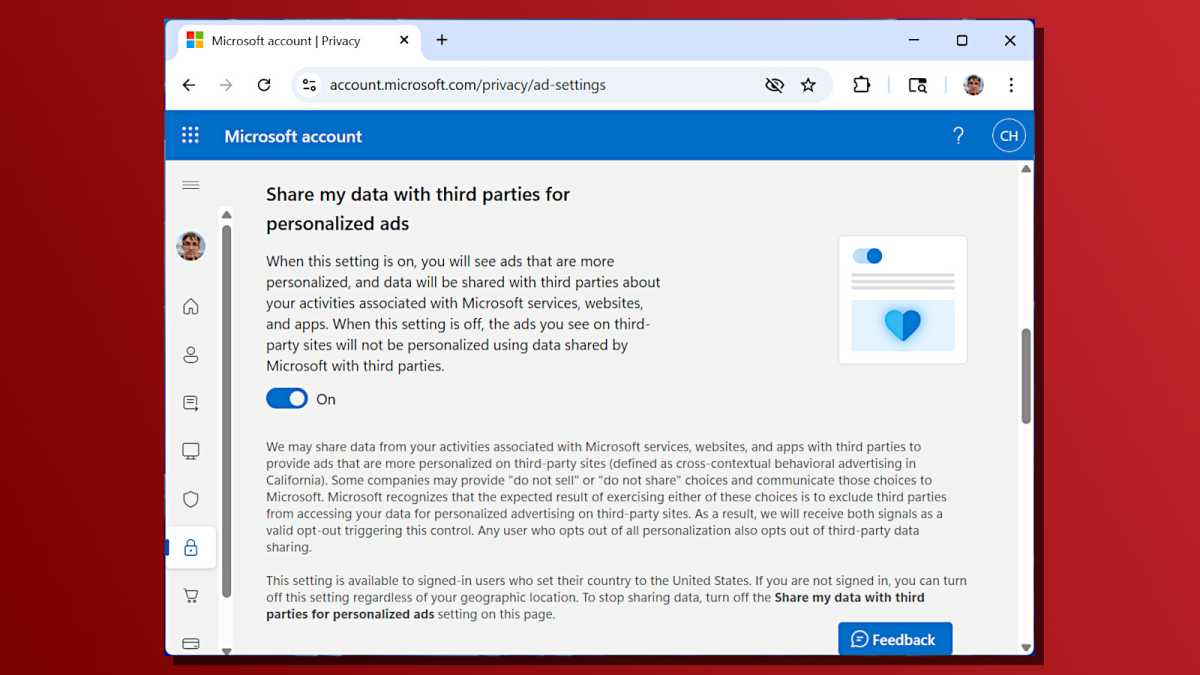
Personally, I don’t mind personalized ads. But I was surprised to learn that Microsoft was sharing data “with third parties about [my] activities associated with Microsoft services, websites, and apps.” I don’t know what that means exactly, and I don’t want to find out. No thank you.
Chris Hoffman / Foundry
To turn these settings off, click “Privacy” in the sidebar, and then click “Personalized ad settings.” Disable both “See ads and offers that interest you” and “Share my data with third parties for personalized ads.”
Say no to email spam
If you want promotional emails from Microsoft, that’s fine. If you don’t, you’ll need to turn them off—they’re apparently on by default!
To find this setting, head to “Settings,” then “Privacy,” then “Promotional communications.” Turn off the various options here. (I found another surprise here, with my account being opted into the “Microsoft 365 Relationship Marketing Program” for some reason.)
Double-check recurring subscriptions
Is Microsoft planning to bill you for something? You might as well check while you’re here. Whether it’s Xbox Game Pass or Microsoft 365, it’s easy to end up with sneaky recurring charges—especially if you buy subscription codes at a discount and would rather not pay the higher price directly to Microsoft on renewal.
Click “Subscriptions” in the sidebar and check if there are any surprises. You can click “Manage” and then “Turn off recurring billing” to turn off any subscription you’d rather not automatically keep paying for.
If you do want to keep some recurring subscriptions, it’s worth checking that your payment methods are up to date while you’re here.
Enable two-step verification
Two-step verification is critical for the security of any online account. You’ve probably heard it before, but it’s true and worth repeating. If it isn’t on yet, you really should enable it.
To find these settings, click “Security” in the sidebar and then click “Manage how I sign in.” Look for “Two-step verification” under the Additional security section. If it’s not activated, turn it on.
Set a backup email and phone number
While you’re checking the status of two-factor authentication, consider adding a backup email address and phone number.
If you only have a single backup method—like a phone number—then you’re vulnerable to getting locked out of your account. Ensure your Microsoft account has an alternate email address and phone number in your control. Make sure you still have access to them.
These options can be found on the “Manage how I sign in” page under “Ways to prove who you are.”
Consider replacing your account password (but maybe not)
Microsoft now offers passwordless accounts. You can remove your account password on the “Manage how I sign in” page simply by clicking “Turn on” under the Passwordless account section.
If you do this, your account won’t have a password anymore and you’ll need to authenticate using an alternative method going forward. Alternative methods include the Microsoft Authenticator app or device-based Windows Hello biometrics.

Chris Hoffman / Foundry
Personally, I haven’t made the leap yet. With two-step verification enabled, attackers already need both your password and something else (like your phone) to sign in. Plus, there are still recovery processes that may let an attacker gain access to your account via SMS or email, so passwordless isn’t as locked-down as it might sound.
And I’m wary of the potential incompatibilities that a passwordless account can have when when signing into my Microsoft account in, say, older applications. Passwordless accounts probably are the future, but it’s not fully baked yet. Up to you if you want to dive in or wait.
Clean up your activity history
Microsoft keeps tabs on your “activity history,” meaning how you use its apps and services, how you browse, and how you search. If you care about your privacy, you probably want to clean that up.
To do that, click the “Privacy” tab and look for the options under “Empower your productivity,” such as “Browsing and search.” You can click an entry in the list and then click “Clear all activities” to erase everything in that category.
After you do, Microsoft will ask if you’d like to automatically clear the data on a rolling basis, ensuring Microsoft isn’t storing a decade’s worth of all those accidental Bing searches you performed when you actually meant to launch an app from the Start menu.
Prune your devices list
Microsoft remembers all the PCs and Xboxes you’ve signed into. To see this list, click “Devices” in the sidebar. You can even find a device remotely if you’ve activated the “Find my device” feature on it—assuming the remote device has an internet connection and is powered on.
There’s a good chance you have a long list of devices you no longer own here—even if you don’t review laptops professionally like I do! It’s worth going through the list and removing the ones you got rid of years ago.
Check recent sign-in activity, too
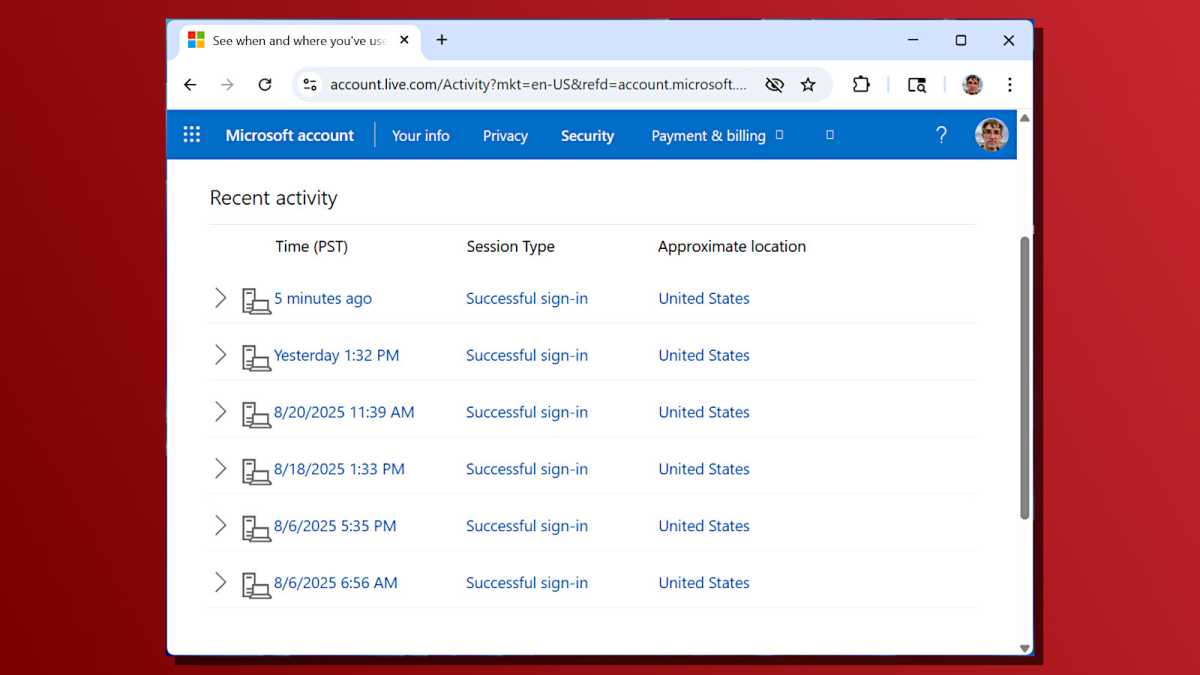
While you’re poking around in your Microsoft account settings, go ahead and check your recent account sign-in activity. To find it, click “Security” in the sidebar and then click “View my sign-in activity.”
Chris Hoffman / Foundry
Check the entries here and verify there isn’t anything you don’t recognize. If you don’t see anything out of the ordinary, your account is likely secure and hasn’t been compromised. But if you see anything weird, it’s time to lock down your account security further.
To do that, click the “Secure your account” link under “Look unfamiliar?” and Microsoft’s website will walk you through the process of changing your password and adjusting security settings.
Account settings often hide surprises
I was startled by some of the things I found when digging through my Microsoft account settings—like that third-party data sharing option, which happened to be activated by default!
It’s a good reminder that we should be regularly reviewing account settings for all our important online accounts.
For more firsthand PC explorations, experiments, and tips, subscribe to Chris Hoffman’s newsletter: The Windows Readme.
