


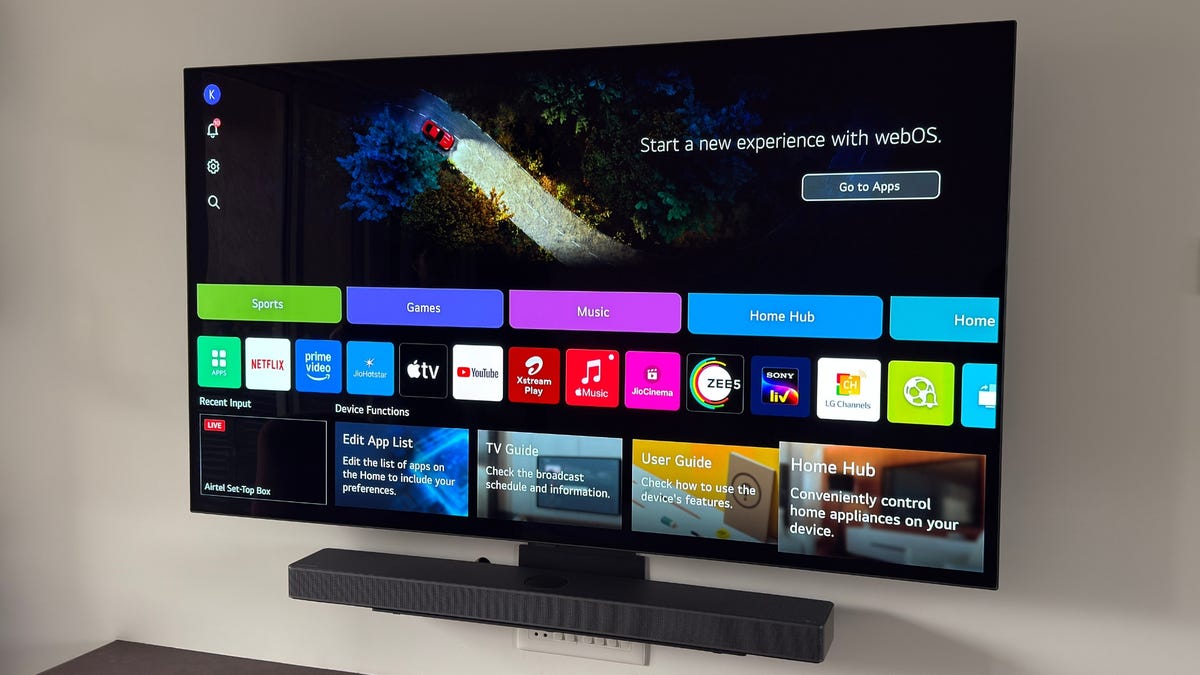
When we test a TV here at CNET, we measure every single preset to help you find the ideal combination for the best possible picture. If you just got a brand new screen from LG — or already have one — there are a few simple tweaks you can make to your LG TV settings for a better and more cinematic experience.
We have tips that cover picture settings, brightness levels and even some software features built into your LG TV that will help you get the most out of it. Be aware that we’re covering LG TVs with the WebOS interface, and older TVs may have their settings in different places.
Don’t miss any of our unbiased tech content and lab-based reviews. Add CNET as a preferred Google source.
Accessing the settings
To get started, most of the settings that we’ll be changing are easily accessible via the quick menu (pictured below). To get there, simply press the gear icon button on your TV remote. The tiles cover most of the basic settings we will be changing, though there some other options are hidden a little deeper in the menus.
Tip: You can also customize the tiles you have on this screen by scrolling over to the pencil icon in the topmost setting tile.
1. Turn off Energy Saving
The first thing you’ll want to do is turn off the energy-saving mode. Leaving this on limits the maximum brightness your LG TV can achieve. To do this, access the quick menu with your remote and follow these steps: All Settings > General > Energy Saving > Energy Saving. Toggle this setting to Off.
2. Turn off Eye Care Mode
Eye Care Mode limits the blue light emitted by your LG TV’s screen. It also affects the color output of the panel, shifting it to a warmer tone that’s supposed to reduce the strain on your eyes. However, this also means the colors you see in a movie or a TV show may not be what the filmmakers intended.
To turn off Eye Care Mode, bring up the quick settings menu and simplify toggle it off with its tile. The setting is called Reduce Blue Light in the Advanced Settings menu and can also be turned off from here: All Settings > Picture > Advanced Settings > Reduce Blue Light.
3. Select a picture mode
The majority of settings on TVs are made for the show floor. They show off the brightest, most colorful pictures output that the panel can achieve, and while the settings are eye-catching they are not appealing once you have the TV in your living room.
However, we know the built-in movie or cinema modes are the best picture setting for any TV. LG also tags this as Cinema mode, while FILMMAKER MODE is even better as it does away with the majority of post-processing that’s done by your TV.
To change the picture mode, press the settings button on your remote, access the Picture Mode tile and choose Cinema. You can pick FILMMAKER if it’s available and see if you like the way it looks. You can also access the menu via All Settings > Picture > Select Mode if you want a look at your other options.
4. Adjust brightness for OLED TV
If you’ve followed this far, your TV’s output is already much better than before. There’s a chance it may look odd to you, perhaps even a tinge reddish, but let it settle for a few days. You can always return to factory settings if it doesn’t work for you.
If you have an OLED TV, the panel may not be set at it its optimum. output. You can use the OLED Pixel Brightness tile in the quick setting menu to change the brightness and set it to 80 or higher.
Also, if you want to try your hand at changing a few more of the values in Advanced Settings, LG also has a guide on its website on what values to use for a better image.
5. Turn off motion smoothing (TruMotion)
Motion smoothing, known as the soap-opera effect on TVs, is a feature that is designed to make movies and sports look “more natural” but some people really dislike its effects. If you want the output image to remain closer to the creator’s intended vision, you’ll want motion smoothing off.
On LG, this setting is called TruMotion,and it’s hidden in Advanced Settings. To turn it off, follow along: All Settings > Picture >Advanced Settings > Clarity > TruMotion. You will have to scroll to the bottom of this menu to find the option.
6. Enable HDMI-CEC
Lastly, if you have a soundbar or a video game console setup with your LG TV, you’ll want to enable SIMPLINK. This is the term LG uses for HDMI-CEC, where the CEC stands for Consumer Electronics Control. This feature effectively lets any HDMI-connected devices power on and control your TV and vice-versa. It makes things a lot simpler as it enables you to use a single remote, in most cases.
To enable this head into All Settings > General > External Devices > HDMI Settings > SIMPLINK.
Changing these six settings should level up your LG TV experience. As while it may look quite different, let your eyes get used to the change for a few days before making any other modifications. If things are already feeling a lot better, you might also want to try customizing your display sharpness to further improve picture quality.
