


Corsair is not necessarily known for its monitors. Its big thing has always been the memory market, but the company has also successfully broadened its horizons into PSUs, peripherals, cooling, and almost everything that goes into building a gaming PC. But it was also one of the first to hit us with a bendable OLED gaming screen, the Xeneon Flex, so it does have some prior form for innovative panels.
So, here comes the Xeneon Edge, a second screen for your system promising a ton of versatility from your PC-attached panel. Either sitting purely as a secondary, letterbox display for your rig, or chock full of touchscreen widgets, powered by Corsair’s iCue software, the AHVA screen can sit below your monitor giving you instant access to whatever you choose to display there.
Actually, it doesn’t have to be purely sat beneath your screen, or even on your desktop at all. Although the package comes with a simple magnetically attached frame so it can freestand on any surface, there are other mounting options available. It being a Corsair device you can screw it onto Elgato mounts, Fanatec sim rigs, or its Platform desks.
There are also 14 discrete magnets embedded underneath the plastic chassis of the Edge, which allows you to stick the whole thing, in whatever orientation you could wish, onto any ferrous surface.
Xeneon Edge specs
You can also mount it directly into your PC case, too, and that isn’t necessarily restricted to a Corsair built chassis. The screw holes on the rear of the monitor frame are designed to align perfectly with any 360 mm fan mounting point on your case. But there is one other Corsair-specific place you will be able to jam the screen: the side of the Corsair Frame 4000D… eventually.
That’s a case designed to be torn down and rebuilt with a host of different modular parts, and one that’s in the pipeline is a Xeneon Edge mounting frame to sit in the side of the chassis, just below the see-through side panel.
In terms of the specs run-down, this is a 14.5-inch AHVA display, connected via either USB Type-C via an Alt DP connection, or through a straight DisplayPort cable. You get a 2560 x 720 native resolution and a 60 Hz refresh rate. It’s not the brightest screen you’ll ever see, either, with a peak luminance of 350 cd/m2.
I did have one strange issue, when connected via the Thunderbolt connection on my Intel Arrow Lake desktop PC. There is absolutely dreadful tearing on the screen whenever I swipe between widget layouts, and it’s incredibly distracting. Plugging into the USB4 port on the Razer Blade 14, however, you don’t see it. At 60 Hz, it’s not particularly smooth, but it doesn’t have the tearing.
But the low refresh and relatively low brightness aren’t necessarily a biggie, considering this isn’t designed as any kind of gaming screen. It’s there for displaying a few apps, some hot keys, and maybe some software controls; it doesn’t need to be particularly zingy.

What it does need is a touchscreen interface if it’s there to support some sort of extra software controls, à la Virtual Stream Deck. And it’s sporting five-point capacitive touch technology, which is responsive enough on that front.
So, as a second screen it’s got the necessary technical goods, but having spent the past couple of weeks using the Xeneon Edge attached to my work machine I really am left questioning why I would pay the money for it. This isn’t a cheap device—being a $250 (£220) screen—and the extra features its iCue integration is offering aren’t exactly singing to me.
Out of the box you get 15 different widgets you can slap onto the screen, and I got bored of clicking the plus button before getting anywhere near iCue deciding I couldn’t add any more swipeable ‘desktops’ to house them (FWIW, I got up to 23). But they’re all pretty standard fare with a few exceptions, such as the Windows notif flow and the iFrame widget.
You can customise the widgets to a certain extent, with a background of your choosing and some colour and sizing options, but nothing that feels like it has much flair.
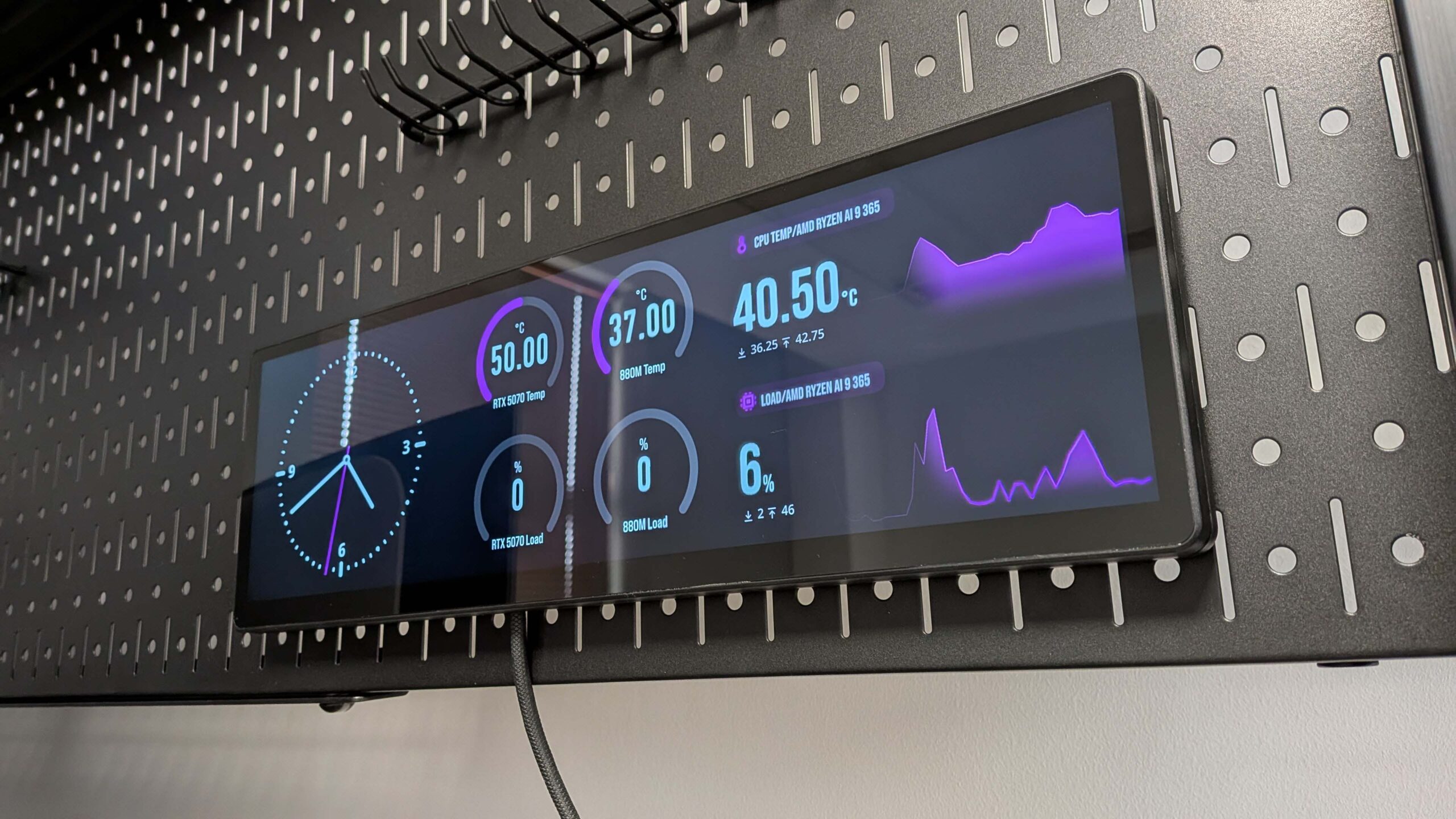
For clarity, my home PC already has a built-in second touchscreen. It’s the Hyte Y70 Touch, and is… mostly fine. I have some system-level performance display widgets, some cute rotating gallery pics of my li’l boys, a clock, and a weather app. Now, the Y70 Touch isn’t cheap, either, with its near $200 premium over the standard Y70 case, but it’s directly integrated into the chassis so you don’t need to take up a 360 mm fan mount for it and tank your cooling.
Image 1 of 4


And the Nexus app you use to configure everything just feels a lot more fancy. Well, it feels like it’s been percolating a lot longer than the section in iCue. It may chew up more resources, but the built-in video backgrounds are instantly more pleasing than asking you to go off and just chase down your own properly sized vids. There’s far more customisation available to the system sensor widgets, too. In all, it just feels better put together.
But I’m still honestly not entirely excited by the Hyte implementation; I certainly won’t be rushing to ensure my next PC build absolutely has to have a diminutive secondary screen built into the setup. Still, the iCue options feel even more limited by comparison.
Though I will say I have found the iFrame widget pretty effective. You can use it to embed website info in either a third, two-thirds, or full-screen layouts—that kinda got me around the lack of a weather widget in iCue—but crucially you can also use it to create your own apps.
I still haven’t got out of Corsair whether it’s going to be creating any sort of Xeneon marketplace for Edge widgets, such as exists for Elgato’s Stream Deck, but that feels like a good way to extend the functionality beyond the limited selection you’re presented with. But the iFrame widget is a way to get around that if you’re willing to get your hands dirty with GenAI.
With the assistance of Gemini and the Github Pages feature I was able to create a simple calculator app in a colour of my choosing with a display output that delivered the information that I wanted. It does what I need on a day-to-day basis messing around with frame time numbers and benchmarking spreadsheets, and having that permanently sat in front of me is handy.
Image 1 of 4


Though when I sat back to think of how else I could wield this newfound coding power (ie, dumbly querying Gemini until I can get something approximating what I want to display) I came up blank. What do I really want a second screen for? For me, probably not a lot.
There are niche ways that I can see it being of some benefit to some people, such as video editors wanting to drag the timeline down onto a separate screen (like with Asus’ strangely split Duo laptops), or folk working with music or image editing wanting shortcuts available at short order.
For that you can use the Virtual Stream Deck app, and overlay however many shortcut keys onto the touchscreen you could want. Here’s the rub, though, the 15-key Stream Deck is $100 less than the Edge, and comes with physical buttons which will be more tactile and won’t necessarily require your eyeballs each time you press them, at least not once muscle memory takes over.
Buy if…
✅ You want a second screen to keep an eye on your PC’s performance: So long as the components you want to track are in iCue the Edge is a decent display to monitor your system.
Don’t buy if…
❌ You don’t have a specific use already in mind: Without something you’re confident you will use it for, $249 is a lot of cash to spend on another shiny screen.
It’s also worth noting that monitors—actual gaming-capable monitors—are super affordable these days. Just ~$150 will get you a full 27-inch, 165 Hz, 1440p display. You may not necessarily have a segmented place to display widgets on a ‘dumb’ second screen, but I’d say it will be far more useful day-to-day even with a lack of touchscreen usage.
So, here I am still trying to figure out why the Xeneon Edge really exists. Corsair has a bunch of pages linking out from the product page essentially trying to sell us on the concept, but they just boil down to the same things: We’ve made a few widgets for it you might like.
Almost the most telling thing Corsair says about the Edge screen comes from the intro to its own Everything you need to know page, where it likens it to the LCD screens that are regularly being slapped onto the pumps of every damned AIO cooler in the land. AIOs are getting screens just because and that feels like the entire raison d’être of the Xeneon Edge: Just because.
Best gaming monitors 2025
