


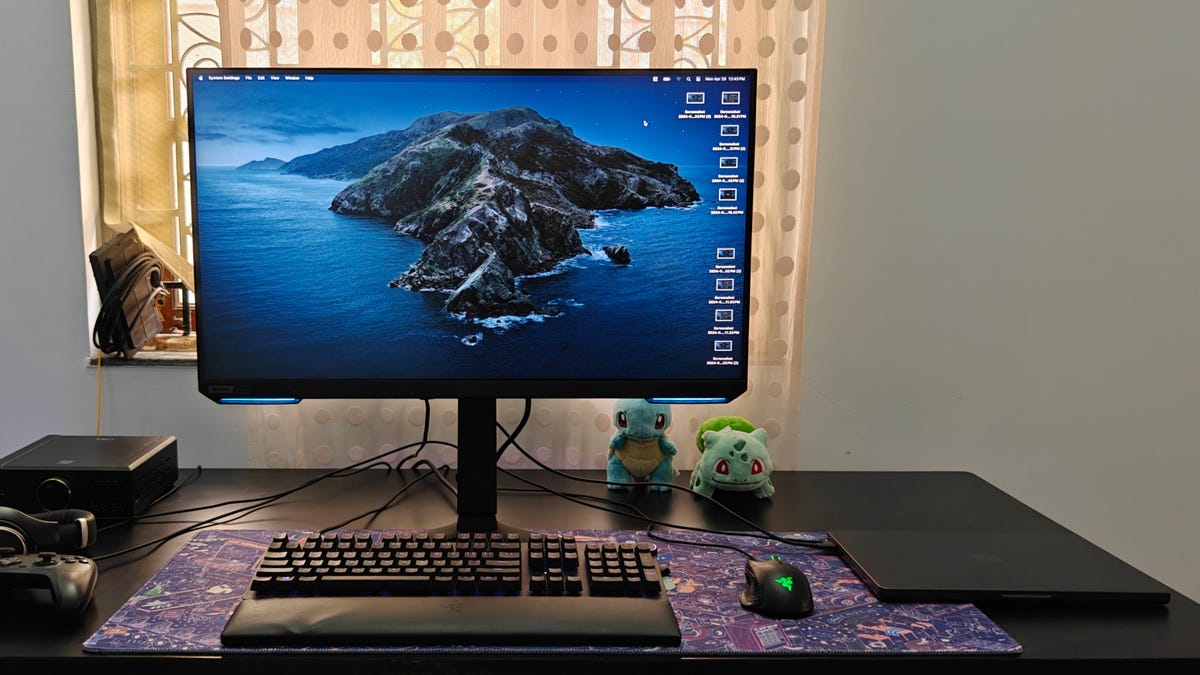
Laptops have made it easy to keep working when you’re on the go, but that doesn’t mean they’re perfect for every situation. Whether you need more space at your desk or you need a larger monitor to keep track of things at work, hooking up an external monitor can let you stay productive. And you don’t need to keep your laptop open, either.
If you want to keep your laptop closed and use only the monitor, you can turn your laptop into a compact desktop setup with a few quick settings tweaks.
You’ll need the basics: a monitor, keyboard and mouse. You’ll also need the right cable to connect your laptop’s display output to your monitor. If your laptop doesn’t have enough ports, consider getting a USB hub or dock. To help create the perfect desk setup, we’ve put together this guide.
How to close a Windows laptop and use the monitor
Windows laptops have some settings that you will need to change if you want to use them with the lid closed. Follow these steps to close the lid of your Windows laptop and use the monitor.
1. Open the Control Panel by looking for it in Windows search. Navigate to Hardware and Sound > Power Options and click Choose what closing the lid does in the left pane. You can also look up this option directly in Windows search to open the settings directly.
Control Panel still has some of the key settings options, even in Windows 11.
2. Click the dropdowns next to When I close the lid, under On battery and Plugged in. Select Do nothing for both.
Windows laptops enter sleep mode when the lid is closed, unless you change these settings.
3. Click Save changes to apply your new lid settings.
4. Connect your external keyboard and mouse to the right ports on your laptop or a connected USB hub or dock. Depending on your hardware, you can also connect a wireless keyboard and mouse by plugging in the USB dongle or setting them up in Bluetooth settings.
5. Connect your external monitor to the correct display output port on your laptop or a connected USB hub or dock.
6. Close the lid and use the monitor with your keyboard and mouse.
7. If your monitor’s resolution, refresh rate, or display scaling appears off after closing the lid, navigate to Settings > System > Display to adjust them. Some settings may be under Advanced display.
You might want to change the display scaling settings to fit your preferences.
How to close a MacBook and use the monitor
The display behavior on MacOS is a bit different to Windows. You don’t have to change your lid settings. However, you do have to plug in your MacBook, or it will likely enter sleep mode when you close the lid.
1. Plug the power adapter into your MacBook.
2. Connect your external keyboard and mouse to the right ports on your MacBook or a connected USB hub or dock. If you have a wireless keyboard and mouse, connect the USB dongle or set up the devices via Bluetooth settings.
3. Connect your external monitor to the HDMI or USB-C Thunderbolt port (or another available display output port) on your MacBook or connected USB hub or dock.
4. When your MacBook’s desktop shows up on the external monitor, close the lid.
5. If your monitor doesn’t show the macOS desktop, wake your Mac by pressing a key on the keyboard and moving the mouse.
6. Apple also suggests configuring display settings. Click the Apple menu in the top-right corner of the screen, choose System Settings (or System Preferences) and click Displays. You can adjust the display resolution, refresh rate, and more here.
You can adjust the resolution, refresh rate, and more in MacOS Display settings.
Using a laptop at your desk with the lid closed
Although using a laptop with the lid closed is a good way to get the most out of it, there are a few things to keep in mind. If you regularly use your laptop or MacBook with the lid closed, it’s a good idea to get a USB hub or dock so you don’t have to plug in every peripheral every time you connect your laptop.
Additionally, using a laptop with the lid closed may cause it to heat up more. Keep an eye on the temperatures and make sure your laptop is seated properly with enough room for proper air circulation. Some laptops may be better off with the lid open if your usage is prolonged.
If you want to get the best out of your desk setup, you might want to take a look at our list of the best home office essentials. If you’d like to get a better desk, we also have a roundup of the best desks you can get, as well as the top-standing desks on the market.
Laptop monitor FAQs
Why does my monitor turn off when I close my laptop?
Your monitor turns off when you close your laptop because most laptops are set to enter sleep mode when the lid closes. For Windows laptops, you’ll need to change the power settings to “Do nothing” when the lid closes, as explained above. On MacBooks, you’ll need to ensure your device is plugged into power before closing the lid, or it will automatically sleep.
Can I turn my laptop screen off without closing my laptop?
Yes, you can turn off your laptop’s display without closing the lid. On Windows, press the Windows key + P to open the display settings pop-up, then select “Second screen only” to use just the external monitor. If you’re using a MacBook, there’s no easy way to turn the display off completely. However, you can instead go to System Settings (or System Preferences) > Displays and adjust the arrangement settings to use the external display as your primary monitor, and then turn down the brightness on your MacBook screen all the way down.
Is it OK to use a laptop in clamshell mode?
Using your laptop in clamshell mode (with the lid closed) is generally fine, but there are some things to keep in mind. You’ll have to make sure your laptop has proper ventilation since closing the lid can limit airflow and cause it to heat up more during heavy usage. Some laptops will actually work better with the lid slightly open so the airflow isn’t restricted, so keep an eye on your laptop’s temperature during extended use.
