


I get it, the world is moving away from physical media. But I won’t, not entirely. As many movies and TV shows that I “own” digitally and have access to through streaming services, I’m old-fashioned.
The only way I know I’m not losing access to a piece of content (games not included) is by owning a copy of it on a disc. Like it’s 2010 all over again.
But Blu-ray discs aren’t the most convenient. I can’t watch them in any room in my house, I can’t “offline” them to my phone if I’m going on a train or a plane, or just traveling in general. So, once again, I’m making an attempt to digitize the collection so that my family and I can watch them anywhere.
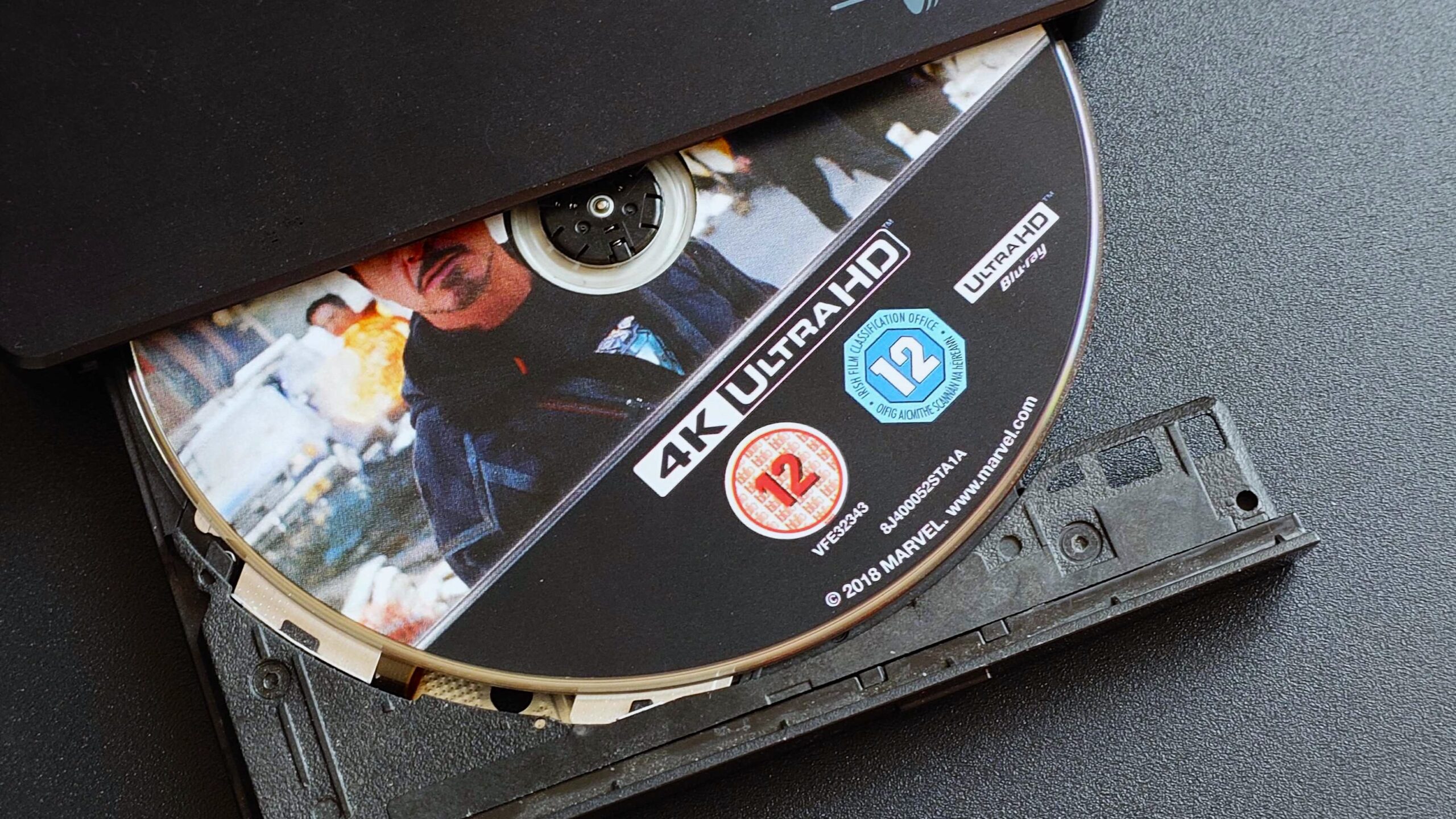
Since my last attempt, I’ve acquired a number of 4K UHD Blu-rays, though, and my trusty old USB drive is only suitable for the regular 1080p kind. Or so I thought.
After stumbling on a YouTube video, I learned of a thing called LibreDrive that could, magically, make it so I could utilize this drive to digitize the 4K discs. Not expecting much, I went off and did a little digging, and whaddya know?!
With minimal effort and a little care to do things properly, I can do just that and don’t need to spring for a new external Blu-ray drive. I’m a happy man.
What in the heck is LibreDrive?
I was careful to say I learned of LibreDrive, not about it. Because truthfully, I don’t really understand it. In its simplest terms (and do correct me in the comments if I’m wrong here) is that it allows for direct access to the data on the disc without any restrictions placed by firmware.
A LibreDrive is a mode of operation of an optical disc drive (DVD, Blu-ray or UHD) when the data on the disc are accessed directly, without any restrictions or transformations enforced by drive firmware. A LibreDrive would never refuse to read the data from the disc or declare itself “revoked”. LibreDrive compatible drive is required to read UHD discs.
MakeMKV forums
A LibreDrive-compatible.. uh, drive.. will therefore be able to work around these restrictions and grab the data straight from the disc. It does involve changing the firmware on the Blu-ray drive to something that can do this, and as such, not all Blu-ray drives are compatible.
How did I know mine was? MakeMKV, the software you should absolutely use to digitize your discs, simply told me that LibreDrive was possible, but not enabled. Having seen this, I ended up on the MakeMKV forums where I found the firmware, a tool to flash it, and step-by-step instructions written by people way smarter than I.
I’ll admit to being skeptical, but it really did work. LibreDrive is now enabled, and I can access the data from a 4K UHD Blu-ray, despite not having a drive I’m supposed to be able to do that with. Be that for watching or digitizing.
As far as I can make out, to digitize a 4K Blu-ray, you need a LibreDrive-compatible piece of hardware, regardless of the protections on the disc. Regular reminder that, generally speaking, the companies making these things don’t want you to rip them.
This isn’t a guide, because, again, I am not the man to be writing such content. But if it’s something that interests you, the MakeMKV forums are the place to go. You’ll find helpful advice, recommendations on compatible hardware, and all the bits you require.
But I would recommend opening MakeMKV first and seeing what it says. If it says it’s possible, as with my drive, at least you know you’re looking with purpose. Less chance of being disappointed.
For reference, the drive I’m using is a Hitachi-LG BP55EB40. If you can find one cheap, it’s solid, if not the latest and fastest around, but I wouldn’t buy one at full price anymore.
How I’m digitizing 4K UHD Blu-ray discs

This part I can speak to with a little more authority. It’s not necessarily the best workflow around, but it’s the one I have with the hardware at my disposal.
The first part is grabbing MakeMKV, which has been in beta for essentially eternity at this point. There’s a beta key posted regularly to the forums, but you get 30 days of evaluation time regardless, or you can support the development by buying a lifetime license.
Opening a disc will show you every single piece of content on it. You can rip it all, or, as I do, be selective. I’m not interested in extras, I just want the main feature content. It’s pretty obvious which is the main feature, for one, it’s usually the biggest file.
From there, the workflow is to click “MakeMKV” and then grab a beverage, because it takes a while. I only have a USB 2.0 Blu-ray drive, and it can take anything up to an hour depending on how big the file is.
What you’re left with is a raw rip of the video content from the disc. You can watch this if you want, but it’s potentially not ideal. For one, it’ll be a massive file, so unless you have an endless supply of storage, eventually you’ll run out.

Huge files also aren’t necessarily what you’re going to want to transfer to a phone or tablet, or stream over your network, either. That’s where the second part comes in, and it’s over to Handbrake.
Handbrake is where I’ll transcode all the videos to a more efficient, readable, smaller format. There are plenty of settings in here you can use to get the right balance, and I’d recommend reading up on the wealth of resources you’ll find on the internet.
For me, I simply use the 10-bit h.265 NVENC option for 4K discs to utilize my RTX 5080 GPU. I do this for a balance of quality and efficiency. I may have a couple of goes at it if I set the quality too low, but using the GPU, at least I’m not waiting all day for it to finish.
Unlike MakeMKV, though, which has to handle a disc at a time, Handbrake allows you to set up a queue. You don’t need to do a file at a time; you can simply line up a bunch of your Blu-ray rips, decide on the settings for each, hit the button, and let it do its magic.
That’s what I tend to do. I’ll focus on ripping maybe half a dozen discs at a time, then queue up those files in Handbrake and do a batch. I doubt it saves me any time, but it reduces the time spent flicking between the apps. I can focus on a single task at a time.
So what do I do with all of these transcoded files?

The final step is one I haven’t decided on yet. For a large collection — and mine isn’t exactly small — a lot of storage is needed.
For now, they’re all building up on a secondary SSD in my PC, but the long-term play will be moving them to a NAS. I have one with a 4TB RAID set up, which should do for the foreseeable future.
From there on, it’ll be getting back into either Plex or Jellyfin. I have a Plex Pass lifetime license, and in the past, it’s what I’ve used. But the more I hear about Jellyfin, the more I want to at least try it out.
All of that is another post for another day, though. For now, I’m just elated that I didn’t need a new Blu-ray drive to take care of the 4K discs!
