


On August 12, 2025, Microsoft is expected to start rolling out the August 2025 Security Update for Windows 11, which includes several new features and visual changes, in addition to security fixes and improvements.
In this monthly update, you will find at least eight new improvements for version 24H2, including a feature to completely reset Windows Recall, additional AI actions for Click to Do, a redesigned Search settings page, and a new gamepad keyboard layout with PIN sign-in support.
Furthermore, in this release, Microsoft is also making available the Quick Machine Recovery (QMR) feature, and this is the update that starts the rollout of the AI agent for the Settings app.
Windows 11 new features arriving in August 2025
Before diving into what’s new, these new features and visual changes usually roll out gradually, meaning they may not be available to everyone immediately.
Furthermore, some improvements require specific hardware, while others may only be available in certain markets.
1. Windows Recall export and reset
As part of the August 2025 Security Update, Microsoft is adding two new features for Windows Recall, including the ability to export your data and completely reset the feature.
Data export
If you’re a market governed by the European Economic Area (EEA), then after installing this update, you’ll be able to export your data to share it with third-party apps and websites.
This means that when setting up Windows Recall for the first time, you will receive an export code to decrypt and export your snapshots.
On the page, you’ll have to check the “I have saved my Recall export code in a safe place” option and click the “Confirm” button since Microsoft doesn’t store this information.
If you need another export code, you’ll have to reset the feature, which deletes your Recall data and settings.
When you want to export your data, you’ll have to open Settings > Privacy & security> Recall & snapshots > Advanced settings.
On the page, click the “Export snapshots” setting, click the “Export” button, select the period of data to export (from 7 days to 30 days or everything), and click the “Next” button.

This feature exports your snapshots, as well as their information.
Select the location to save snapshots and click the “Export” button again.
While on the settings page, you can also configure Windows Recall to continue exporting your data automatically with the “Export snapshots from now on” toggle switch.
After exporting the data, it will remain encrypted, and at this time, that’s when you’ll need the export code to decrypt the information so third-party apps and websites can access the information.
Reset feature
In addition, Microsoft is adding a new option to reset the Windows Recall feature completely.
If you no longer want to use the feature, you can open Settings > Privacy & security> Recall & snapshots > Advanced settings.

On the page, click the “Reset Recall” button, and then click the “Reset” button again. This option will delete your snapshots, settings, and turn off the Windows Recall feature.
2. Click to Do new AI actions
On Click to Do, this update is adding several new AI actions related to reading, drafting content, and using Teams.
For reading, the company is adding “Practice in Reading Coach” and “Read with Immersive Reader.”
The “Practice in Reading Coach” feature provides feedback when reading text aloud, while the “Read with Immersive Reader” feature offers a clean interface to focus on content you want to read.

These new features require you to install the Reading Coach app from the Microsoft Store.
Once the app is installed, while on a snapshot using Click to Do, you can select and right-click the selection to access the options.
After installing this update, you may also notice the “Draft with Copilot in Word” action when selecting some text.
This AI action is only available if you have a Microsoft 365 Copilot subscription, and it’ll allow you to create a draft of content based on the text selection.

Finally, if you use the Microsoft Teams app, during the month of August 2025, Click to Do is gaining two actions, including “Send a message with Teams” and “Schedule a meeting with Teams.”
3. Settings with new AI agent
As part of the August 2025 Security Update, the Settings app is getting a significant update that rolls out a new AI agent for the search experience inside the app.
After installing this update, the system will include a new AI model that works in combination with the search experience in the Settings app, which allows you to find settings and resolve configuration issues using natural language.
Furthermore, the AI agent will also be able to apply settings on your behalf with your permission.
For example, if you type “my mouse pointer is too small” in the live results drop-down, the feature will display an AI recommendation to increase the pointer size, which you can change by clicking the “Apply” button.

In most cases, you’ll also find an “undo” option to revert the changes.
Since the agent won’t be able to answer all of your questions, the experience will also continue to surface relevant settings matching the query.
The AI agent will be available for Copilot+ PCs featuring the Qualcomm Snapdragon processors, with Intel and AMD support coming in the future.
If you have non-Copilot+ PCs, you will only get the new search box design that now appears at the top-center of the app.
4. Quick Machine Recovery new feature
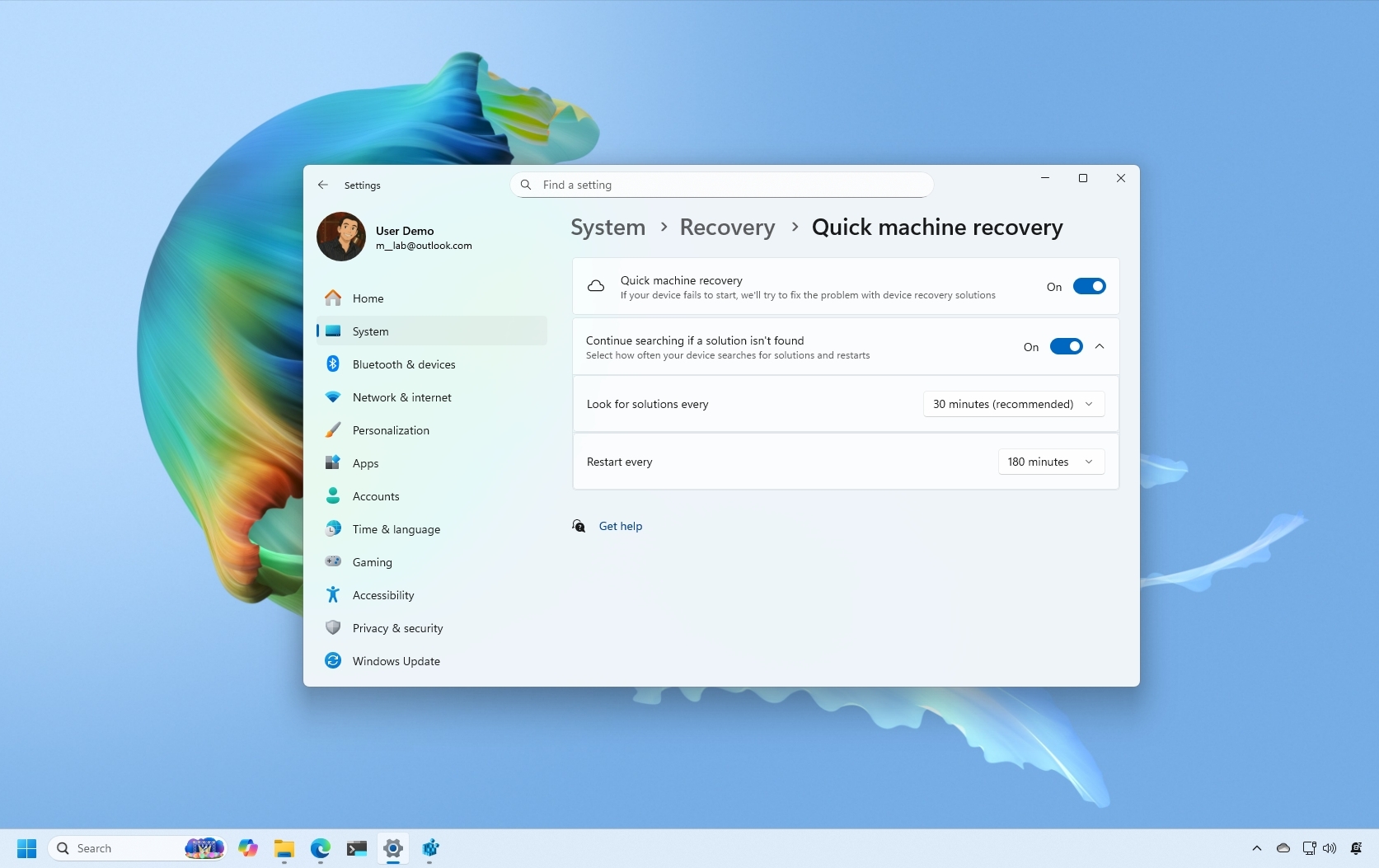
Quick Machine Recovery (QMR) is a new feature that Microsoft is rolling out with this update to help reduce downtime as a result of boot failures.
The recovery feature will come enabled by default on Windows 11 Home, and Pro users will have to configure it manually.
When the computer detects that the operating system isn’t working correctly, it’ll connect to the network and upload the diagnostic information to the Microsoft servers, and eventually, the device will receive a targeted fix for a particular problem.
Microsoft is building the Quick Machine Recovery feature as part of the Windows security and resiliency initiative to protect businesses against incidents like the CrowdStrike, which caused outages worldwide in 2024, due to a buggy software update.
If you have a computer running Windows 11 Pro, you can open Settings > System > Recovery > Quick Machine Recovery, and then turn on the “Quick machine recovery” toggle switch.

You can also change the default settings by turning the “Continue searching if a solution isn’t found” toggle switch, and configure how the computer should look for fixes.
When a new remediation is applied, you can confirm the system was patched in the Settings > Windows Update > Update history.
5. Snap Layouts inline descriptions
In this update, the Snap Layouts flyouts from the maximize button and the top of the screen experience are getting inline descriptions to help users better understand how to use the feature.
For example, if you open the flyout from the maximize button, then the experience will show the “Choose where to move this window” message with the shortcut to open the interface.

On the other hand, when dragging an app to the top of the screen, the interface will read “Drag a window here to arrange it on your screen” with the shortcut to open the interface.

6. Settings app with new Search page
Although the search experience isn’t getting significant improvements, Microsoft wants to simplify the feature and is now replacing the “Search permissions” and “Searching Windows” pages with one page known as “Search.”

The settings remain the same in this update, but the page now matches the Windows 11-style design.
7. Gamepad touch keyboard layout with PIN sign-in support
Windows 11 recently introduced a touch keyboard layout optimized for gamers, and starting with this update, the company is expanding the layout to the keyboard for PIN sign-in.

This means that you should now be able to enter your account PIN more quickly using a game controller.
8. Black Screen of Death new error page
Finally, Microsoft is also ditching the Blue Screen of Death (BSOD) for a new minimal design that switches to a black background that only shows the necessary information, such as the stop error code, process of the dump creation, and some other details.

This new page doesn’t include a QR code or frown face kaomoji.
So, now, the error will probably be known as the Black Screen of Death. However, if you have a computer in the preview program, then the page will be green.
In addition to the new visual changes and features, this cumulative update also includes a slew of fixes and other small changes regarding File Explorer, Desktop, ReFS, graphics, and more.
The update will download and install automatically, but you can check for the latest updates from Settings > Windows Update. If you’re trying to get it before it’s fully available, then remember to turn on the toggle switch to receive updates as soon as they’re ready.
More resources
Explore more in-depth how-to guides, troubleshooting advice, and essential tips to get the most out of Windows 11 and 10. Start browsing here:
