



With its silky performance and razor-sharp video resolution, the Apple TV 4K has been my streaming box of choice for years, but it has some quirks that drive me up the wall.
For instance, why does the TV button on the Siri Remote send you to the Apple TV app rather than the main Apple TV home screen? What’s with those Apple TV+ video promos that start playing automatically, complete with sound? And don’t get me started on trying—fruitlessly—to pinpoint a particular moment in a video by clumsily swiping the remote’s touch-sensitive navigation pad.
Luckily, you can nip these Apple TV 4K annoyances in the bud with a few simple tweaks in the Settings menu. Read on for fixes to five quirks that perpetually annoy Apple TV users.
Quirk: the Siri Remote TV button doesn’t take you to the home screen
Back in the early days of Apple TV, the Home button on the remote did what it said it would do: It took you to the Apple TV’s home screen, where you could find all your ATV apps, just like on an iPhone.
Then the Apple TV app came along, and before we knew it, the Home button on the Apple TV remote (later dubbed the Siri Remote) jumped you to the Apple TV app rather than the home screen. Talk about annoying.
Fix: Change how the TV button on the Siri Remote works
Luckily, there’s a way to make the Home button—OK, fine, the TV button—on the Apple TV remote do what we actually want.
Go to Settings on the Apple TV, select Remotes and Devices, scroll to the TV Button setting, then pick an option: either Home Screen or Apple TV App. Pick the former, and you’re all set.
Changing what the Siri Remote’s TV button does takes just a few clicks.
Ben Patterson/Foundry
Quirk: “Scrubbing” videos is way too finicky
When you pause the video on your Apple TV, you can swipe the touch surface in the center of the navigation pad to “scrub” forward or backward.
But scrubbing with precision can be a royal pain, as it’s all too easy to overshoot the spot you’re trying to find. And the more you try, the more you’ll wish you’d never started scrubbing in the first place.
Fix: Use the rim of the navigation wheel
If you’re getting frustrated, try this trick: Instead of swiping the touch surface in the middle of the navigational wheel, slide a finger around the rim of the wheel itself—clockwise for forward, or counterclockwise for reverse. Using that gesture makes it a little easier to pinpoint an exact spot on a video.
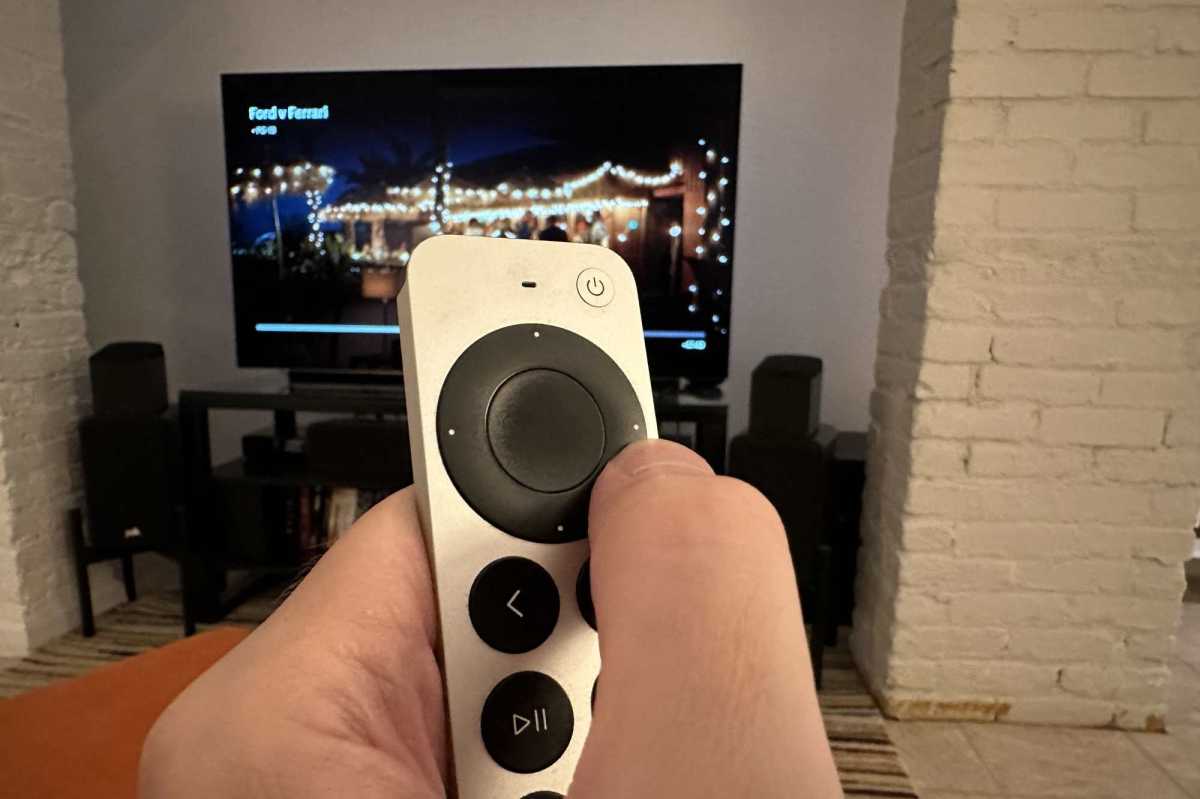
Just swipe clockwise or counterclockwise along the rim of the Siri Remote’s navigation pad to “scrub” forward or backward on a paused video.
Ben Patterson/Foundry
Quirk: Auto-playing videos in the Top Shelf
So, you know when you scroll over the app icons in the top row of the Apple TV home screen, and promo images or even auto-playing videos appear at the very top of the screen?
Apple calls that promo area the Top Shelf, and for the most part, you can’t control the content what appears there as you scroll from one app to another.
There is a key exception, however: the Apple TV app.
Normally, when you scroll over the Apple TV icon, you’ll see a screen-dominating What to Watch preview that begins playing automatically, complete with sound (more on the annoying auto-play audio in a moment). But for the Apple TV app, you have the option to change the Top Shelf’s behavior to something more useful.
Fix: Change the Top Shelf setting for the TV app to Up Next
Try this: Go to Settings, then click Apps, TV, and scroll down to the Home Screen setting. Finally, toggle the Top Shelf setting from What to Watch to Up Next.
Now, when you scroll over the Apple TV app on the Apple TV 4K’s home screen (assuming you keep the Apple TV app in the top dock), you’ll see what’s in your Up Next queue, handy for jumping back into what you’ve been watching or teeing something you already want to watch.
Bonus tip: You can set the Up Next promos to show either the cover art for the TV show or movie you were watching or a still-frame of the video; just toggle the Up Next Display setting.
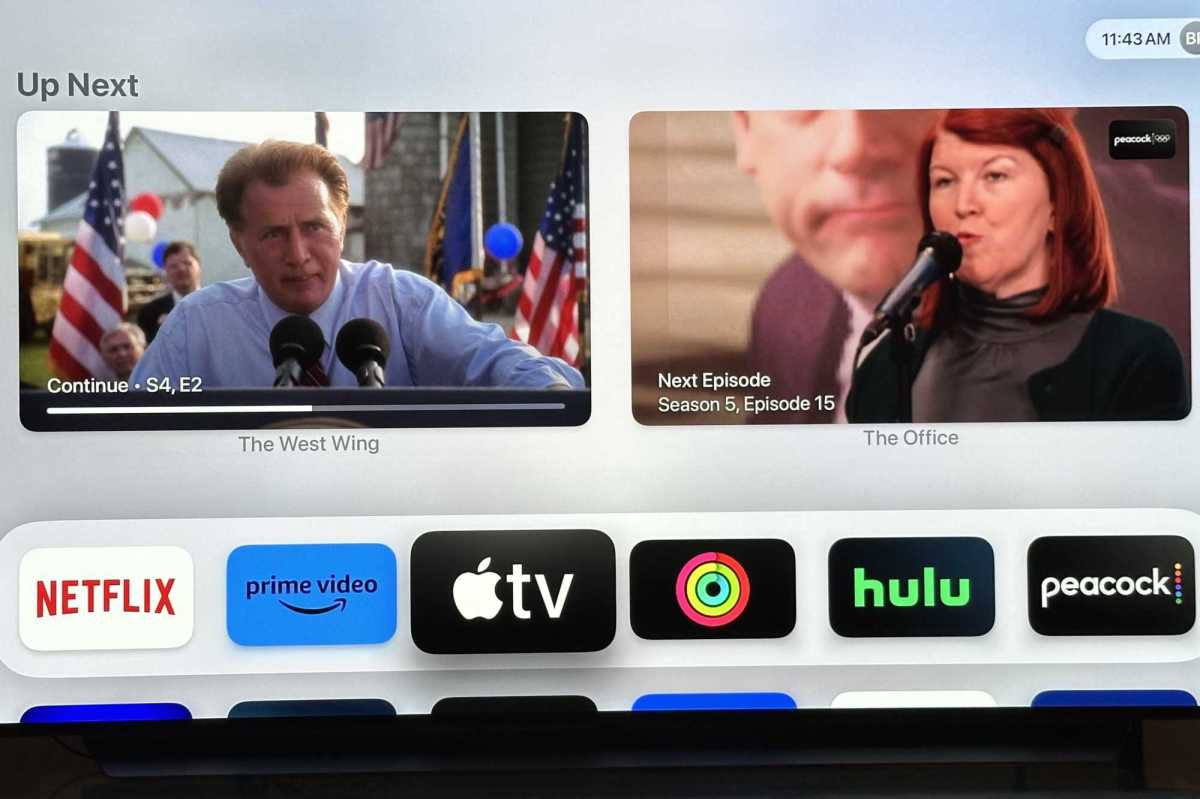
Put your Up Next row back where it belongs.
Ben Patterson/Foundry
Quirk: Auto-play previews have sound, too
One of the more aggravating features of the Apple TV app is its habit of automatically playing a preview—complete with sound—for any show or video that the Apple TV’s cursor happens to be hovering over.
Now, you can’t do anything about the auto-playing videos, but you can mute their sound (you can always scroll up if you do decide you want to hear the preview).
Fix: Silence the auto-playing previews
Go to Settings, click Apps, TV, scroll down to the Video and Audio heading, then toggle Autoplay Video Sound to Off.
Ah, that’s better.
Quirk: Switching from one app to another is a pain
Navigating the Apple TV 4K’s convoluted screens and interfaces can be a tedious process, particularly when it comes to switching from one app to another.
For example, if you’re deep inside the Netflix app and decide you want to check out Hulu, you’ll likely need to click the Back button multiple times to return to the home screen, and then you’ll need to navigate to the Hulu app icon and click that to begin, say, your binge-watching session of The Bear.
Of course, you could just click the TV button to zip back to the home screen (assuming you’ve followed my advice above), although you’ll still need to navigate to the app you want to open.
FIx: Double-click to switch apps
Instead, try this: Double-click the TV button.
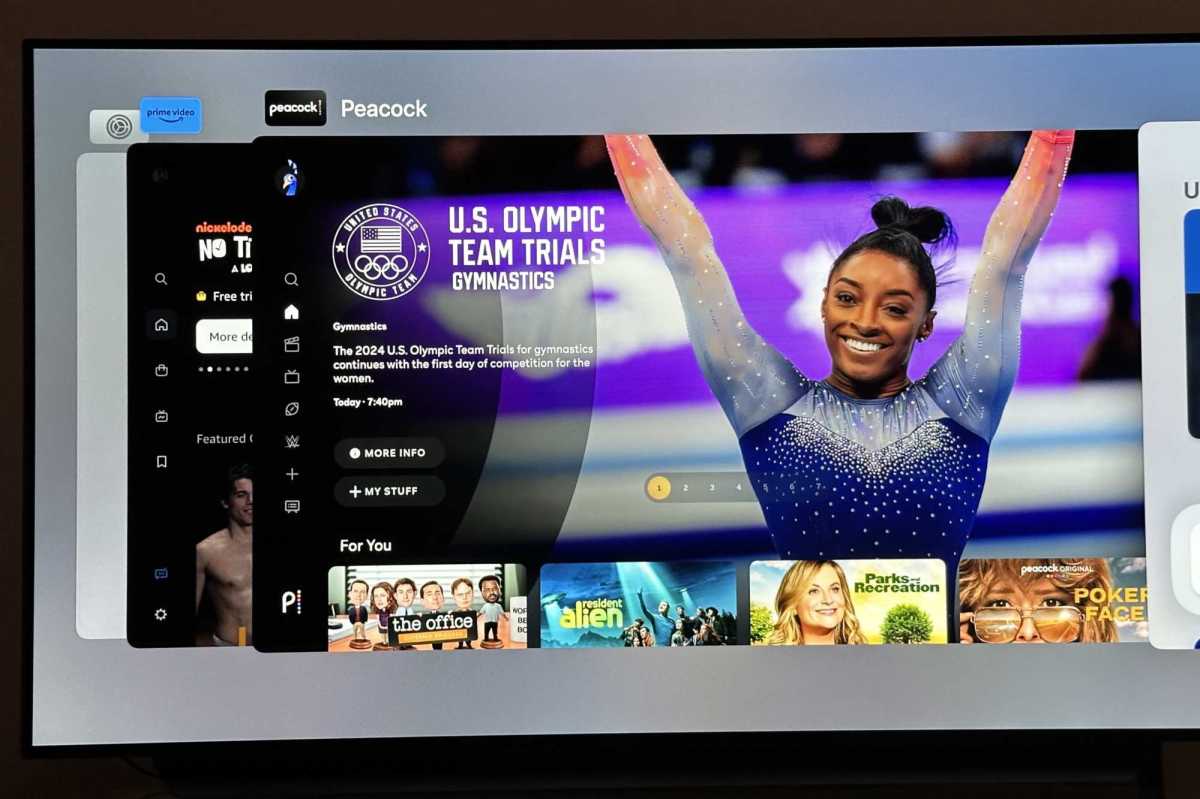
Double-click the TV button to launch the app switcher.
Ben Patterson/Foundry
Doing so will trigger the Apple TV app switcher, which will splay a stack of windows for all your recently opened tvOS apps.
Swipe the Siri Remote’s touch surface to scroll through the windows, then click a window to launch its app. Easy.
This story is part of TechHive’s in-depth coverage of the best media streaming devices.
