


Email is one of those tasks that can take over your workday if you’re not careful.
Whether I’m at my desk or quickly checking from my phone, hours can slip by as I draft, re-draft, and re-send messages, often repeating similar phrases over and over.
It wasn’t until I dug into Gmail templates that I realized how much time I could save. Here’s how I experimented with Gmail templates for professional, creative, and personal communication.
How to create Gmail templates
Before you can rely on templates to save time, you’ll need to activate the feature since it’s not on by default.
- Open Gmail on your browser and sign in to your account.
- Click the gear icon.
- Click See all settings.
- Go to the Advanced tab.
-
Find Templates and select Enable.
- Click Save changes.
Here’s how to create your template:
- Open a new Compose window.
- Type the message you want to reuse.
- Click the three-dot menu icon at the bottom.
- Select Templates.
- Click Save draft as template.
-
Click Save as new template.
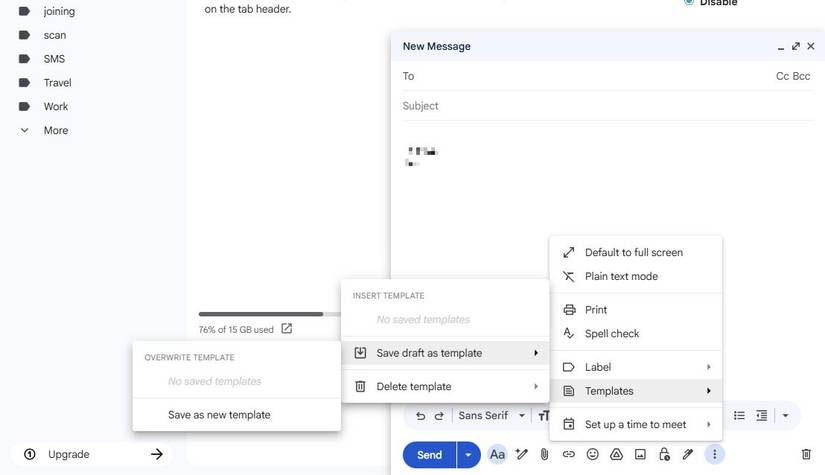

To use a template, open the Compose window. Click the three-dot menu at the bottom, click Templates, and choose your template.
You can only use templates in Gmail on the web. The mobile app doesn’t support the feature.
Here’s a look at the templates I use regularly and why they save me a significant amount of time.
Quick replies to repetitive questions
Work smarter, not harder

The most clear use for Gmail templates is responding to common questions.
Clients and colleagues often ask the same logistical queries: meeting availability, pricing details, or instructions for shared resources. Instead of typing the same response repeatedly, I created some quick-reply templates.
For instance, if you freelance, run a side hustle, or split bills with friends and family, you’ve probably typed your payment details more times than you can count.
Instead of digging through old emails or retyping your account info, a Gmail template can make the process painless.
All you need to do is create a single template with your standard billing note and drop it into an email with a click. You can even create different versions: one for friends/family, one for clients, and one for follow-ups for late payments.
Rescheduling a meeting
Stay prepared with a polished message

No one likes the back-and-forth that happens when you need to reschedule a meeting. It’s easy to waste time drafting polite explanations, suggesting new times, and hoping everyone agrees.
Here, Gmail templates can be a lifesaver. By keeping a ready-to-go draft, you can quickly notify colleagues or clients without stressing over wording each time.
It strikes the right balance between professionalism and flexibility, while avoiding unnecessary details that could drag out the conversation.
I’ve also found it handy to keep two or three versions of this template saved: one for internal team meetings, one for client calls, and one more casual for quick check-ins.
That way, I can pick the right one, adjust the time, and click Send. What used to take five minutes now takes less than thirty seconds.
Sending files you often share
No more digging through your documents

Attaching the same PDF, contract, or onboarding guide multiple times a week gets tedious. Whether it’s a sales deck or instructions for a recurring project, digging through folders to find the correct file eats up precious minutes.
Instead of rewriting the same short message and digging through folders to find the correct attachment, you can create a template that’s ready to go with both text and links included.
After you save it as a template, all you do is personalize the name. That way, you don’t have to rewrite the email body every time.
If you’re using Google Drive, you can skip attachments altogether by embedding the link in your template.
Either way, the process turns into a 15-second task instead of a five-minute chore.
Polite decline for invitations
Turn down invites gracefully

Declining invitations to meetings, events, or casual get-togethers can be surprisingly stressful. You don’t want to sound dismissive, but you also don’t want to over-explain.
A Gmail template helps you politely decline without spending extra time agonizing over wording.
By saving a short, kind, and professional response, you can handle invitations with grace while keeping your inbox moving. All you need to do is personalize the name and, if you’d like, add a quick reason.
Package pickup and delivery instructions
One template to avoid missed packages

If you frequently receive deliveries or need to arrange for packages to be picked up, typing directions or preferences every time gets annoying.
A Gmail template makes this simple: you can keep your address, gate codes, and special instructions in a ready-to-send draft. You only must modify the details depending on the carrier or order.
It comes in handy when dealing with UPS, FedEx, USPS, or local couriers. Instead of scrambling to remember what to include, you can paste a polished, clear message in seconds.
Weekly updates
Save time on status reports

Having a template saves a significant amount of time if you send regular updates to your boss, team, or clients.
Instead of rewriting the same structure each week, you can keep a ready-made outline where you fill in the new details. It makes your emails look consistent and professional while also reducing your inbox time.
For example, you might send a Friday recap to your manager with progress highlights, blockers, and next steps. With a Gmail template, all you need to do is update the bullet points.
Event reminders
So you don’t have to rewrite them

If you organize anything regularly, whether it’s a team check-in, a volunteer meeting, or a virtual book club, chances are you’ve typed reminders more times than you’d like to admit. Gmail templates make this process effortless.
Instead of rewriting the same reminder email, you can set up a reusable template with the essential details and tweak the date or time before sending.
It’s not only faster but also ensures your reminders stay consistent, so no one misses crucial information.
Templates have made a big difference in my email routine
Gmail templates may seem like a small trick, but they quickly become indispensable when you start using them.
From quick replies to repetitive questions, rescheduling meetings, sending files, or reminding people about events, templates save both time and mental energy.
The beauty is that you don’t have to sacrifice personality or professionalism. With a few well-crafted templates, your emails remain clear, polite, and consistent, while cutting your inbox time in half.
For anyone who spends significant time in Gmail, experimenting with templates is a game-changer.
By relying on a select few templates, I found it much easier to manage email without feeling overwhelmed or abandoning my system entirely.
